How to restrict access to Azure AD enterprise applications?
Last updated: June 18, 2026
Overview
You can enable user assignment requirements for Azure Active Directory (Azure AD) enterprise applications to restrict access to only authorized users.
By default, many enterprise applications in Azure AD are accessible to all users within your tenant. While convenient, this can pose a security risk. Enabling the user assignment requirement changes this behavior from an allow all model to a deny all, allow specific model. After this change, only users or groups you've explicitly assigned will be able to access the application.
Prerequisites
To perform this task, you must have one of the following roles:
Application Owner (for the specific enterprise application)
Global Administrator
Application Administrator
Cloud Application Administrator
Steps
Sign in to the Azure Portal.
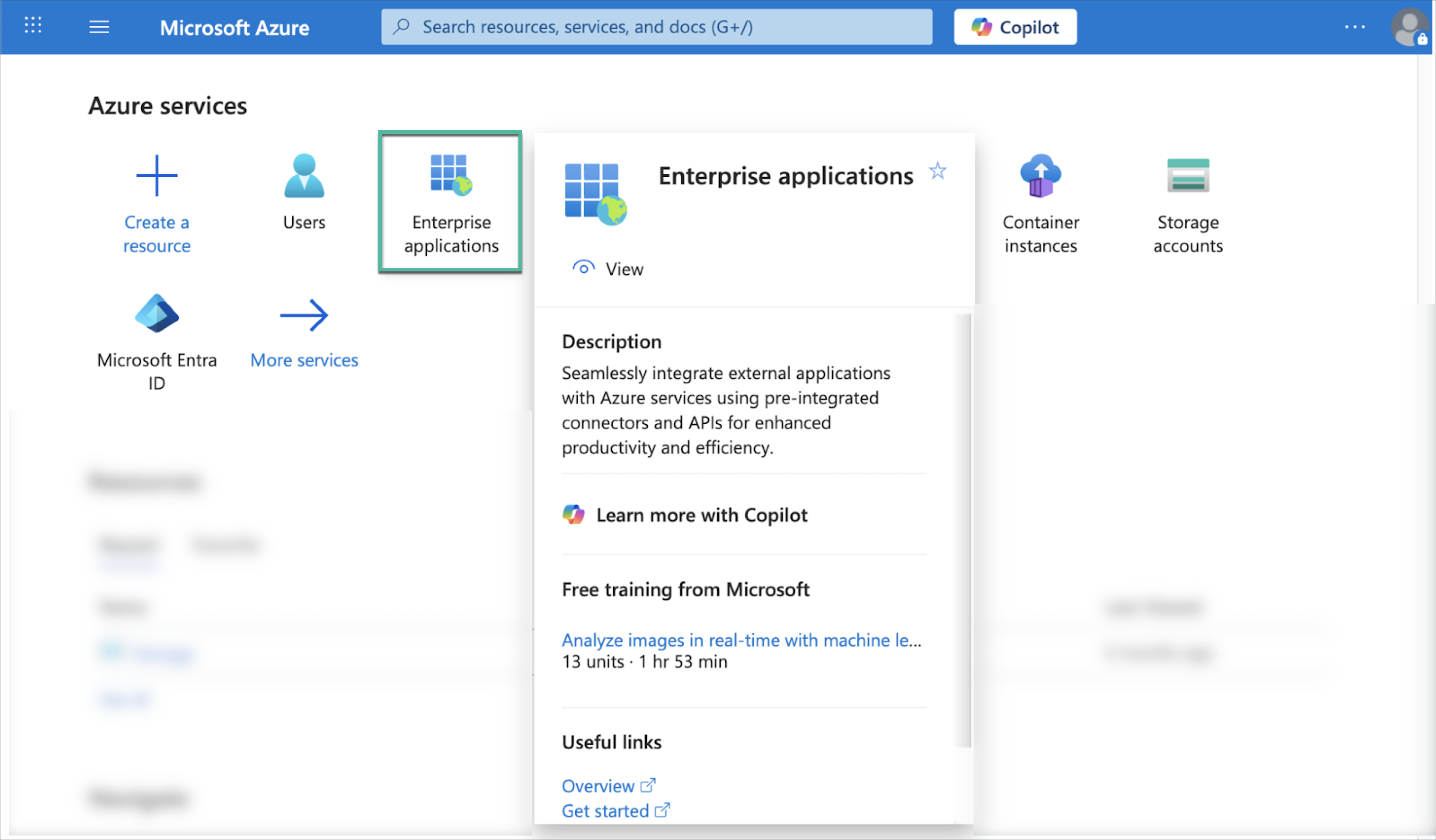
Navigate to Enterprise Applications.
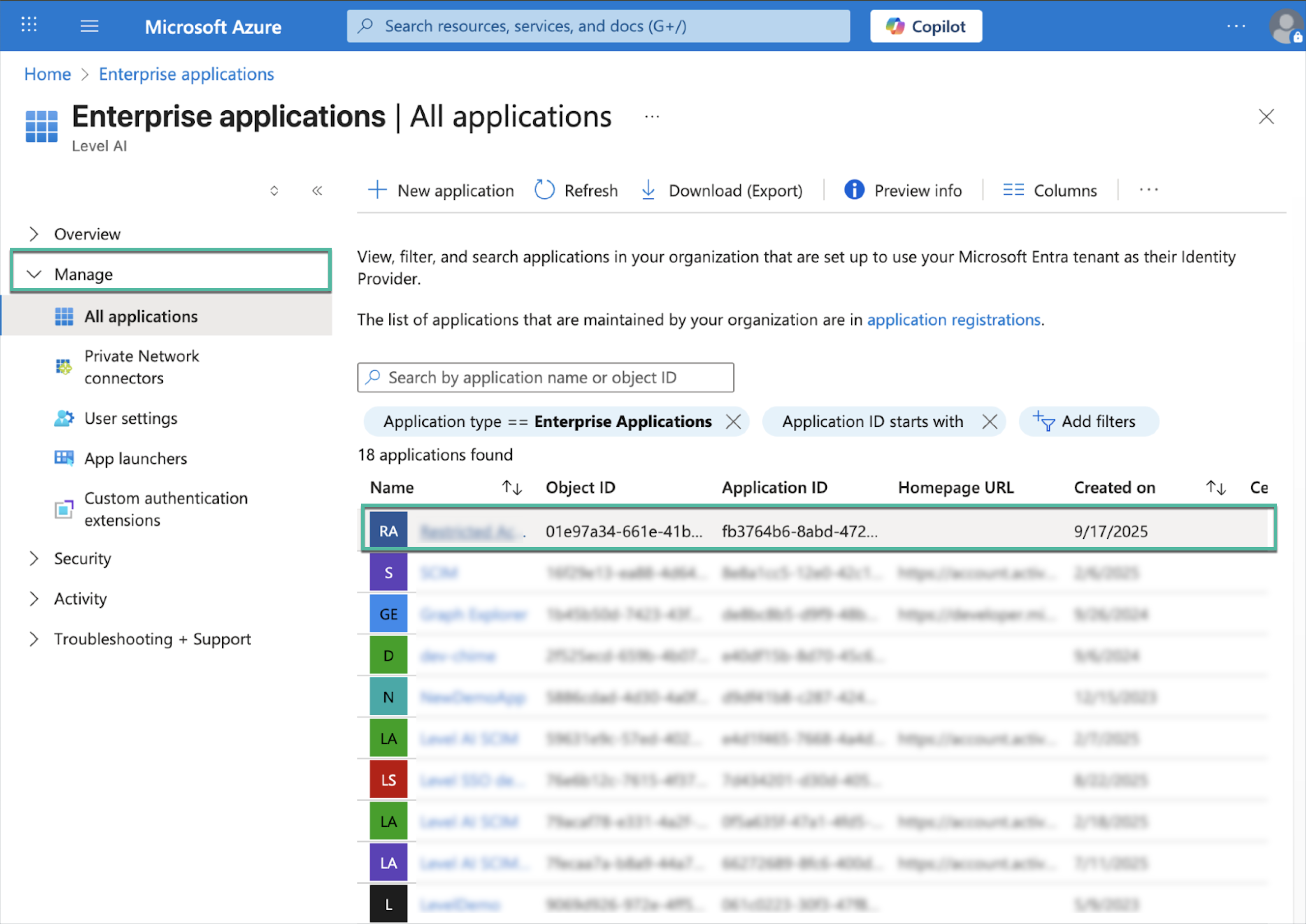
Under Manage, choose the application you want to configure.
Configure the User Assignment Setting:
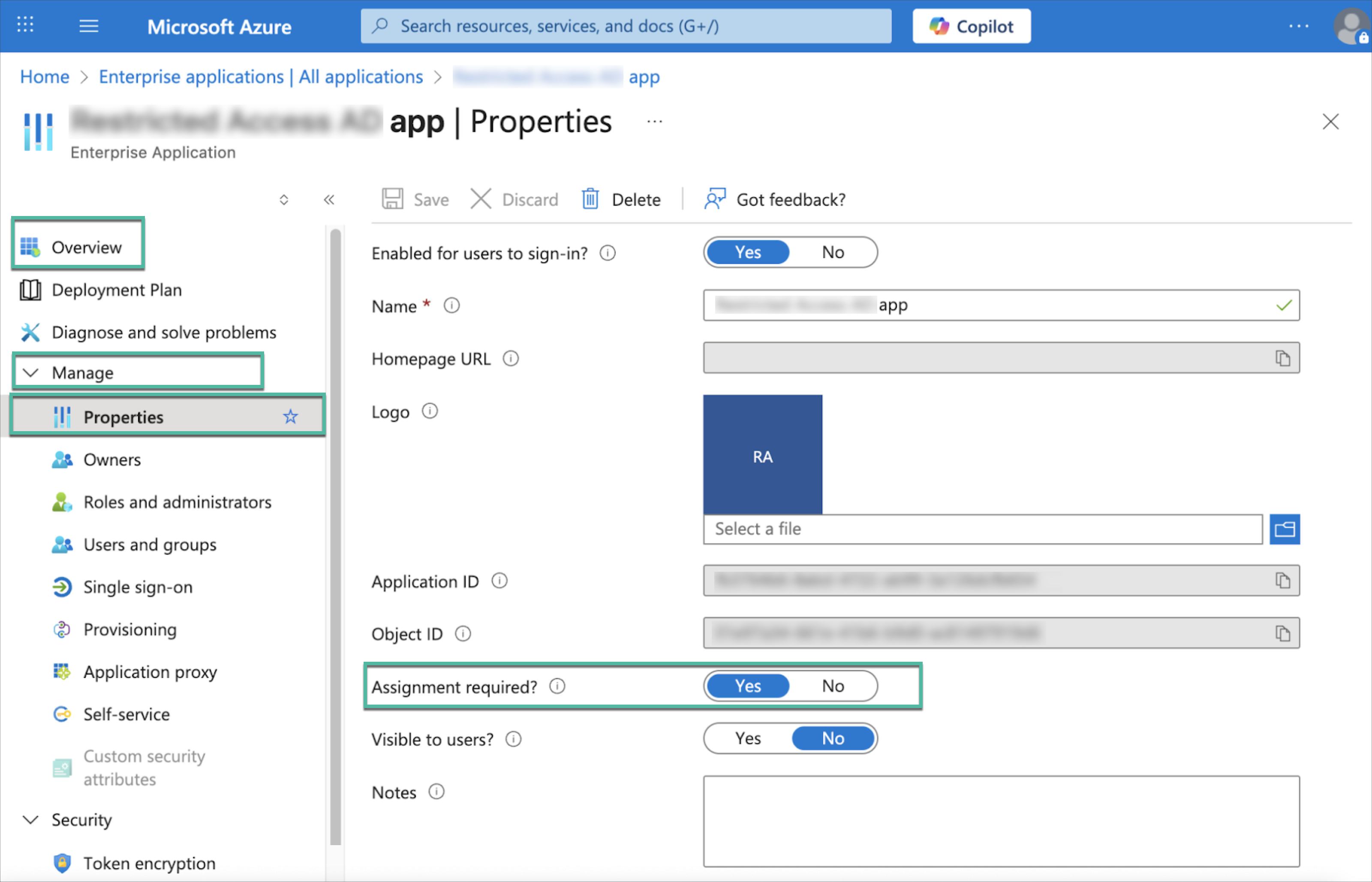
On the application's Overview page > navigate to Manage > select Properties.
Locate the Assignment required? setting and set the toggle to Yes
IMPORTANT
- When you enable this setting and save your changes, access will be immediately restricted. Any user who has not been explicitly assigned to the application will be unable to sign in or get an access token.
- Global Administrators will retain access to all applications irrespective of assignment status.
Click the Save button to apply the new setting. The application's access is fully controlled by assignment with immediate effect.
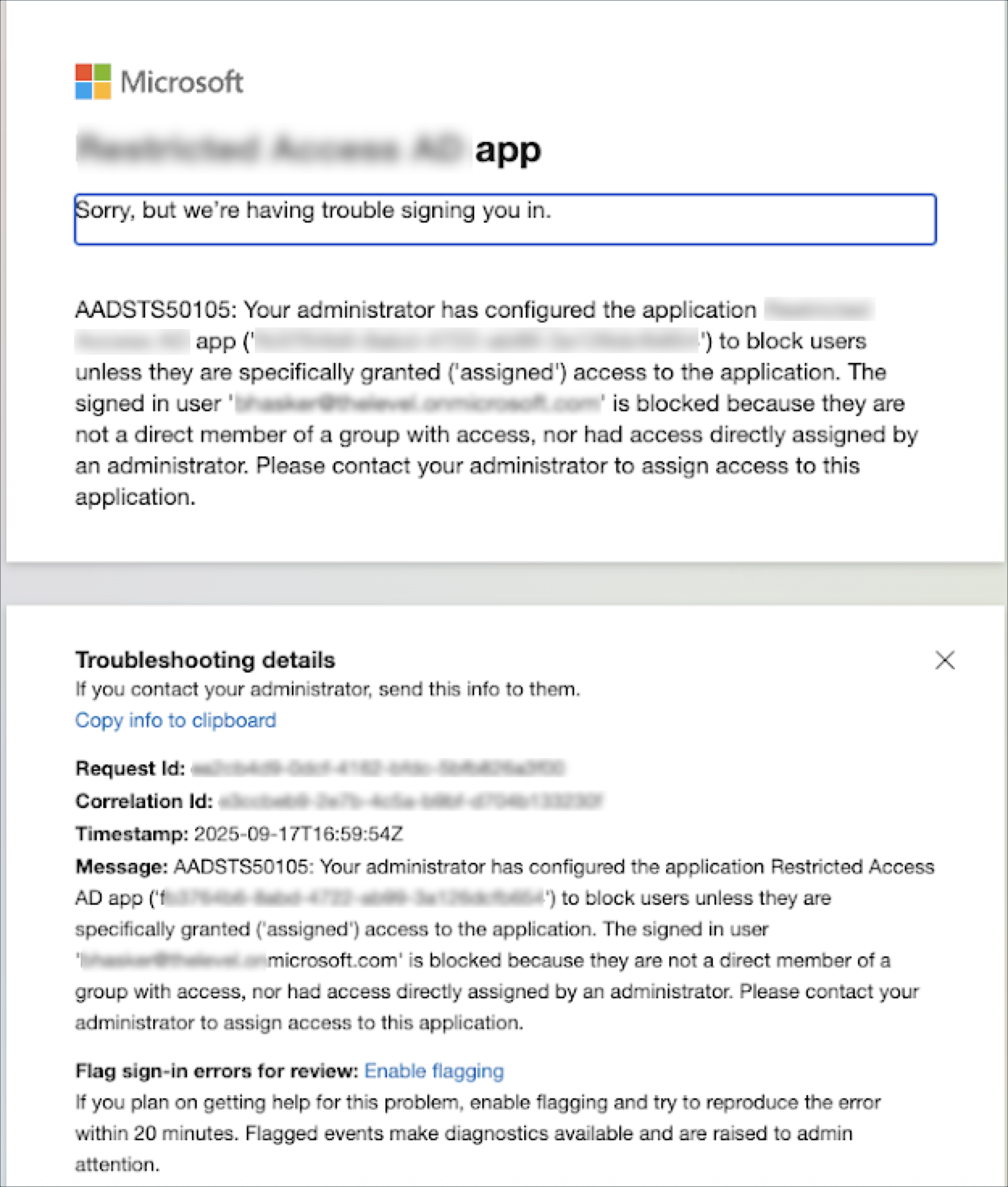
Unassigned users will see an Access denied error message, as illustrated below, when they attempt to use the application.