Setting up OneLogin Single Sign-on in Level AI
Last updated: June 21, 2026
The Level AI - OneLogin SSO enables members of your contact center team to seamlessly log into your Level AI without having to create credentials separately for Level AI. Additionally, your IT team can easily onboard new members into Level AI.
Configuration Steps:
Navigate to the OneLogin login page and enter your company's OneLogin domain. Proceed with the authentication with the username/password combination.
Get into the OneLogin Administration portal and navigate to the submenu Applications from the Applications tab.
Click on Add App to add a new application for Level AI.
Search for OpenId Connect (OIDC) from the search section.
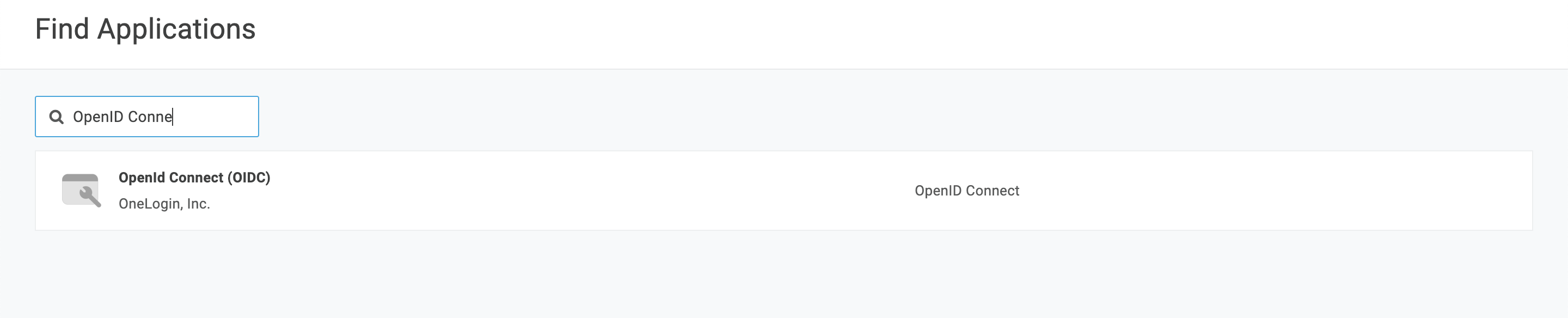
Name the app and click Save.
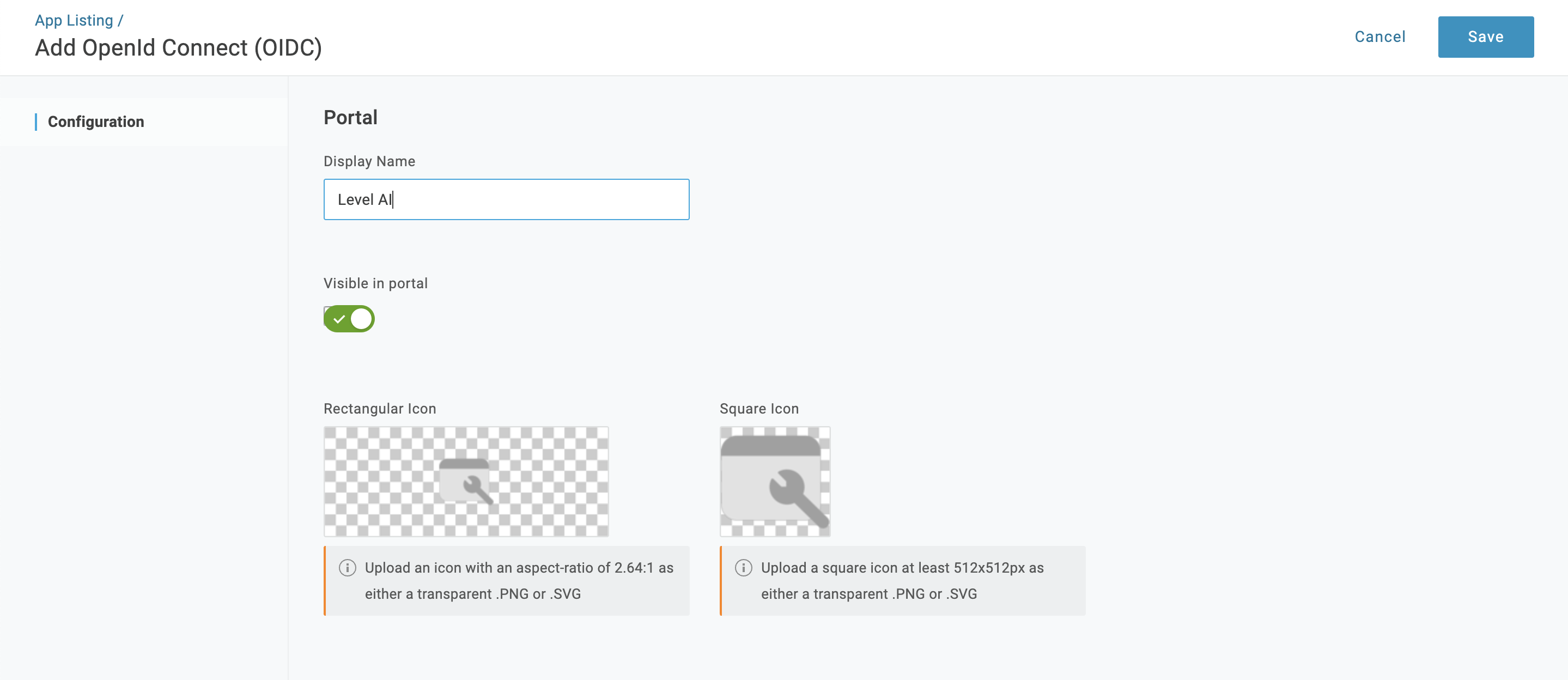
On the Configuration tab, enter the Login URL as https://mydomain.thelevel.ai and Redirect URI (callback endpoint) as https://prod-api.thelevel.ai/onelogin/callback,https://prod-api.thelevel.ai/onelogin/callback/
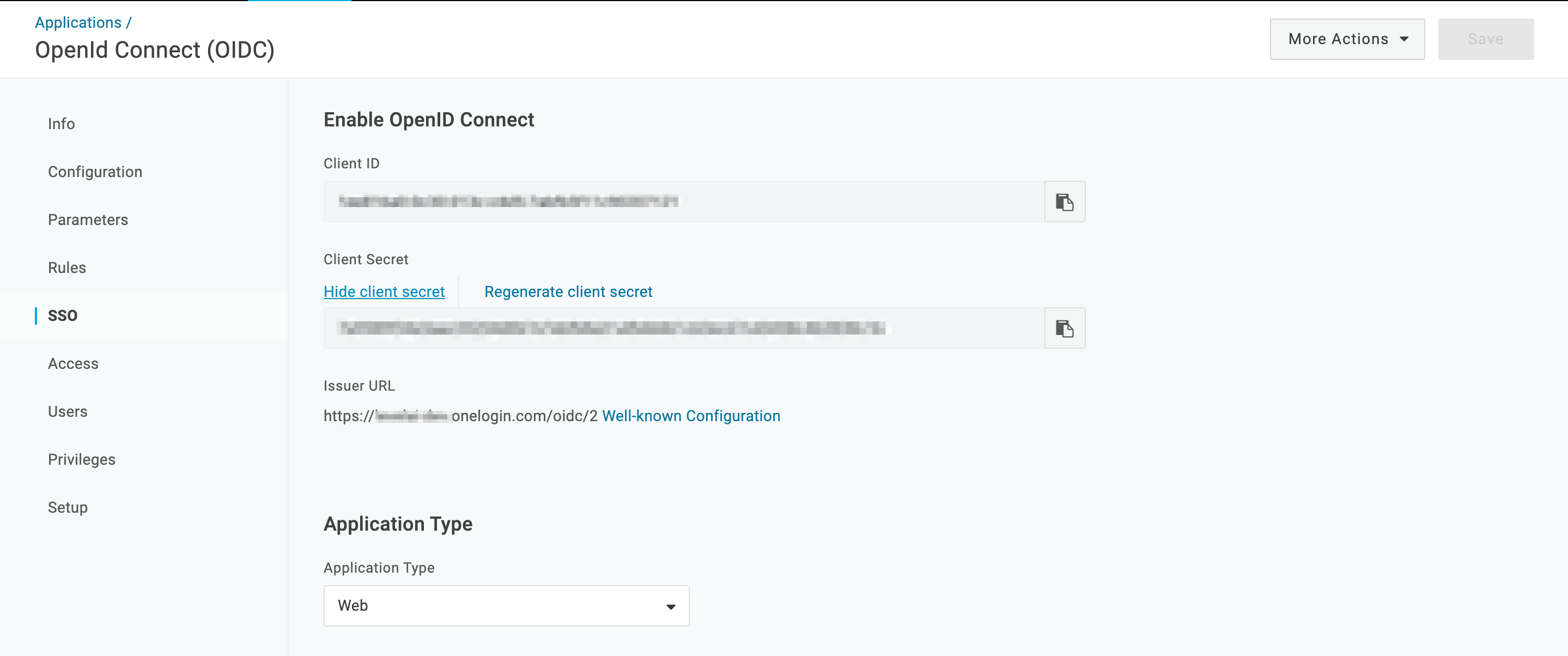
On the SSO tab, copy the Client ID and Client Secret values. These will be used in the next step in Level AI to complete the SSO.
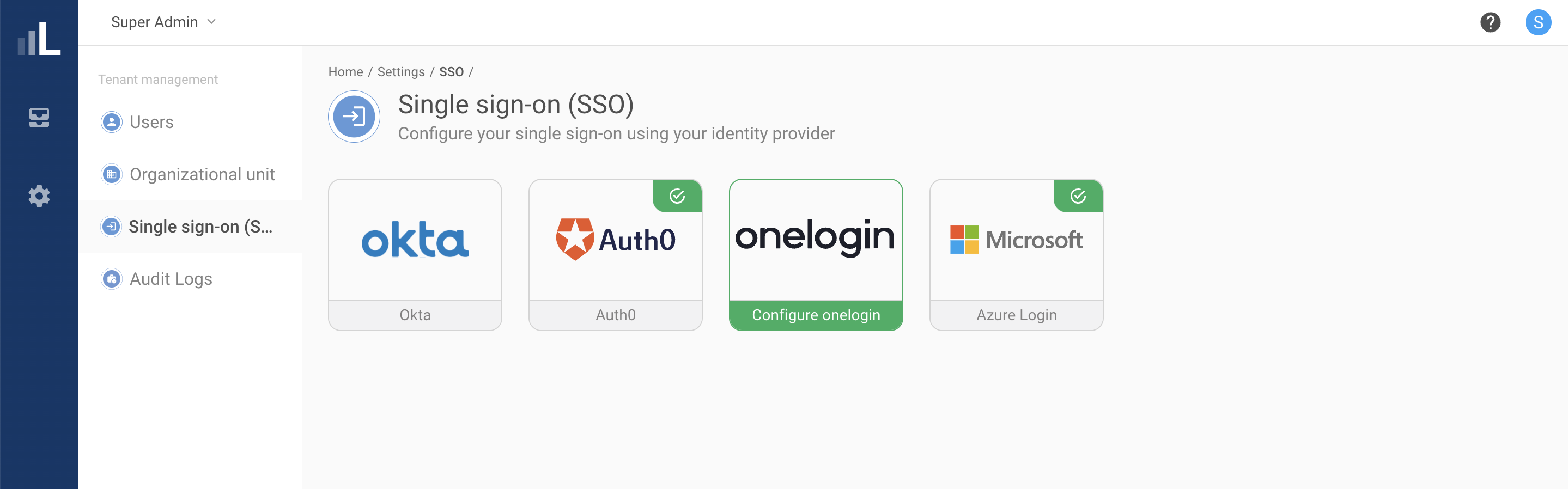
Login to your Level AI instance as a Super Admin and navigate to Settings -> Single sign-on (SSO).
Click on the OneLogin app listed.
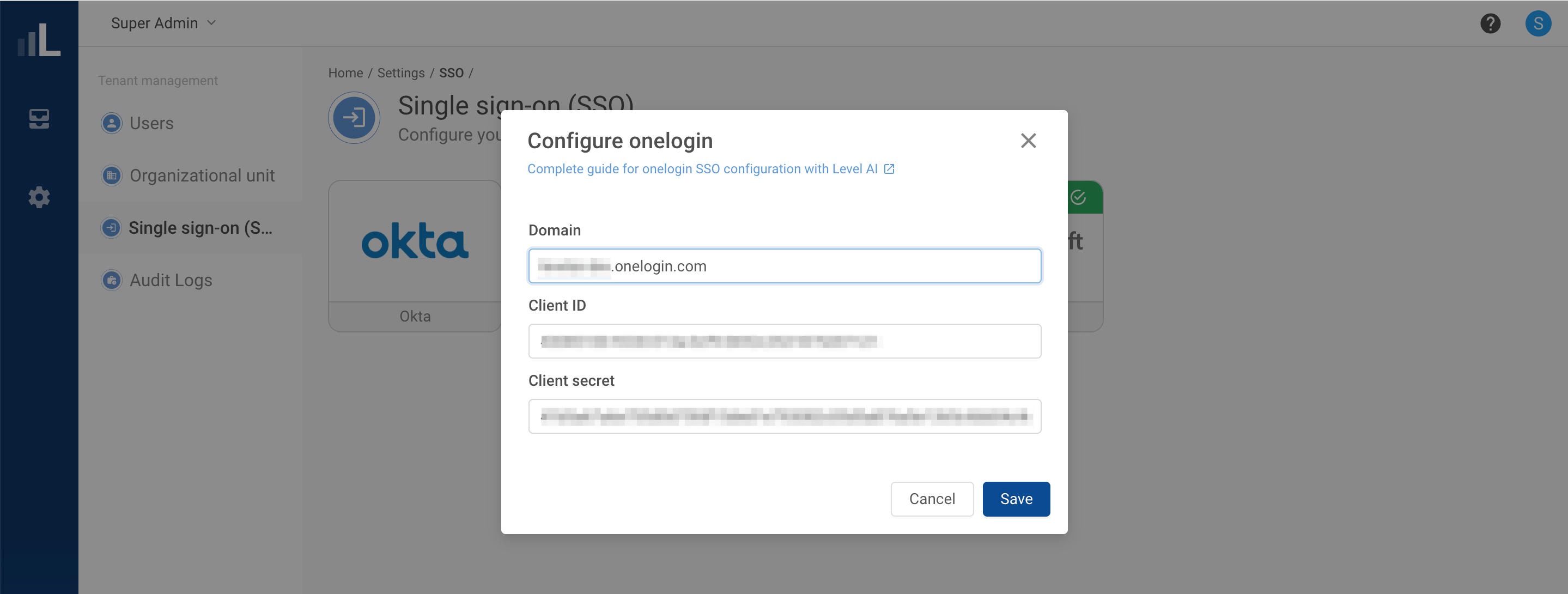
Enter the Domain, Client ID and Client secret from your configured app on OneLogin and click on Save.
Domain = should be something similar to mydomain.onelogin.com (should be available as a part of Issuer URL in Okta; refer step 7)
Client ID = same as that of Client ID in Okta (refer step 7)
Client secret = same as that of Client Secret in Okta (refer step 7)
Once set up, users can now login to Level AI via their One Login credentials.