Five9 - LevelAI Integration
Last updated: June 21, 2026
As an Admin or Super Admin, you can independently configure the Five9 integration within your Level AI instance. This is a self-service option and eliminates the need to contact your Level AI Technical Account Managers (TAMs) for initial setup.
Before You Begin
It's crucial to complete the Five9 VCC (Virtual Contact Center) and SFTP (Secure File Transfer Protocol) configurations before proceeding with these steps. Instructions for these prerequisite setups can be found in the following resources:
📄 Five9 VCC Setup for Chat/SMS/Email channels
📄 Five9 VCC Setup for Voice Channel
(A) Initiating the Five9 Integration
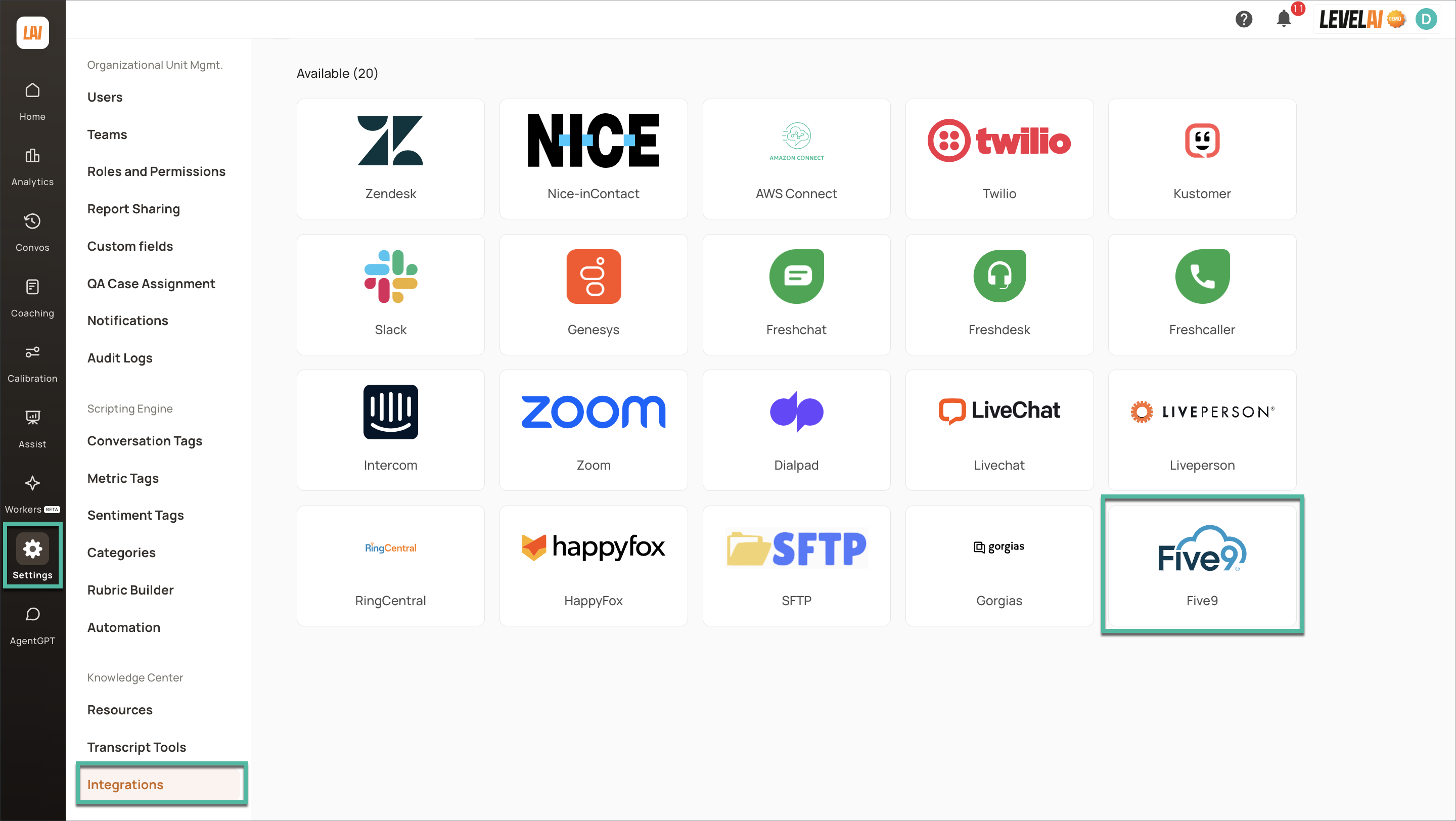
In the left navigation bar, click Settings > click Integrations.
Locate the Five9 integration among the available options and click it to initiate integration.
(B) Connecting Five9 to your Level AI Instance
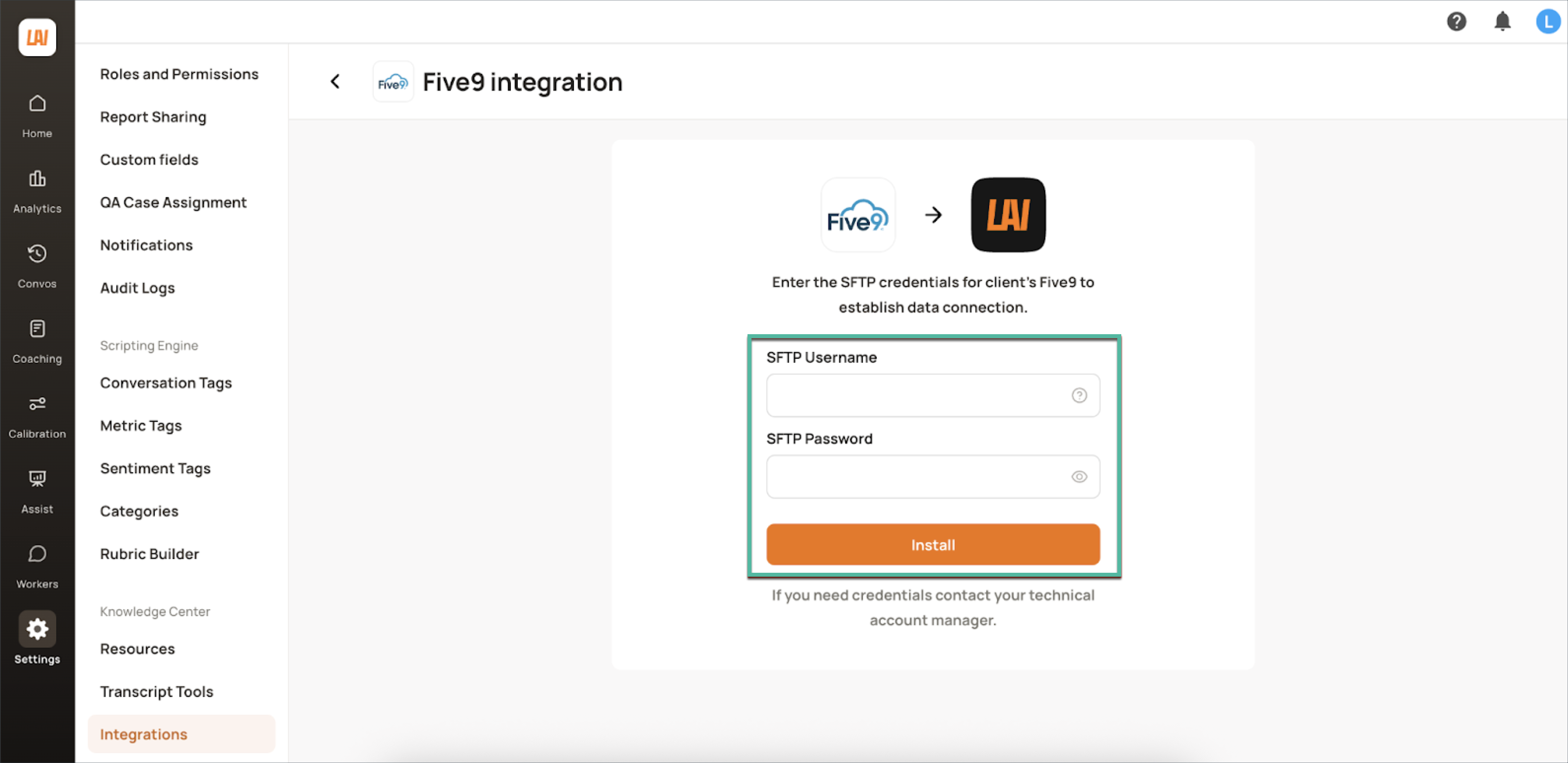
Enter the SFTP Username and password. If you don't have these credentials, please contact your Level AI TAM.
Click Install.
(C) Configuring Data Ingestion Parameters
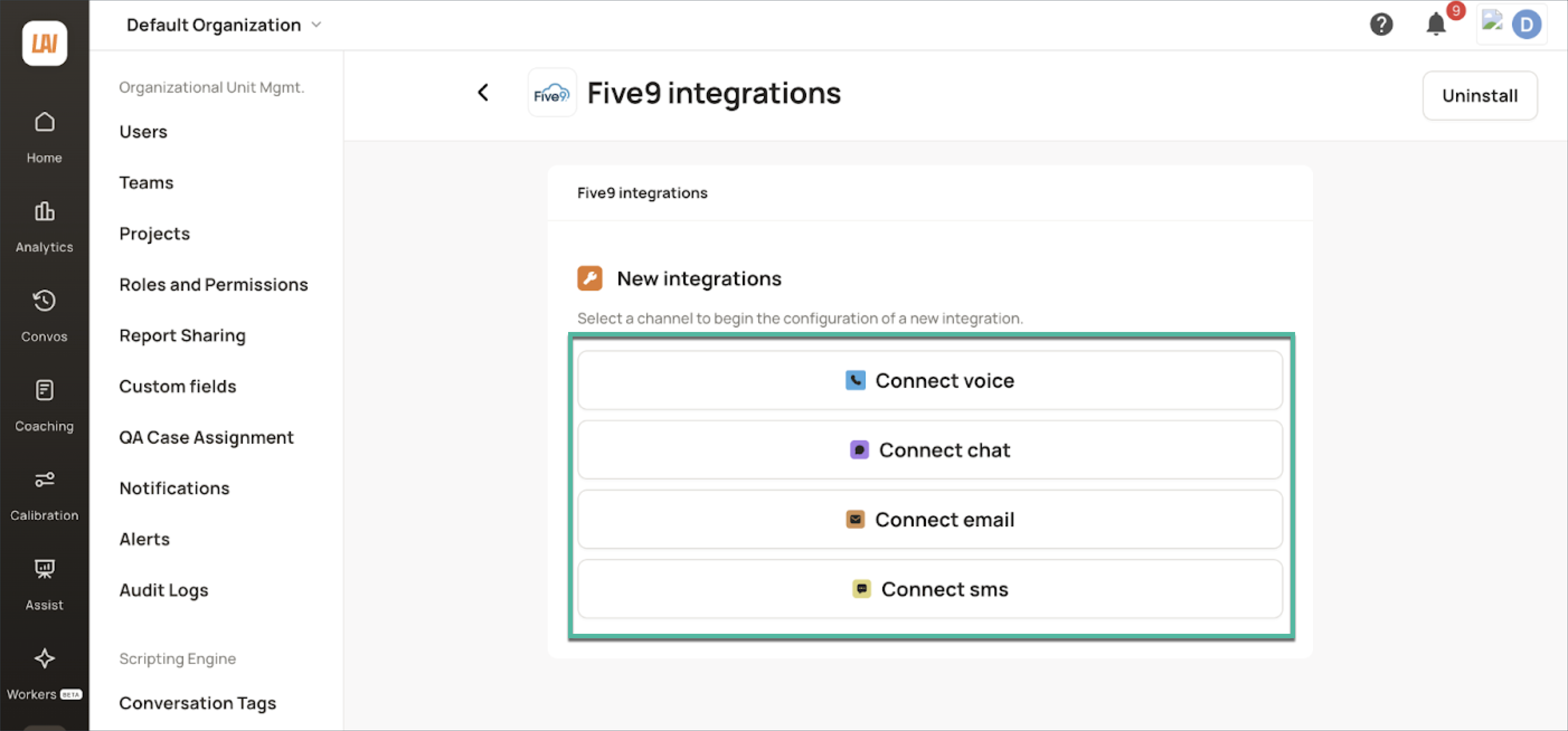
After connecting, you can select and configure the specific Five9 channels you wish to import into Level AI.
Configuring Voice, Chat, Email, SMS Channels
Click
Connect Voice to configure the voice channel.
Connect Chat to begin configuring the chat channel.
Connect Email to begin configuring the email channel.
Connect SMS to begin configuring the SMS channel
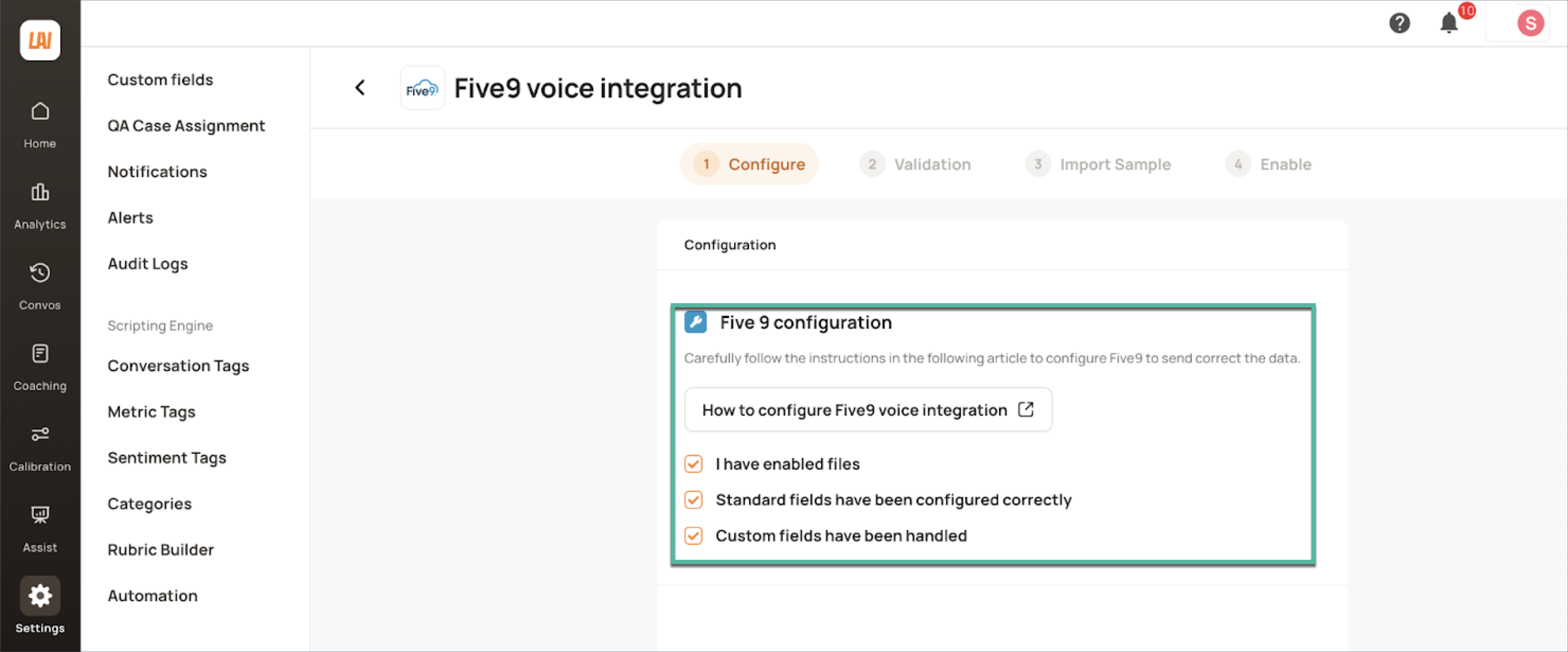
Ensure the following conditions are met:
You have set up Five9 VCC to export voice calls/ chat/ email data to your SFTP bucket.
Voice/ Chat/ Email files are enabled, present, and actively flowing into the SFTP bucket you configured earlier.
All standard fields are included in your Five9 metadata reports.
Any required custom fields have been exported to the SFTP bucket.
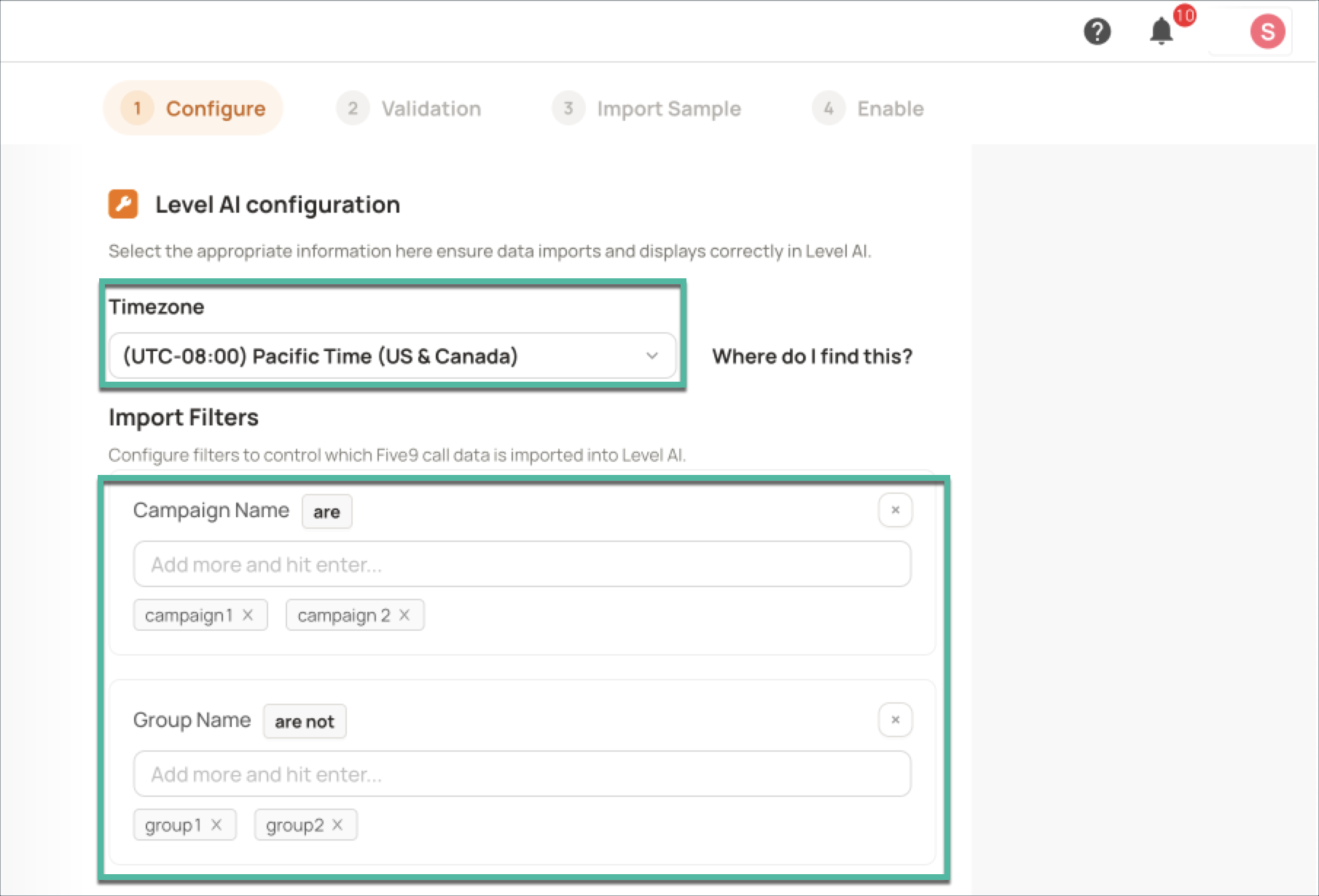
Provide the timezone of your Five9 instance. If you're unsure where to find this, click the Where do I find this? link for instructions.
To control which calls/chats/ emails are imported, set up filters based on the following attributes. Press Enter after typing each name to store it:
Campaign Name
Agent Group Name
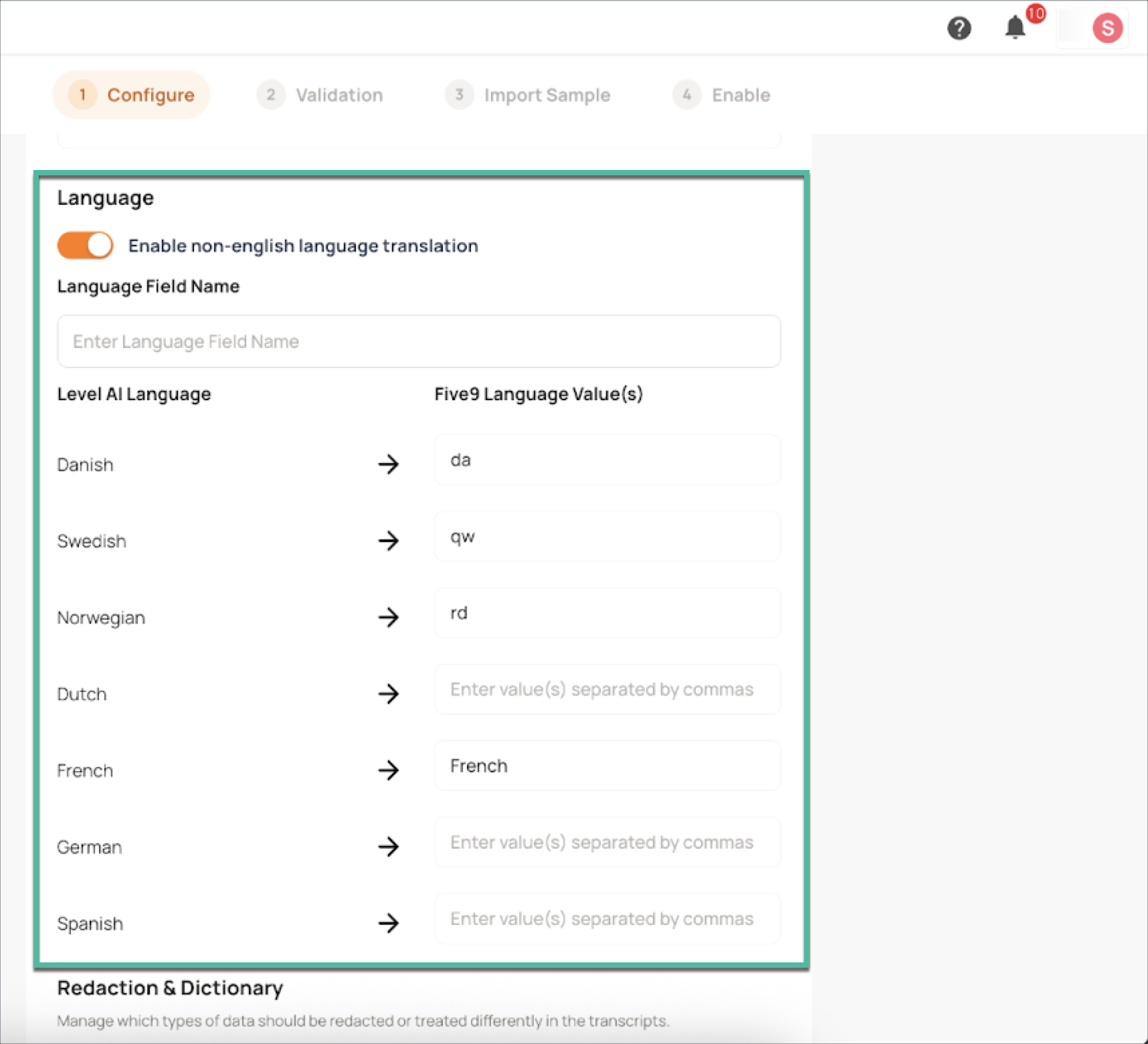
Enter the field name that contains the language code for the voice call/ chat/ email conversations.
For each language, enter the corresponding code that should be matched with the language field value.
You can add multiple codes by separating them with commas.
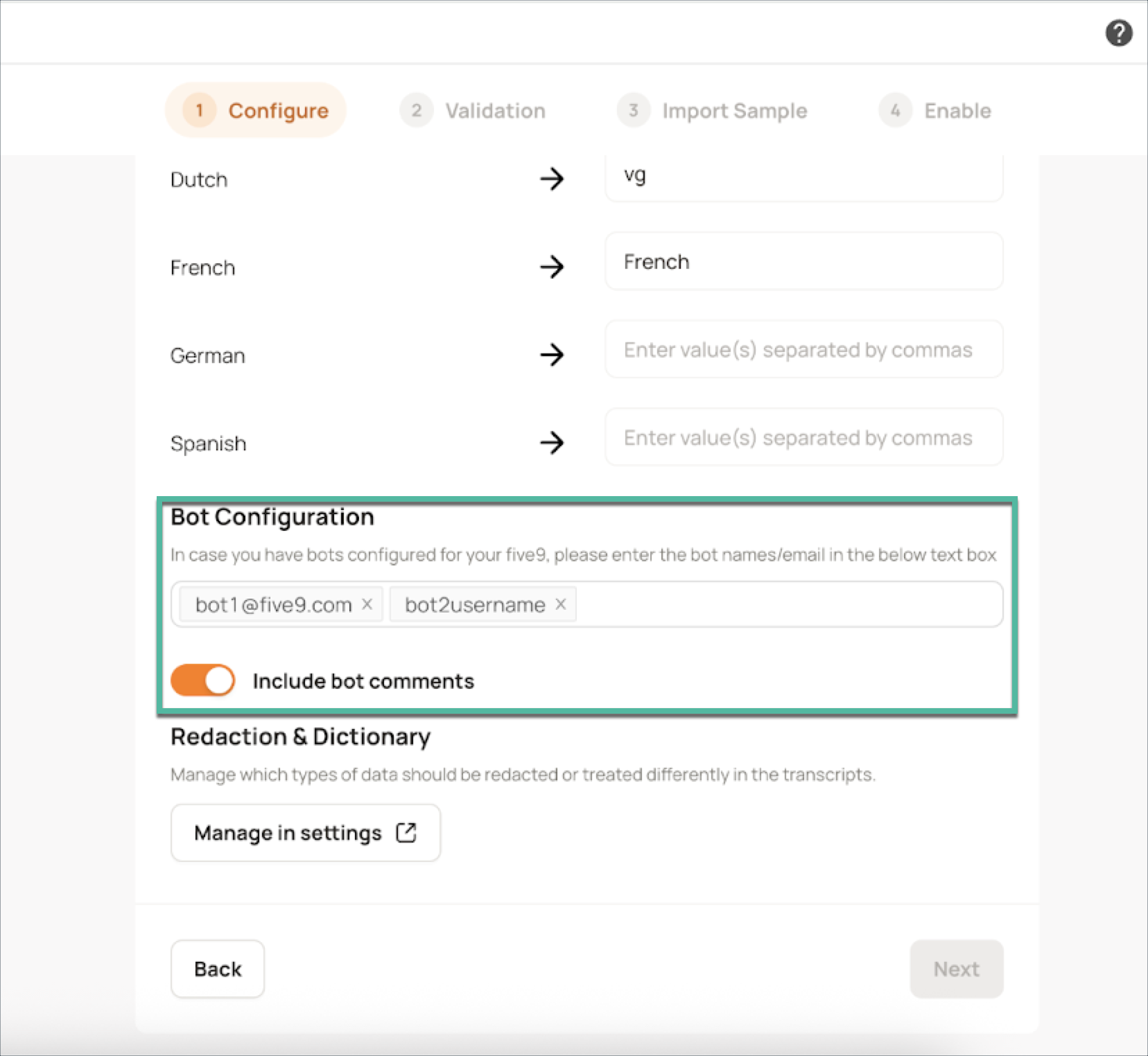
For your Chat, Email and SMS channels, you can additionally configure Five9 Bots conversations:
Configure Five9 bots by entering their username(s) or email address(es).
You can optionally include bot comments; this will display bot comments within the conversations.
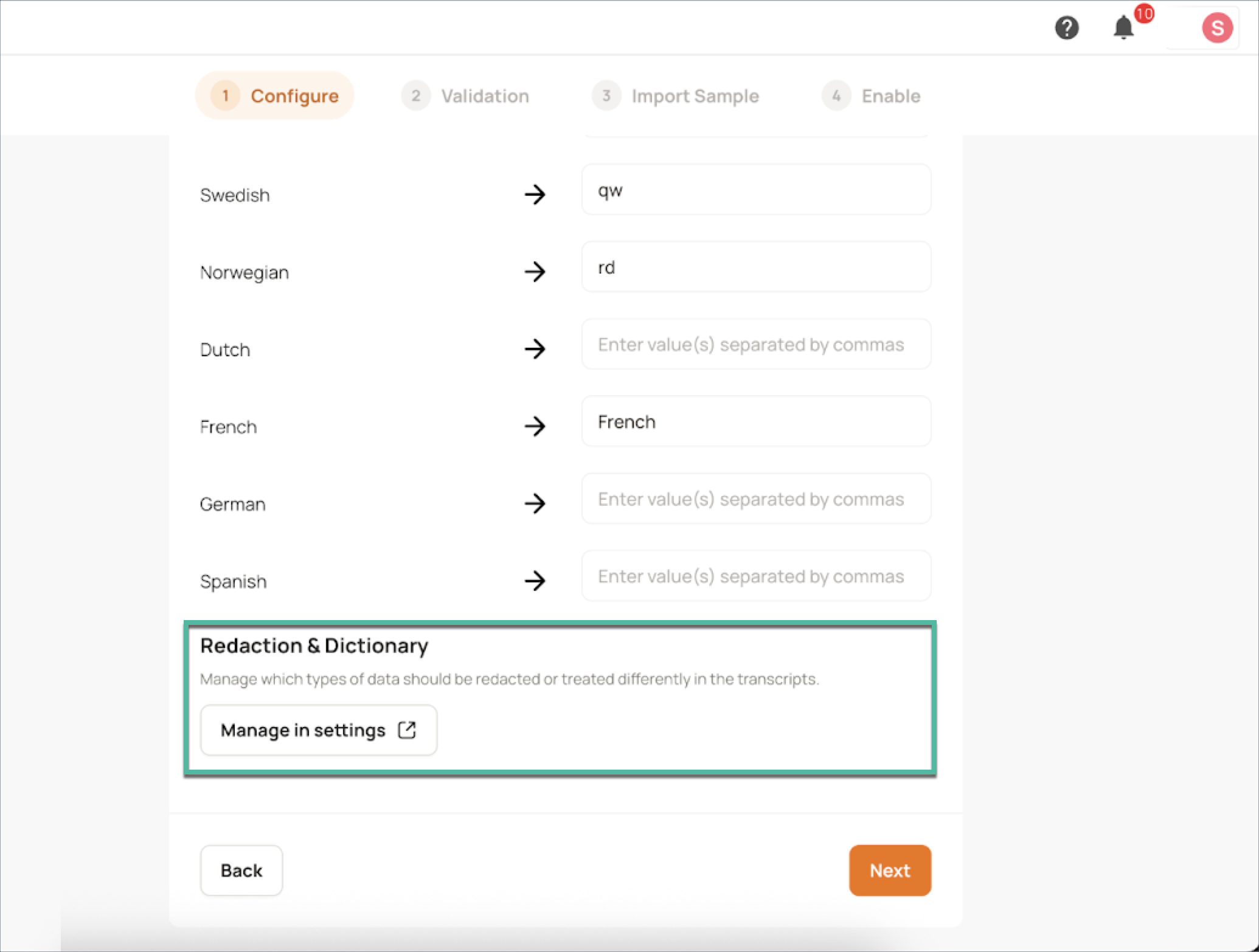
To manage redaction and booster words, under Redaction and Dictionary, click the Manage in settings button. Refer to 📄 Transcript Tools: Data Redaction and Booster Words.
Validation
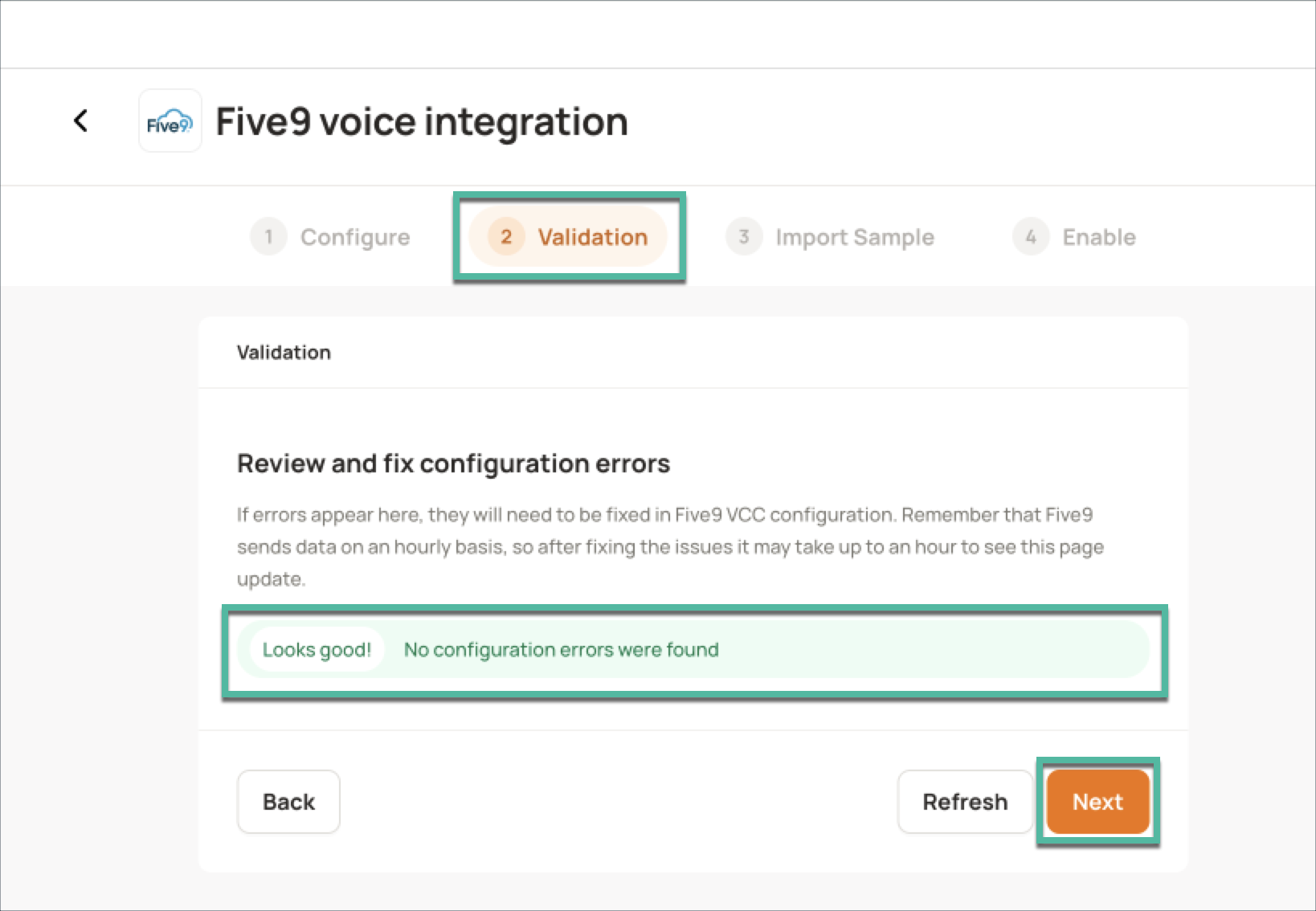
Check the Validation errors section. If any errors appear, resolve them in your Five9 VCC settings using the provided documentation.
If you make changes to your VCC, click Refresh to re-run the validations.
If no validation errors are present, click Next.
(E) Importing Sample Data for Verification
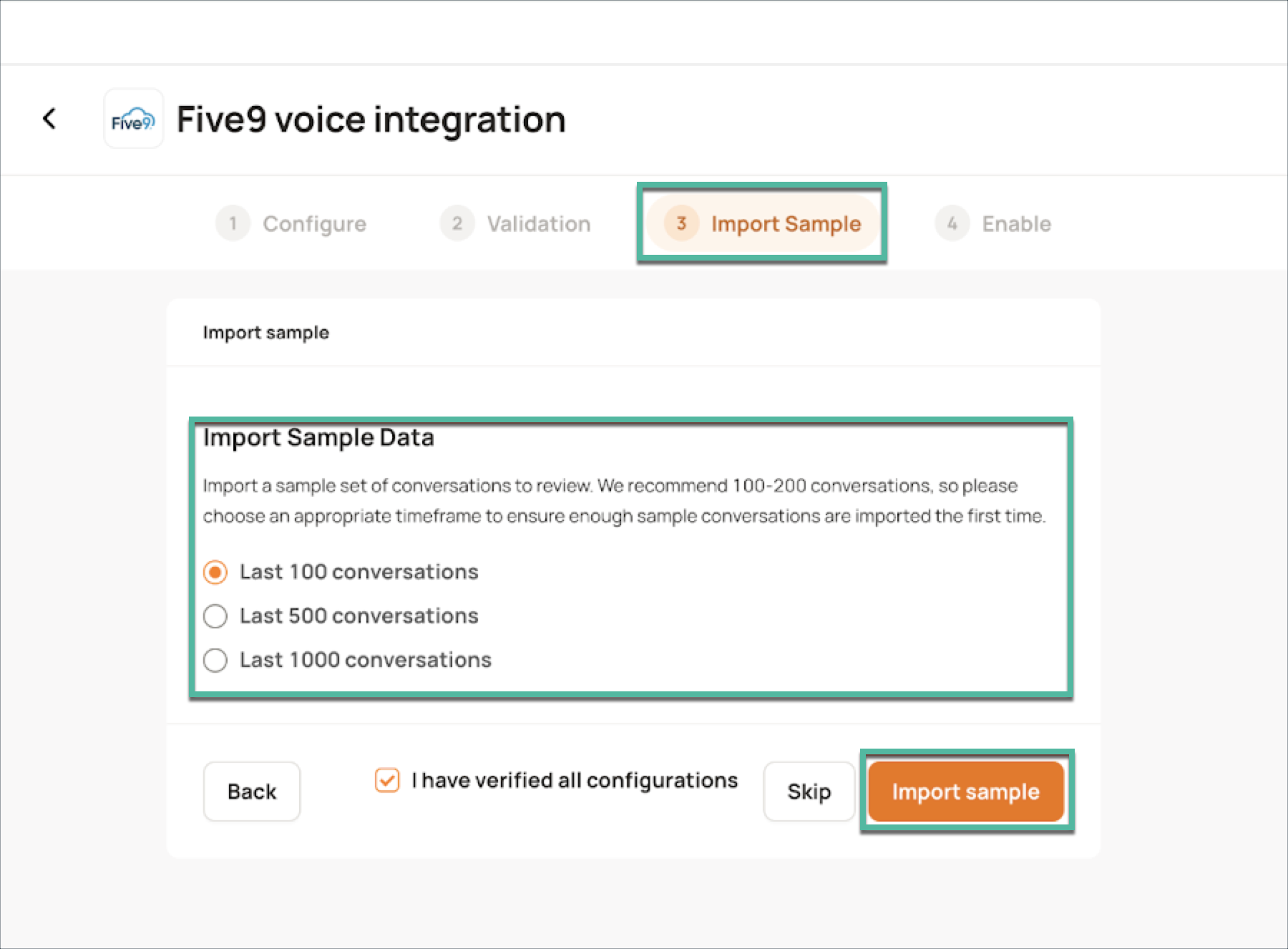
Before fully enabling the integration, it is strongly advised to import a sample of your Five9 data. This allows you to verify your configured filters and ensure the data is being ingested as expected.
Choose the desired number of conversations to import.
Allow approximately 30 minutes for the conversations to be imported after clicking Import Sample.
(F) Reviewing and Enabling the Integration
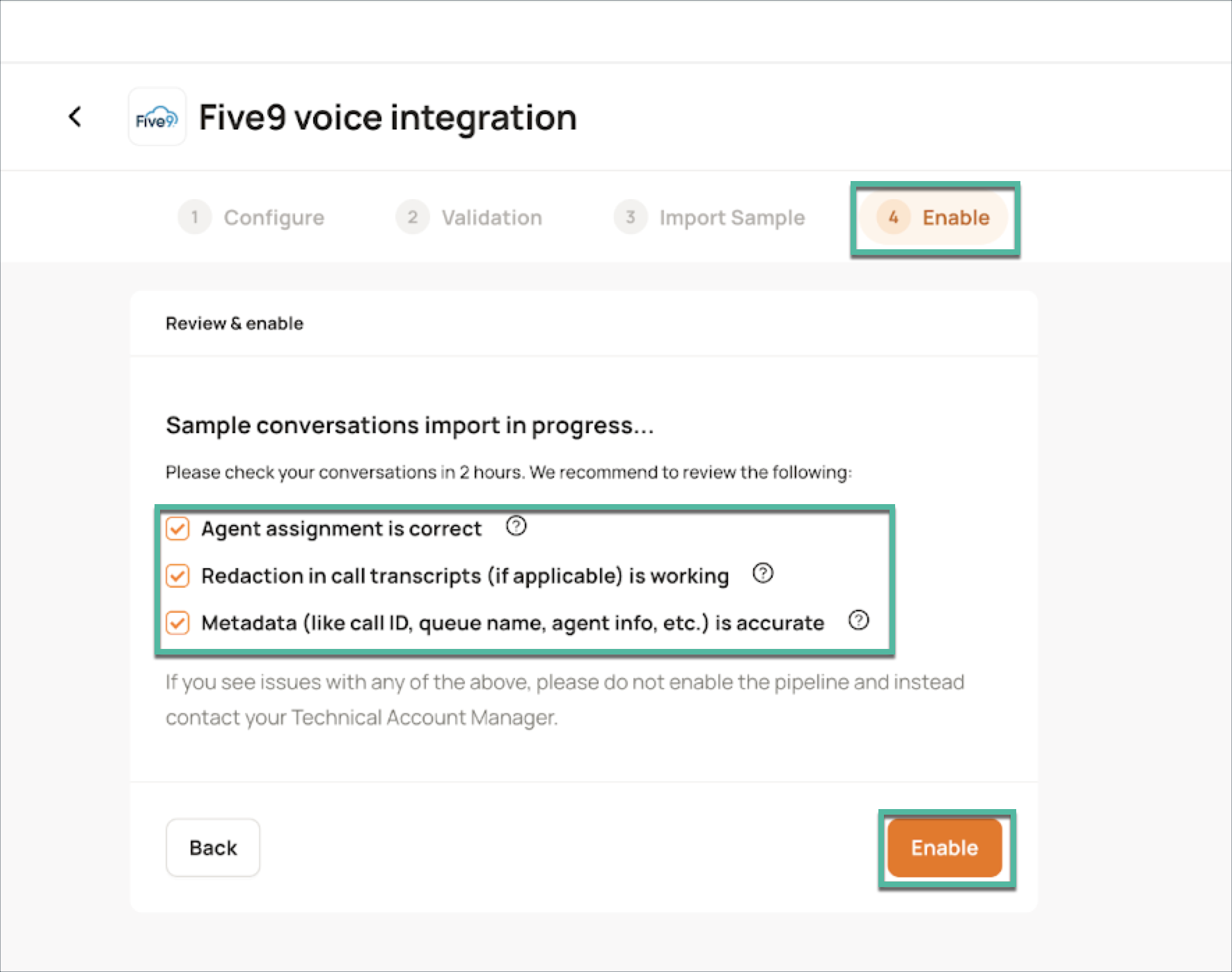
Once the sample data has been imported, carefully review each item in the provided checklist to confirm the accuracy of your configurations and the flow of conversations. Click the corresponding help icon for for detailed instructions and screenshots.
After you have thoroughly verified the sample data and are confident in your configurations, mark all the checkboxes in the checklist and click Enable to activate your Five9 integration.
In the dialog box that appears, click Enable to finalize your integration.
(G) Editing Integration Configurations
Disabling a Channel
You can temporarily halt data ingestion from Five9 to Level AI at any time.
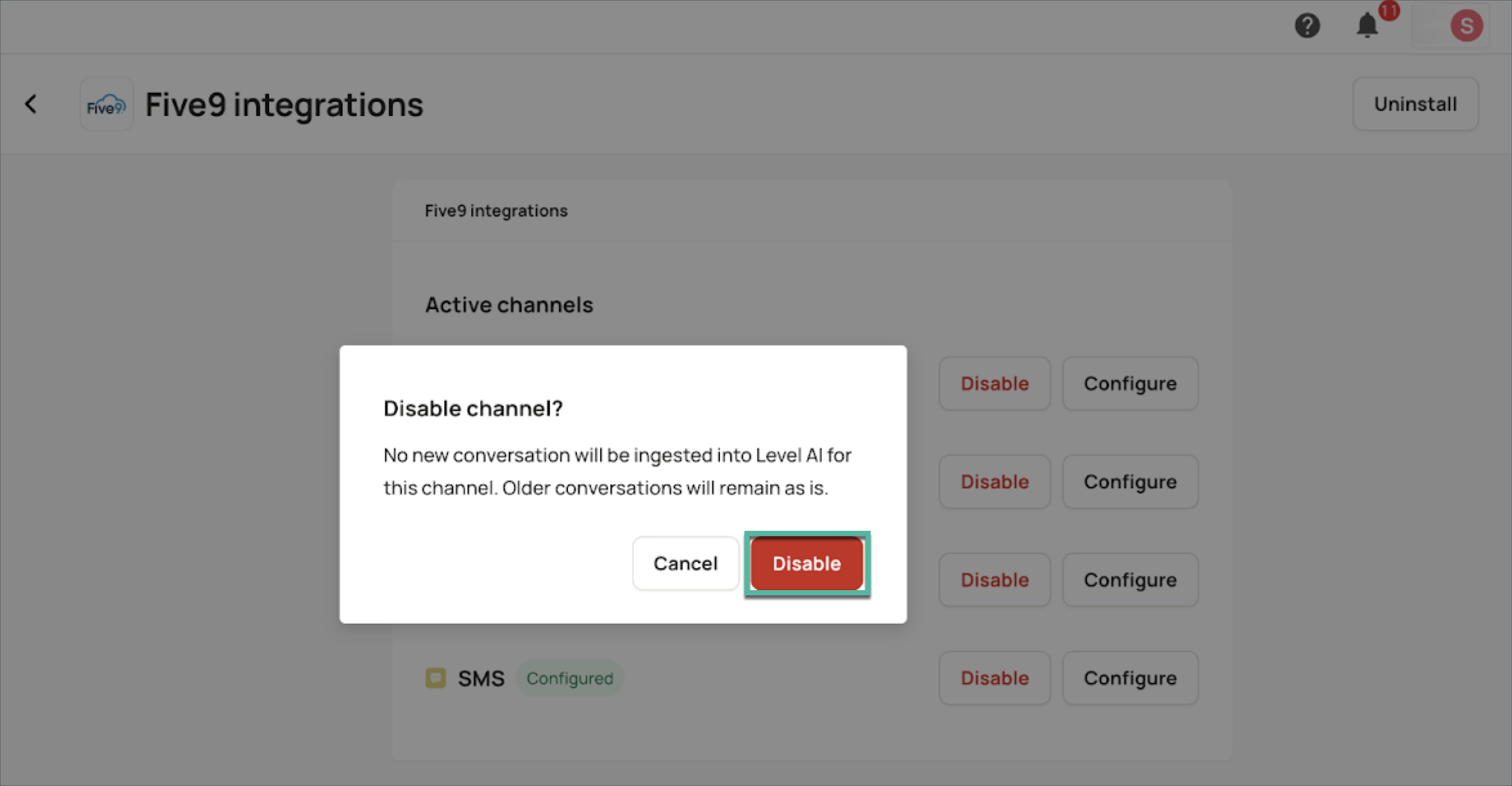
Under Active Channels, click the corresponding Disable button.
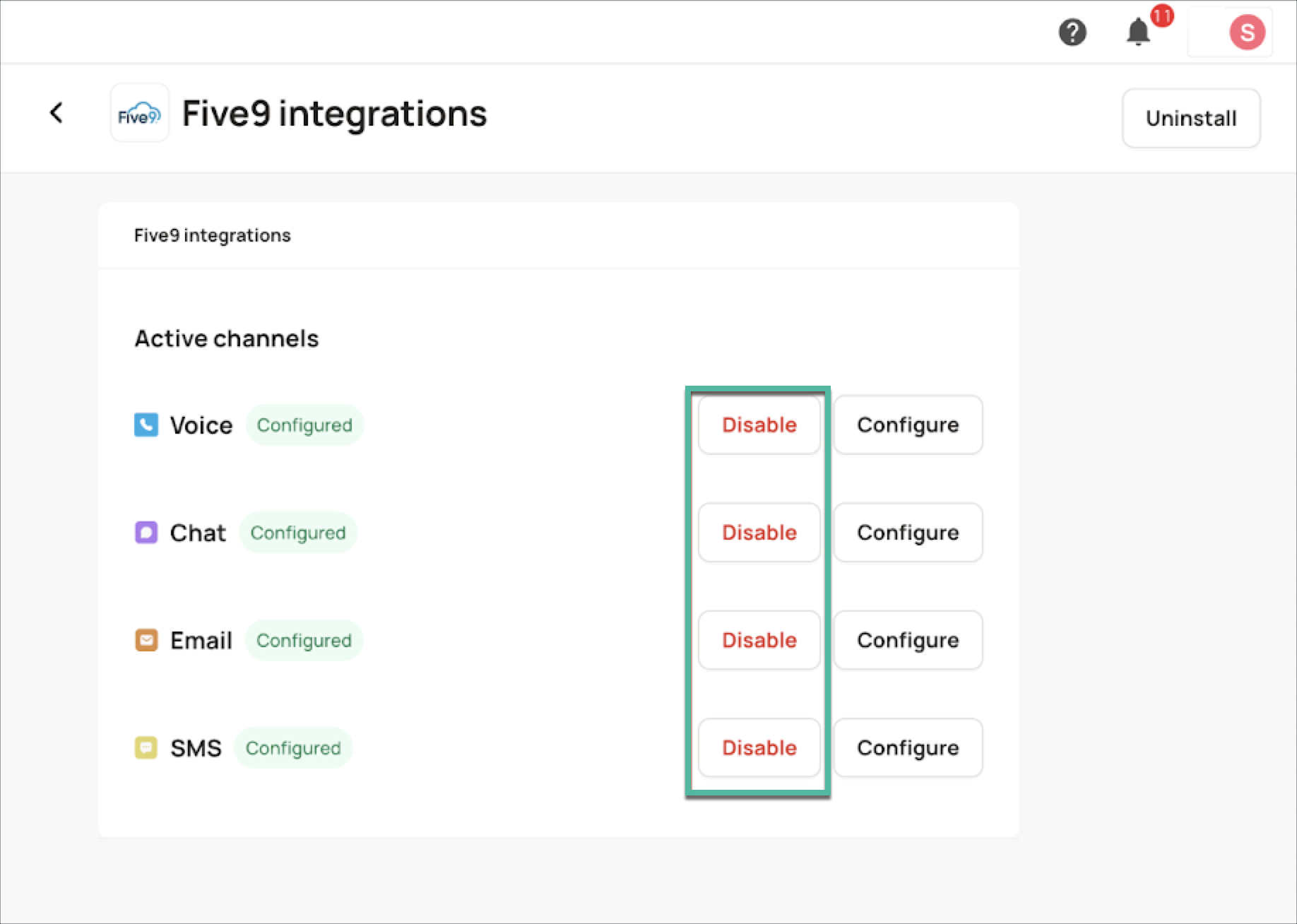
Confirm the action in the dialog box that appears.
NOTE
No new conversation will be ingested once you disable the channel. Older conversations will remain in the Level platform as is.
Frequently Asked Questions (FAQs)
Q: What are the most frequently used configuration options in the Five9 self-serve integration?
A: Users commonly configure the integration to:
Filter tickets by Campaign Name and Group Name.
Enable/disable data flow for Bot comments.
Enable Redaction and Booster words for enhanced analysis.
Q: How often is data imported from Five9 to Level AI?
A: The integration supports data import once every hour. This ensures near real-time visibility without overly burdening the system.
Q: Can historical Five9 ticket data be pulled through the self-serve interface?
A: Yes. Once you load the transcript and other files into the SFTP bucket, those conversations will automatically be imported into Level AI. You will need to export the historical data into the SFTP to enable this ingestion.