Self Serve Salesforce Metadata Enrichment
Last updated: August 27, 2026
Overview
Self-Serve Salesforce Enrichment enables you to integrate Salesforce data into your Level AI conversations independently, without the need for engineering support. A guided three-step process (Configure → Import sample → Enable) assists you in mapping Salesforce objects and fields to your conversations, validating the configuration with a sample import, and activating enrichment when you are ready.
Before you begin
Ensure you have a connected Salesforce instance configured in Level AI. For detailed instructions, please refer to the Salesforce integration guide.
Administrator privileges on the Level platform are required to complete the following procedure.
Configure Salesforce Enrichment
Step 1: Configuration
Navigate to Settings > Integrations > Metadata Enrichment.
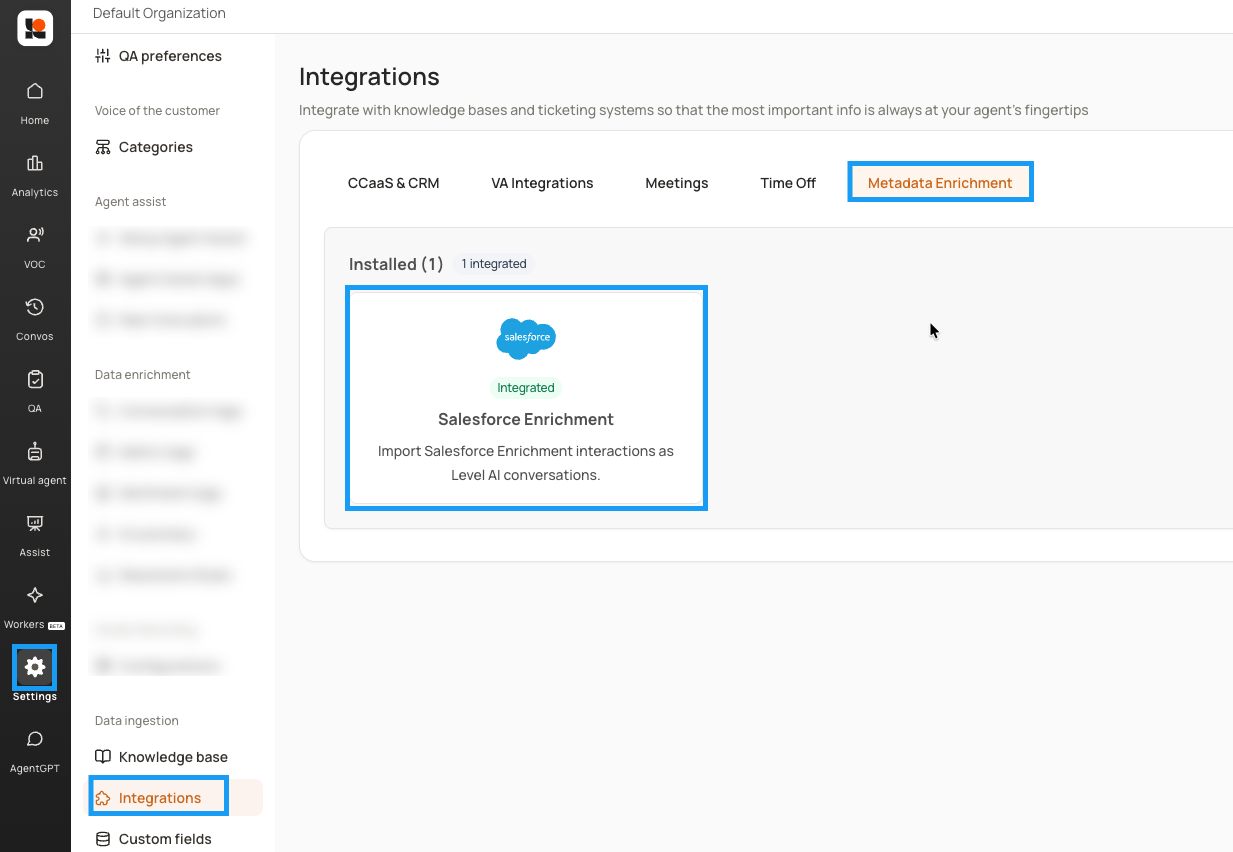
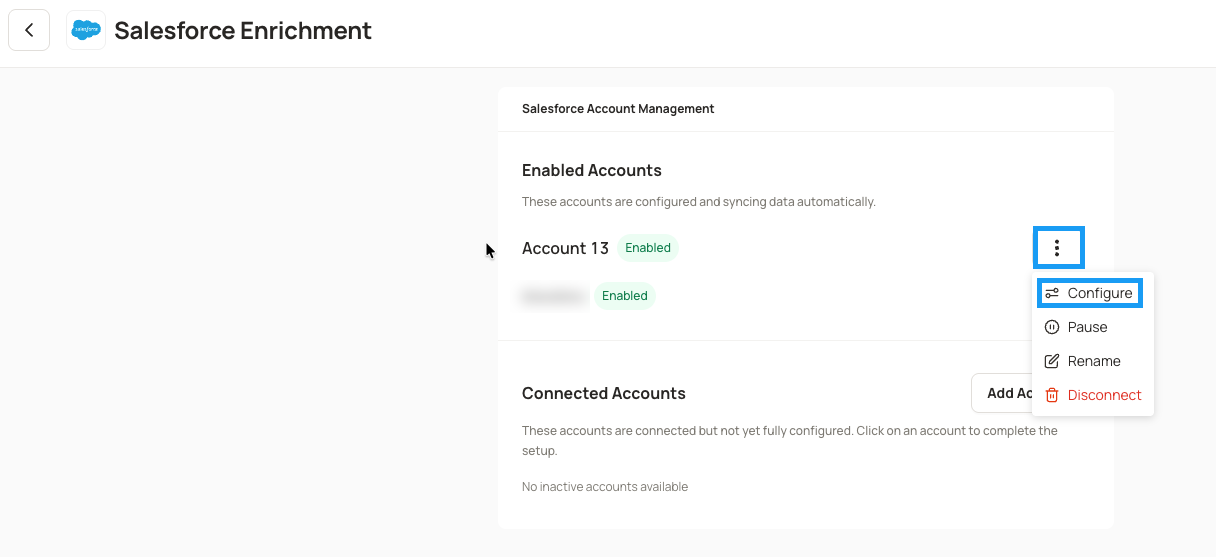
Select your Salesforce instance. Click on ellipsis (⋮), then click Configure. (To use a new Salesforce account, Go to CcaaS & CRM integrations and add new Salesforce account over there to view it in Salesforce enrichment)
Select the lookup key — the conversation field Level AI uses to start the Salesforce lookup. This is the value that links a conversation to the right Salesforce record.
Set the lookback window — how far back Level AI should look for conversations to enrich.
(Optional) Set a lookback offset — an offset window applied before the lookback window starts.
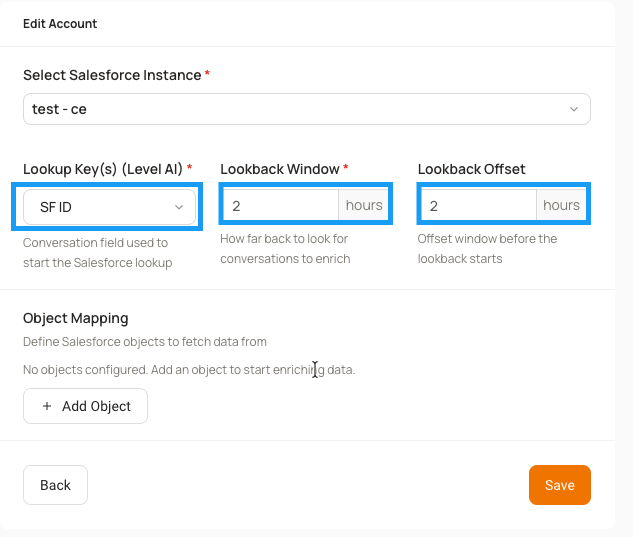
Under Object Mapping, add each Salesforce object you want to fetch data from. For every object, specify:
Click Add Object.
Enter the Object Name, Field Name, and Fields.
Info:
Object Name - Salesforce object used for data retrieval.
Field Name - Field name to perform matching.
Fields - Specify fields to import. Separate multiple fields with commas (,).
Add multiple object mappings as needed.
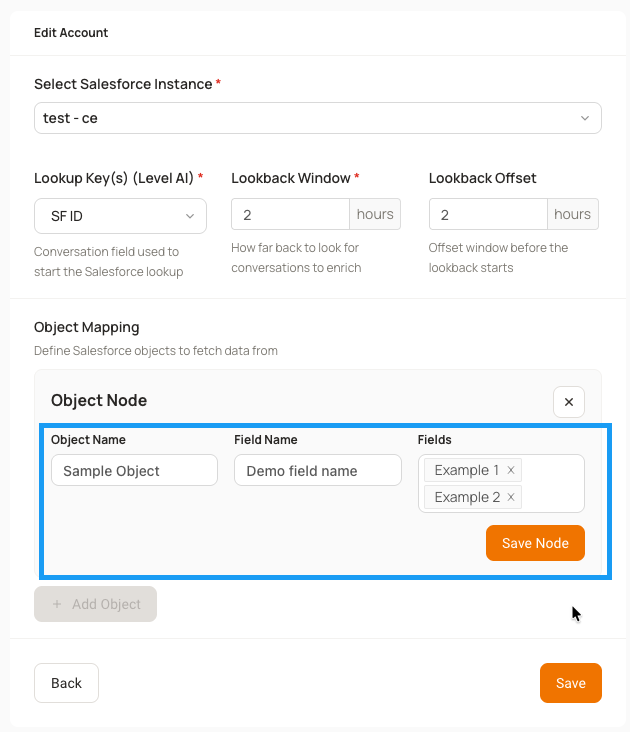
Click Save Node.
Click Save to proceed to next step.
Step 2: Import a Sample
Go to the Import sample step.
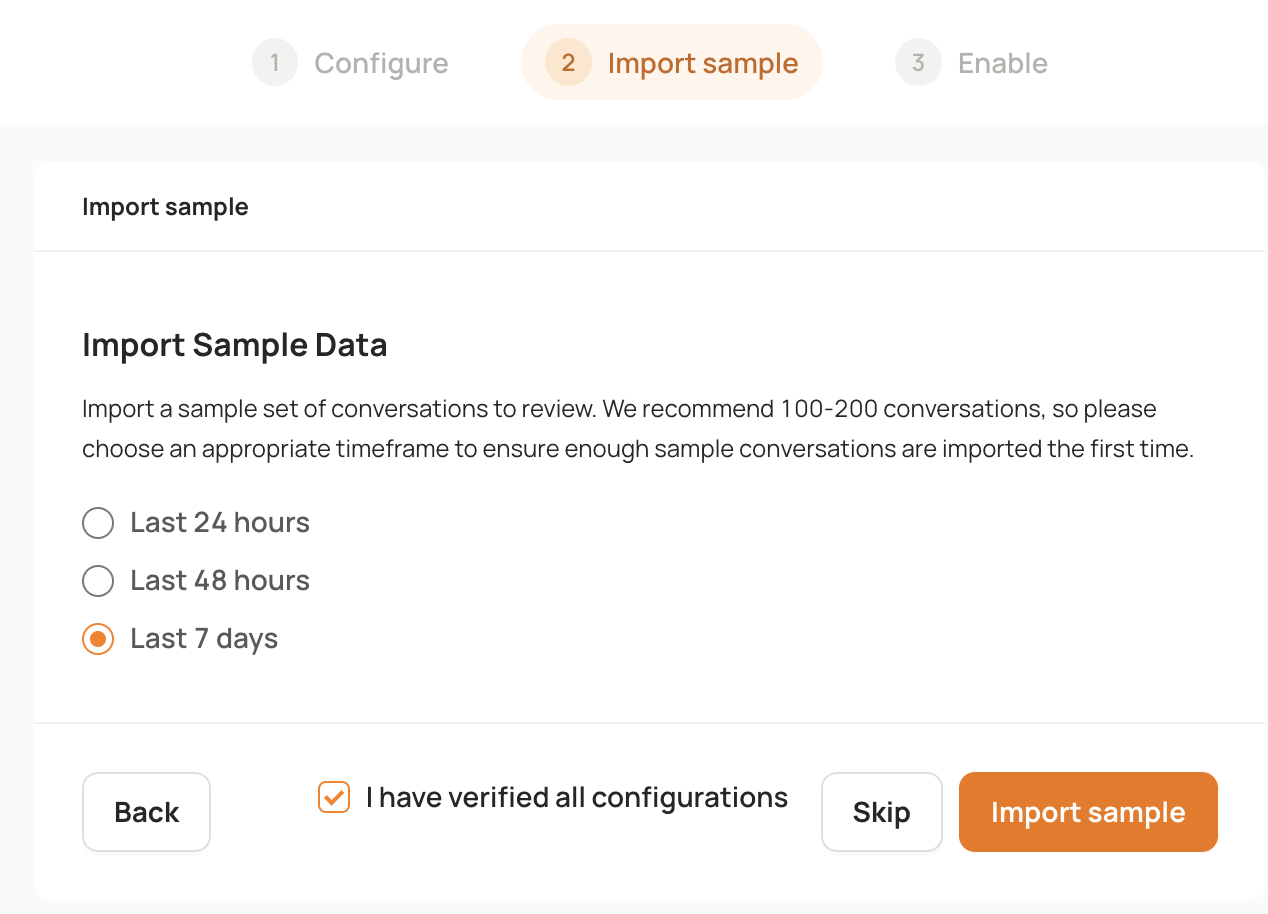
Choose the duration you want to run Sample on.
Last 24 hours
Last 48 hours
Last 7 days
Click on "I have verified the configurations" checkbox
Run a sample import.
Review the results and verify the mappings return expected data. If something looks off, go back to Configure, adjust your mappings, and run the sample again.
Step 3: Enable
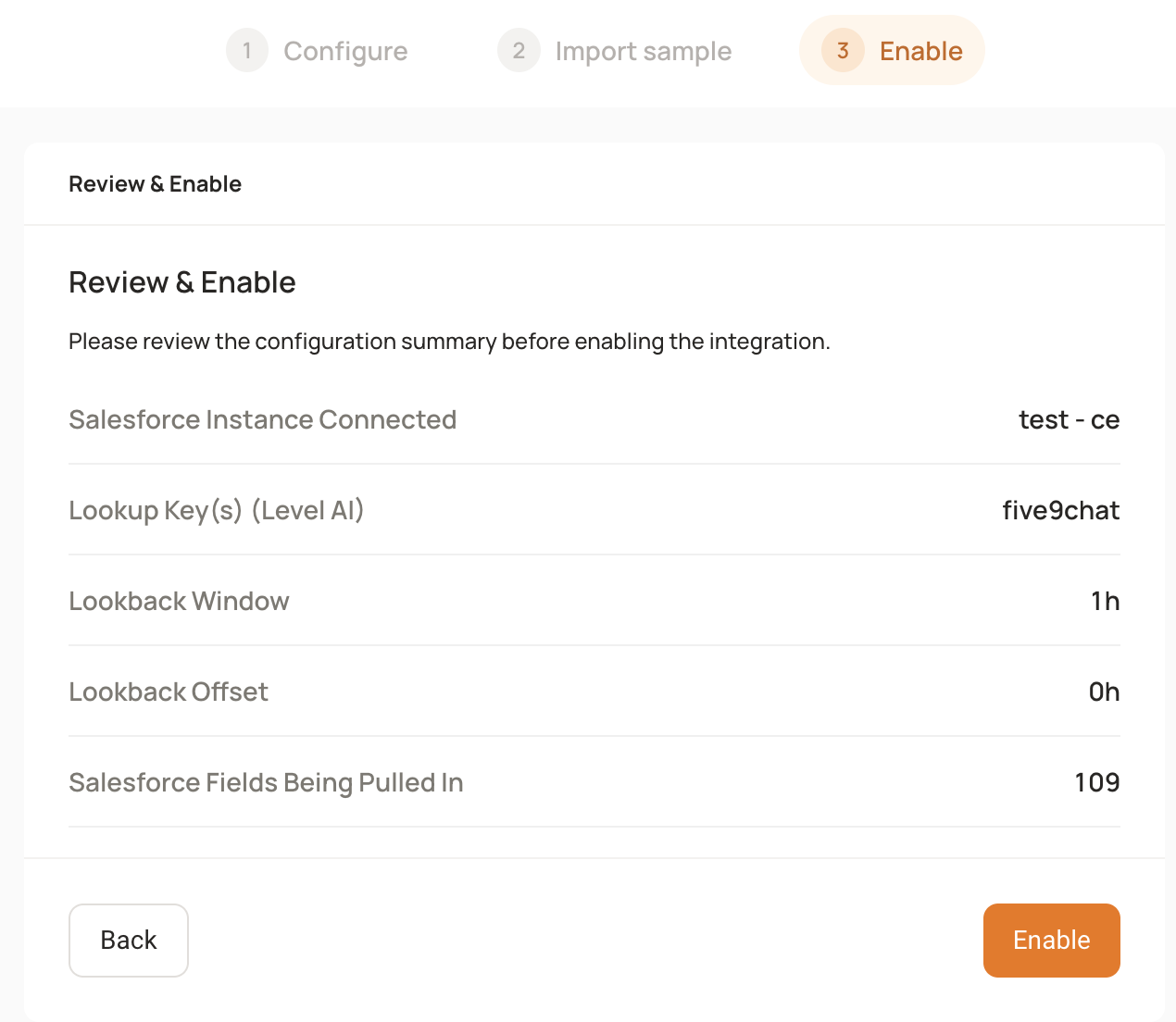
Go to the Enable step.
Turn on metadata enrichment. Level AI begins importing Salesforce metadata for your conversations.
Pause or Disconnect Salesforce Enrichment
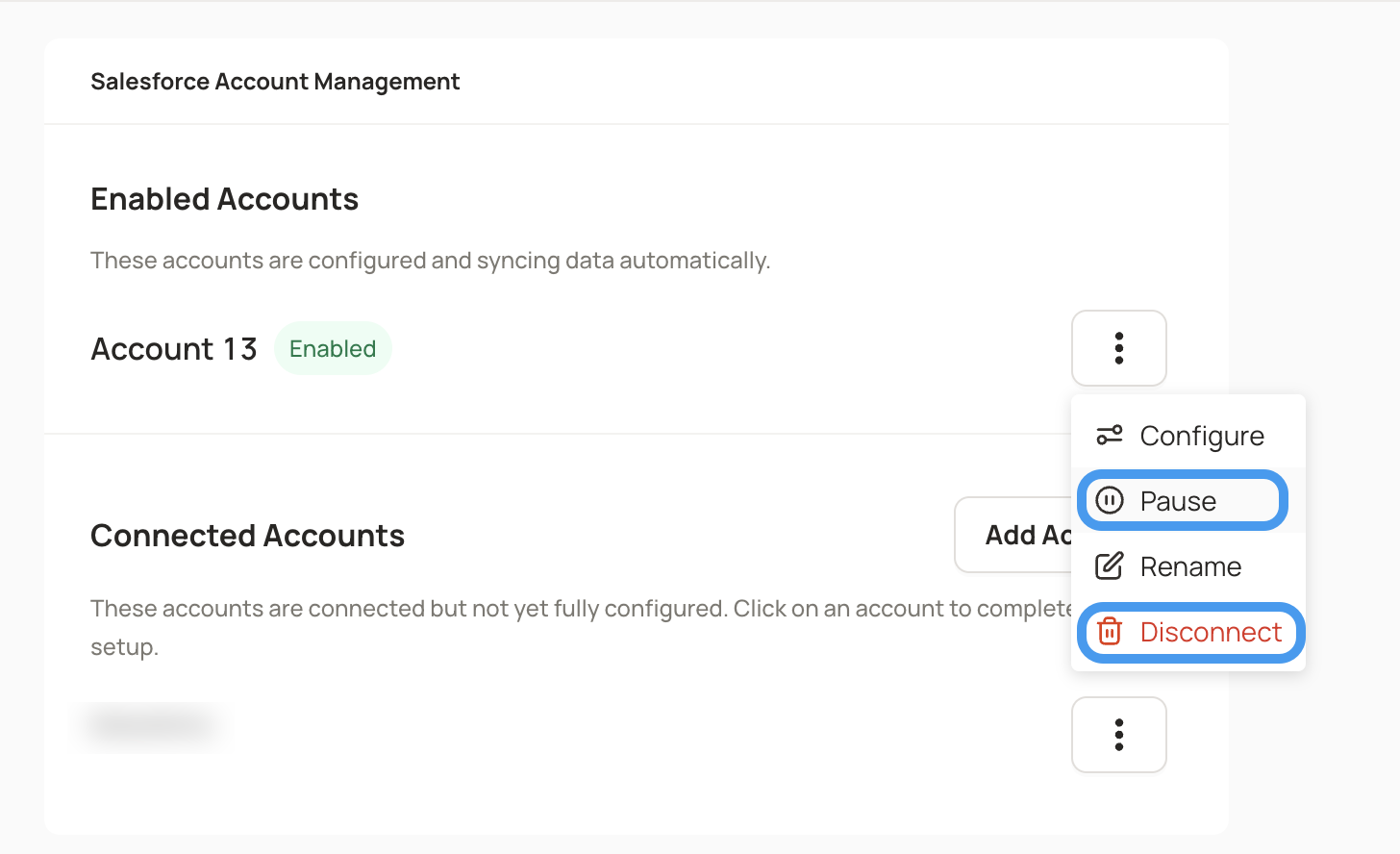
You can pause or disconnect your previously configured Salesforce enrichment pipeline. Pausing or disconnecting affects only incremental conversations; once paused or disconnected, future enrichment will stop, but historical conversations remain preserved on the Level platform.
Note: Definitions of actions
Pausing stops populating the metadata field for incremental conversations but can be re-configured later.
Disconnecting permanently removes the account and all associated configurations.
Follow the below steps to take the action:
Navigate to Settings > Integration > Metadata Enrichment.
Select your Salesforce integration.
Click the ellipsis (⋮) next to the account you want to manage, then select Pause or Disconnect.