Sprinklr - LevelAI Integration
Last updated: June 21, 2026
Overview
LevelAI now integrates seamlessly with Sprinklr, enabling the import of social media conversations from X, Facebook, Instagram, and other configured channels. This integration provides a centralized platform to analyze social media data and derive valuable insights.
Authentication
To connect your Sprinklr instance with Level AI, you'll need to generate API credentials (Client ID and Client Secret) and share them securely with our team. This document walks you through the process step by step.
Prerequisites
You must have Global Admin or Global User access to your Sprinklr instance
You must have access to the Sprinklr Developer Portal
Step 1: Register on the Sprinklr Developer Portal
Click "Register" if you don't already have an account
Complete the registration process using your company email address
Verify your email and log in to the portal
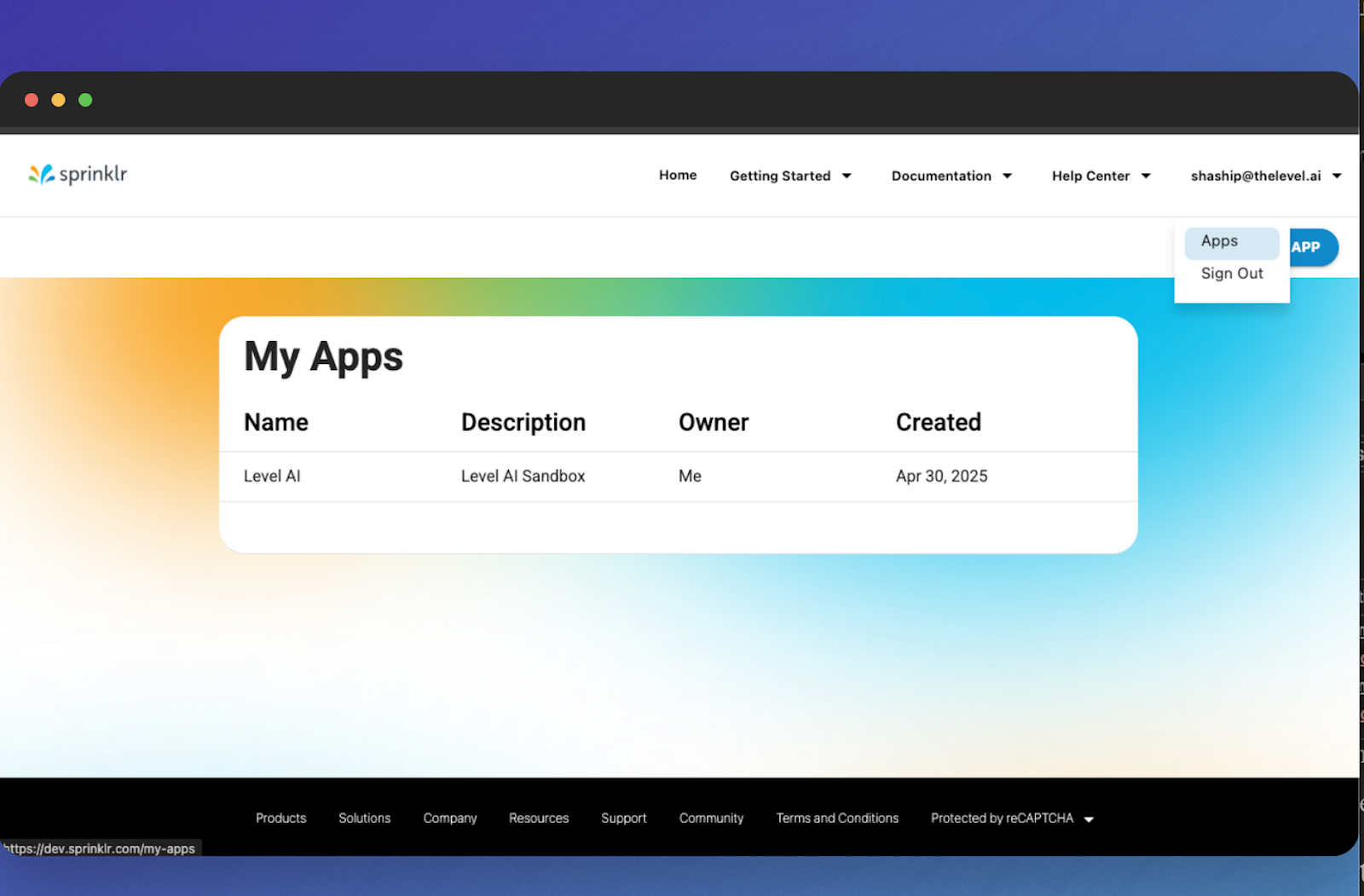
Step 2: Create an API Application
Navigate to "Apps" under profile section in the developer portal
Click "Create New App"
Fill in the required information:
Application Name: "Level AI Integration"
Application Description: "API access for Level AI"
Callback URL/Redirect URI: https://prod-api.thelevel.ai
Click Create.
Step 3: Generate API Key and Secret
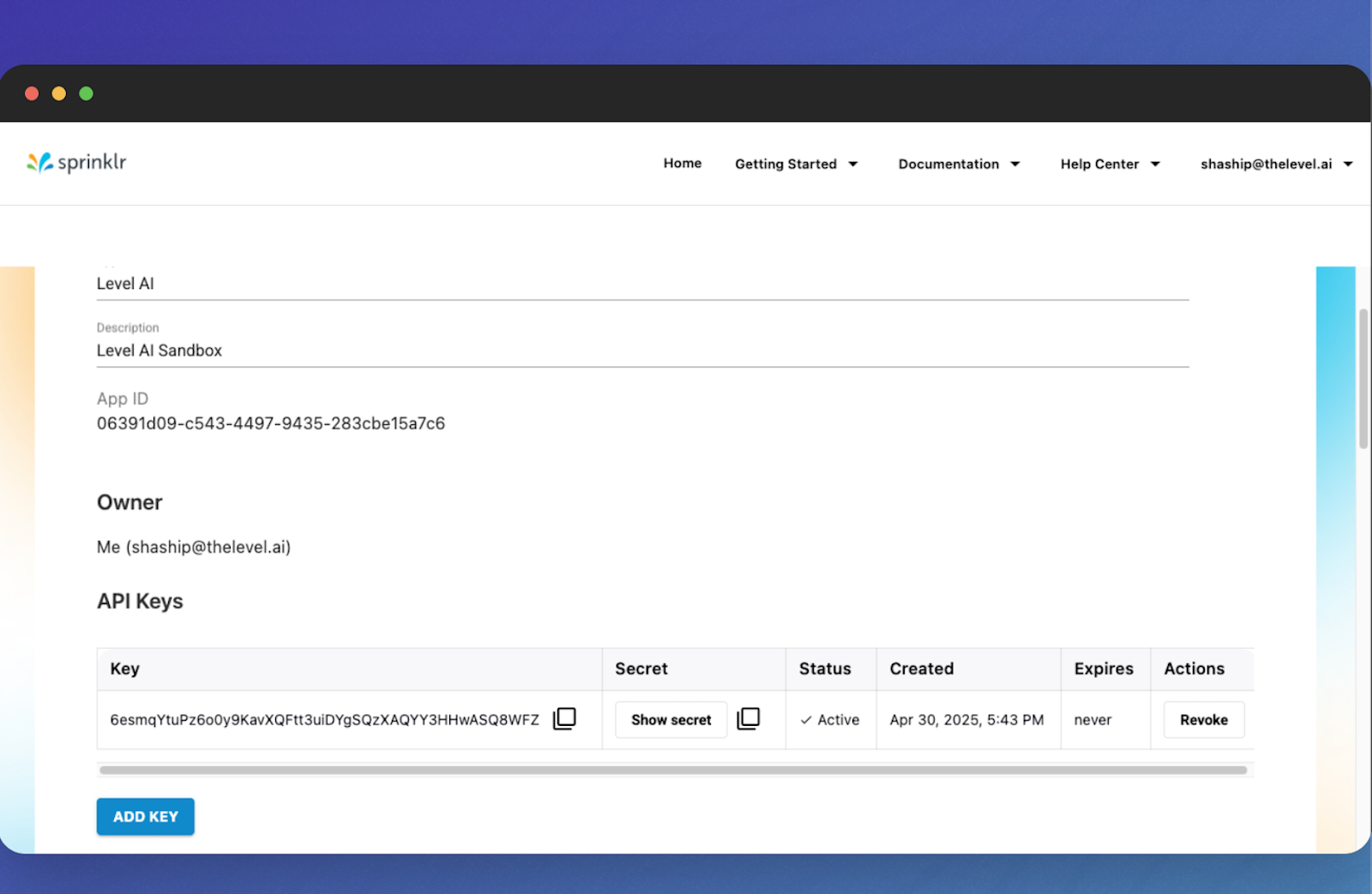
From your newly created application page, go to "API Keys" section
Copy generate API Key and Client Secret
IMPORTANT
Save these credentials immediately. The Client Secret will only be displayed once.
Step 4: Enable Client Credentials Flow
Contact Sprinklr Support to enable the Client Credentials Grant Type for your API Key
Provide them with your Client ID and explain that you need this for server-to-server integration
Please share the following information with the support team:
API key (Client_id)
User Id of the user you want to associate the token with. Alternatively, you can also provide a Sprinklr login email address of the user.
More Details: https://dev.sprinklr.com/client-credentials-get
Step 5: Share Credentials Securely
You'll need to provide:
Sprinklr Environment (App/Prod0/Prod2/Prod3/Prod4)
Client ID (API Key)
Client Secret
Technical Contact (name and email)
Requirements
Please share the following information to the LevelAI support team to enable the Sprinklr integration:
Credentials
Please provide the following credentials obtained from the Authentication step above
Field | Your Credential |
|---|---|
Sprinklr Environment | App/Prod0/Prod2/Prod3/Prod4 |
Client ID (API Key) |
|
Client Secret |
|
Technical Contact (name and email) |
|
User Id/User email of the API key generated from |
|
Usernames of social accounts
Please provide the usernames of the social accounts for which we need to enable the import from
Channel | Your Account Username |
|---|---|
| |
| |
X (Formerly Twitter) |
|
|
Capabilities of the Integration
We support pulling data from all the channels configured in Sprinklr. Following is a list of the channels supported by Level AI.
Channel | Message Type |
|---|---|
DM Comment Story Reply | |
Comments Posts Reply Private Messages Group Post Group Comment | |
DM Mention Timeline | |
Youtube | Playlist Comments Videos Reply |
Post Profile Company Job Posting Company new product Company status update | |
TikTok | AD Post AD Comment Video DM |
Source: https://dev.sprinklr.com/message-v1
NOTE
To create conversations, only text data is used and any kind of media data (images, videos) is ignored and not shown in the conversations.
Additional points to note:
1. Conversation Ownership
Please note that an entire conversation is assigned to a single agent upon case closure. The system does not split a conversation's ownership even if multiple agents were involved. The full transcript is attributed to the final agent who closes the case.
Example: If Agent A starts a chat with a customer and Agent B takes over to resolve and close the case, the entire conversation, including all of Agent A's messages, will be assigned to Agent B.
2. Message Channel Mapping
Please note that all interactions from different social media sources are categorized as 'Chat'. The system unifies various message types from platforms like Instagram and Facebook into a single channel for consistency.
Example: A direct message from Instagram, a public comment on a Facebook post, and a reply on X (formerly Twitter) will all be labeled as 'Chat' within the conversations view.
3. Media Content Handling
Please note that only text from conversations is imported. Multimedia content like images, videos, or reels is not transferred and will be indicated as a 'partial message'.
Example: If a customer sends a photograph of a product via Facebook Messenger, the agent will see a placeholder like [partial message] instead of the actual image.
Frequently Asked Questions (FAQs)
Q: How often does the system fetch new data from Sprinklr?
A: The integration syncs with Sprinklr once every hour to fetch new conversations and updates.
Q: Can we import our past conversation history from Sprinklr?
A: Yes, historical data can be imported. To do this, please specify the exact time frame required for the import (e.g., "last 6 months" or "January 1, 2024, to June 30, 2024") in your integration request.
APIs used from Sprinklr
APIs used to fetch are mentioned in detail in this document. Please refer Page: Splinkr Integration Implementation doc: