Transcript Tools: Data Redaction and Booster Words
Last updated: June 21, 2026
The channels available in the dropdown might vary depending on your Level instance.
Transcript Tools helps Super Admins and Admins manage sensitive information and improve transcription accuracy.
To access and manage Transcript Tools,
From the left navigation bar, click Settings > Transcript Tools.
Here, you can configure the Data Redaction and Booster Words setup.
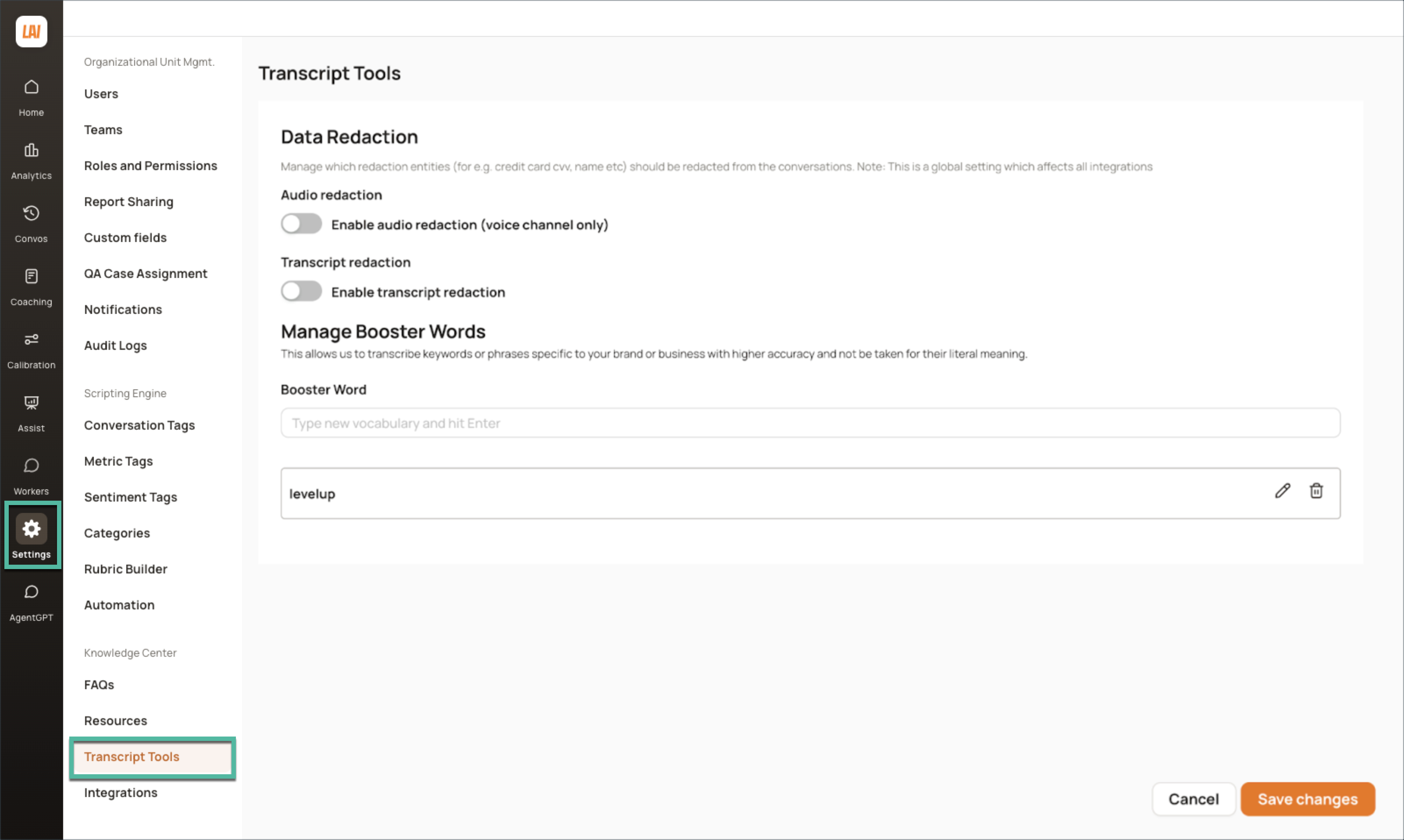
Data Redaction
This feature allows you to redact Personally Identifiable Information (PII), Payment Card Industry (PCI) data, and other specific entities from both audio and transcripts, based on your business requirements.
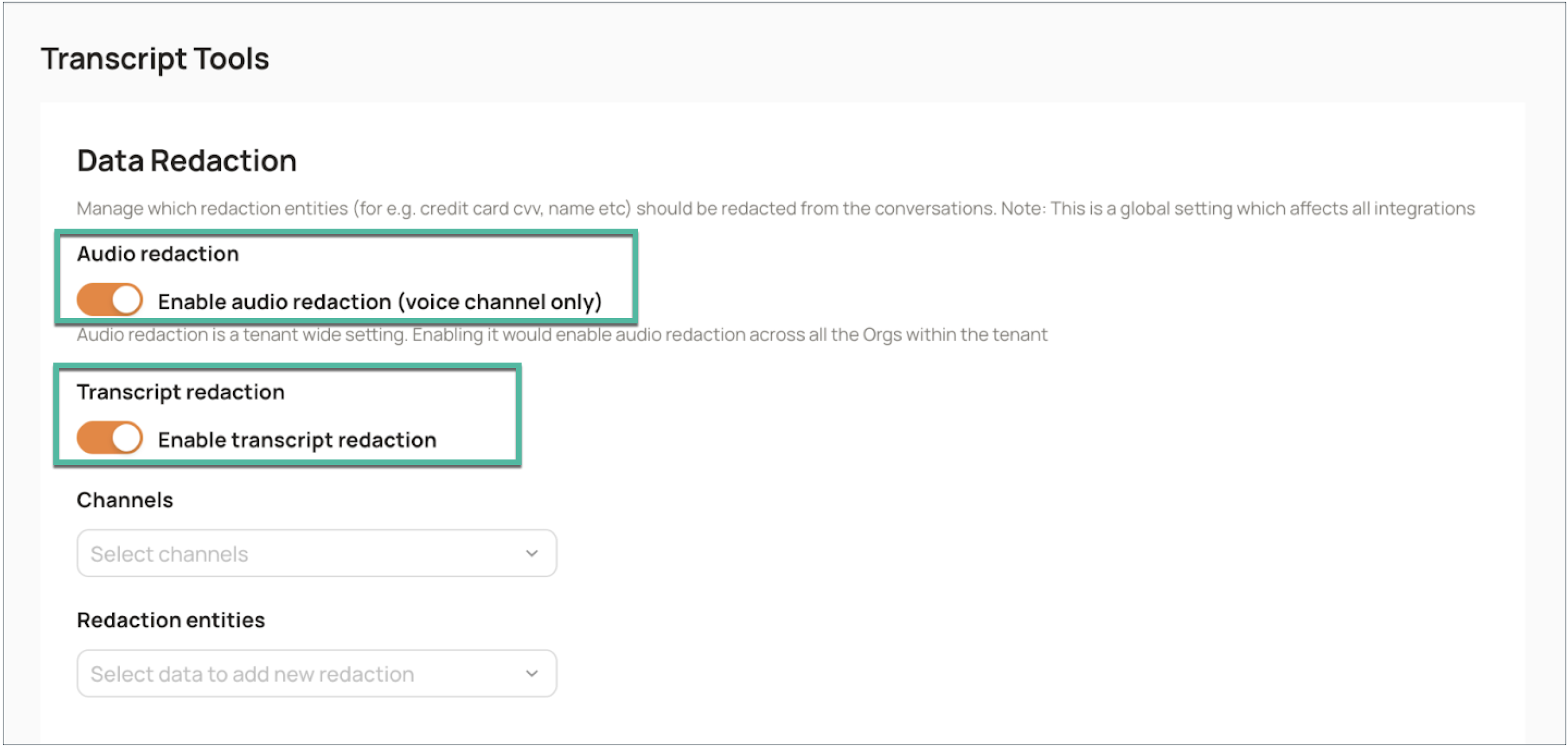
Audio Redaction
Audio redaction is a tenant-wide setting. When enabled, any identified sensitive data will be redacted across all organizations within your Level tenant.
For example, if you enable audio redaction for credit card numbers, any audio recording containing such numbers will have those portions muted.
Transcript Redaction
To set up transcript redaction:
From the Channel dropdown, select the desired ones from the available options: Voice, Chat, Email, and SMS.
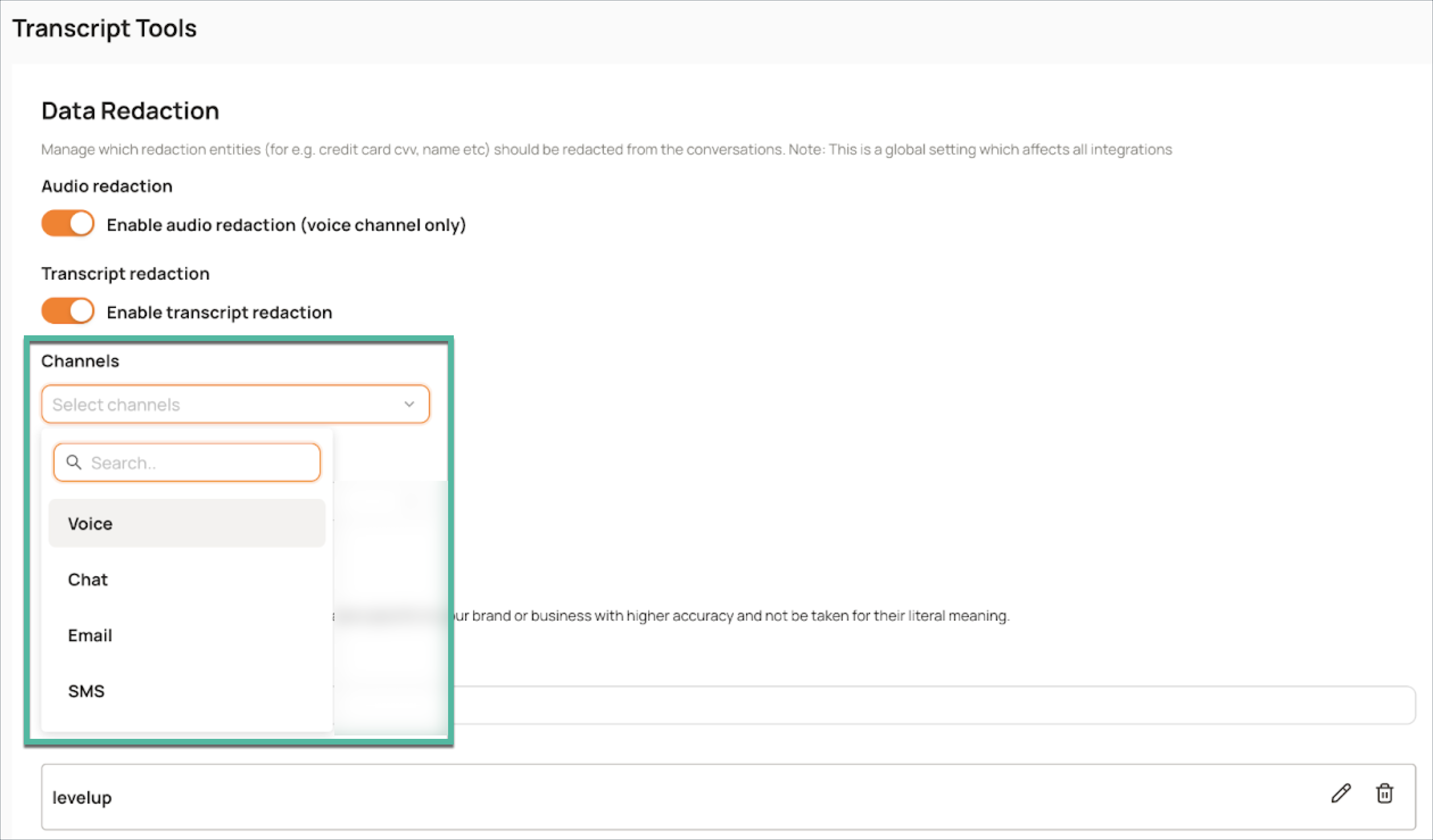
NOTE
The channels available in the dropdown might vary depending on your Level instance.
From the Redactions dropdown, select the entities that you want to redact. These may include names, addresses, credit card numbers, etc.
For example, if you choose to redact PII in the Chat channel, any chat transcripts containing the redaction entities you specified such as names, addresses, or phone numbers will have that information masked or removed.
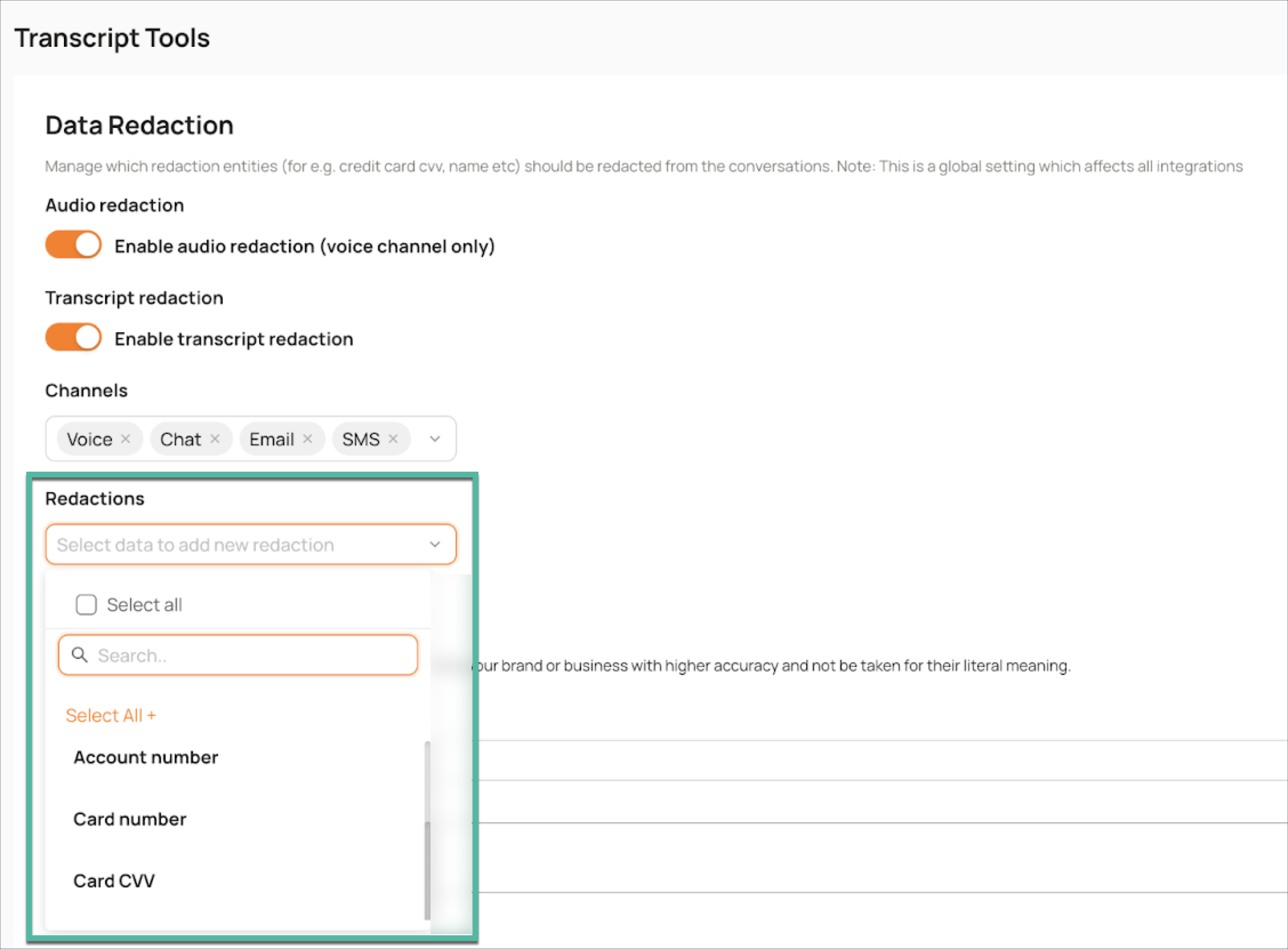
NOTE
- Initial Setup: Redaction settings apply only to conversations ingested once the desired Redaction option is enabled. Existing conversations prior to the setup will not be retroactively redacted.
- Changes to Settings: Modifications to redaction settings will apply only to future conversations. Past conversations are not impacted by setting changes.
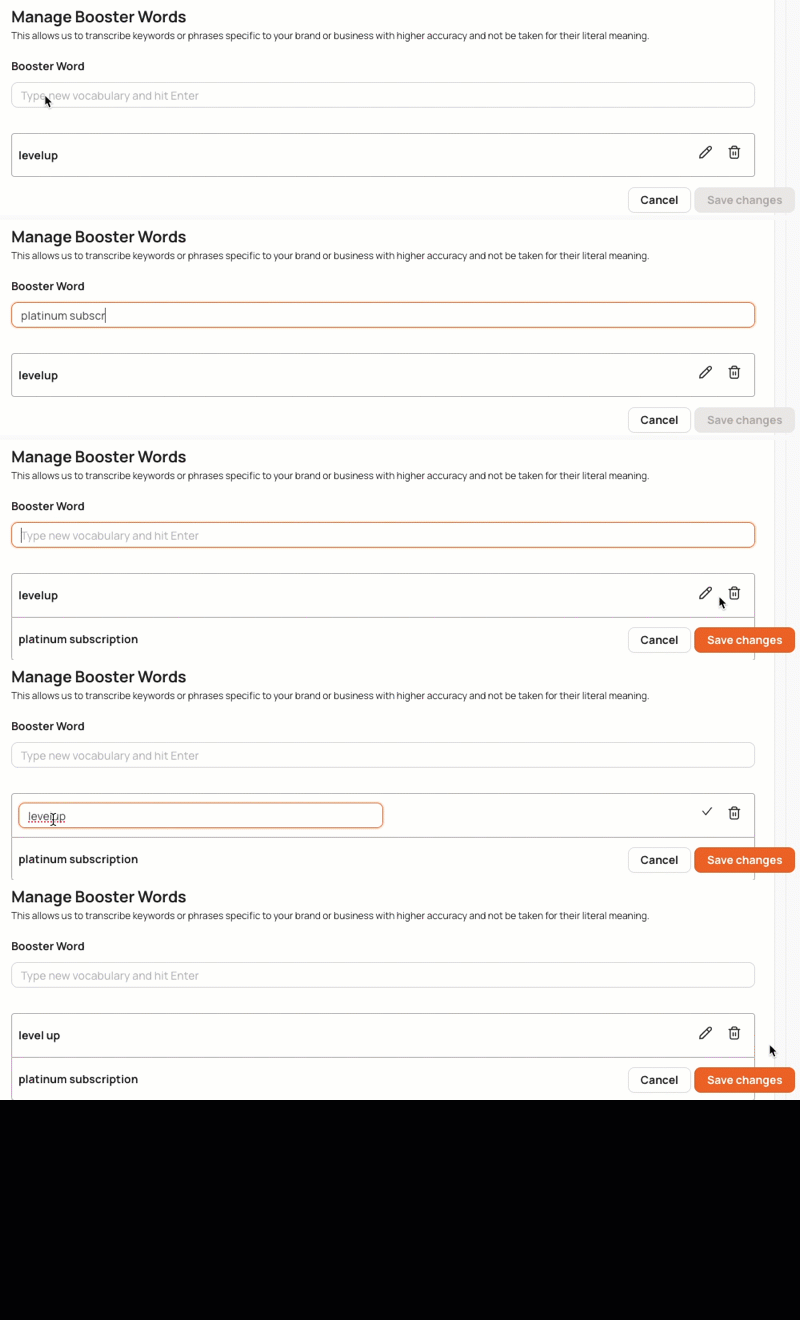
Manage Booster Words
Booster words help Level’s AI transcription models better understand specific keywords or phrases, preventing them from being misinterpreted. This is particularly useful for improving the accuracy of brand, product, or service-related terms.
Example: If your company uses a unique product name, adding it as a booster word ensures the transcription accurately captures that name instead of a similar-sounding, more common phrase.
You can add, modify, or remove words as needed to refine transcription accuracy:
To add a new word, simply type in the text field
Click the pencil icon (✏) to edit an existing word
Click the delete icon to delete an existing word
NOTE
Any modifications you make to booster words will apply only to new audio conversations ingested into Level. Existing transcriptions are not affected by these changes.