Kustomer integration with Level AI
Last updated: June 18, 2026
You can import your customer conversations from Kustomer into Level AI to gain valuable insights. Additionally, you can import metadata associated with the main conversation data to help you with detailed reporting and analysis.
With the Kustomer - Level AI integration, conversations will be ingested from your Kustomer instance into Level AI in a systematic, periodic manner.
INFO
Currently, the Kustomer integration supports ingesting conversations for SMS, Chat, and Email channels only.
Generating an API key from Kustomer
Before you begin your Kustomer-Level AI setup, you will need to:
Log in to your Kustomer instance and navigate to Settings > Security > API Keys.
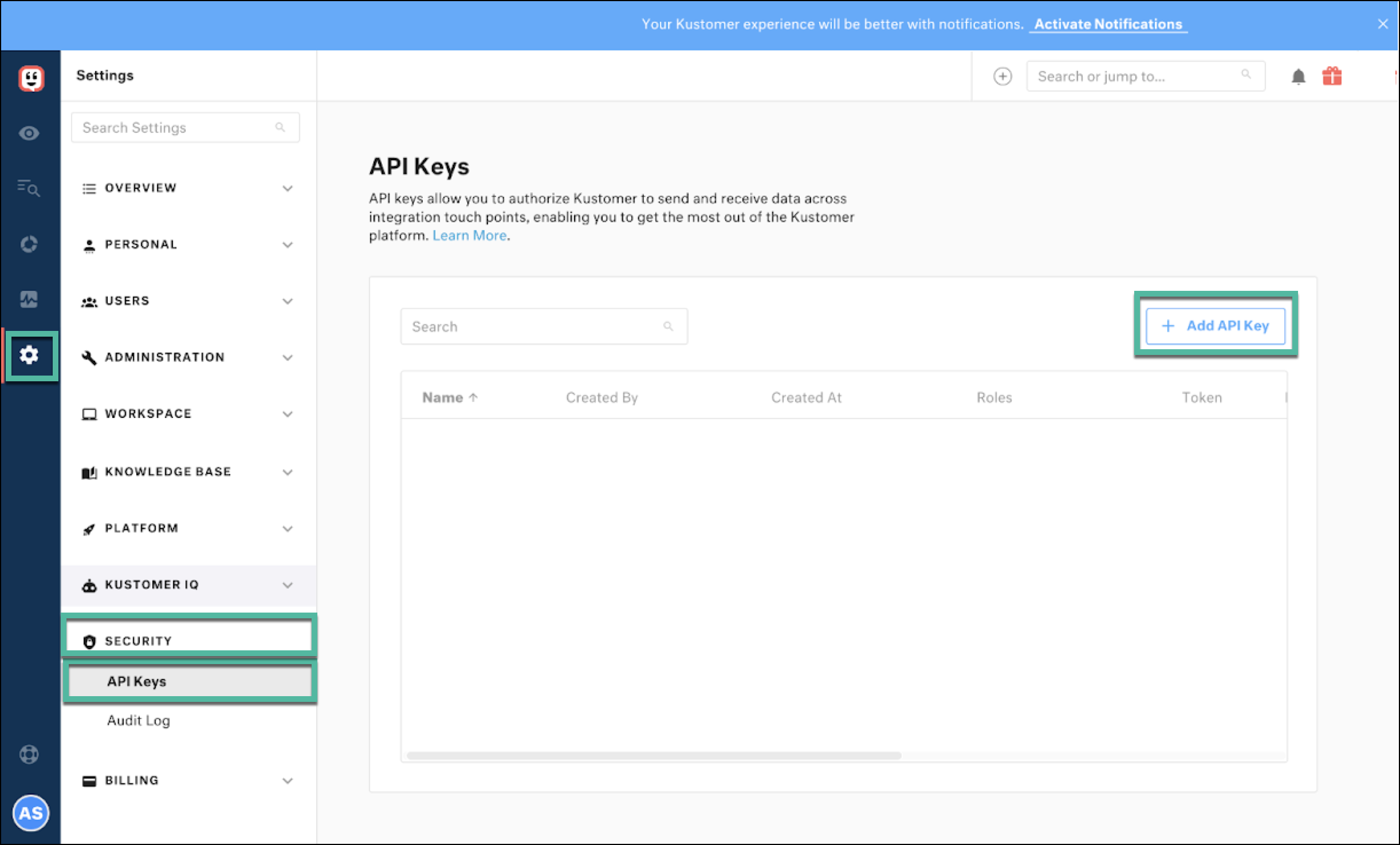
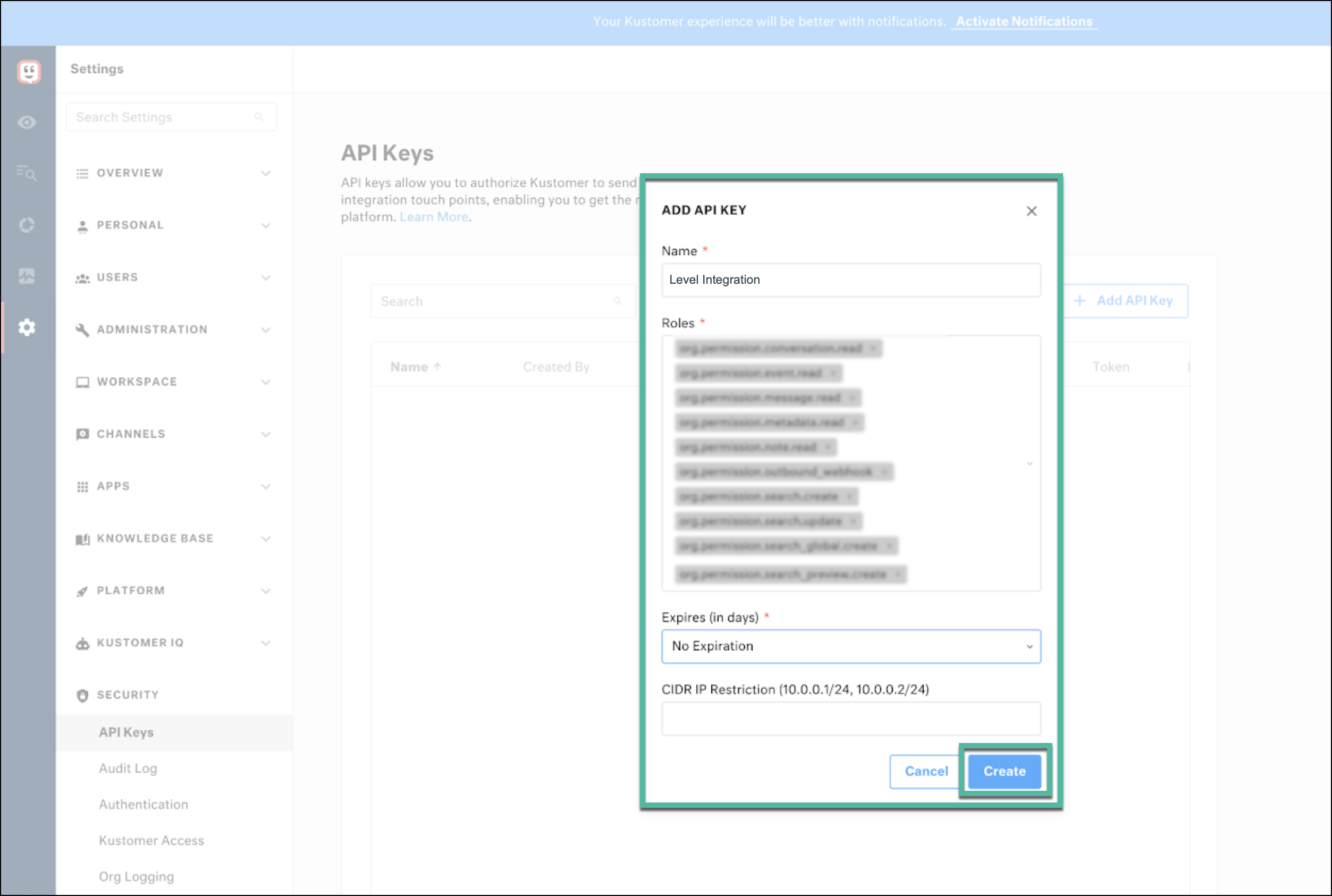
Click Add API Key. In the window that appears, enter the following information:
Name: Provide a relevant and descriptive name (e.g., Level Integration) so that you or your other Admins can identify it easily.
Roles: Select the following roles so that the API key has the right permissions-
org.permission.message.read to view messages so Level can extract transcripts from conversations.
org.permission.conversation.read to query conversations with date time parameters and implement incremental fetching.
org.admin.user to fetch agent user metadata
org.permission.user.read to view users
org.user.read
org.user.metadata.readExpires (in days): Set a really long expiry date so that API token doesn’t expire. Alternatively, you can enter the value No Expiration to keep the API token valid for infinity.
Click Create. A token will be generated. Click the Copy Token icon.
Complete the remaining steps in the Level AI app as described below.
Setting up your Kustomer integration
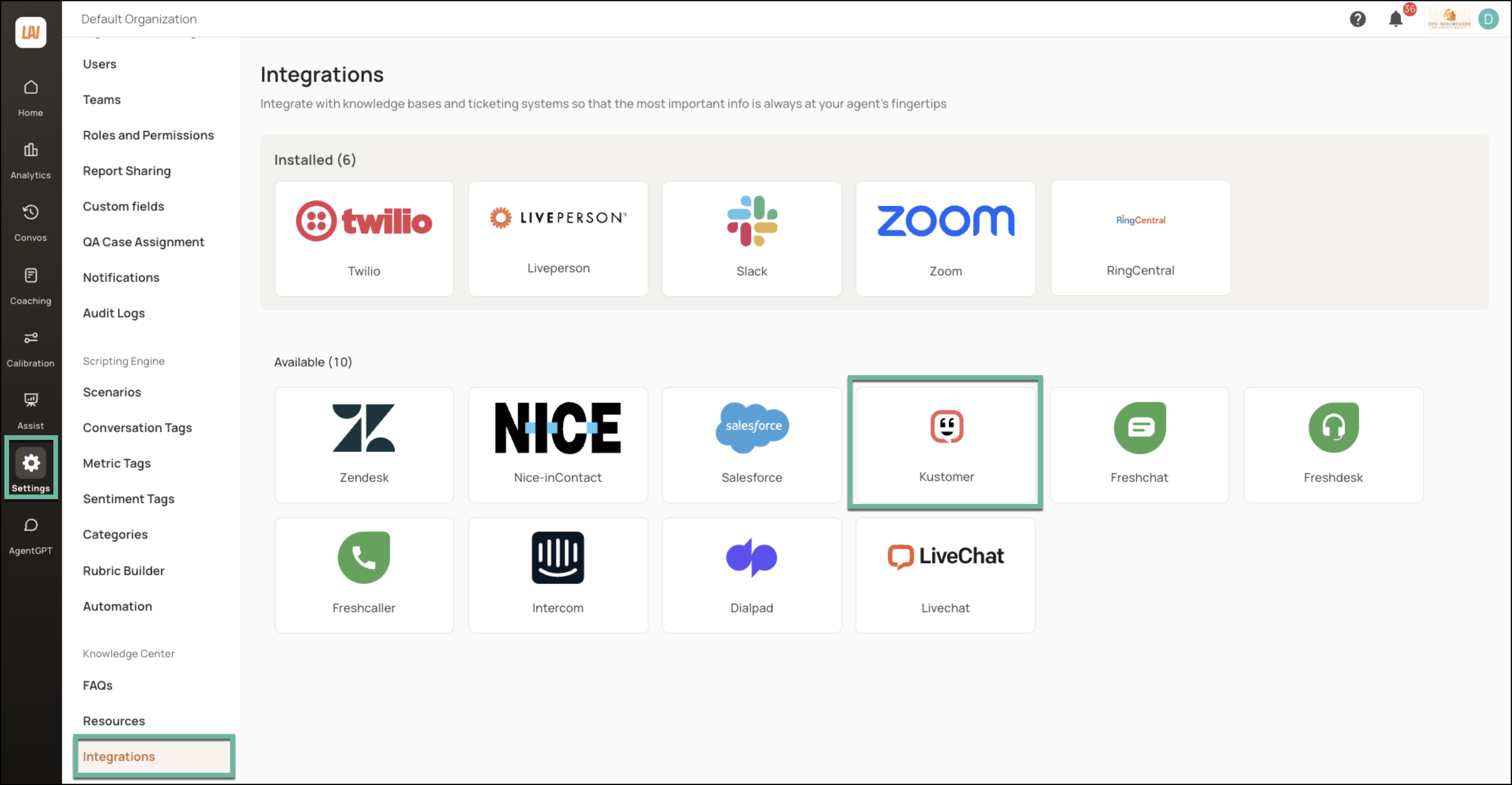
Login to your Level AI tenant as an Admin. In the left sidebar, navigate to Settings > Integrations screen.
Under the Available section, click Kustomer.
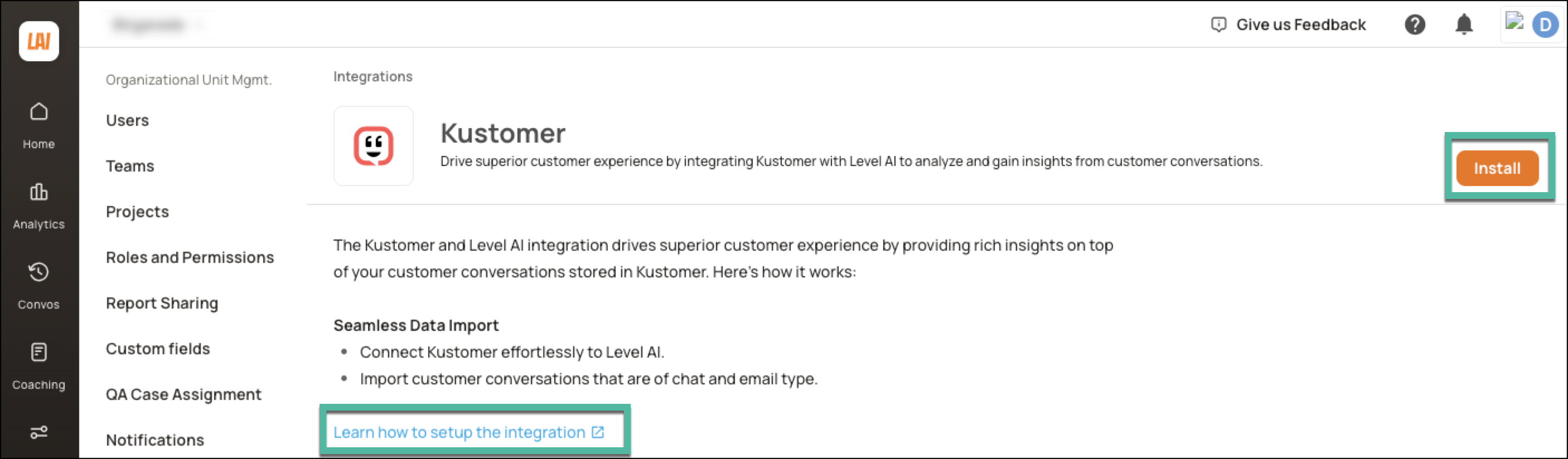
Click Install to initiate the set up process. You can click the hyperlink for step-by-step guidance on setting up the integration.
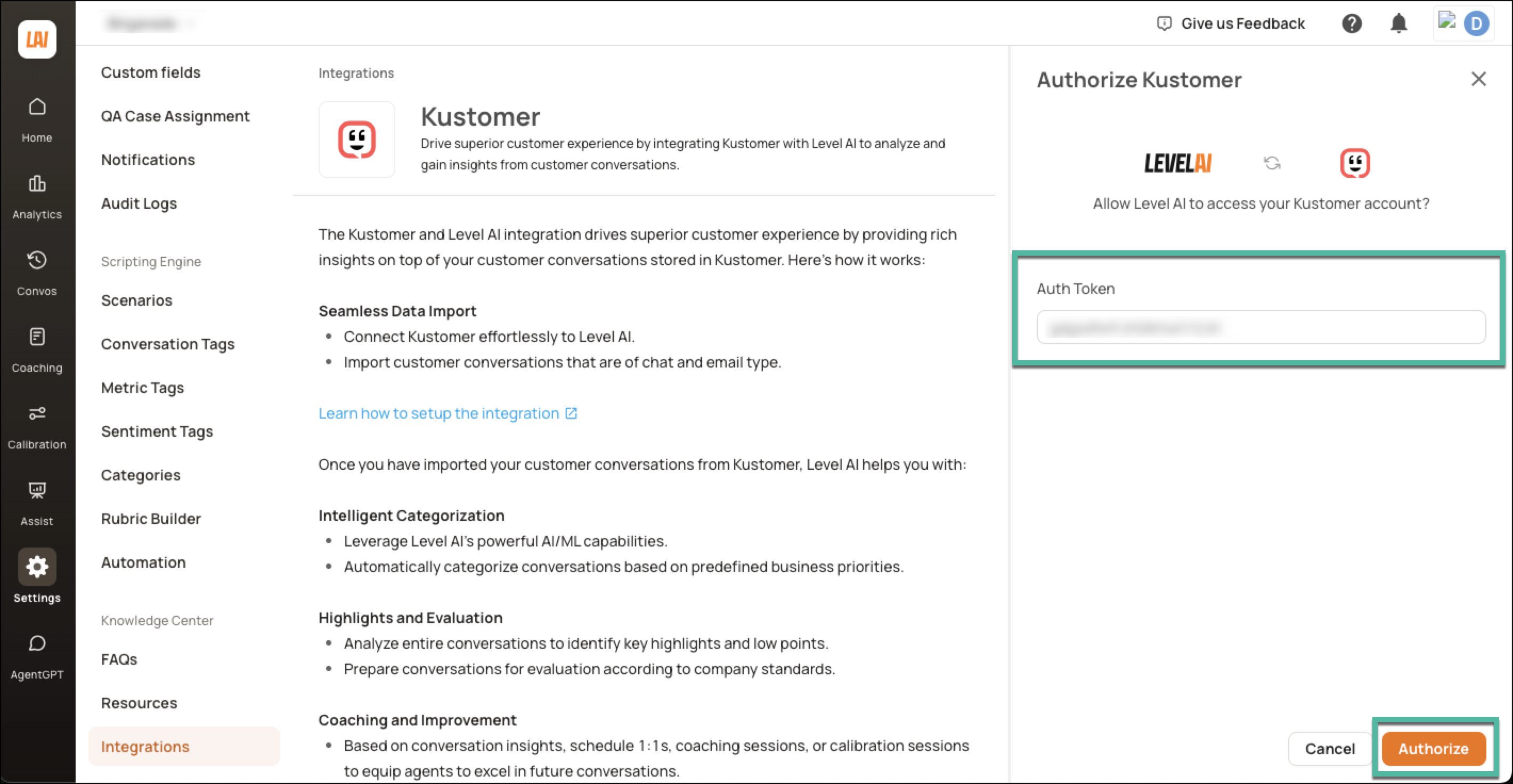
Enter the Access Token you received from Kustomer (as per the steps of the earlier section) into the authorization form and click Authorize.
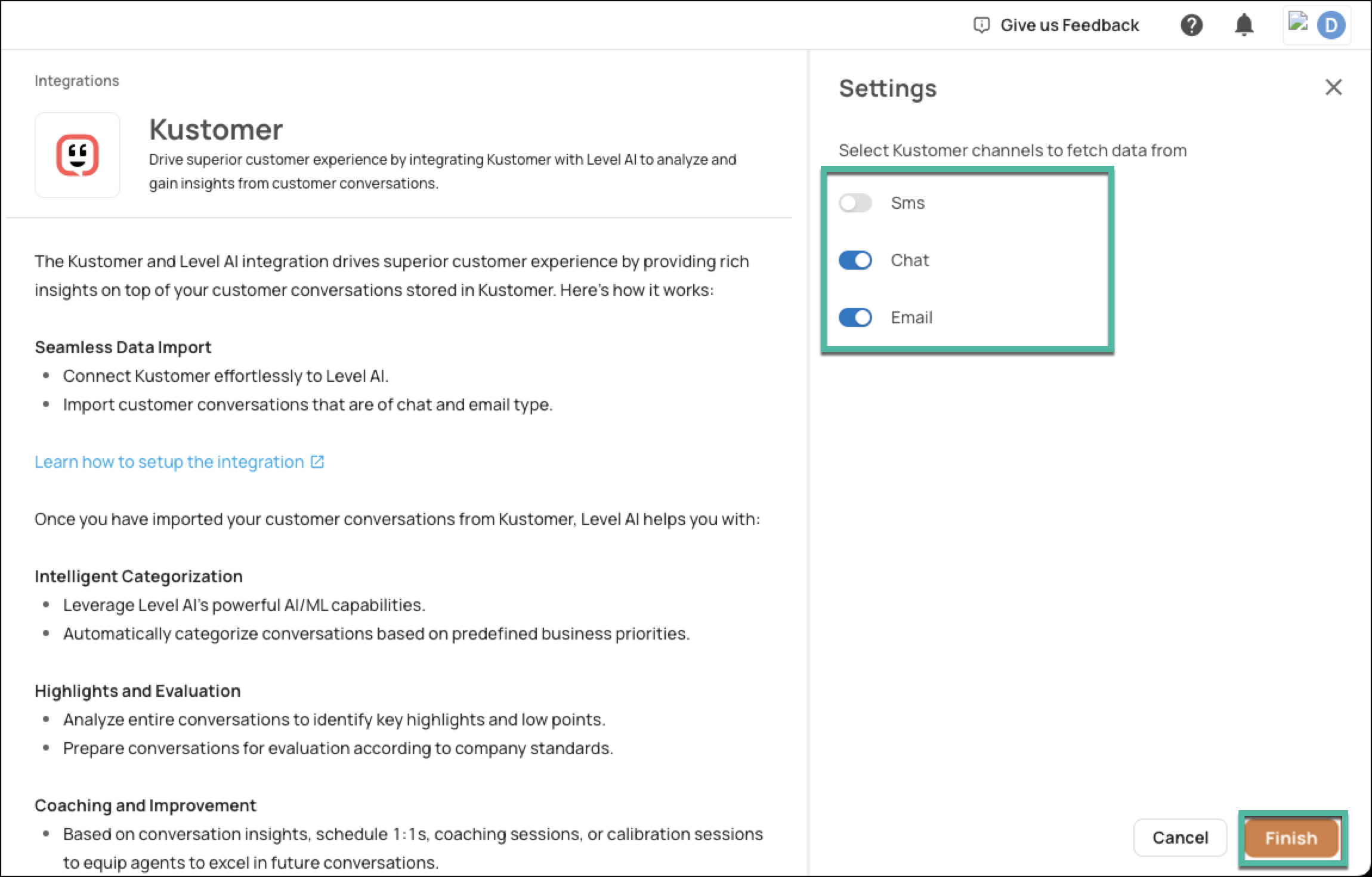
Select the channels of conversation that you want to import from Kustomer. Click Finish to complete the setup.
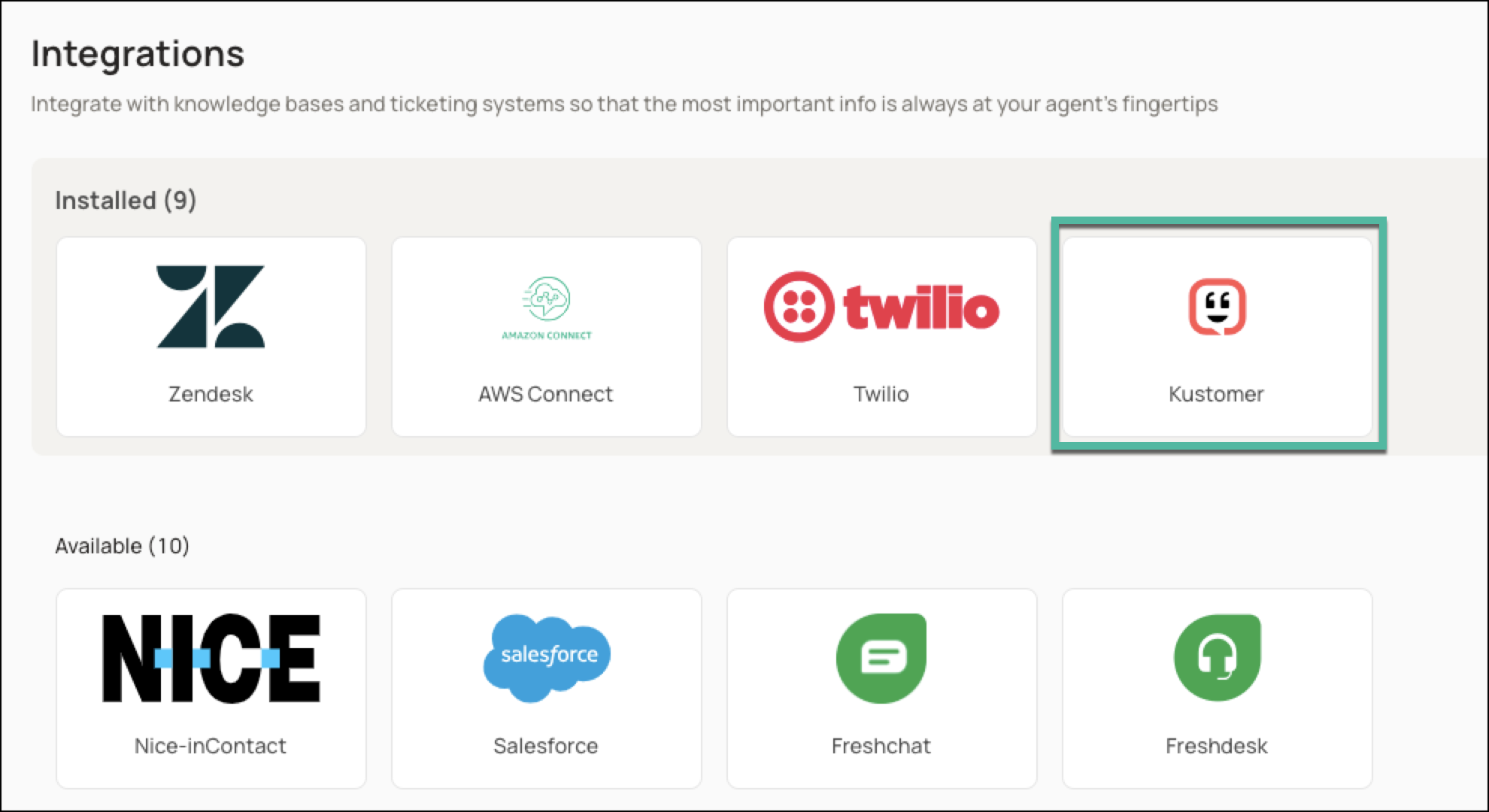
Once the integration has been successfully configured, the app will be displayed in the Installed section of the Integrations screen.
By default, the Level platform will ingest data from the past 30 days. If you want to change this to a duration of your choice, please get in touch with your Level AI AE/CSM.
Once the ingestion is complete, you can choose to run either an hourly or a daily cron job that will synchronize data across this integration.
Pausing data ingestion
If you want to momentarily pause data ingestion,
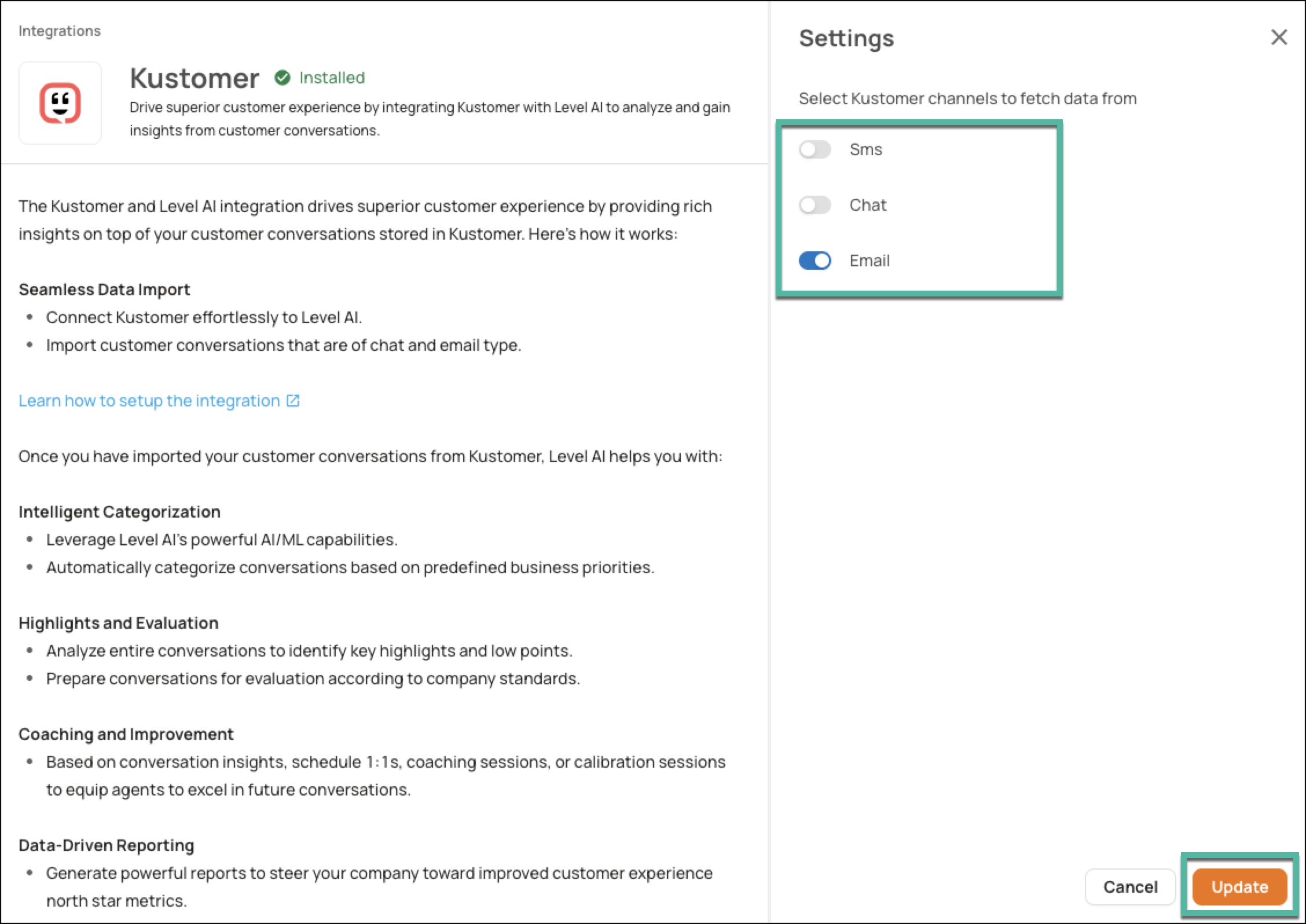
Navigate to Settings > Integrations. Under the Installed section, click the Kustomer icon to open your Kustomer integration.
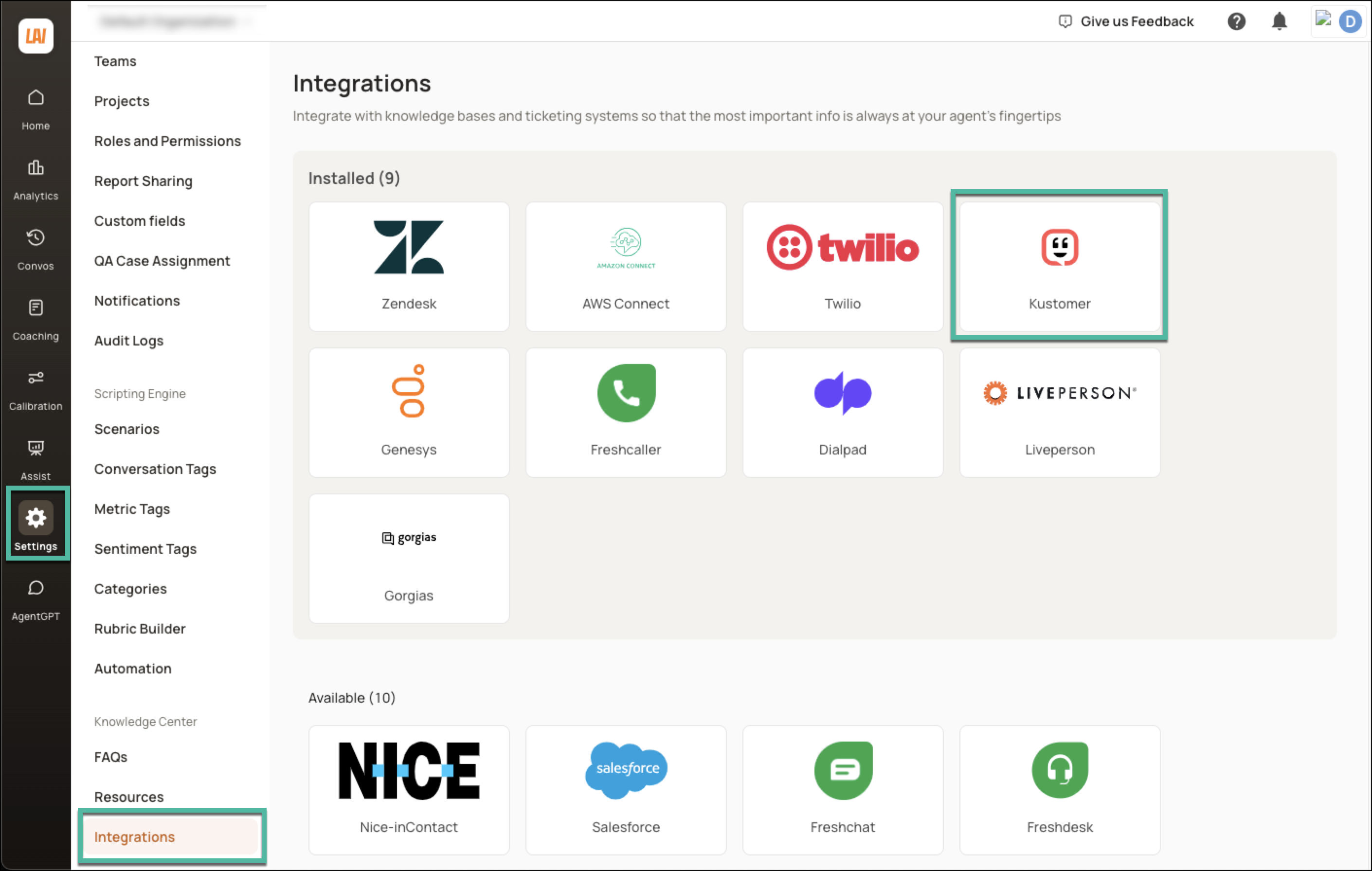
Click Settings.

Using the toggle, deactivate the desired channel(s) and click Update.
Uninstalling your Kustomer integration
NOTE
This is an irreversible process. The integration will be uninstalled by removing the authentication between Level AI and Kustomer. All ongoing and scheduled data ingestions will be terminated until re-installed.
If you want to uninstall your existing Kustomer integration,
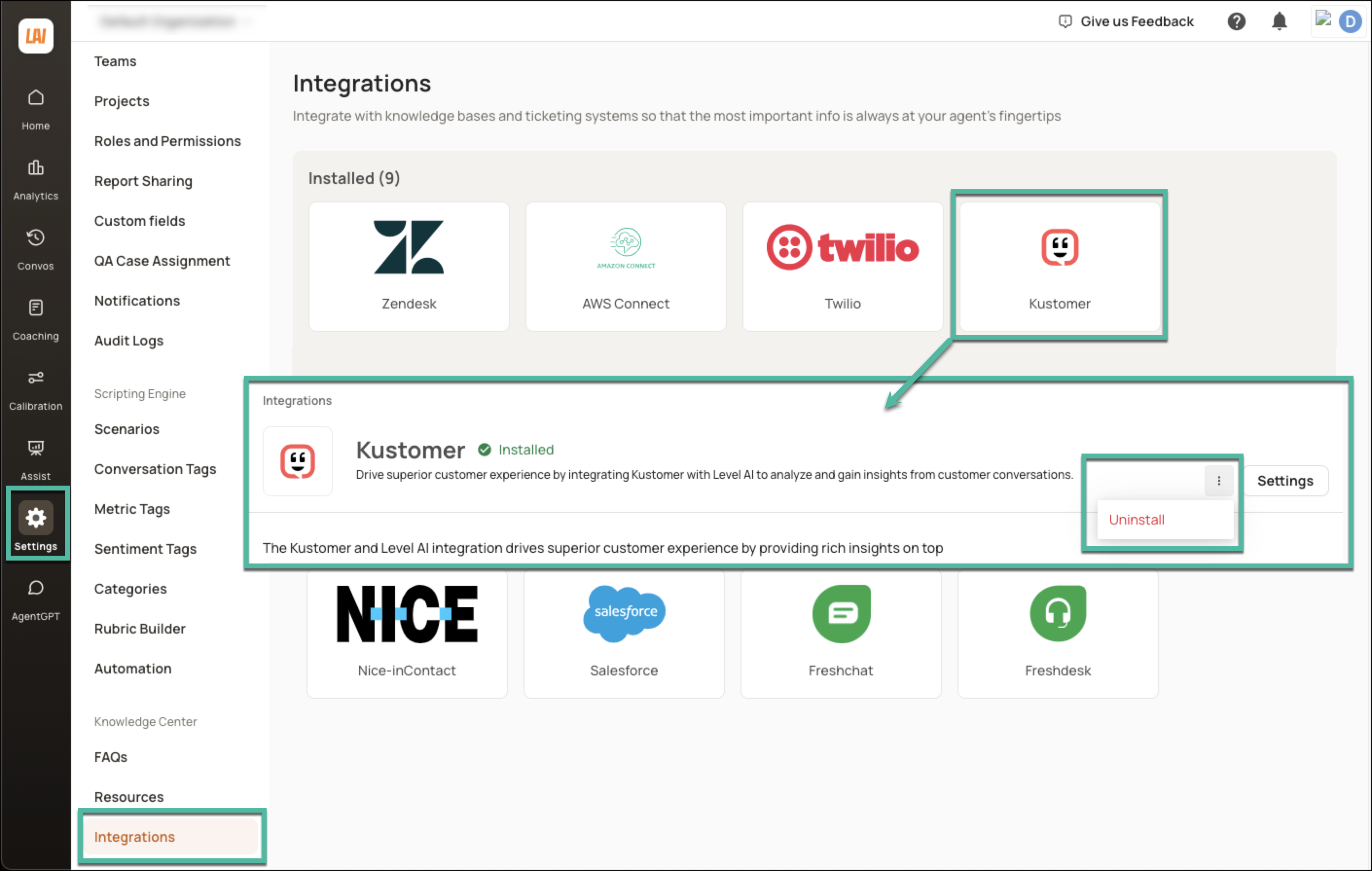
Navigate to Settings > Integrations. Under the Installed section, click the Kustomer icon to open your Kustomer integration.
In the screen that appears, click the More Options icon. In the list that is displayed, click Uninstall.
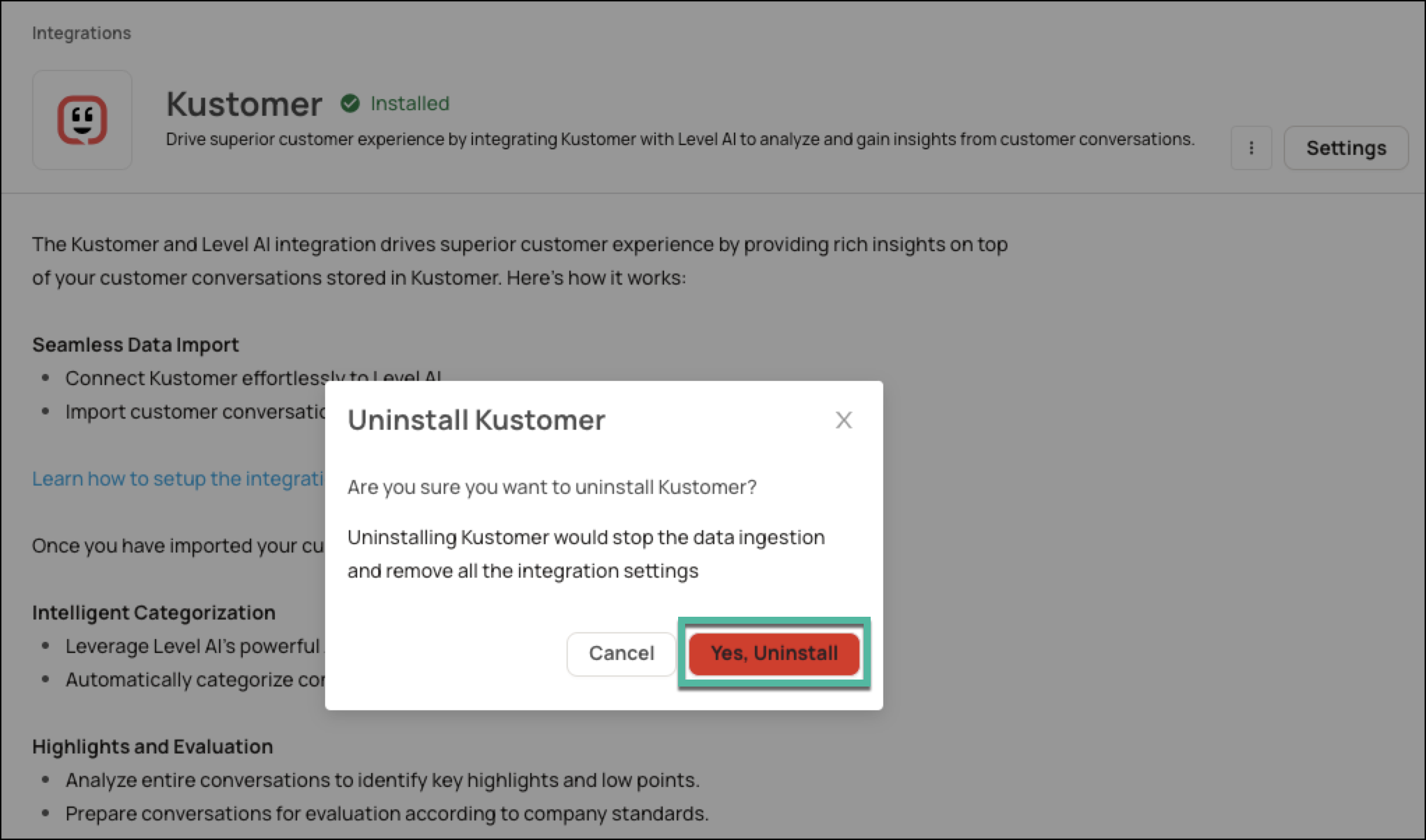
Click Yes, Uninstall to confirm.
HELP & SUPPORT
For any help related to the integration, do reach out to us at support@thelevel.ai.