Freshchat integration with Level AI
Last updated: June 18, 2026
You can import all your customer chat conversations from Freshchat into Level AI to gain valuable insights. With the Freshchat - Level AI integration, conversations will be ingested from your Freshchat instance into Level AI in a systematic, periodic manner.
Setting up your Freshchat integration
Login to your Level AI tenant as an Admin. In the left sidebar, navigate to Settings > Integrations screen.
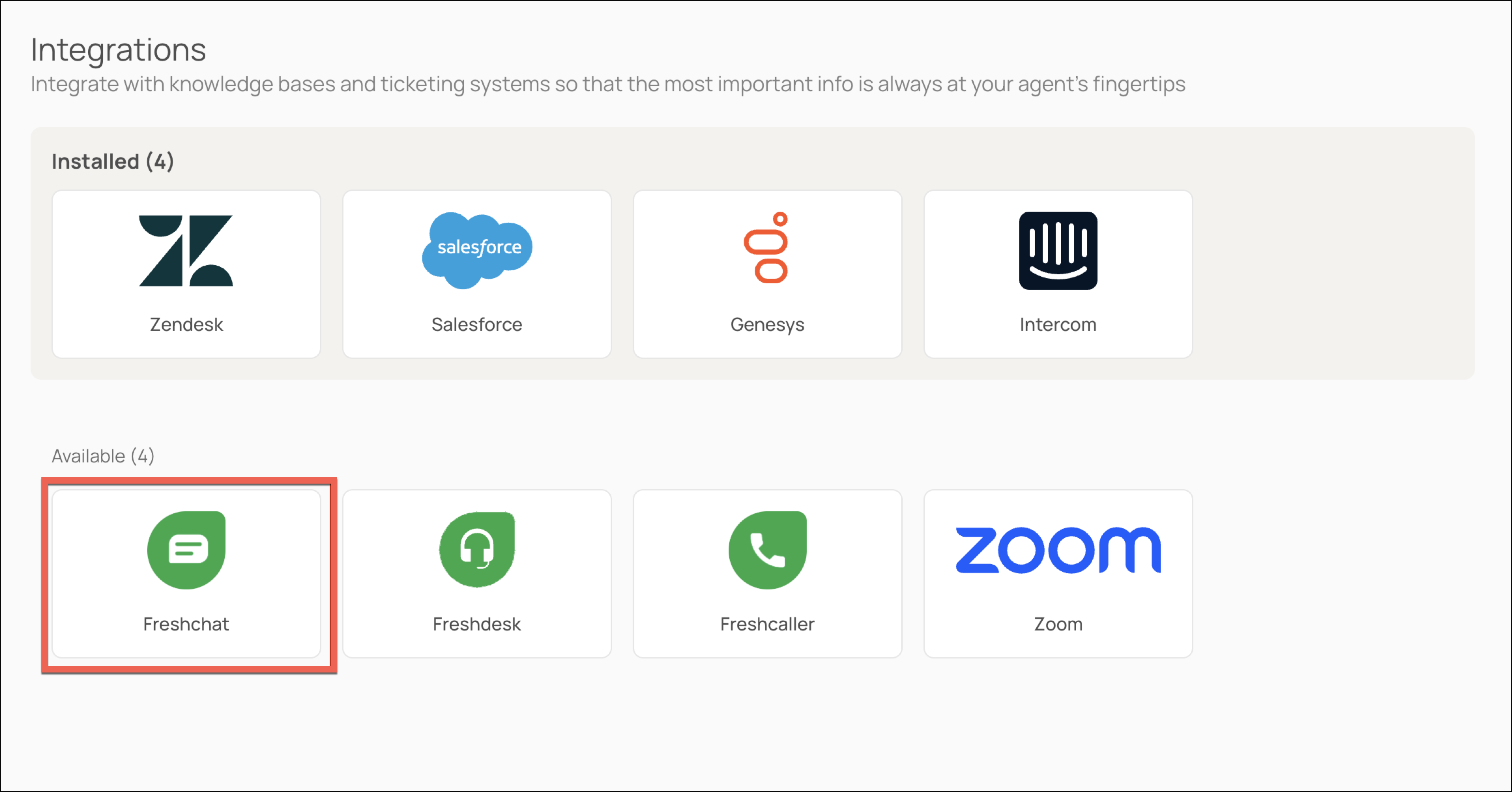
Under the Available section, click Freshchat.
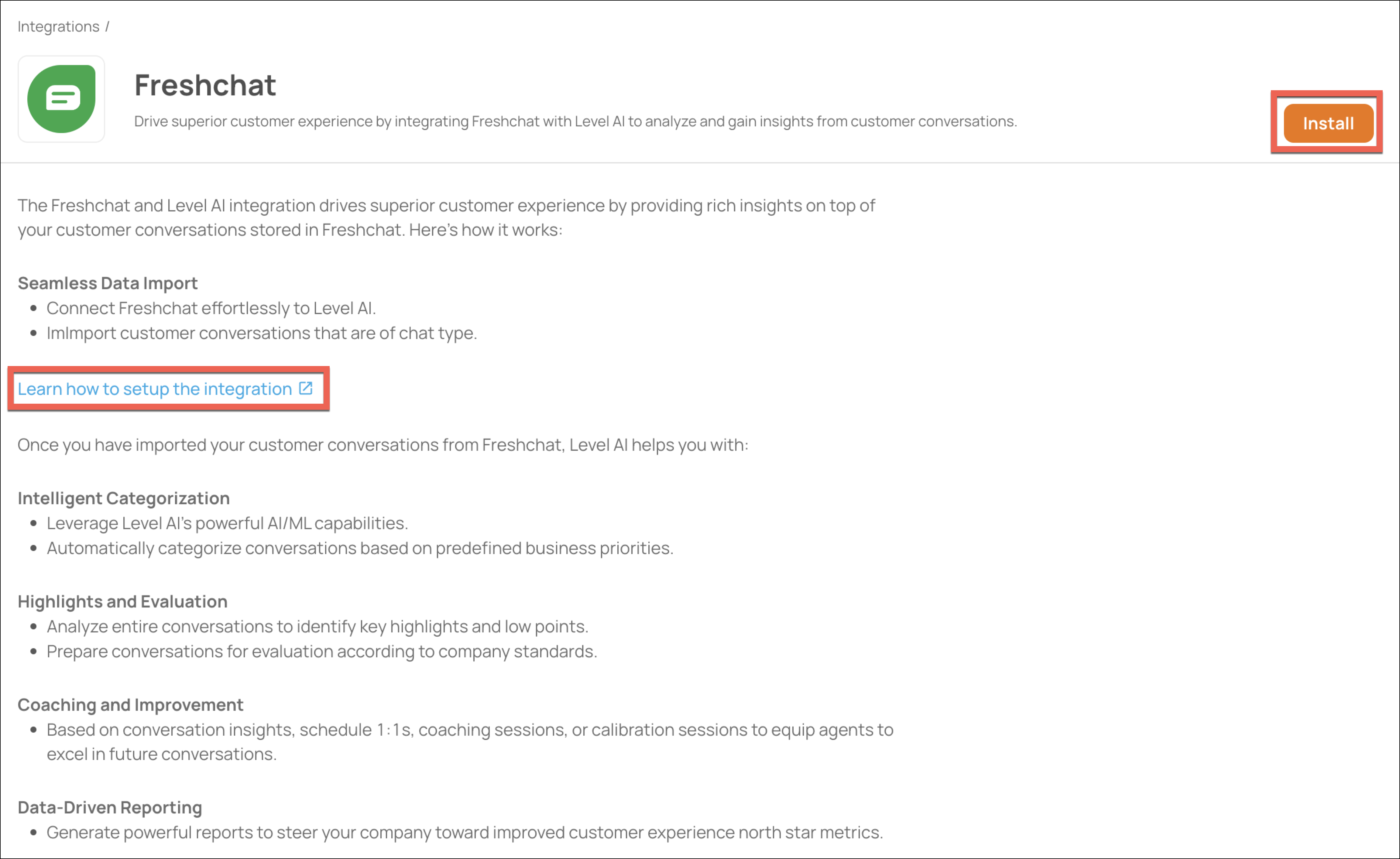
Click Install to initiate the set up process. You can click the hyperlink for step-by-step guidance on setting up the integration.
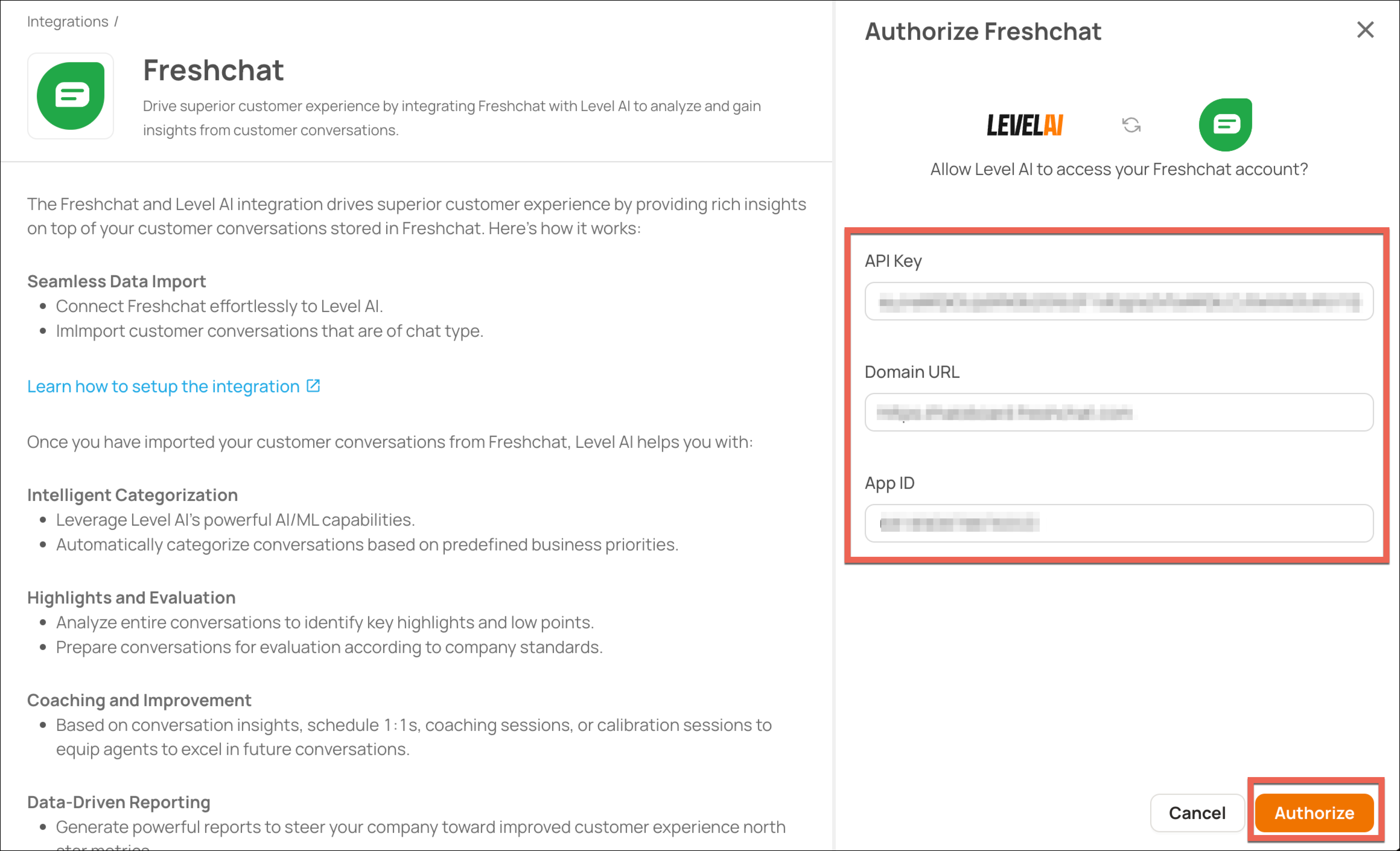
Enter the API key, Domain URL and App ID from Freshchat into the authorization form and click on Authorize.
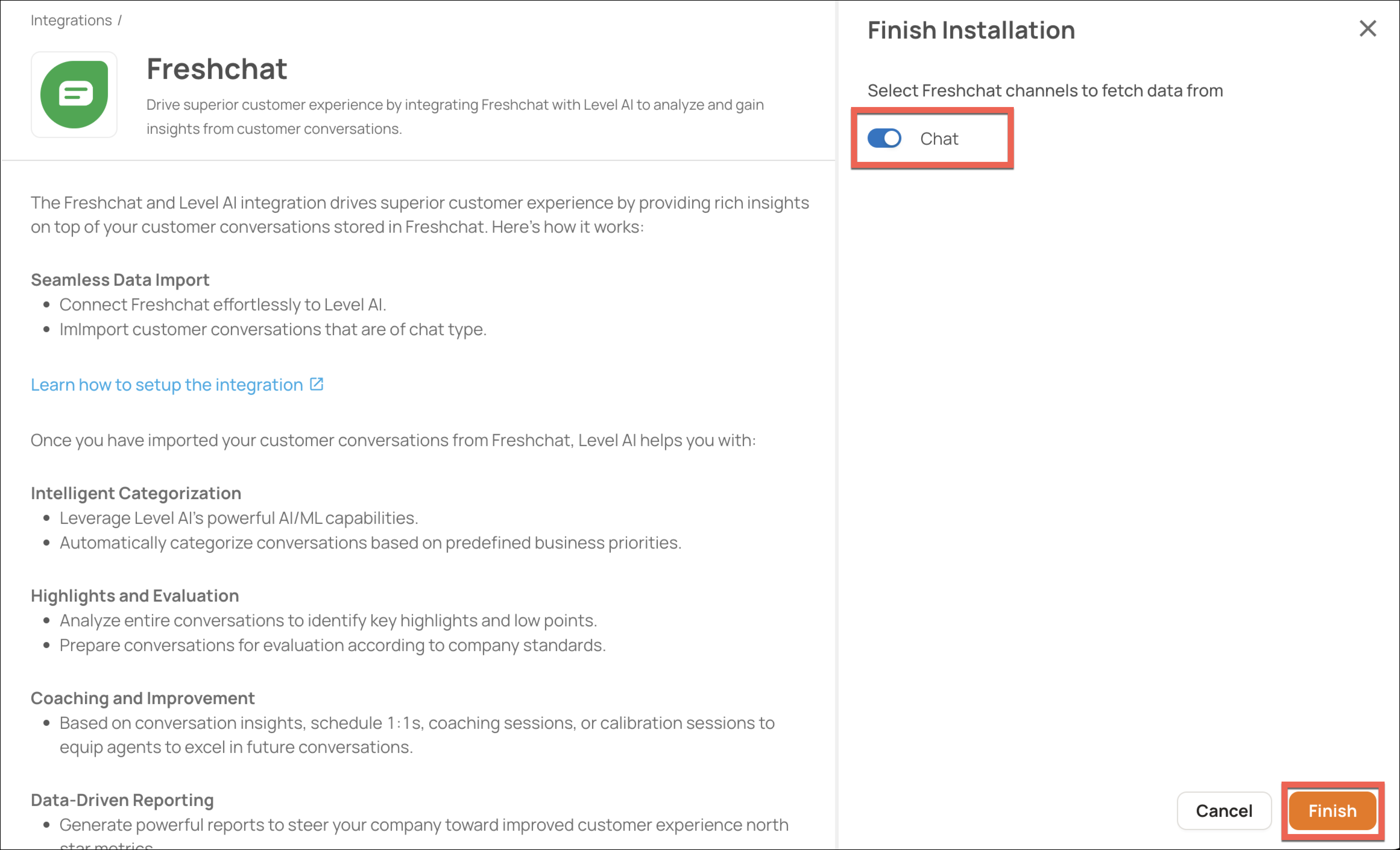
As Freshchat is a single channel integration i.e., for chat conversations only, the channel is already selected. Click on Finish to complete the setup.
Once the integration has been successfully configured, the app will be displayed in the Installed section of the Integrations screen.
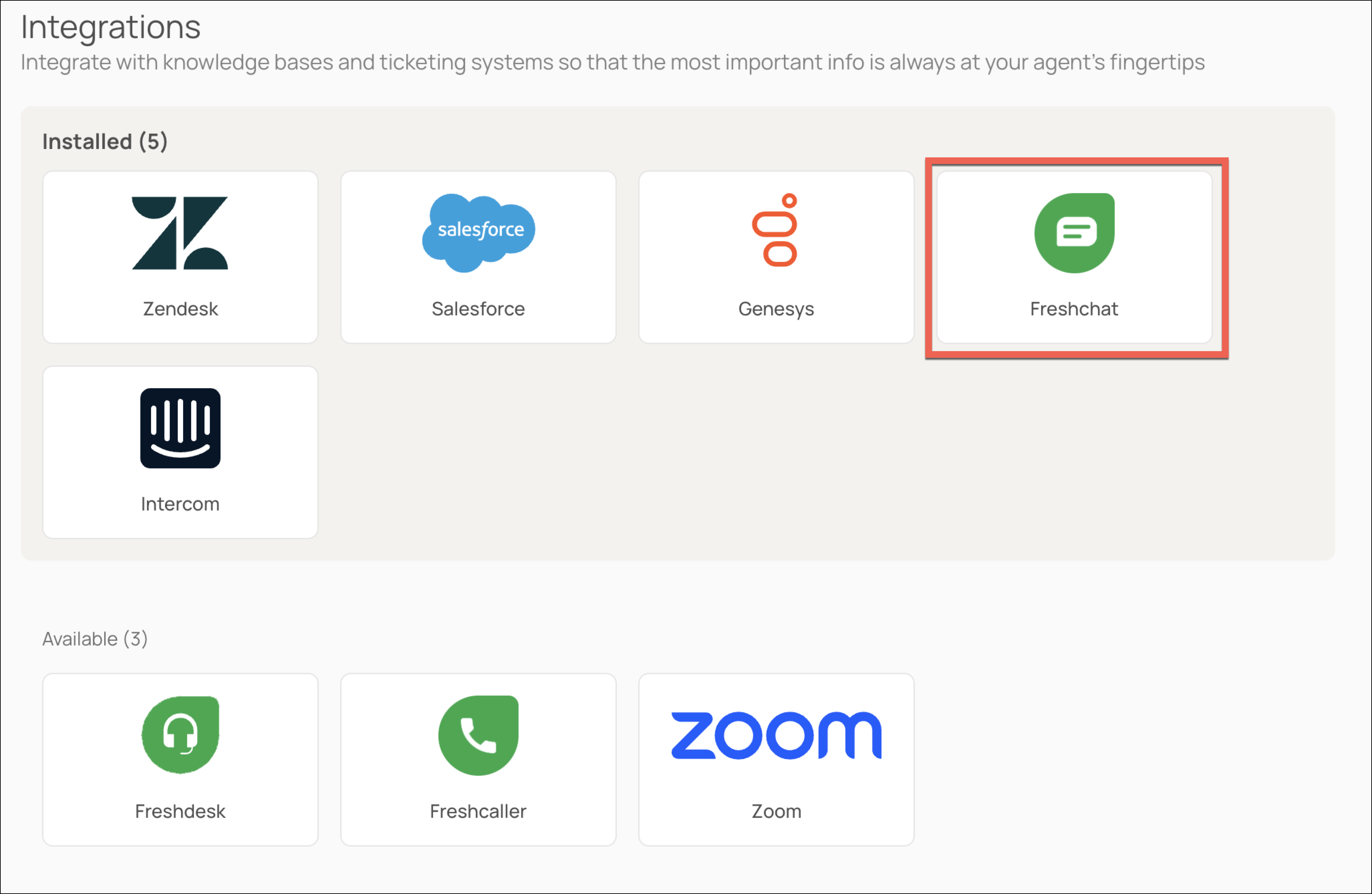
Pausing data ingestion
If you want to momentarily pause data ingestion,
Navigate to Settings > Integrations. Under the Installed section, click the Freshchat icon to open your Freshchat integration.
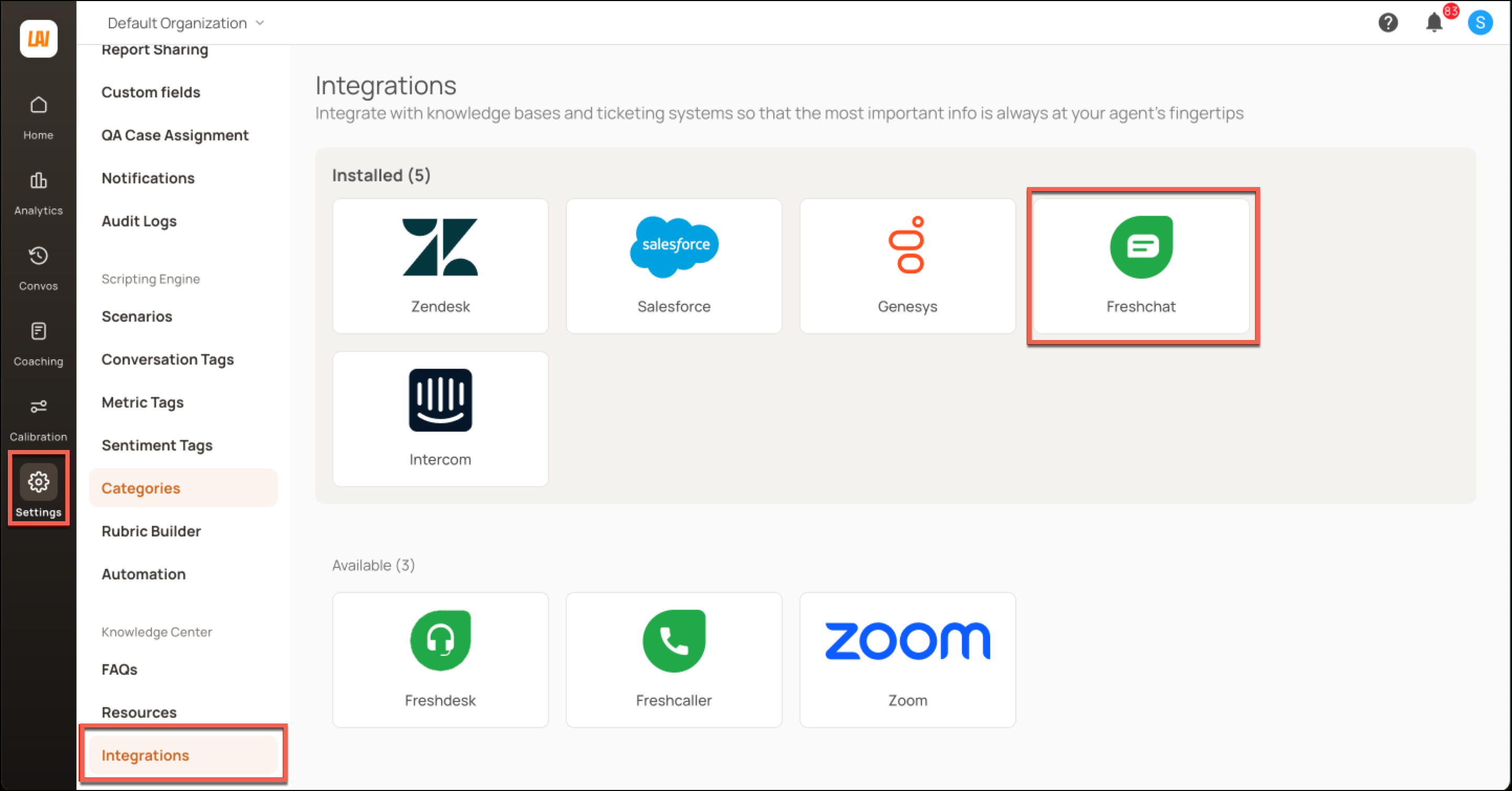
Click Settings.

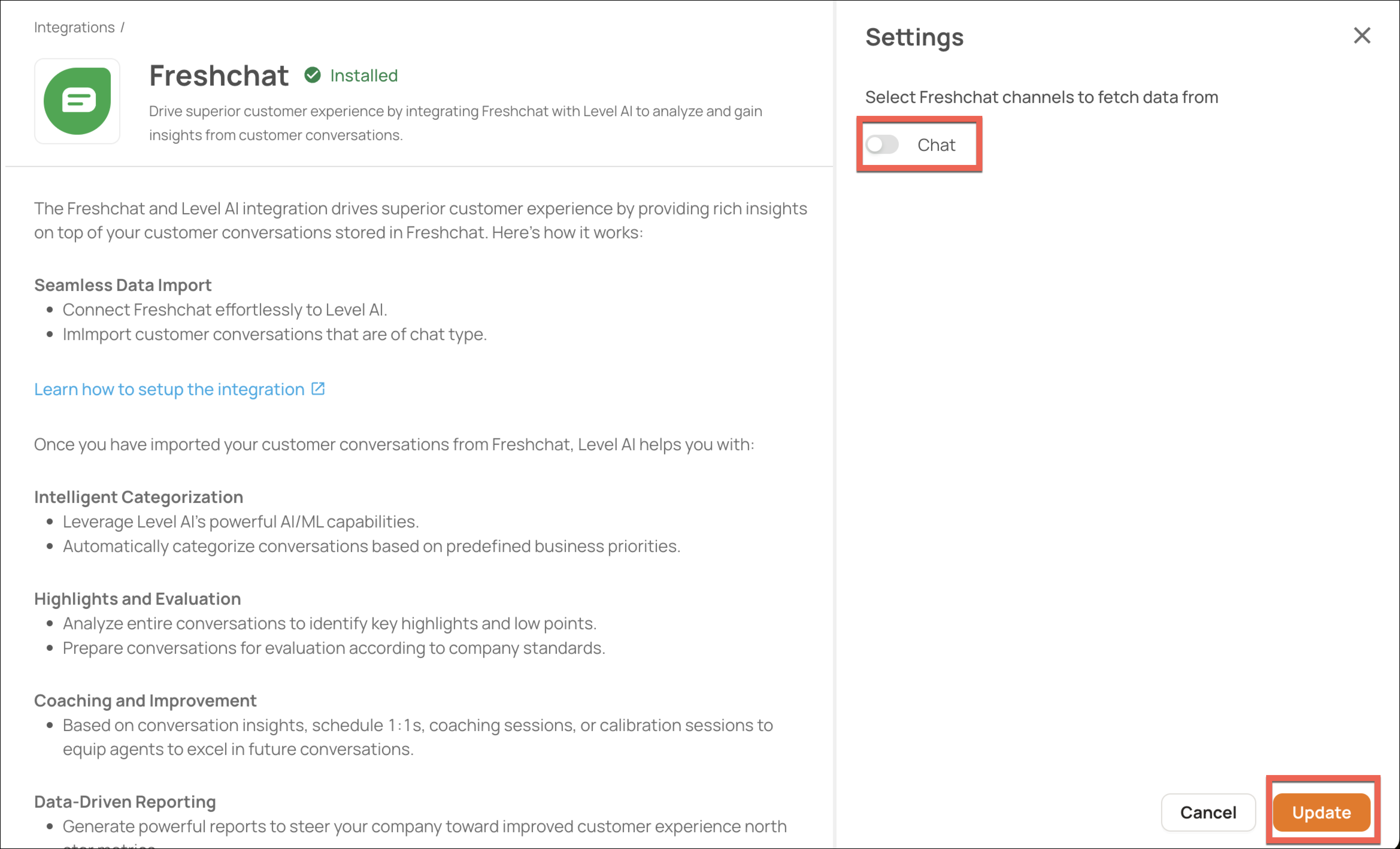
Using the toggle, deactivate the Chat channel and click Update.
Uninstalling your Freshchat integration
NOTE
This is an irreversible process. The integration will be uninstalled by removing the authentication between Level AI and Freshchat. All ongoing and scheduled data ingestions will be terminated until re-installed.
If you want to uninstall your existing Freshchat integration,
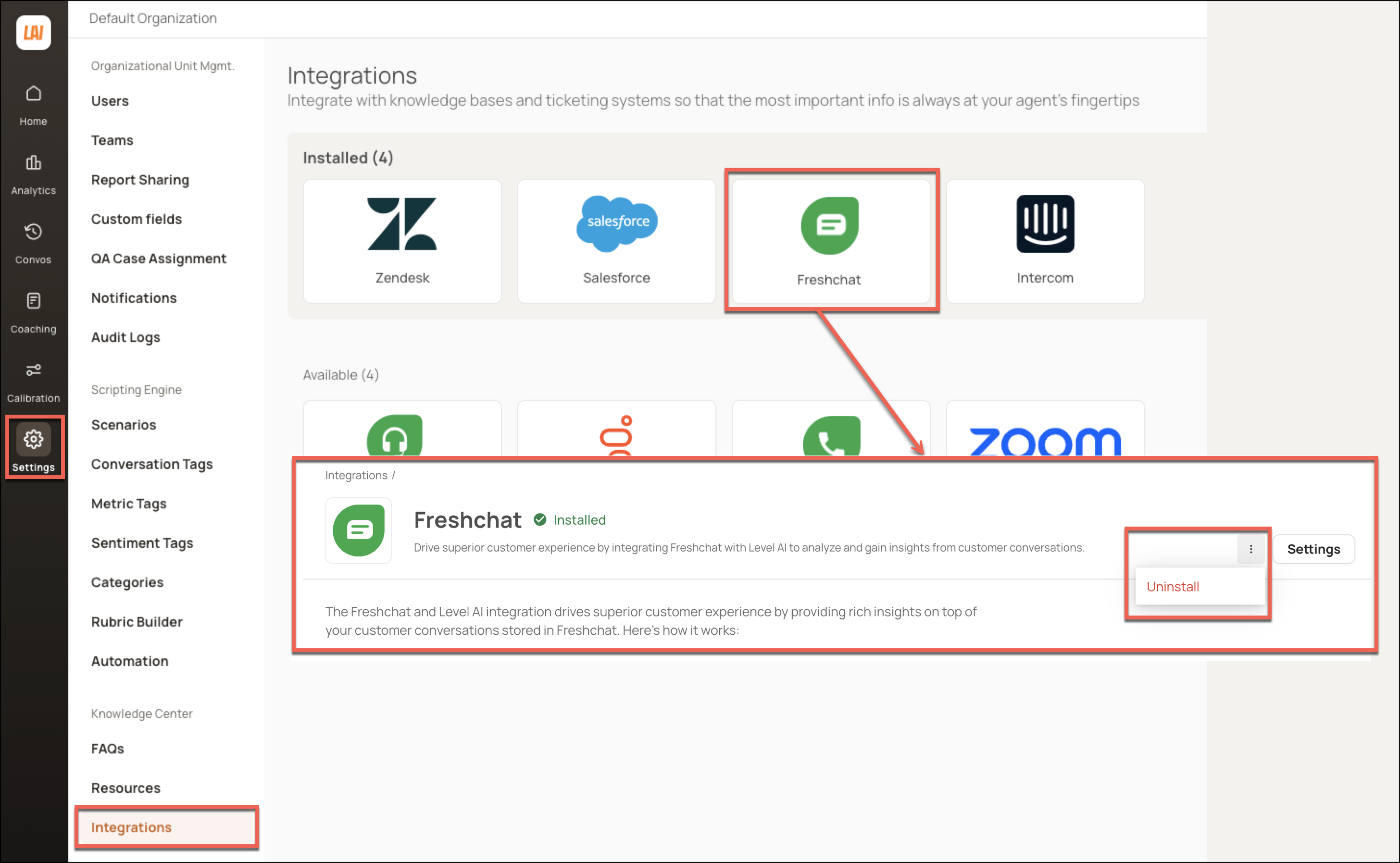
Navigate to Settings > Integrations. Under the Installed section, click the Freshchat icon to open your Freshchat integration.
In the screen that appears, click the More Options icon. In the list that is displayed, click Uninstall.
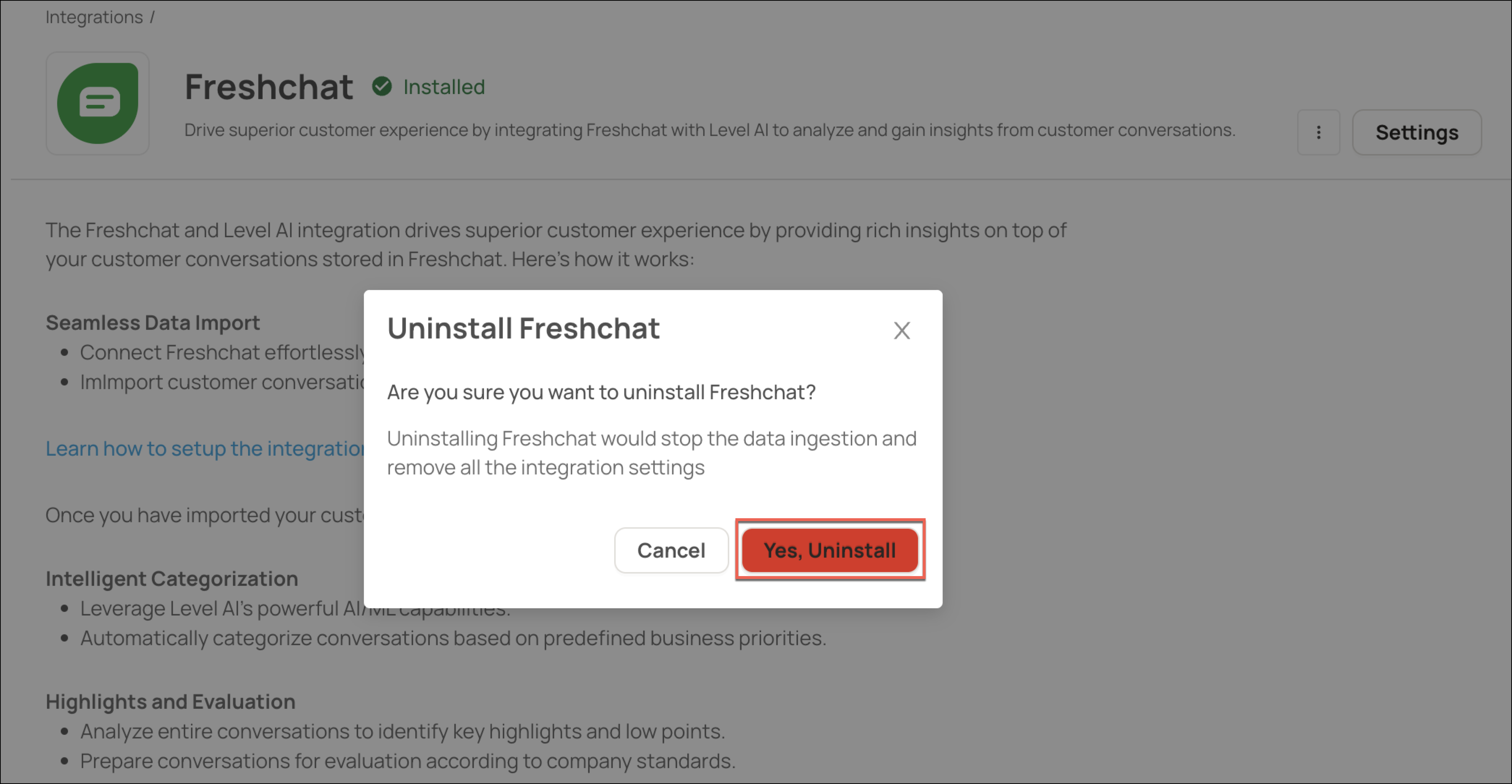
Click Yes, Uninstall to confirm.
HELP & SUPPORT
For any help related to the integration, do reach out to us at support@thelevel.ai.