Zoom - Level AI Integration
Last updated: June 18, 2026
You can import all your meeting-based and phone-based customer conversations from Zoom into Level AI to gain valuable insights. With the Zoom - Level AI integration, conversations are ingested from your Zoom instance into Level AI in a systematic, periodic manner.
Audio files stored in MP4 with AAC codec are supported.
Prerequisites
Before setting up the integration in Level AI, you need to generate API credentials from the Zoom Marketplace. This requires admin-level access to your Zoom account.
Part 1: Generating Your Zoom Credentials
Open the Zoom Marketplace: https://marketplace.zoom.us/
Log in using your admin account credentials.
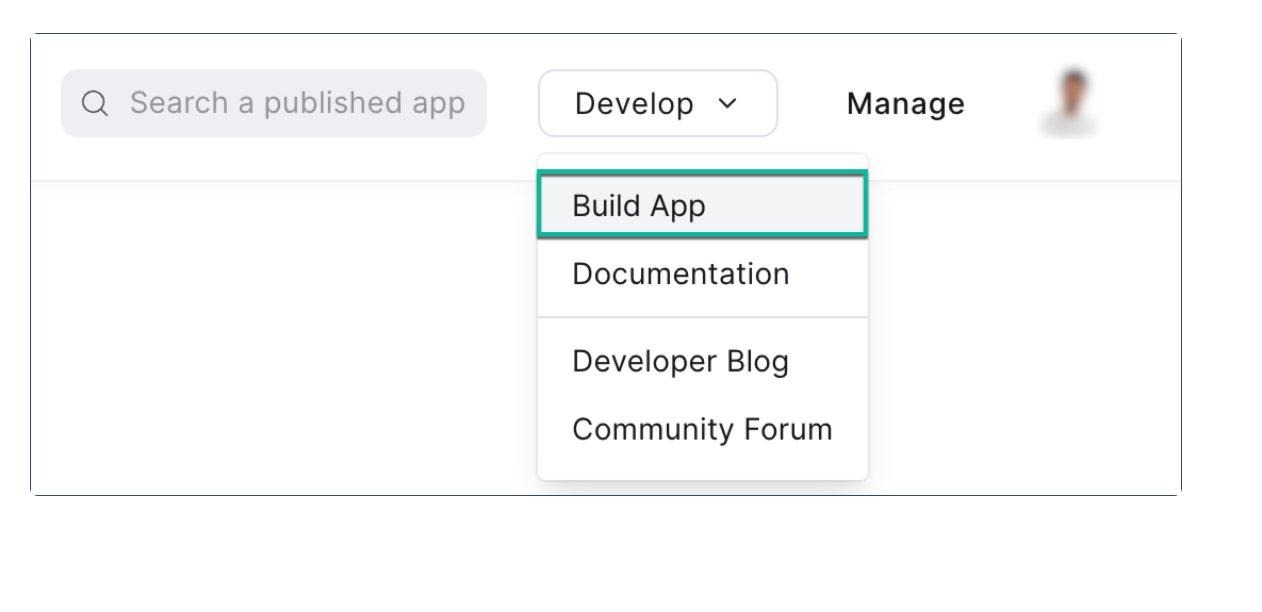
Hover over Develop at the top-right corner and click Build App.
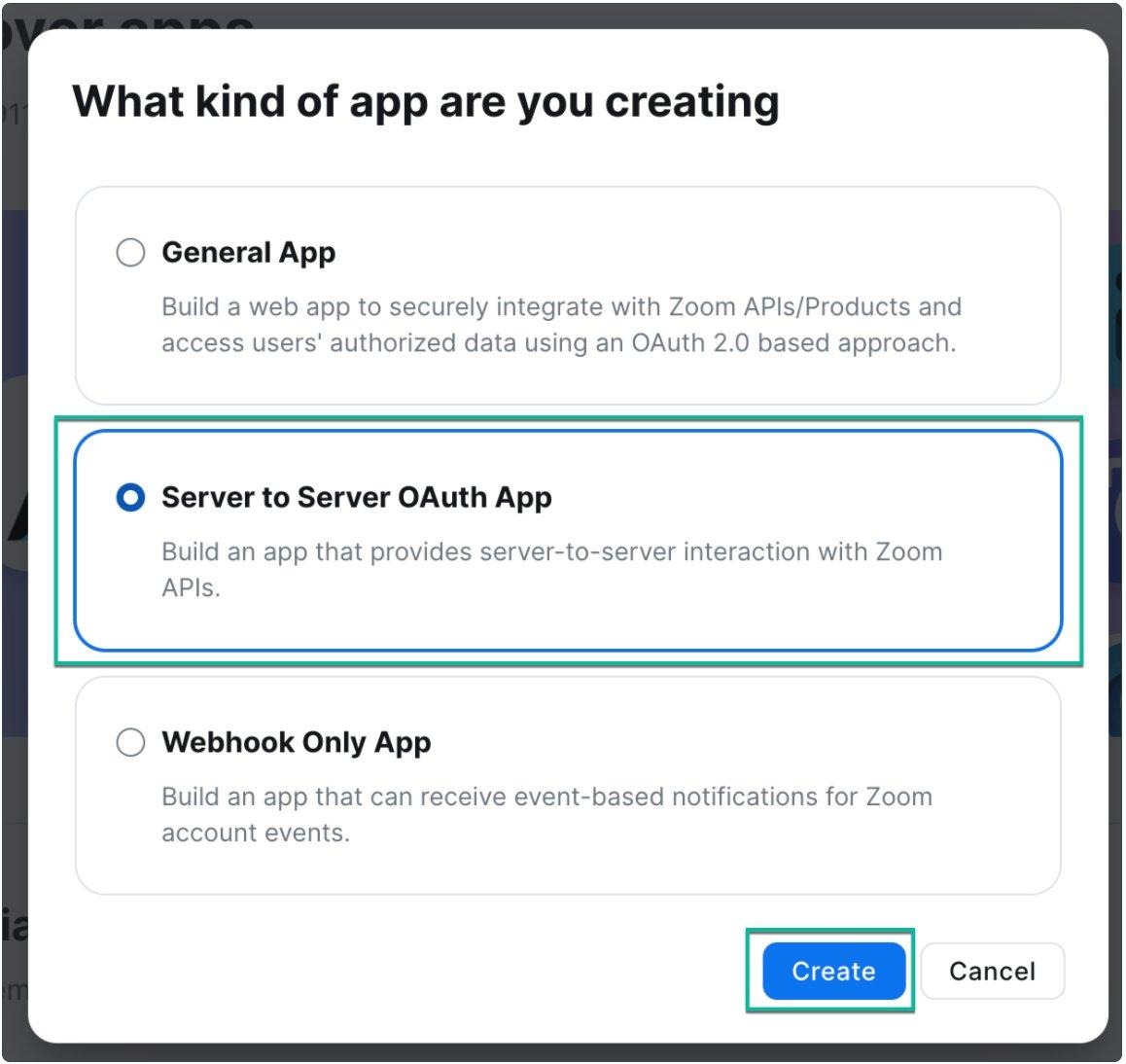
Select Server-to-Server OAuth App and click Create.
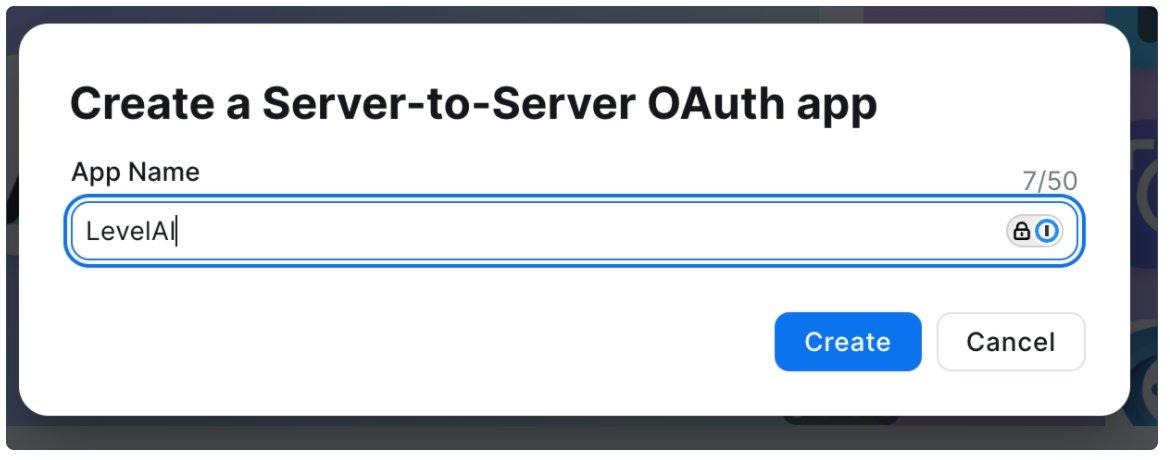
Enter a suitable name in the App name field (e.g., LevelAI) and click Create.
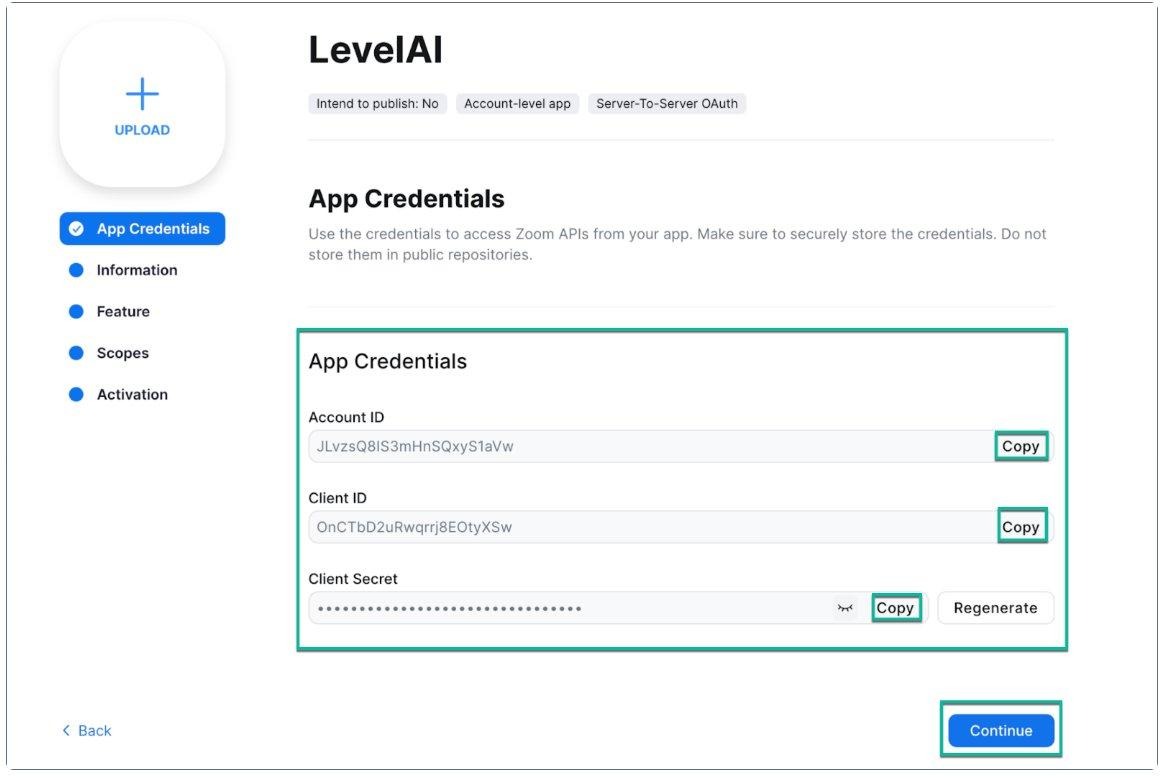
A set of credentials is generated in the App Credentials section. Copy the values for Account ID, Client ID, and Client Secret. You will need these when setting up the integration in Level AI. Click Continue.
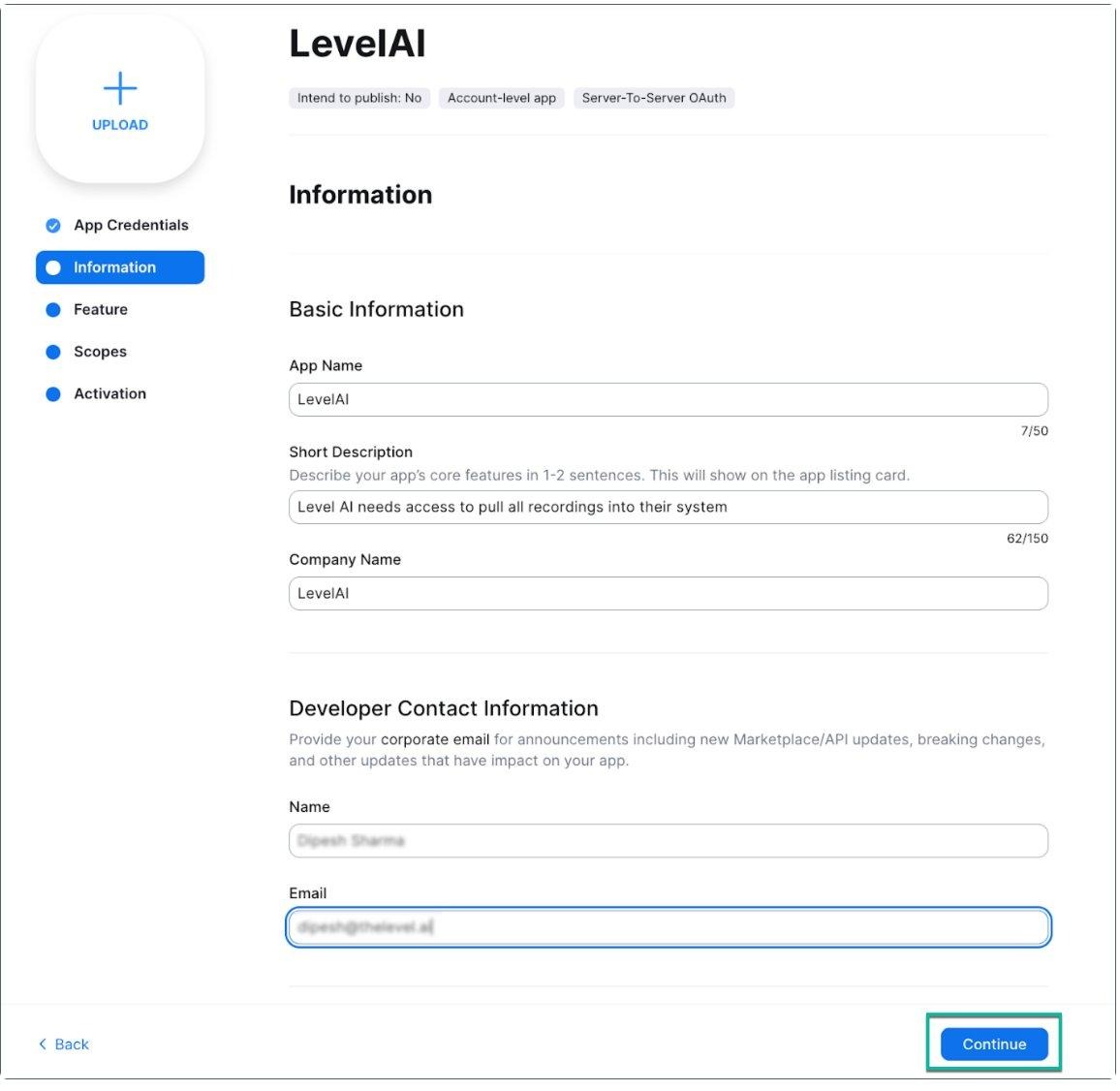
In the Basic Information section, fill in the required fields (App Name, Short Description, Company Name, and Developer Contact Information). These fields do not impact the integration or credentials. Click Continue.
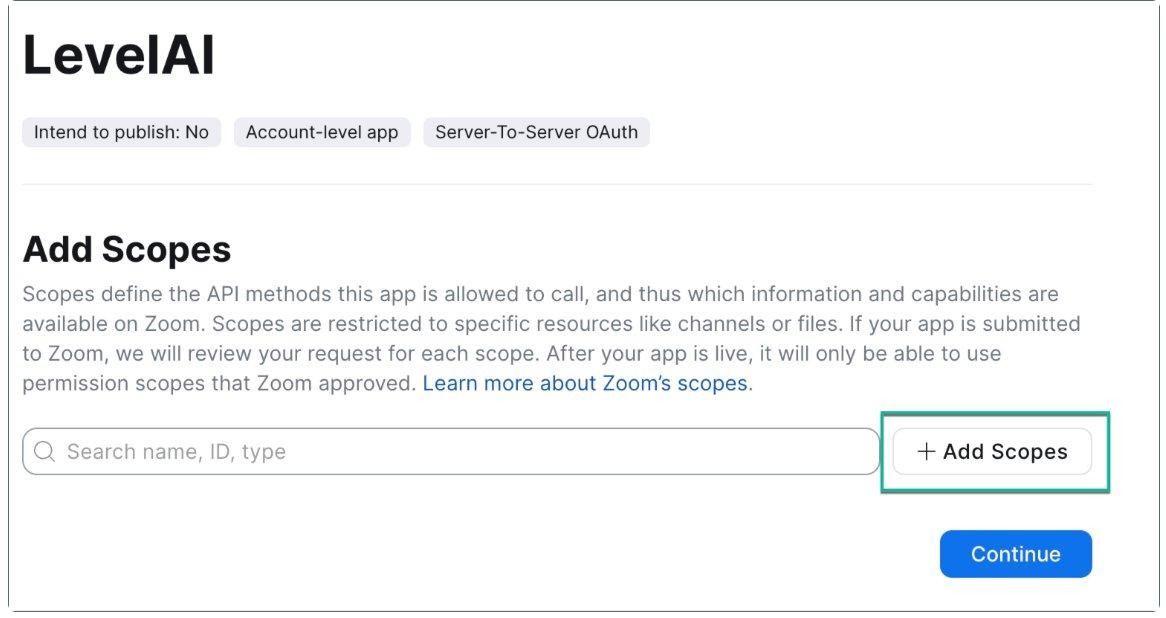
In the Scopes section, click + Add Scopes and add the following scopes:
Zoom Phone Scopes:
phone:read:call_recording:admin (View call recordings)
phone:read:list_call_queue_members:admin (View call queue members)
phone:read:list_call_recordings:admin (View all call recordings)
Users Scope:
user:read:admin (View user details)
SMS Scopes:
phone:read:list_sms_sessions:admin (View all message sessions list)
phone:read:sms_session:admin (View details of any session)
phone:read:sms_message:admin (View details of any message)
Meeting Scopes:
dashboard:read:list_meetings:admin (View all meetings)
meeting:read:participant:admin (View a meeting’s participants)
cloud_recording:read:list_recording_files:admin (Returns all recordings of a meeting)
Participants Scopes:
meeting:read:list_past_participants (View all participants)
meeting:read:list_past_participants:admin (View a meeting’s participants)
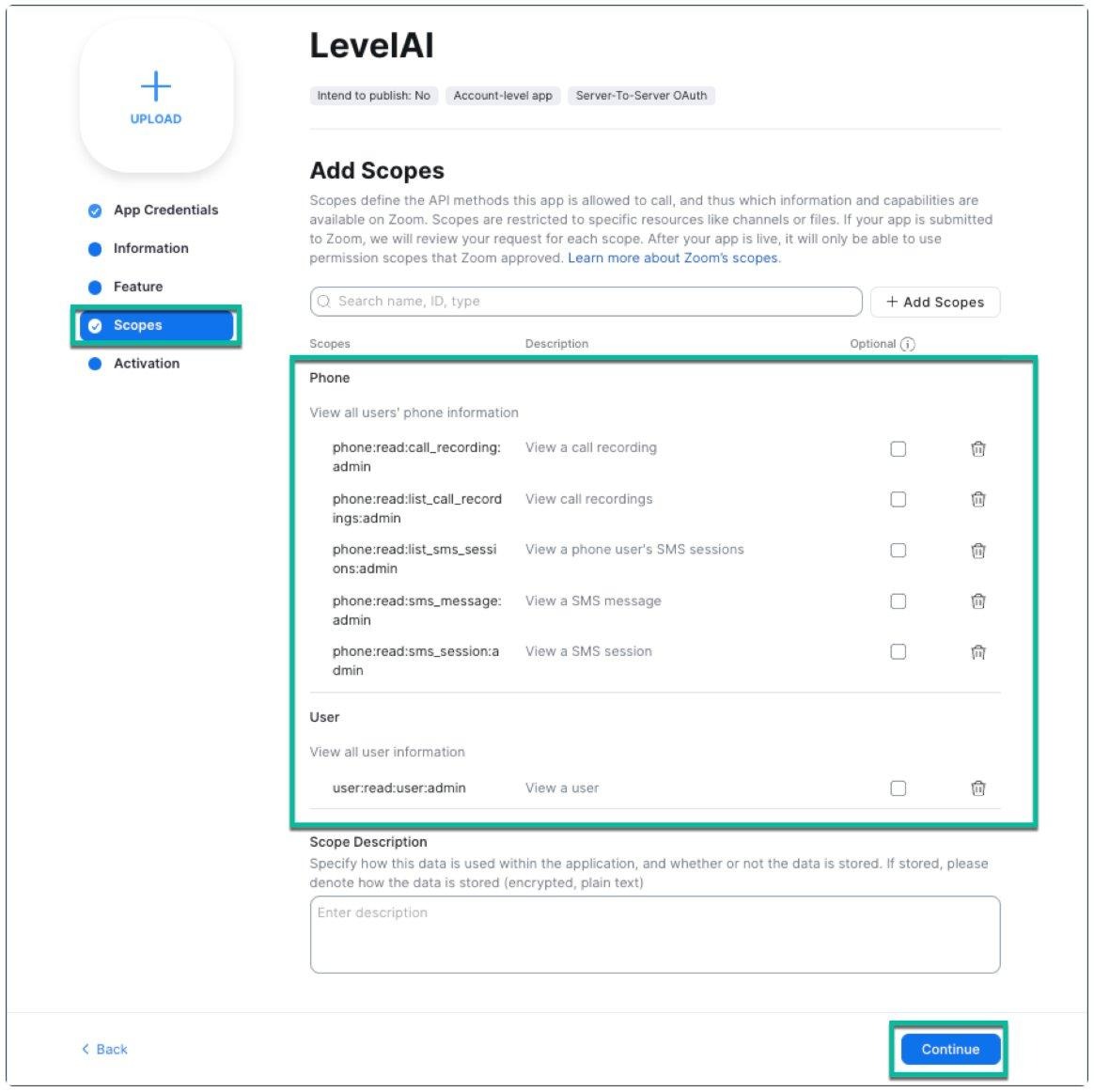
Verify all scopes are correctly added as shown below, then click Continue.
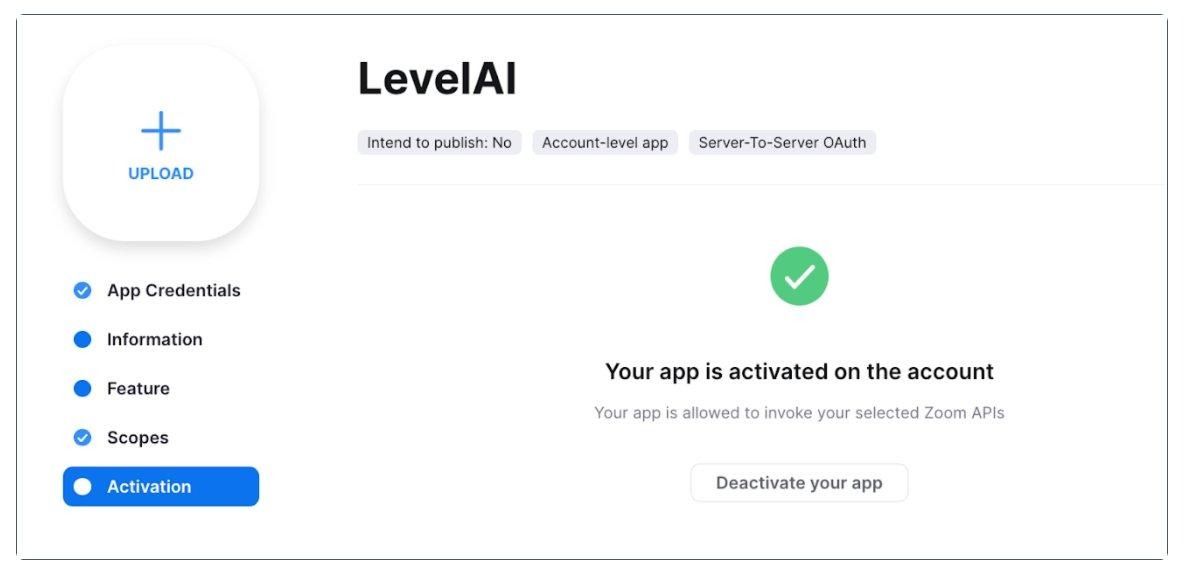
10. On the Activation page, click Activate your app.
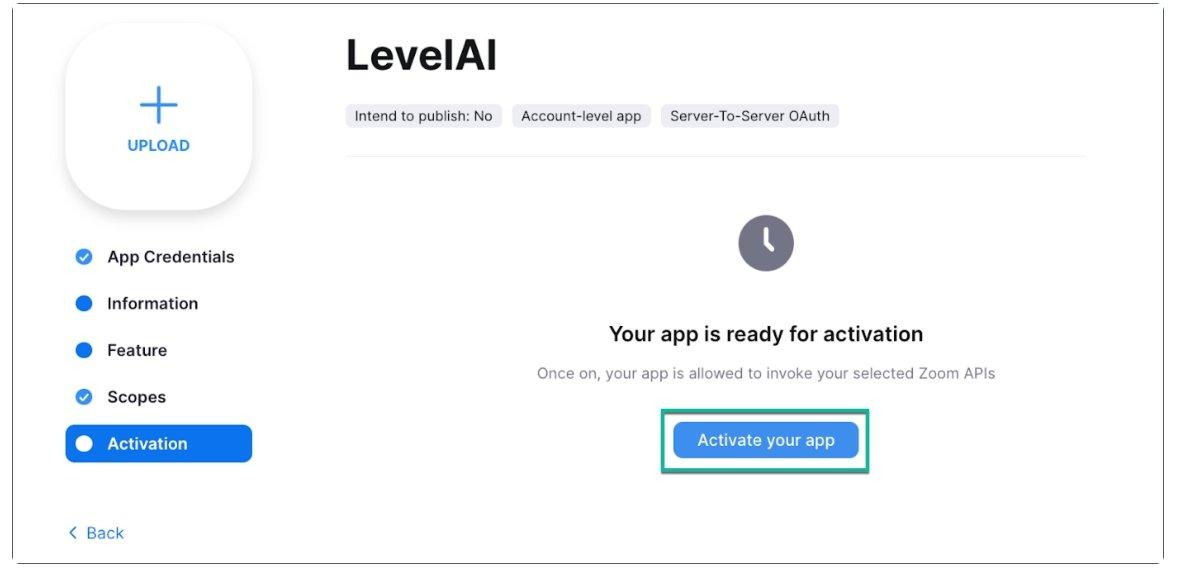
Once activated, you will see a confirmation that your app is activated on the account.
NOTE
Keep the Account ID, Client ID, and Client Secret handy. You will need them in the next section.
Part 2: Setting Up the Integration in Level AI
Once you have generated the credentials from Zoom, follow these steps to complete the self-serve setup in Level AI.
Step 1: Authenticate with Credentials
Log in to your Level AI tenant as an Admin.
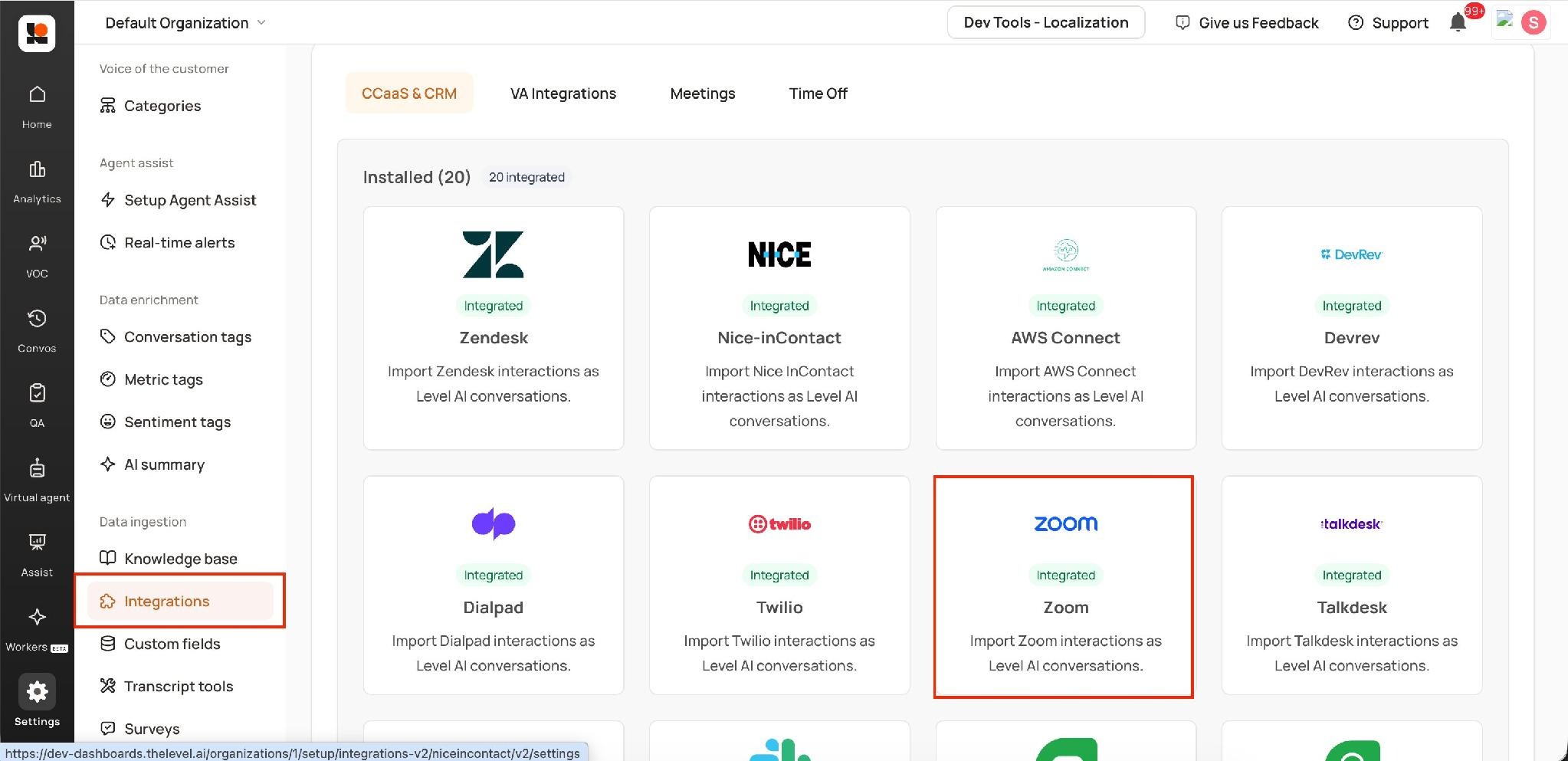
In the left sidebar, navigate to Settings > Integrations.
Under the CCaaS & CRM tab, locate the Zoom card and click on it.
In the authentication modal that appears, enter the following credentials from your Zoom Server-to-Server OAuth app:
API Key — This is the Client ID from Zoom
API Secret — This is the Client Secret from Zoom
Account ID — This is the Account ID from Zoom
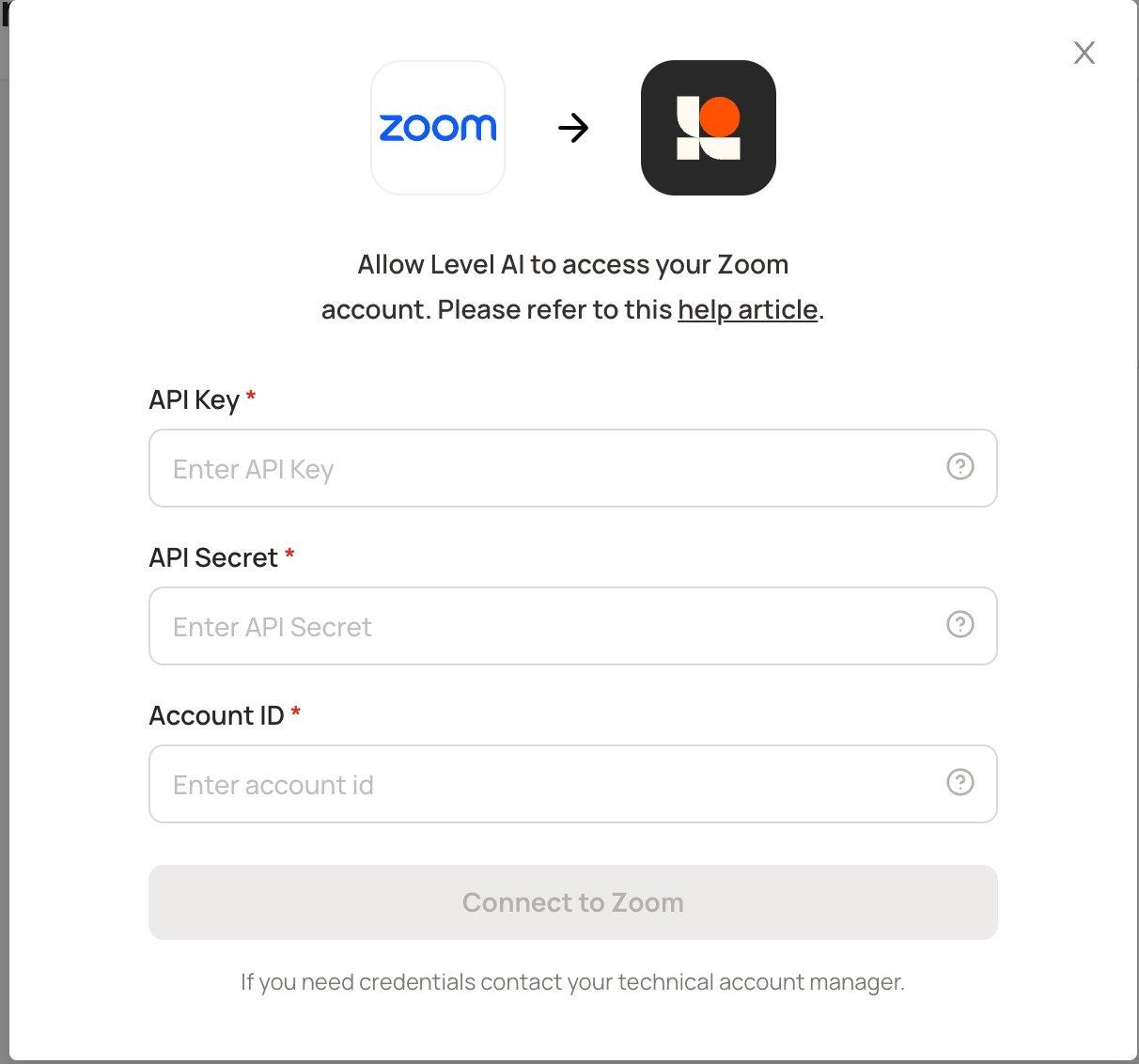
Click Connect to Zoom to authenticate.
Note: If you do not have credentials, contact your Technical Account Manager.
Step 2: Choose Account and Configure
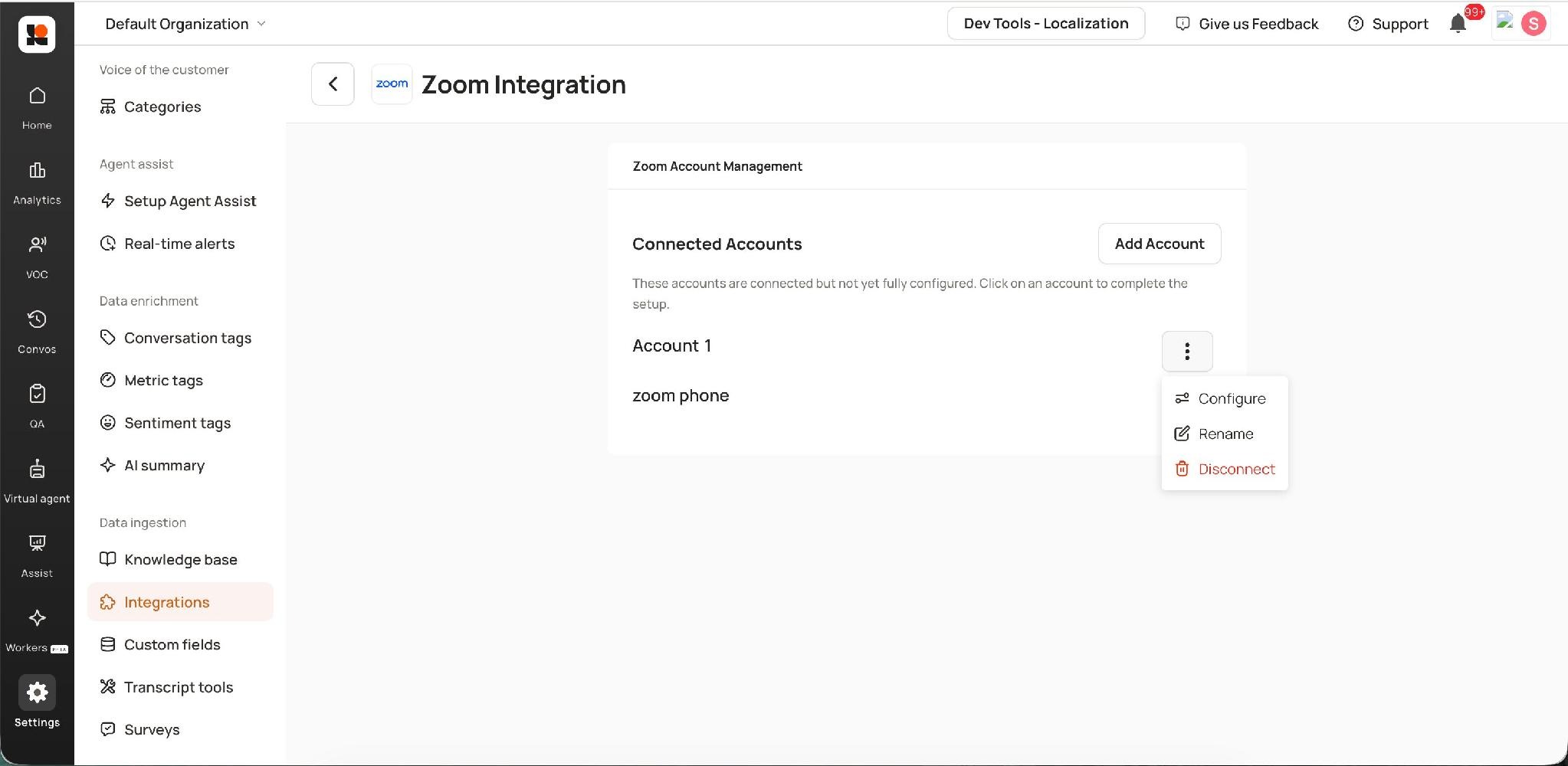
Once authenticated, you will land on the Zoom Account Management page. This page shows all connected Zoom accounts.
Click the three-dot menu next to your account to access the following options:
Configure – Opens the full configuration wizard (3-step process)
Rename – Rename the connected account for easier identification
Disconnect – Remove the integration (see Disconnect section below)
Click Configure to begin the setup wizard.
Step 3: Manage Configurations
The configuration wizard is a 3-step process. The first step covers all the configuration options for controlling which conversations Level AI ingests from your Zoom account.
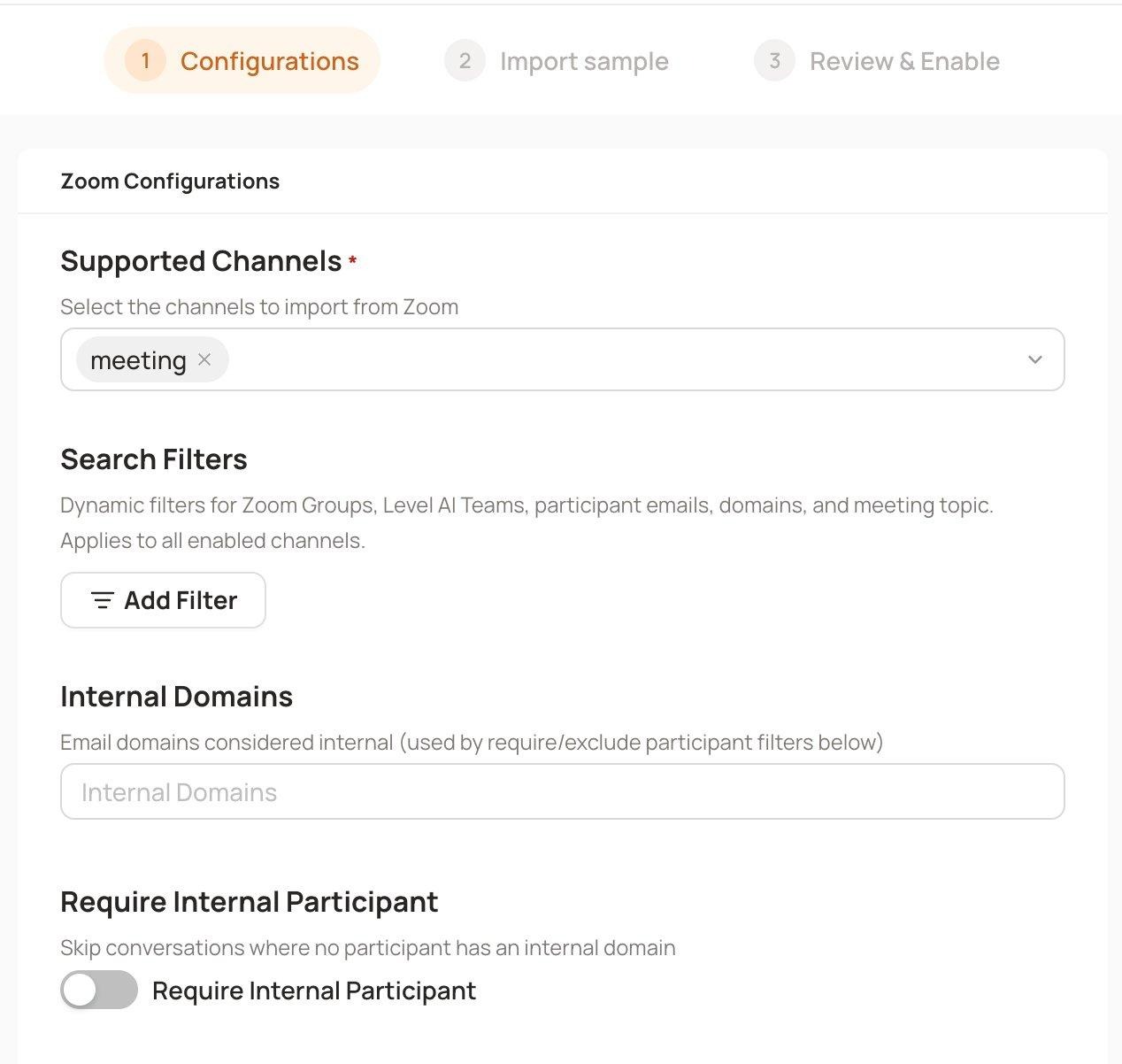
3.1 Supported Channels
Select the channels you want Level AI to import from Zoom. The available channel is meeting and phone. Select the channels relevant to your use case.
3.2 Search Filters
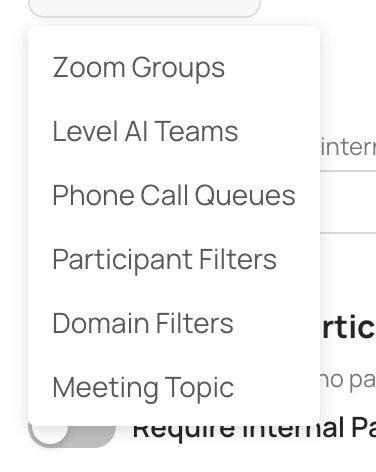
Search Filters allow you to define dynamic filters that control which conversations are ingested. These filters apply across all enabled channels. Click Add Filter to add a new filter.
The available filter types are:
Zoom Groups – Filter by specific Zoom groups in your account
Level AI Teams – Filter by teams configured in Level AI
Phone Call Queues – Filter by Zoom Phone call queues
Participant Filters – Filter by specific participant email addresses
Domain Filters – Filter by participant email domains
Meeting Topic – Filter by meeting topic/name using text or regex matching
3.3 Internal Domains
Specify the email domains that should be considered internal to your organization (e.g., yourcompany.com). This setting is used by the Require Internal Participant and Exclude External Participants toggles below to distinguish between internal and external meeting participants.
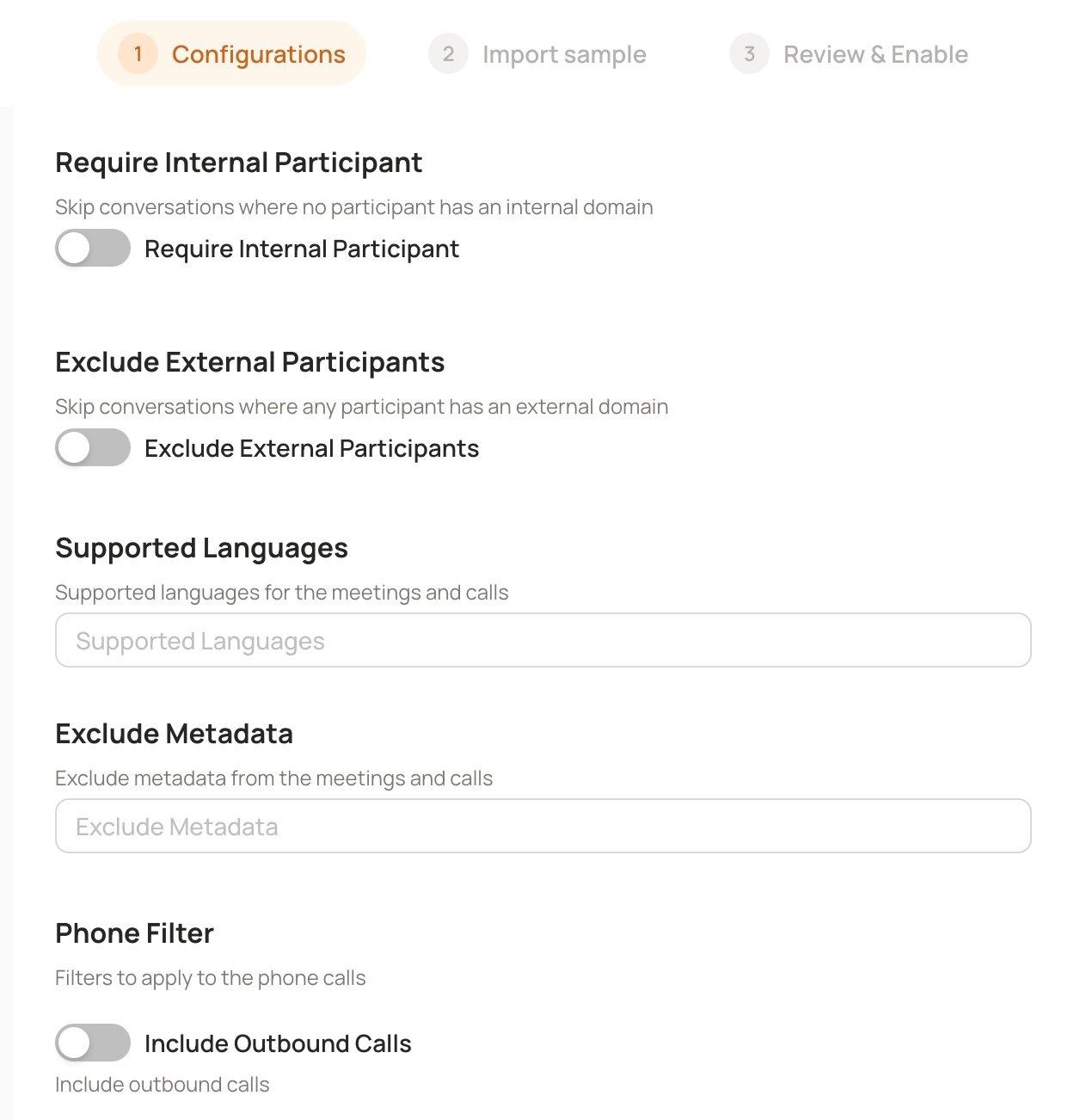
3.4 Require Internal Participant
When enabled, Level AI will skip conversations where no participant has an email address matching one of your configured internal domains. This is useful for ensuring only meetings involving your team members are ingested.
3.5 Exclude External Participants
When enabled, Level AI will skip conversations where any participant has an email address from a domain not listed in your Internal Domains. This is a stricter filter than Require Internal Participant – it ensures that only fully internal meetings are ingested.
3.6 Supported Languages
Specify the languages supported for the meetings and calls being ingested. This helps Level AI process transcripts in the correct language for accurate analysis.
3.7 Exclude Metadata
Configure which metadata fields should be excluded from the meetings and calls during ingestion. Use this to prevent sensitive metadata from being stored in Level AI.
3.8 Phone Filter: Include Outbound Calls
By default, only inbound calls from Zoom Phone are ingested. Enable this toggle to also include outbound calls in the ingestion pipeline.
3.9 Minimum Call Duration
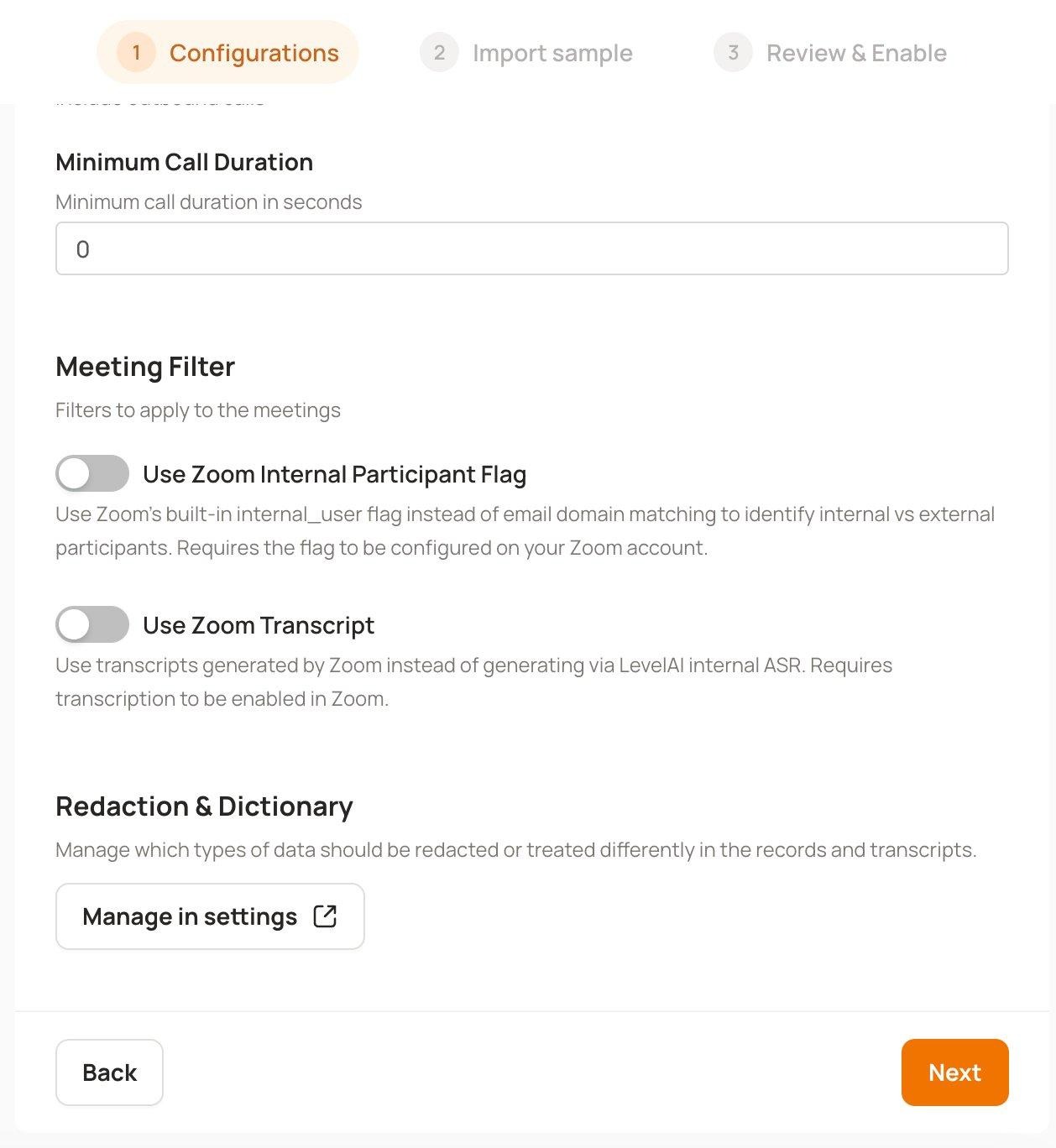
Set the minimum call duration (in seconds) for conversations to be ingested. Calls shorter than this threshold will be skipped. The default value is 0 (no minimum). This is useful for filtering out very short or accidental calls.
3.10 Meeting Filter
Meeting-specific filter options that control how meetings are processed:
Use Zoom Internal Participant Flag
When enabled, Level AI uses Zoom’s built-in internal_user flag instead of email domain matching to identify internal vs. external participants. This requires the flag to be configured on your Zoom account. Use this option if your Zoom account has this feature enabled for more accurate participant classification.
Use Zoom Transcript
When enabled, Level AI uses transcripts generated by Zoom instead of generating them via Level AI’s internal ASR (Automatic Speech Recognition). This requires transcription to be enabled in your Zoom account settings.
3.11 Redaction & Dictionary
Manage which types of data should be redacted or treated differently in the records and transcripts. Click Manage in settings to open the global redaction settings page where you can configure PII redaction rules, custom dictionaries, and other data-handling preferences.
Once you have finished configuring all the options, click Next to proceed to the Import Sample step.
Step 4: Import Sample
Before enabling the full pipeline, Level AI allows you to import a sample set of conversations to verify that the integration and configurations are working correctly.
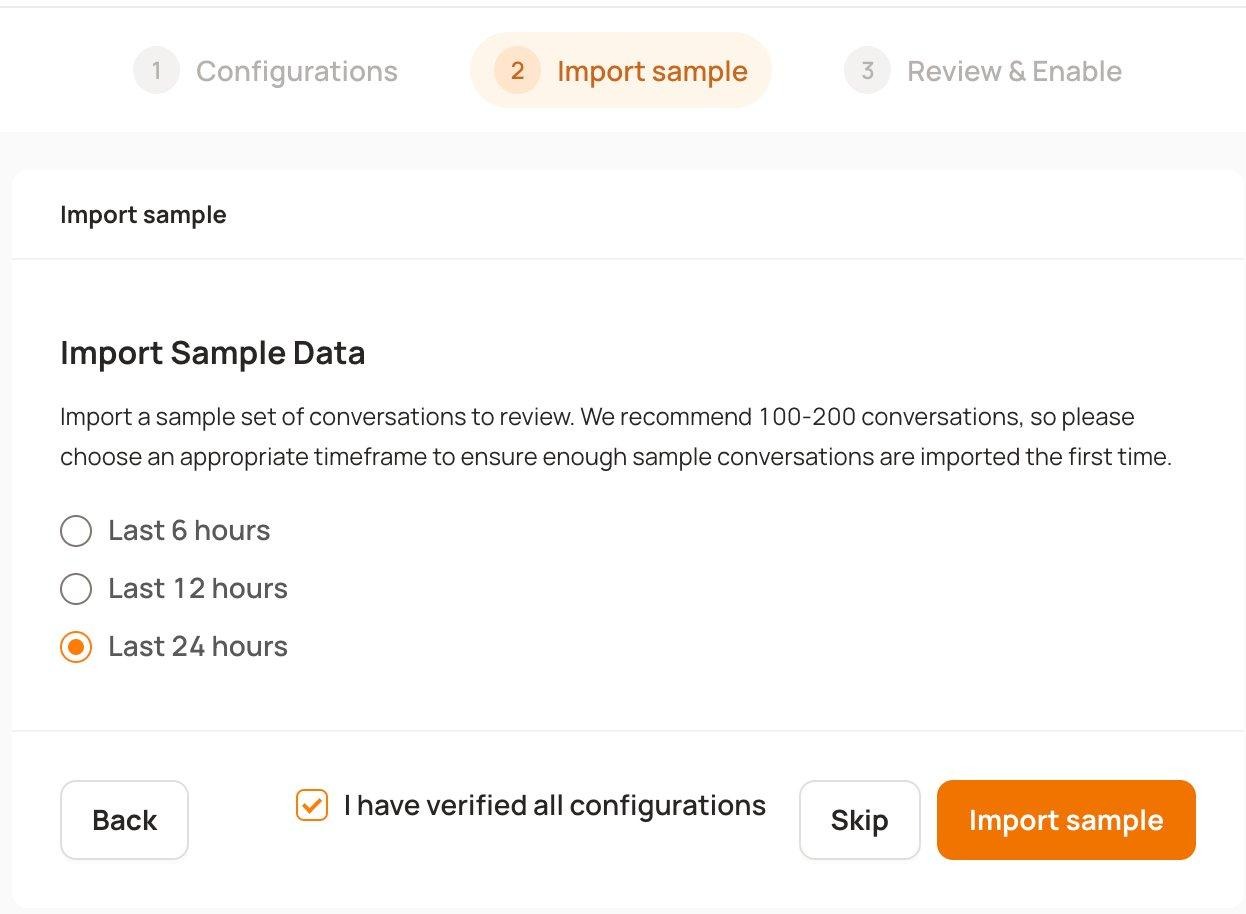
Select a timeframe for the sample import. Level AI recommends importing 100–200 conversations, so choose an appropriate window:
Last 6 hours
Last 12 hours
Last 24 hours
Check the I have verified all configurations checkbox.
Click Import sample to begin the import.
Step 5: Review and Enable Pipeline
After the sample import is initiated, you will be taken to the Review & Enable step.
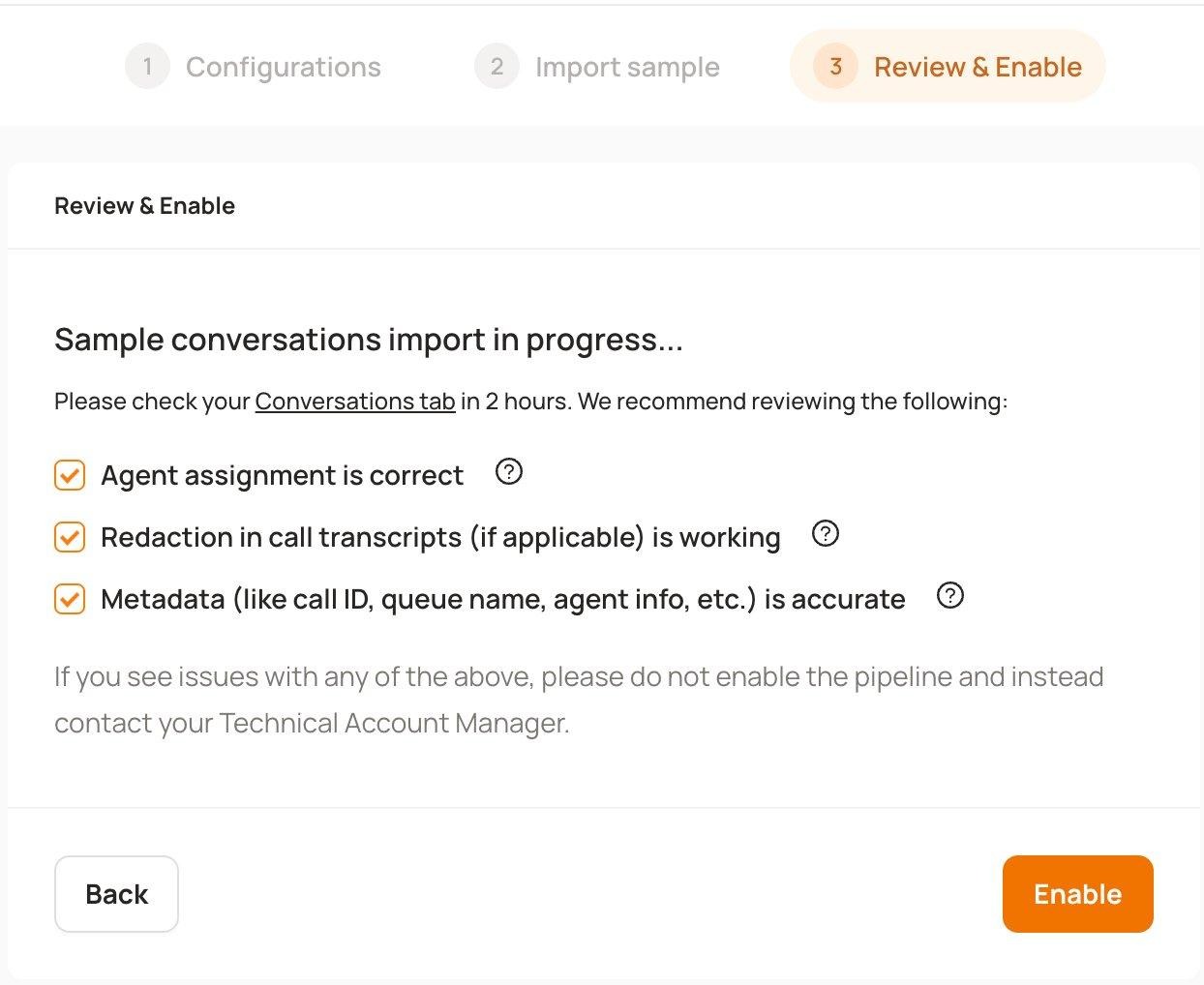
The sample conversations import will take approximately 2 hours. Once complete, check your Conversations tab and verify the following:
Agent assignment is correct – Verify that agents are correctly identified and assigned to conversations.
Redaction in call transcripts (if applicable) is working – Confirm that any configured PII redaction is functioning as expected.
Metadata is accurate – Check that metadata such as call ID, queue name, and agent info is correctly populated.
NOTE
If you see issues with any of the above, do not enable the pipeline. Instead, go back and adjust your configurations, or contact your Technical Account Manager for assistance.
Once you have verified everything looks correct, click Enable to activate the full ingestion pipeline. Conversations will now be ingested on an ongoing basis.
Step 6: Disconnect Integration
If you need to disconnect your Zoom integration:
Navigate to Settings > Integrations.
Under the CCaaS & CRM tab, click on the Zoom card.
Click the three-dot menu next to the account you want to disconnect.
Select Disconnect.
Confirm the disconnection when prompted.
IMPORTANT
Disconnecting the integration will stop all ongoing and scheduled data ingestion. The integration will need to be fully set up again if you wish to reconnect.
Troubleshooting
Meetings not showing up in Level AI
If your Zoom meetings are not appearing in Level AI, check the following:
1. Verify Zoom Meeting Filtering Rules
If you have configured Search Filters (Zoom Groups, Meeting Topic, etc.), verify that the meetings you expect to be ingested match your filter criteria. Group ID filters take precedence – if a Group ID filter is applied, only meetings within that group are considered for further topic filtering.
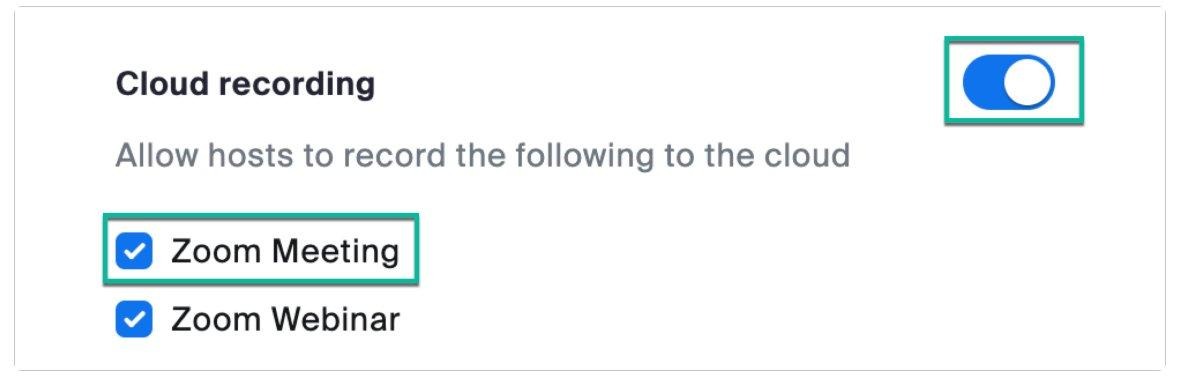
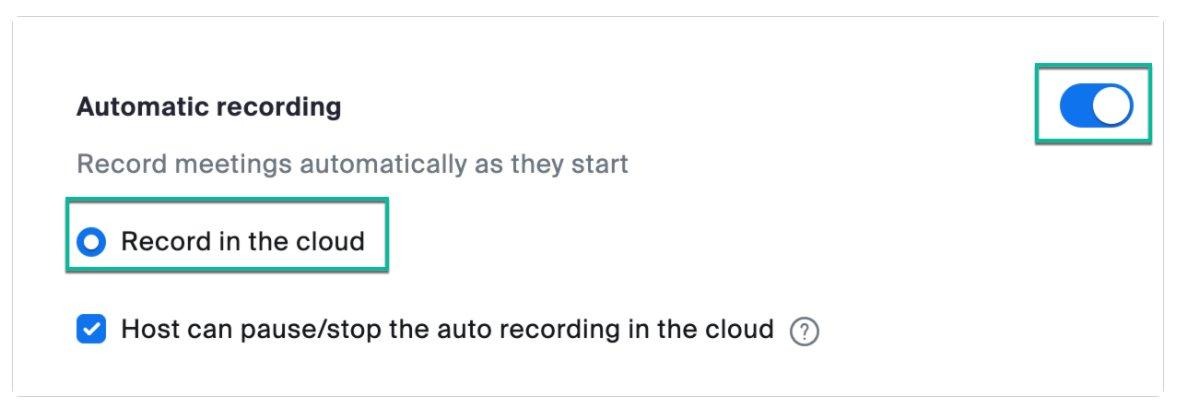
2. Confirm Cloud Recording is Enabled
Level AI only ingests Zoom cloud recordings. Verify that cloud recording is enabled in your Zoom account:
Go to https://www.zoom.us/signin#/login and log in.
In the left-hand menu, expand My Account > click Settings > navigate to the Recording tab.
Confirm that Cloud recording is enabled and Zoom Meeting is checked.
Confirm that Automatic recording is enabled and Record in the cloud is selected.
3. Verify Zoom Cloud Recordings
As an admin, confirm that cloud recordings exist and are working correctly by viewing them directly from your Zoom account:
Log in to https://zoom.us/account using your admin credentials.
Navigate to Account Management > Recording and Transcript Management.
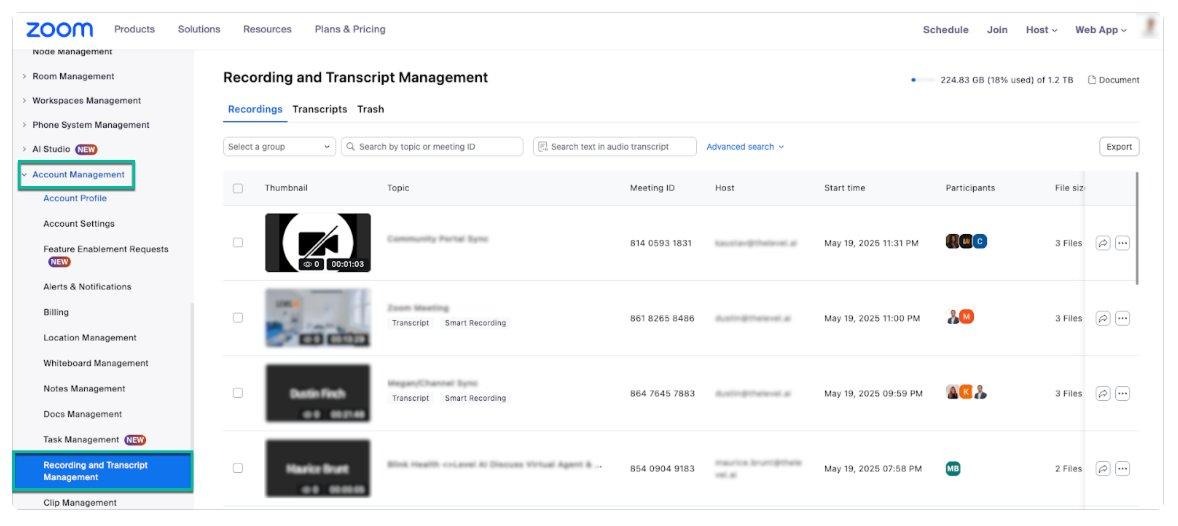
You will see a list of all cloud recordings associated with the account. Use filters such as user, date, or meeting ID to narrow your search.
Note: This section only displays cloud recordings. Local recordings saved on the host’s device will not appear here and cannot be ingested by Level AI.
Calendly Integration Note
If you use a Calendly-Zoom integration, be aware that the Zoom meeting name is generated as [Customer Name] + [Event Name]. If you are using Meeting Topic filters, ensure your filter matches the Calendly Meeting Name format, not the Calendly Event Name.
Help & Support
For any help related to the integration, reach out to us at support@thelevel.ai.