How to Generate Genesys Credentials?
Last updated: July 9, 2026
This document outlines the steps required to generate the necessary credentials for integrating Level AI with your Genesys Cloud instance.
Step 1: Creating a Role with Required Permissions
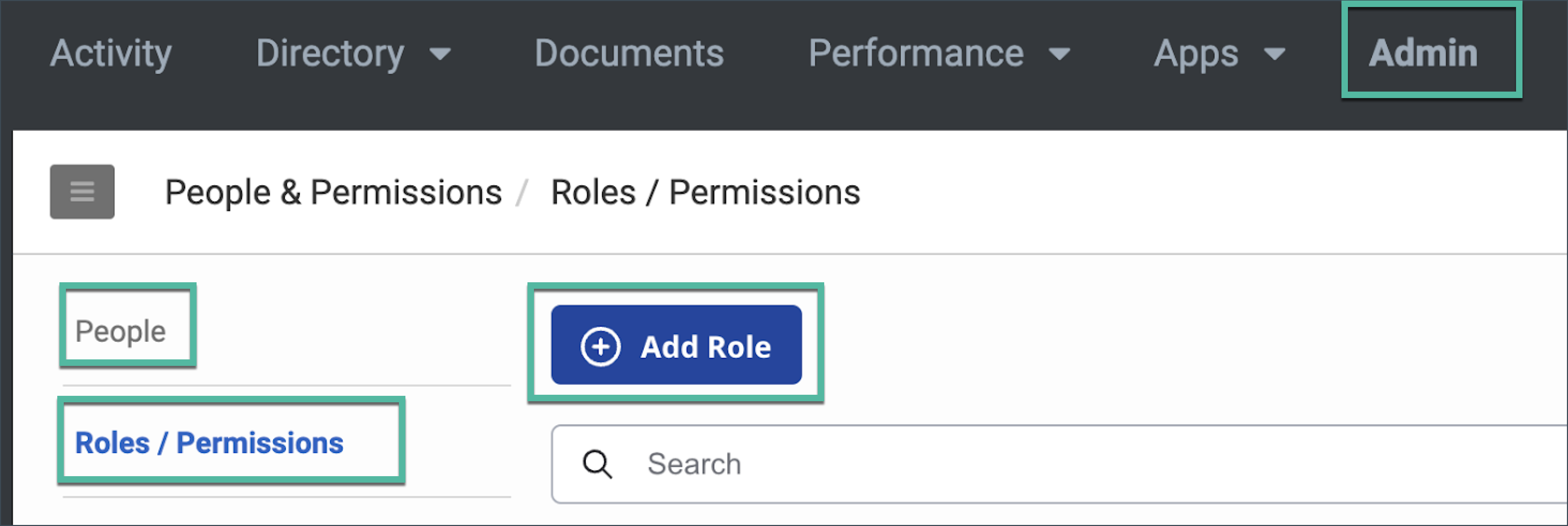
As a Genesys Cloud administrator, navigate to People & Permissions > Roles/Permissions.
Click the Add Role button.
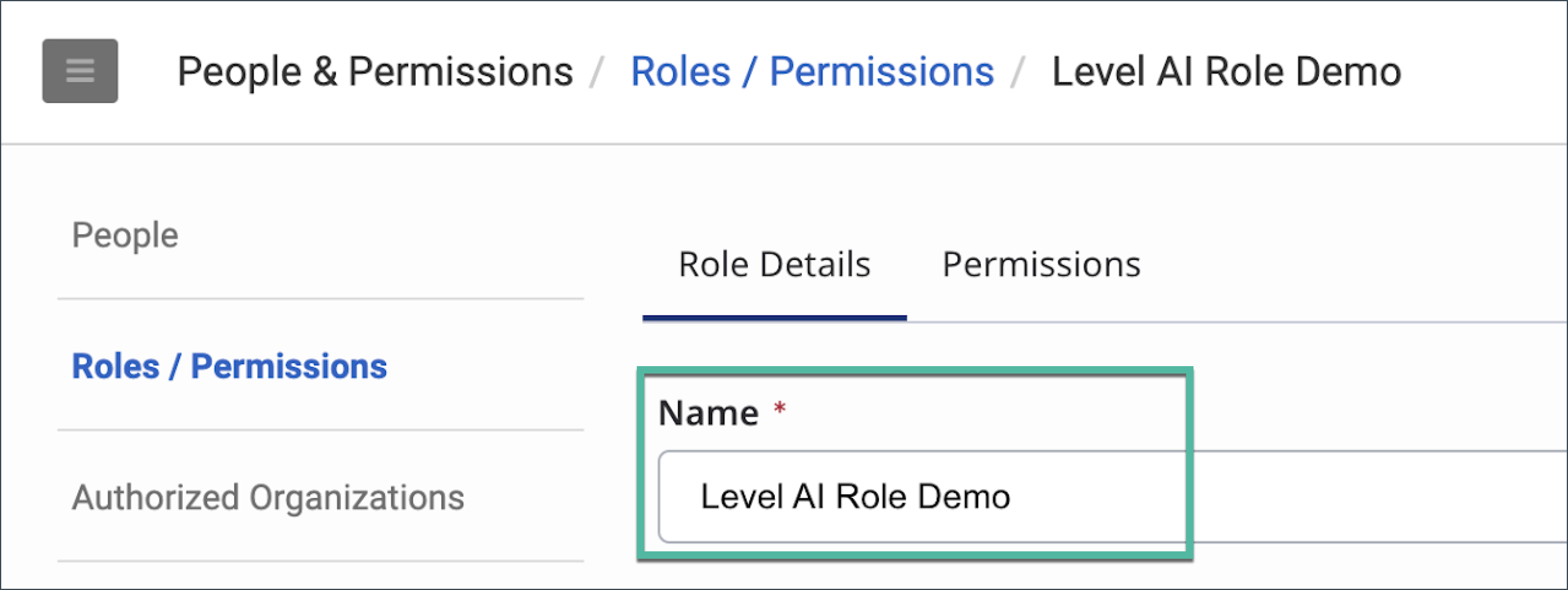
Enter Level AI Role as the Name for the new role.
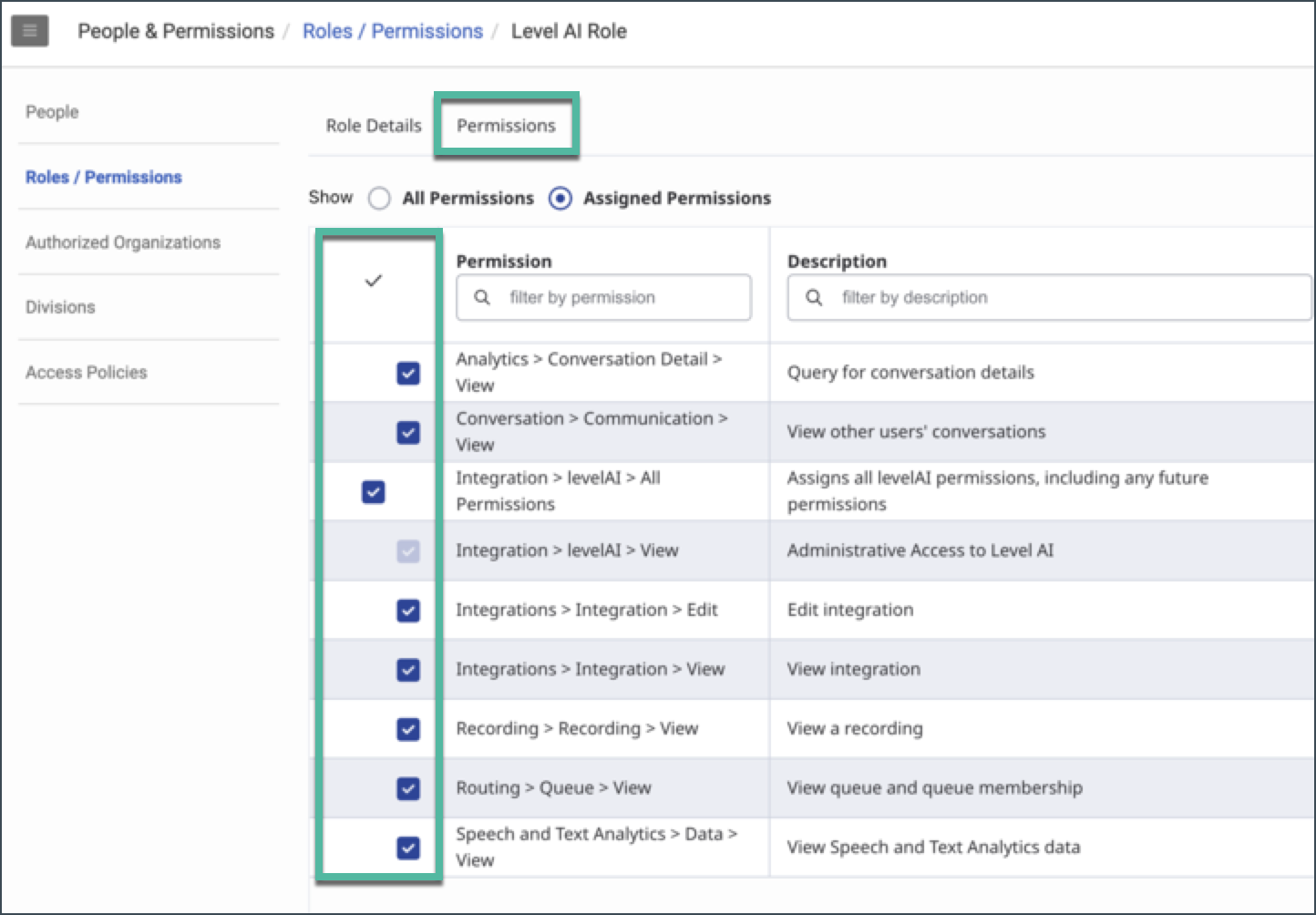
Click the Permissions tab. Select the following 7 permissions as illustrated in the screenshot. You can use the search box to quickly find them:
Click Save.
Step 2: Assigning the Role to Your User
Navigate to People > open your User details page.
Under the View dropdown menu on the top right, select the All option.

Locate the Roles section and ensure the newly created Level AI Role is assigned to your user.
Click the Save button. This step is necessary to allow you to assign the role to the OAuth client in the next step.
Step 3: Creating the OAuth Client and Assigning the Role
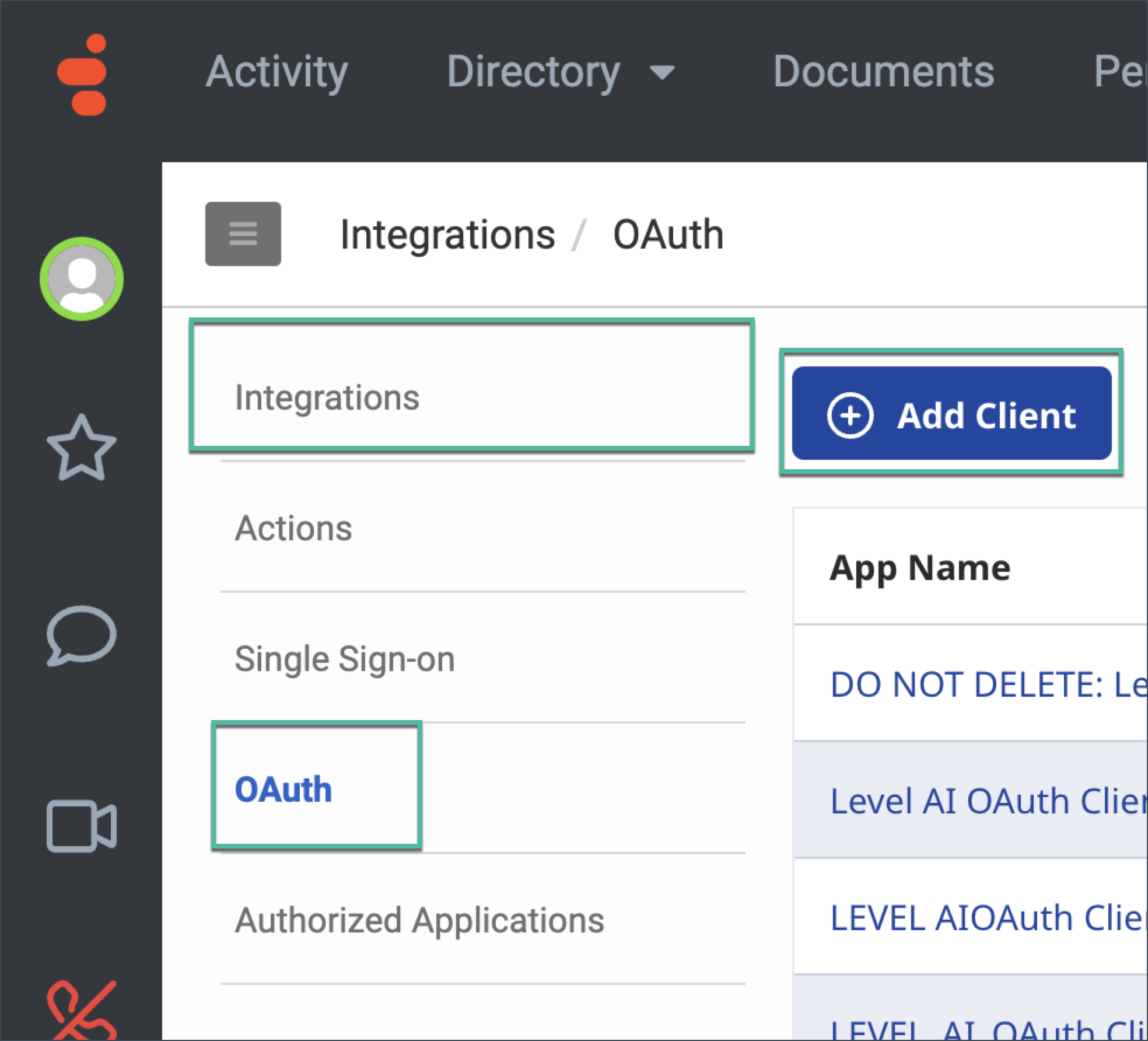
Navigate to Integrations > OAuth.
Click the Add Client button.
Enter Level AI OAuth as the App Name.
Select Client Credentials as the Grant Type. This will enable the Roles tab.
Open the Roles tab.
Click the toggle button corresponding to the newly created Level AI Role to assign it to the client.
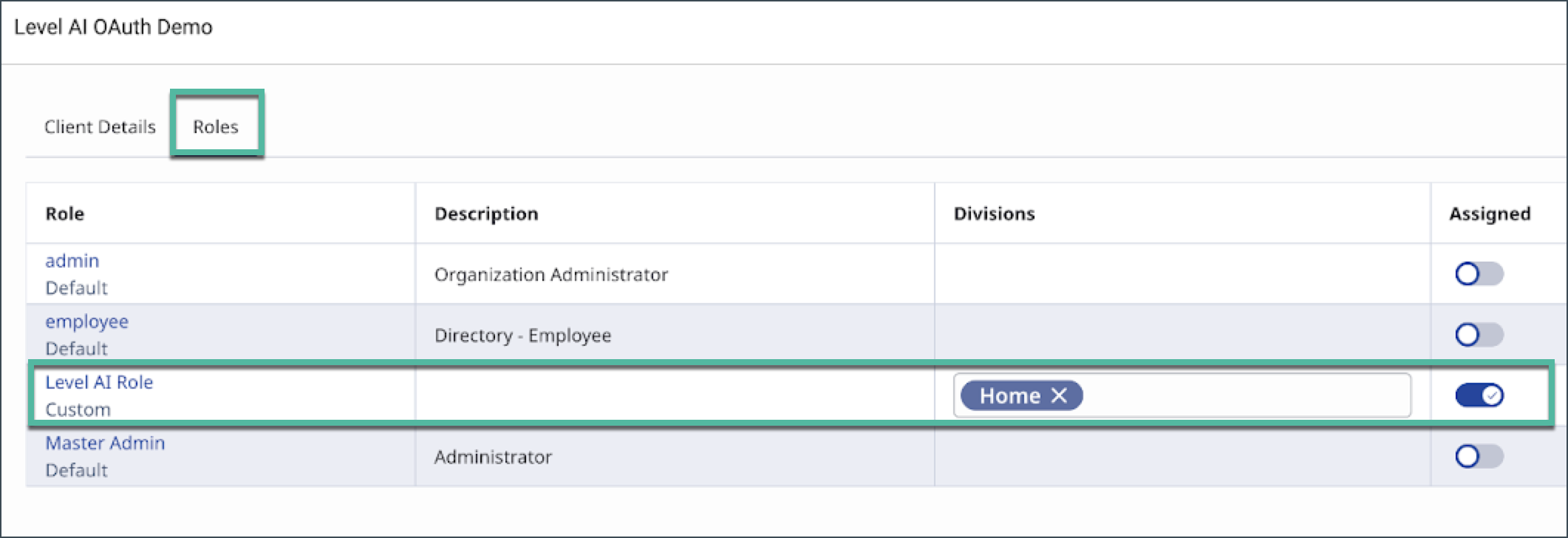
Click the Save button.
Step 4: Retrieving and Sharing Credentials and Domain URL
Once the OAuth client is created, you will see the Client ID and Client Secret. Copy and paste these into the Integration Hub app installation page in your Level AI instance.
Alternatively, you can securely share the Client ID and Client Secret with the Level AI team.
You will also need to enter your Genesys Cloud domain. You can find this in the URL bar of your browser. Important: Only enter the domain part (e.g.,usw2.pure.cloud), without thehttps://apps.prefix.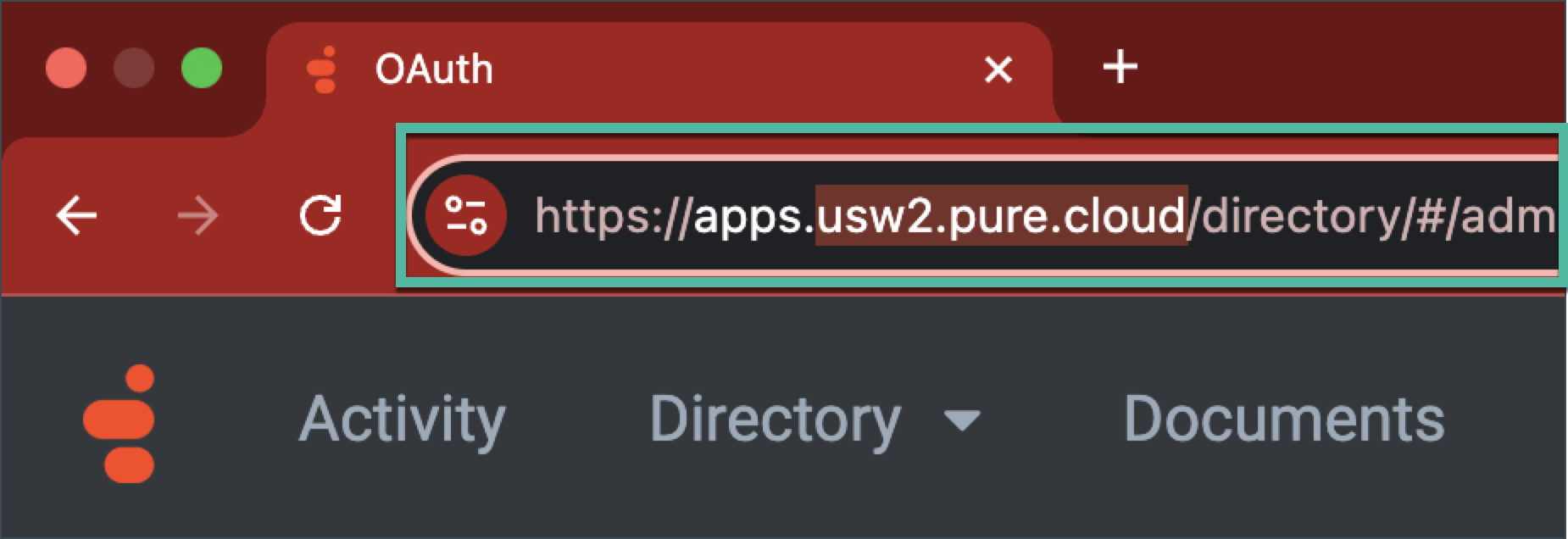
By following these steps, you will successfully generate and share the necessary credentials for integrating Level AI with your Genesys Cloud environment.
Help and Support
If you encounter any issues, please refer back to this document or contact the Level AI support team for assistance.