Genesys - LevelAI Integration
Last updated: June 18, 2026
As an Admin or Super Admin, you can independently configure the Genesys integration within your Level AI instance. This is a self-service option and eliminates the need to contact your Level AI Technical Account Managers (TAMs) for initial setup.
In case of Consult calls, to split the conversations into different legs for consult, we need to enable Station-side recording on genesys side to have separate recordings for each consult leg. Clients can follow 📄 Genesys Enable Station Side Recording if required.
(A) Initiating the Genesys Integration
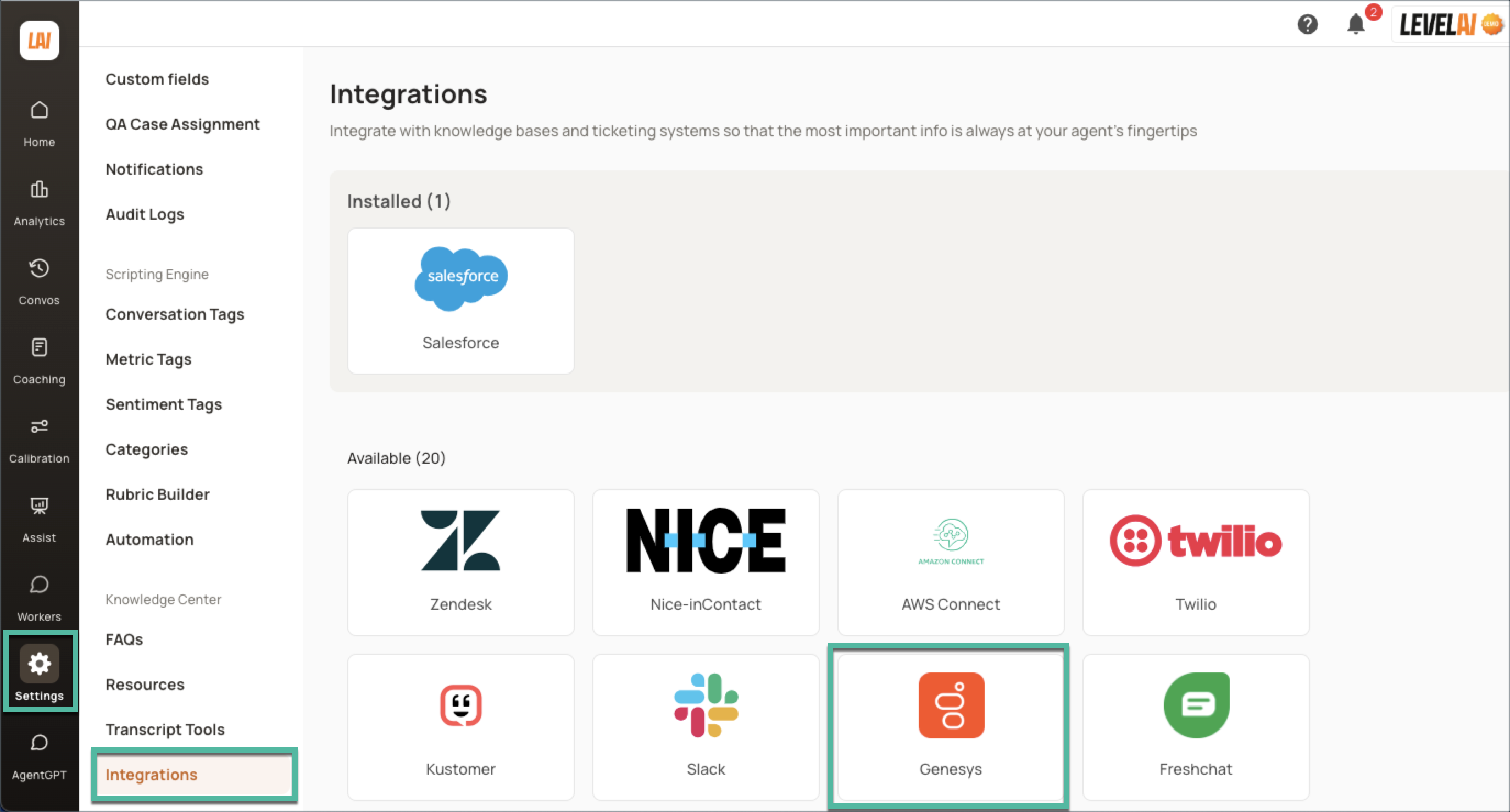
In the left navigation bar, click Settings > click Integrations.
Locate the Genesys integration option among the available integrations and click it.
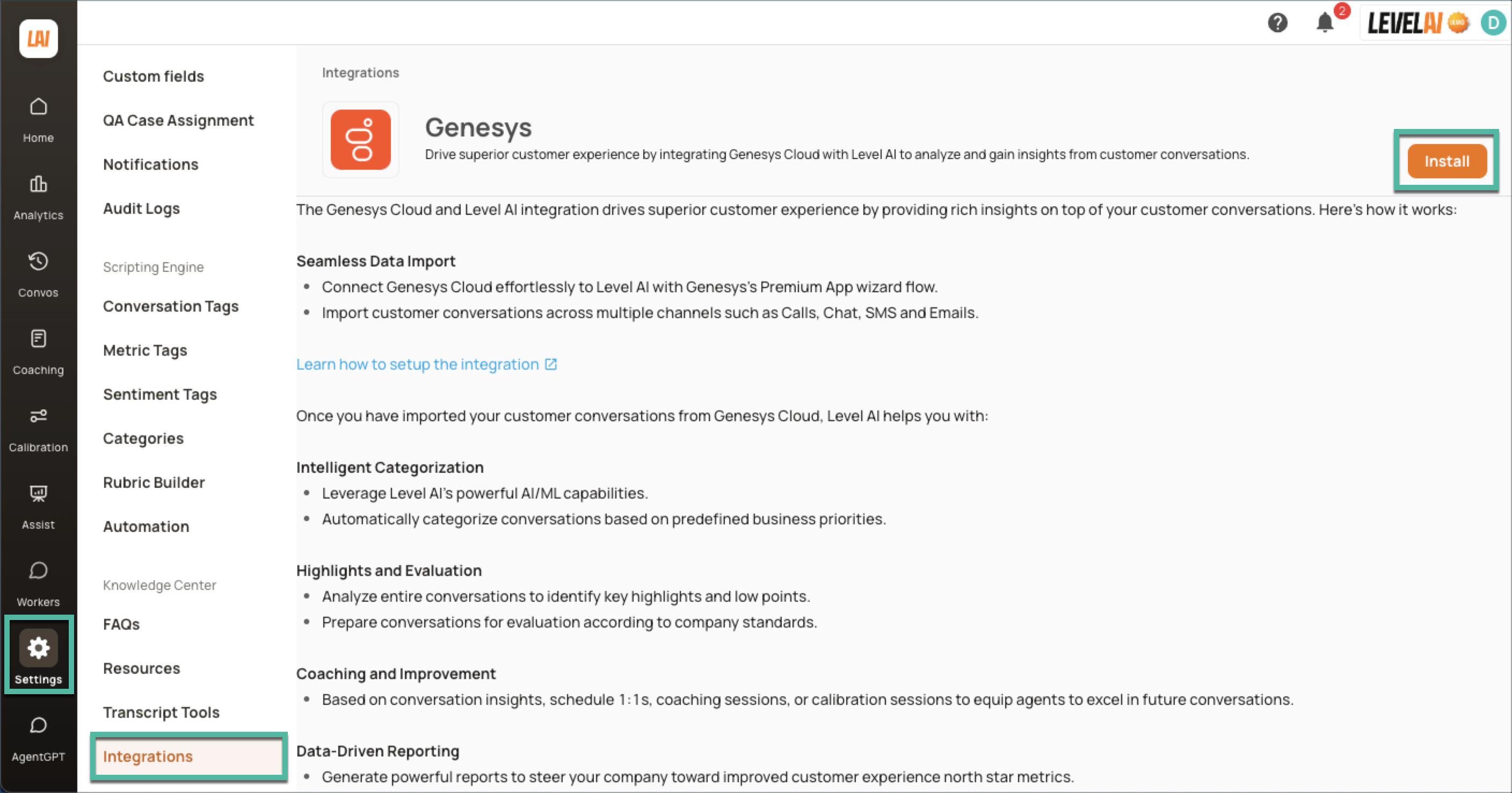
Click Install.
(B) Connecting Genesys to your LevelAI Instance
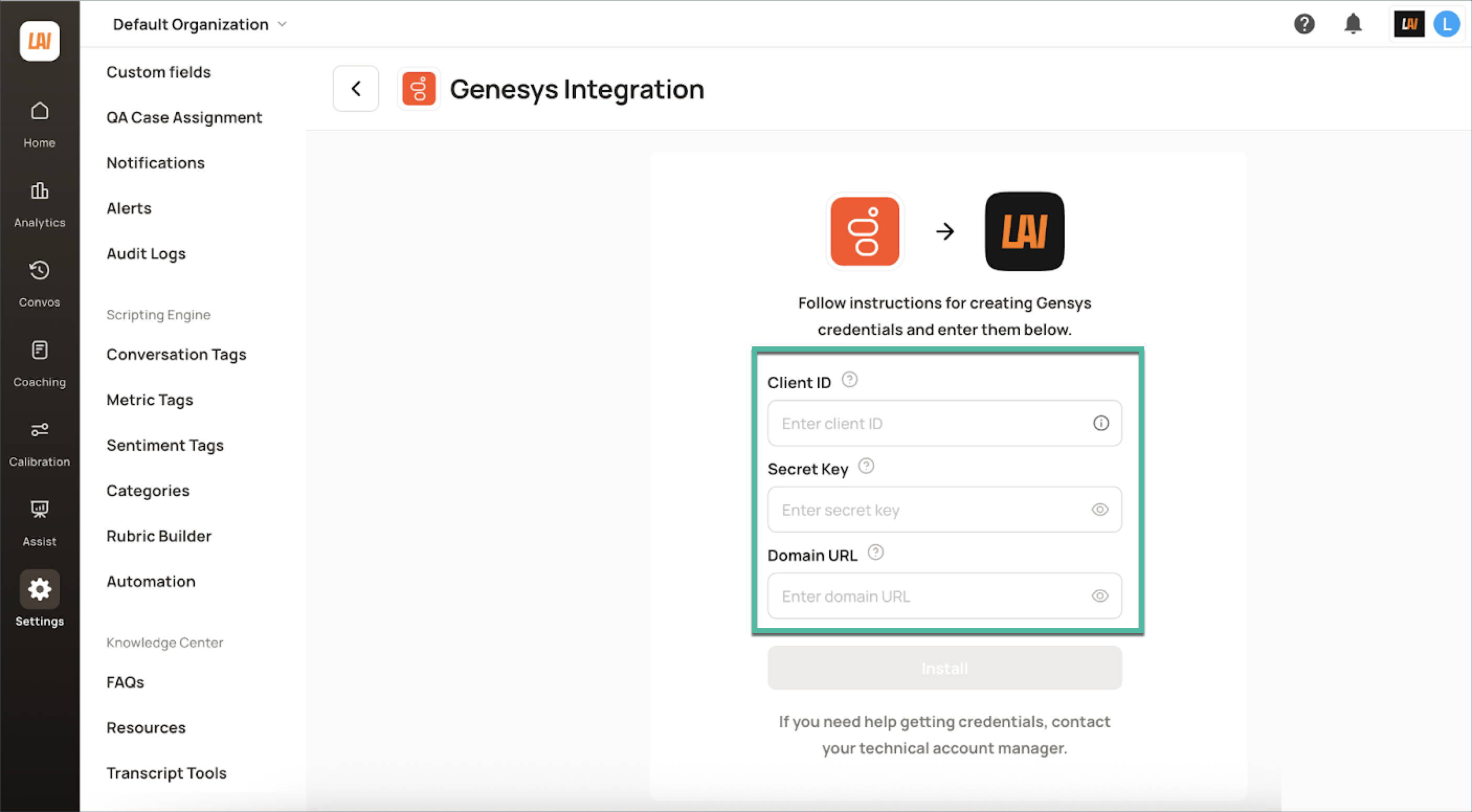
Upon initiating the installation, you will be prompted to provide the necessary connection credentials. These credentials authorize Level AI to securely access and retrieve data from your Genesys environment. Please ensure you have the following information readily available and enter them in the corresponding fields:
Client ID: A unique identifier for the Level AI application within your Genesys instance.
Secret Key: A confidential key associated with the Client ID, used for secure authentication.
Domain URL: The specific URL of your Genesys Cloud instance.
INFO
Detailed instructions on can be found in 📄 How to Generate Genesys Credentials?
Once you have successfully entered these credentials, the connection to your Genesys instance will be established. You will then be automatically redirected to the Channels page.
(C) Selecting and Configuring Communication Channels
On the Channels page, you can specify the communication channels from your Genesys instance that you want to integrate with Level AI. The following channel options are available for selection:
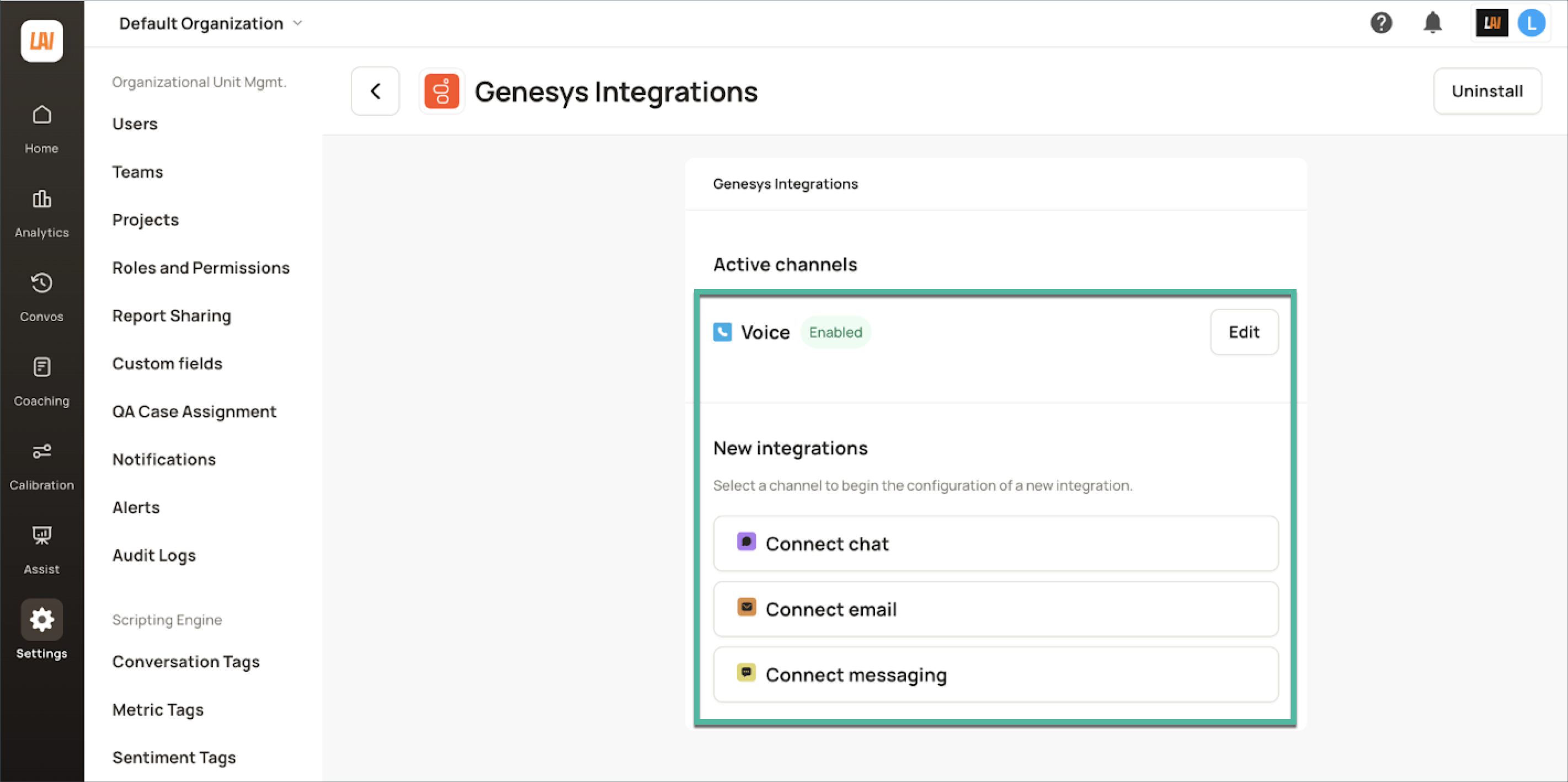
Voice: Ingests data from voice interactions.
Chat: Ingests data from text-based chat interactions.
Email: Ingests data from email communications.
Messaging: Ingests data from the various messaging platforms integrated with your Genesys instance.
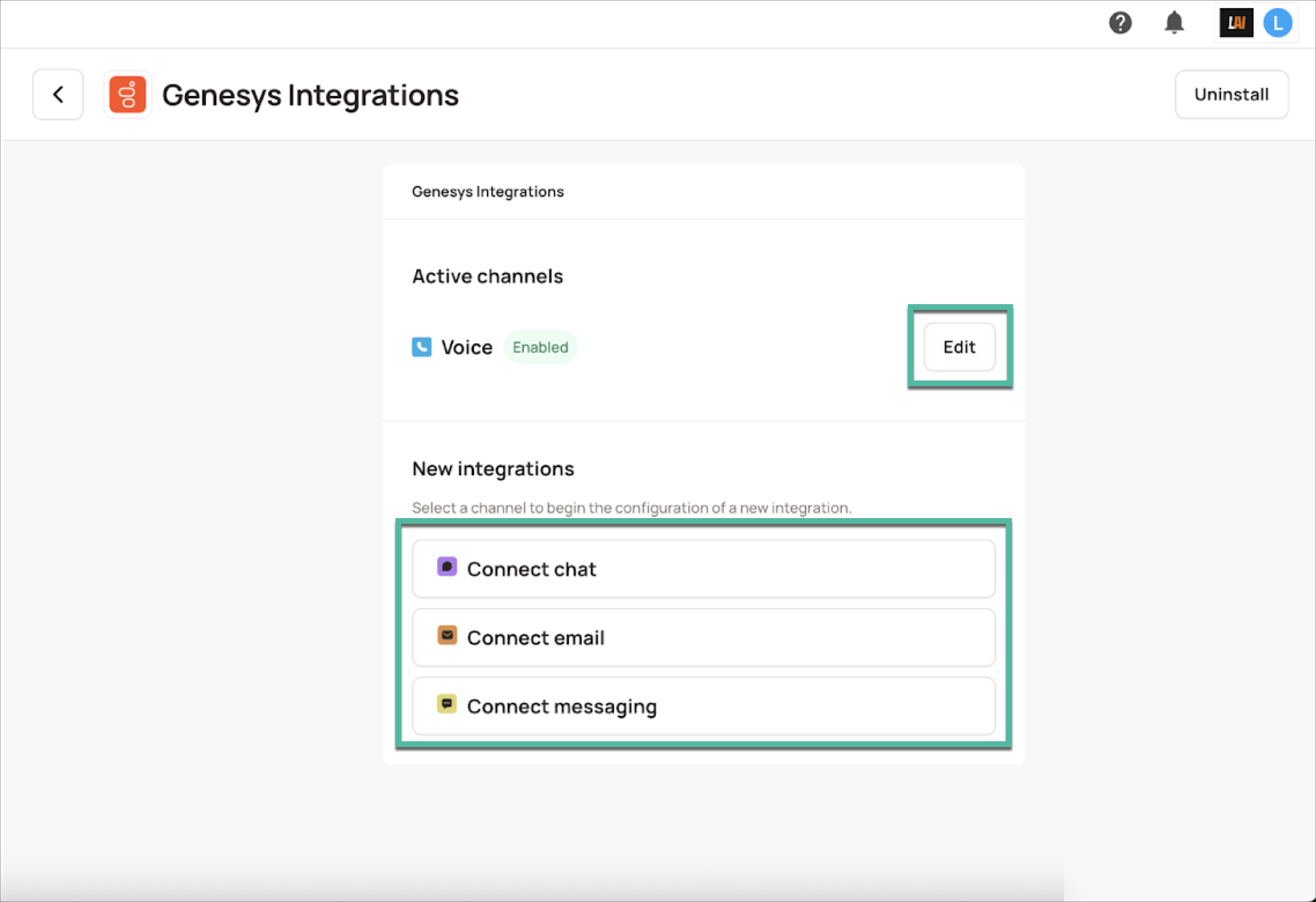
After selecting the desired channel(s), you can further configure each channel to tailor the data ingestion process to your specific requirements by clicking the corresponding Edit button.
(D) Configuring Data Ingestion Parameters
Level AI provides several parameters to filter and refine the data ingested from Genesys. These configurations allow you to focus on the most relevant data for your analysis. The following configuration options are available:
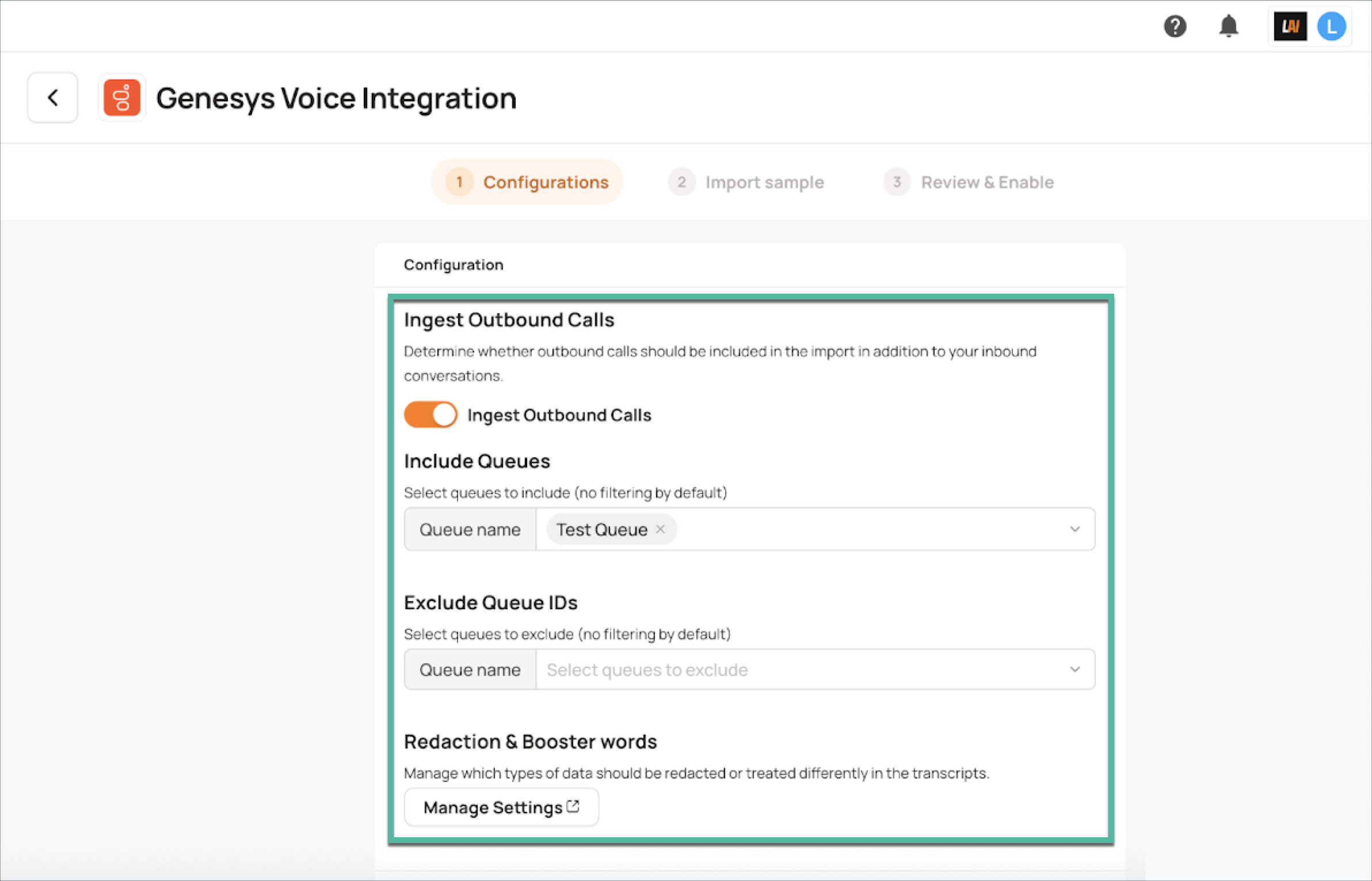
Including outbound calls: Slide the toggle to include or exclude outbound voice calls in the data ingestion process.
Queue Inclusion Filter: Specify the names of the Genesys queues you explicitly want to include in the data import. Only interactions associated with these queues will be ingested.
Queue Exclusion Filter: Specify the names of the Genesys queues you want to exclude from the data import. Interactions associated with these queues will be skipped.
Redaction & Dictionary: Configure sensitive words or entities that you want automatically redacted from transcripts during the ingestion process, ensuring data privacy. This configuration applies across all channels.
INFO
Detailed instructions on how to configure redactions are available in 📄 Transcript Tools: Data Redaction and Booster Words
(E) Importing Sample Data for Verification
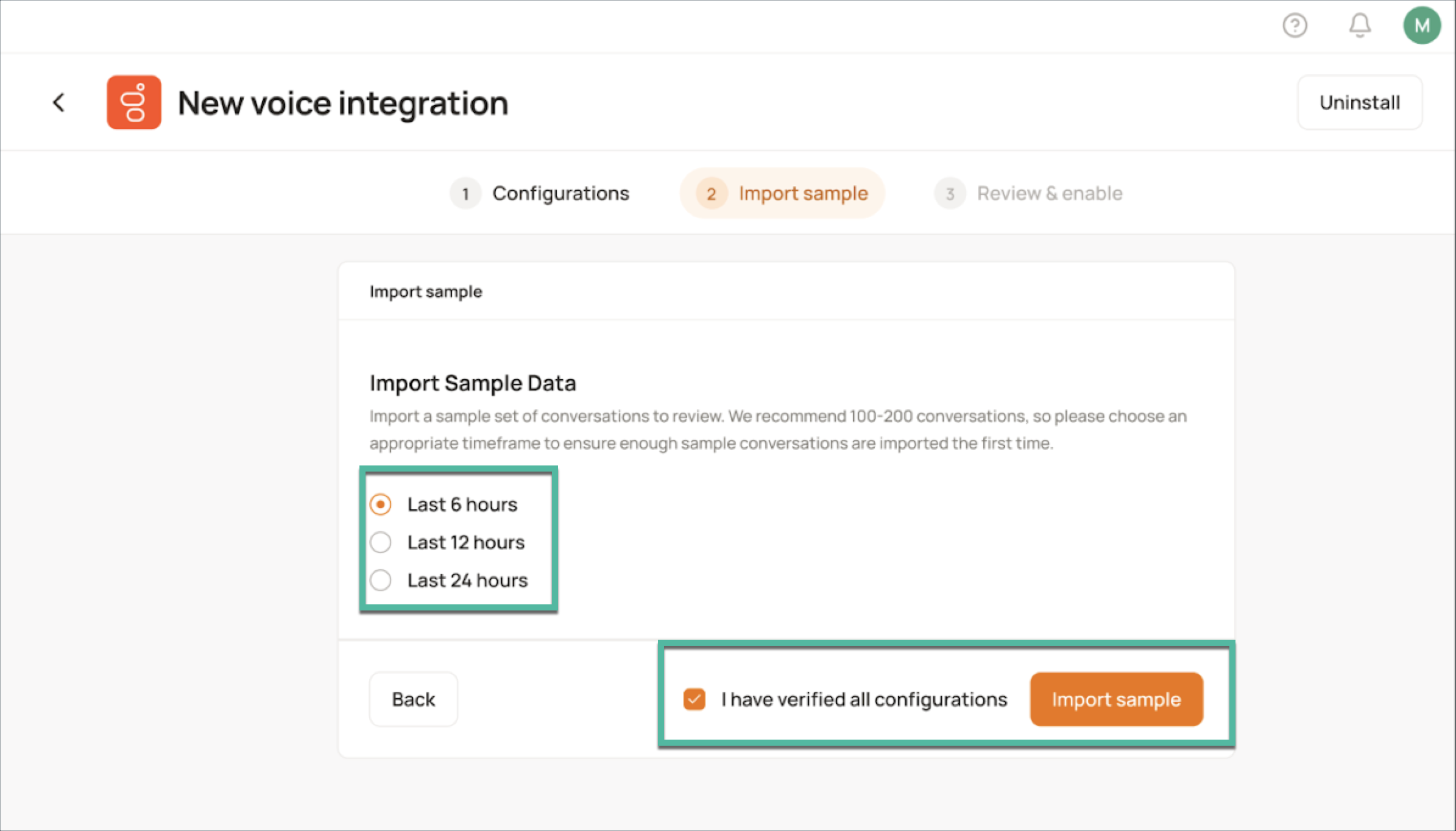
Before fully enabling the integration, it is highly recommended to import a sample of your Genesys data into Level AI. This allows you to verify your configured filters and ensure the data is being ingested as expected.
You will be presented with various timeframe options for importing sample data. We advise importing between 100 to 200 conversations to get a representative view of your data within your Level AI instance.
(F) Reviewing and Enabling the Integration
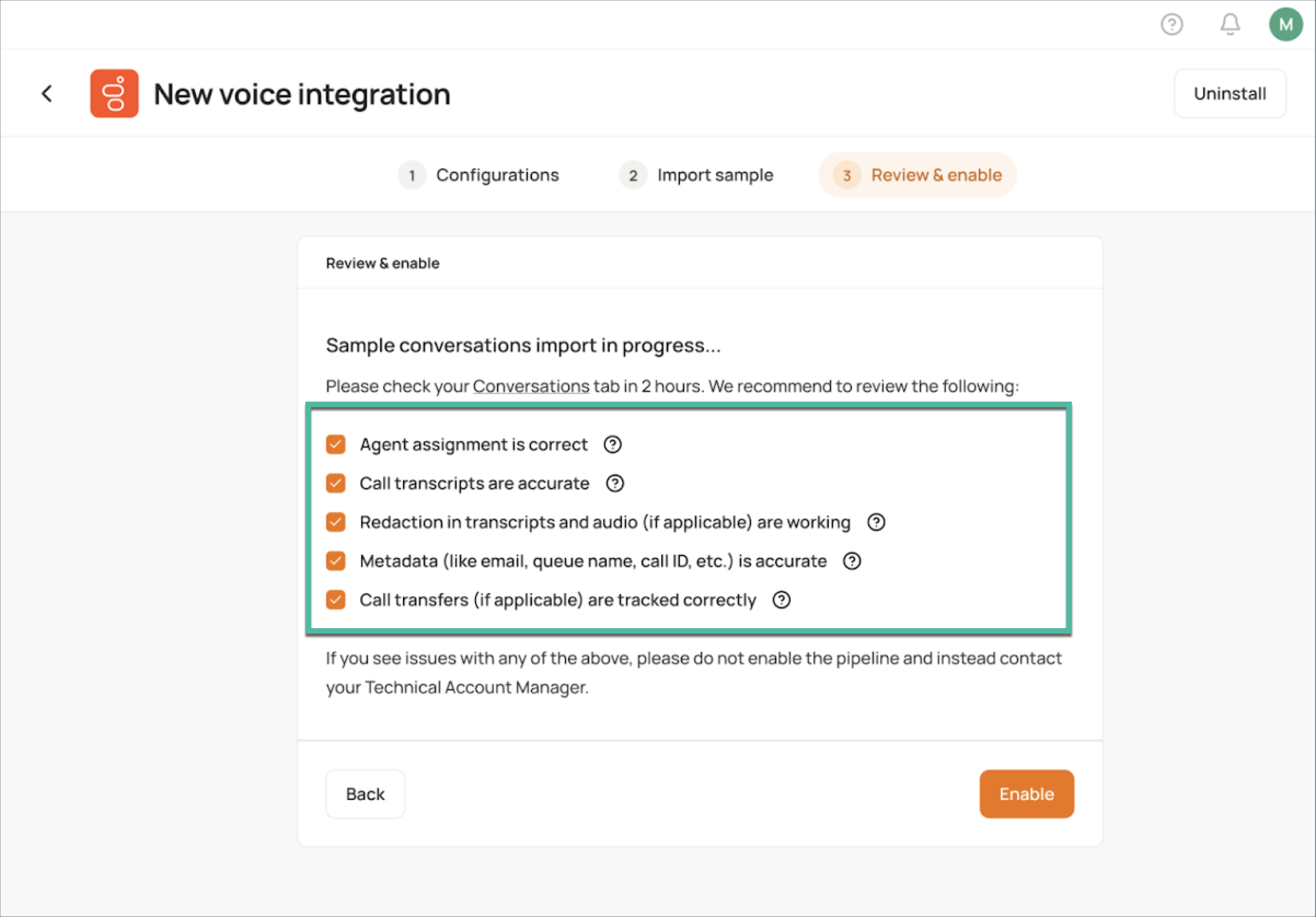
Once you have imported the sample data, thoroughly review the data within Level AI to confirm the accuracy of your configurations and the flow of conversations.
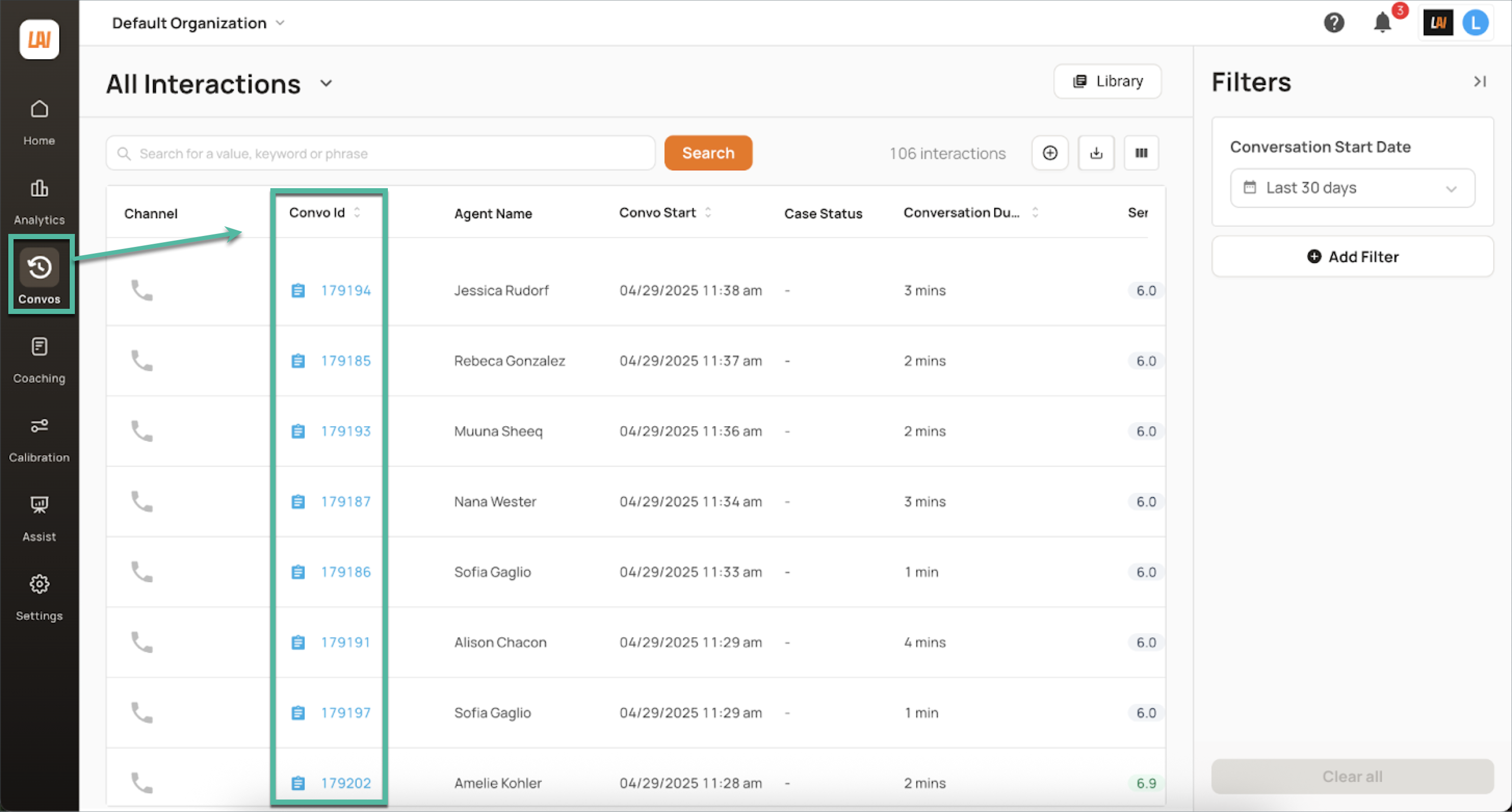
For reviewing your imported conversations, from the left navigation bar, click Convos to view the Conversation History page. Perform a Quality Assurance (QA) test on the imported conversations to verify the data integrity and the effectiveness of your configured filters.
WARNING
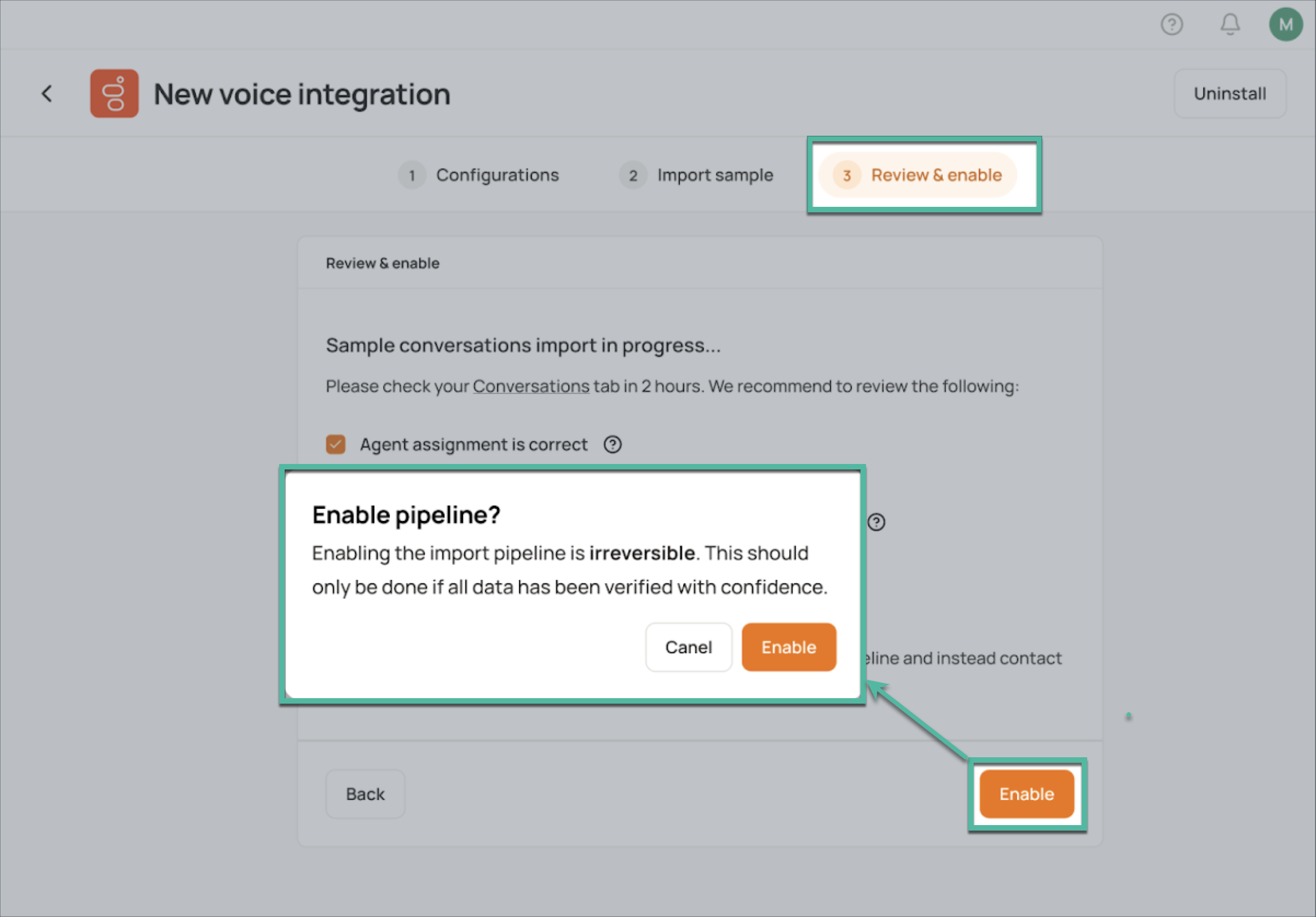
Once a pipeline is enabled, it will begin importing live data, and this imported data cannot be modified. Therefore, carefully reviewing your configuration is crucial before proceeding.
After you are satisfied with the sample data and have verified your configurations, you can proceed to enable the full Genesys integration.
(G) Editing Integration Configurations
At any point after the initial setup, you can modify the integration configurations at the channel level via the Channels page described in the steps (C) and (D) above.
NOTE
Any changes made to the configuration will only apply to newly imported data. Existing data within the Level AI platform will not be affected by these modifications.