Release Notes: July 16, 2026
Last updated: July 16, 2026
DISCLAIMER
If any of these elements or features are currently unavailable in your Level AI product suite, don't worry! All you need to do is wait till our next big release.
🟢 Available to all
QA Case Assignment History Log
Admins can now see what happened each time a QA Case Assignment rule runs via the History log. This gives teams one place to confirm whether the rule is assigning conversations as expected and whether QA coverage is balanced across agents and evaluators.
To use it, open a QA Case Assignment rule → go to History Log. You can view:
Run statuses: Success, Partial, and Failed
Total conversations assigned per run
Agent-level view of assigned and skipped conversations
Evaluator-level assignment distribution
Skipped reasons such as no samples or quota full
Admins can utilize these details to adjust rule settings, improve coverage, and reduce manual checks across assignments.
New: Evaluation SLA Breach Indicator
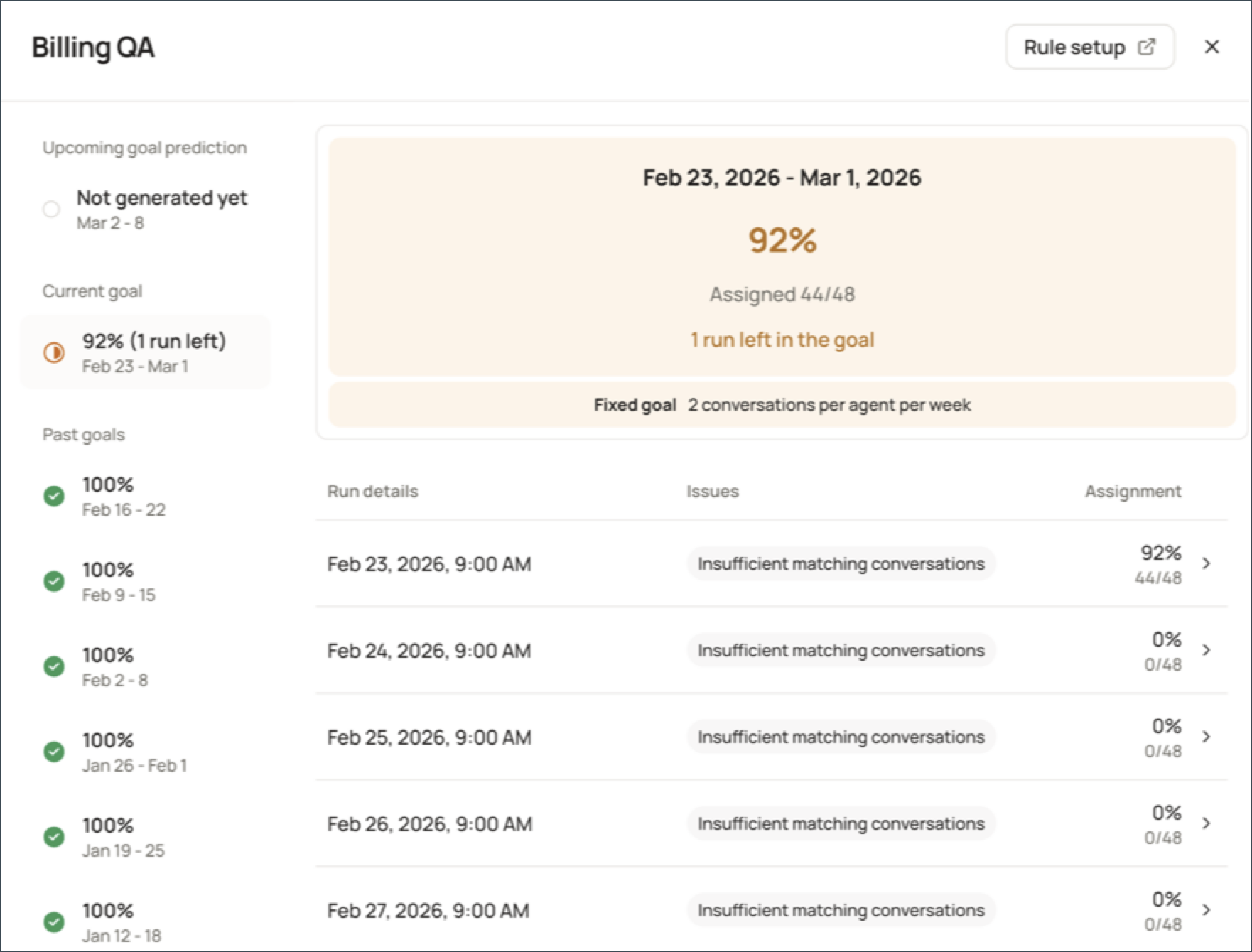
QA teams can now track whether Manual QA evaluations are completed within their SLA timelines available on the Evaluation Page and in Analytics, so teams can identify on-time, breached, and overdue evaluations directly in the Level platform.
Highlights:
View SLA Status values: On Time, SLA Breached, Overdue, –, and NA.
The new SLA Time metric shows how many days an evaluation was completed early or late, so teams can review both status and timing together.
In-app notifications for evaluations with upcoming due dates.
In Analytics:
You can apply SLA-related measures, filters, and group-bys.
SLA Time measure with Average, Maximum, Minimum, and Sum.
SLA trends can be reviewed across Evaluators, Agents, Assignment Rules, Due Dates, and Completion Dates, with drill-down access to the related conversations and evaluations.
Dispute Workflow for Evaluator Calibration
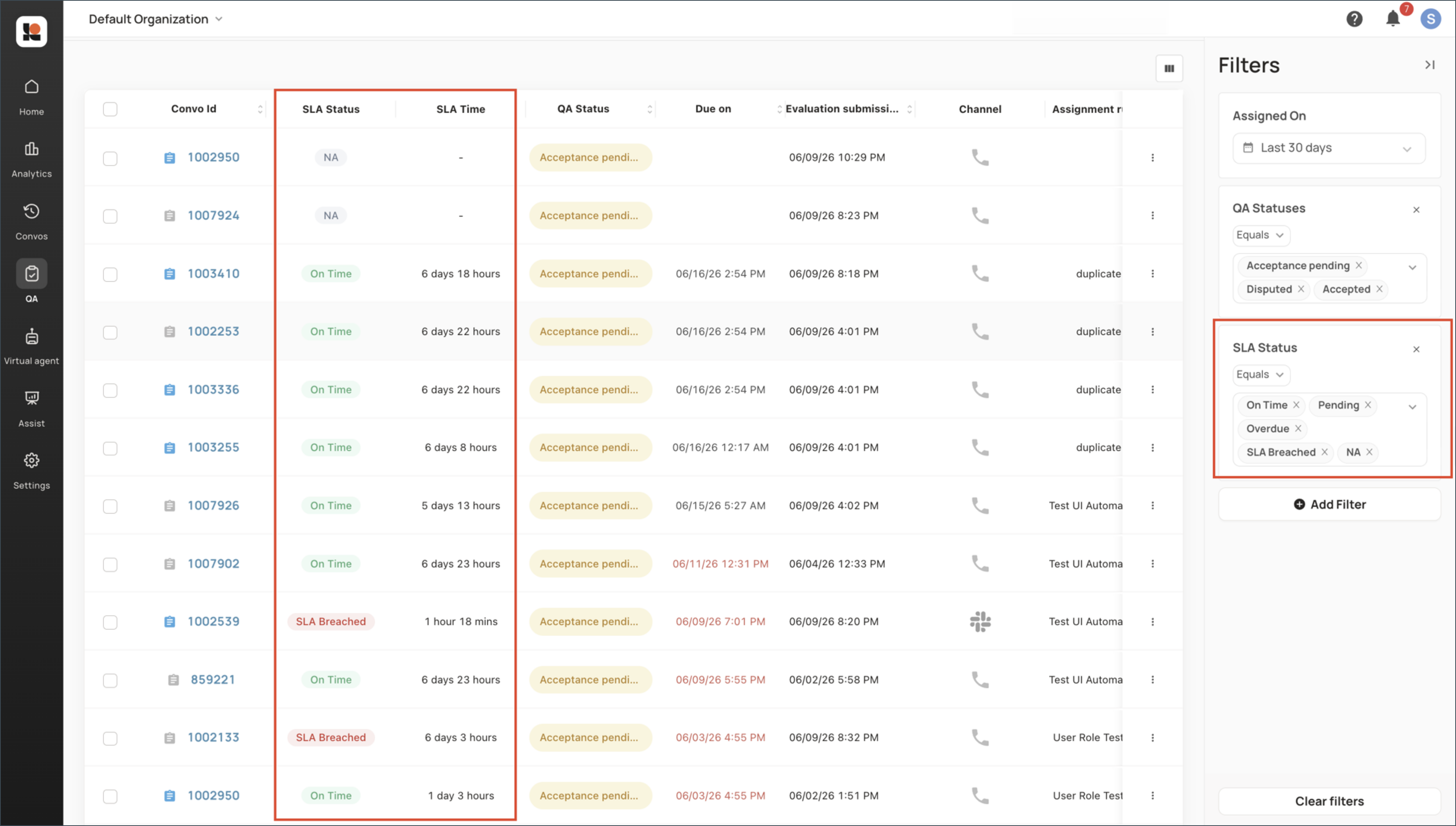
Evaluator Calibration now includes a structured way to review disagreements on calibration results.
How it works: Evaluators can raise a dispute on individual mismatched questions in a completed Calibration Report by adding a required supporting comment, and moderators can review the dispute, add a required resolution comment, and accept or reject it.
Dispute updates appear in calibration reports, calibration lists, in-app notifications, and Analytics.
Teams can use Analytics to filter, group, measure, and drill down into dispute trends using Calibration Status, Calibration Dispute Status, Calibration Scores, and Count of Calibrations.
For details, refer to 📄 How to raise and resolve disputes in Evaluator Calibration
Automatic Language Detection
Your Voice Virtual Agent (VA) now detects a caller's spoken language in real time and responds in that language automatically. The agent adapts on a per-utterance basis to any language in your supported languages set, so callers get a natural, localised experience without manual routing.
Callers can speak in their preferred language and receive immediate, matching responses.
If a caller switches languages mid-conversation, the agent detects the change and continues in the new language.
No manual routing or extra configuration is needed to keep the agent in the caller's language.
Welcome Message Interruptibility
You can now make your Welcome Message interruptible. When it's enabled, callers can speak and interrupt the virtual agent during the welcome message — the agent stops, processes what the caller said, and responds right away instead of making them wait for the full greeting.
Callers who already know what they need get straight to their query, reducing handling time.
Conversations feel more natural and responsive from the first moment.
For compliance-heavy workflows, administrators can turn interruptibility off so the full greeting always plays.
Self-Serve Salesforce Enrichment
You can now configure Salesforce metadata enrichment yourself, directly from your Level platform. A guided three-step flow (Configure, Import sample, Enable) lets you map Salesforce objects and fields to your conversations, validate the setup with a sample import, and turn on enrichment when you're ready.
Map the Salesforce objects and fields you want to bring into your conversations, and choose the lookup key used to match records.
Set a lookback window (with an optional offset) to control which conversations get enriched.
Run a sample import to confirm your mappings are correct before enabling enrichment for all conversations.
Update your mappings whenever you need to, without raising a request.
For details, refer to 📄 Self Serve Salesforce Metadata Enrichment.
🟨 Early Access
Rolling out to select accounts.
Eliminate Bias in Calibration with Agent Name Masking
Configure masking under QA Preferences, helping you run fairer, privacy-aware calibrations while keeping your existing coaching and QA workflows.
Turn Agent Name Masking on or off from Settings → QA Preferences → Calibration.
When enabled, agent names are hidden across all Calibration surfaces — calibration lists, session headers, conversation metadata, and side panels.
Reduces the chance of unconscious evaluation bias and supports enterprise privacy and compliance needs.
For details, refer to 📄 How do I hide agent names in Calibration sessions?
Control Agent Identity in Conversation Library with Per-Conversation Masking
You can now control whether an agent's identity is visible for individual conversations in the Conversation Library. With per-conversation masking, you decide which conversations to anonymise while keeping agent visibility for coaching, learning, and governance where it's useful.
Show or hide an agent's identity on a conversation-by-conversation basis.
Apply masking only to the conversations you choose, rather than across the entire Conversation Library.
For details, refer to 📄 How do I hide agent names for selected Conversation Library conversations?
Find Conversations More Accurately with Enhanced Contains Filters
The Contains and Does Not Contain filter operators for custom interaction fields are now faster, more complete, and more scalable. You can keep using substring-based filtering exactly as you do today, with no changes to your existing rules.
Find conversations where your search text appears anywhere within a custom interaction field.
Get more complete results, including values that may have been missed before.
Enjoy faster filtering across large datasets.
Continue using Starts With alongside Contains, based on your needs.
Use the enhanced operators across QA Case Assignment, Private Calibration, Rubric Accuracy Testing, Rubric, Sections, Automation Rules, and Datasets.
Important points to remember:
Each Contains filter returns up to 2,000 unique matching values. In environments with very high-cardinality fields, values beyond this limit aren't included.
Contains and Does Not Contain work only on string-based custom interaction fields; list-type and non-string fields continue to use existing filtering.
Matching is case-insensitive.
Complex rules that use several Contains conditions may take longer to evaluate.
Use Starts With when you only need to match values that begin with a specific prefix.
How to use
In any supported workflow that supports conversation filters, select a custom interaction field.
Choose Contains or Does Not Contain.
Enter your text, and apply the filter.
Multi-Perspective QA — Multiple Evaluations per Conversation
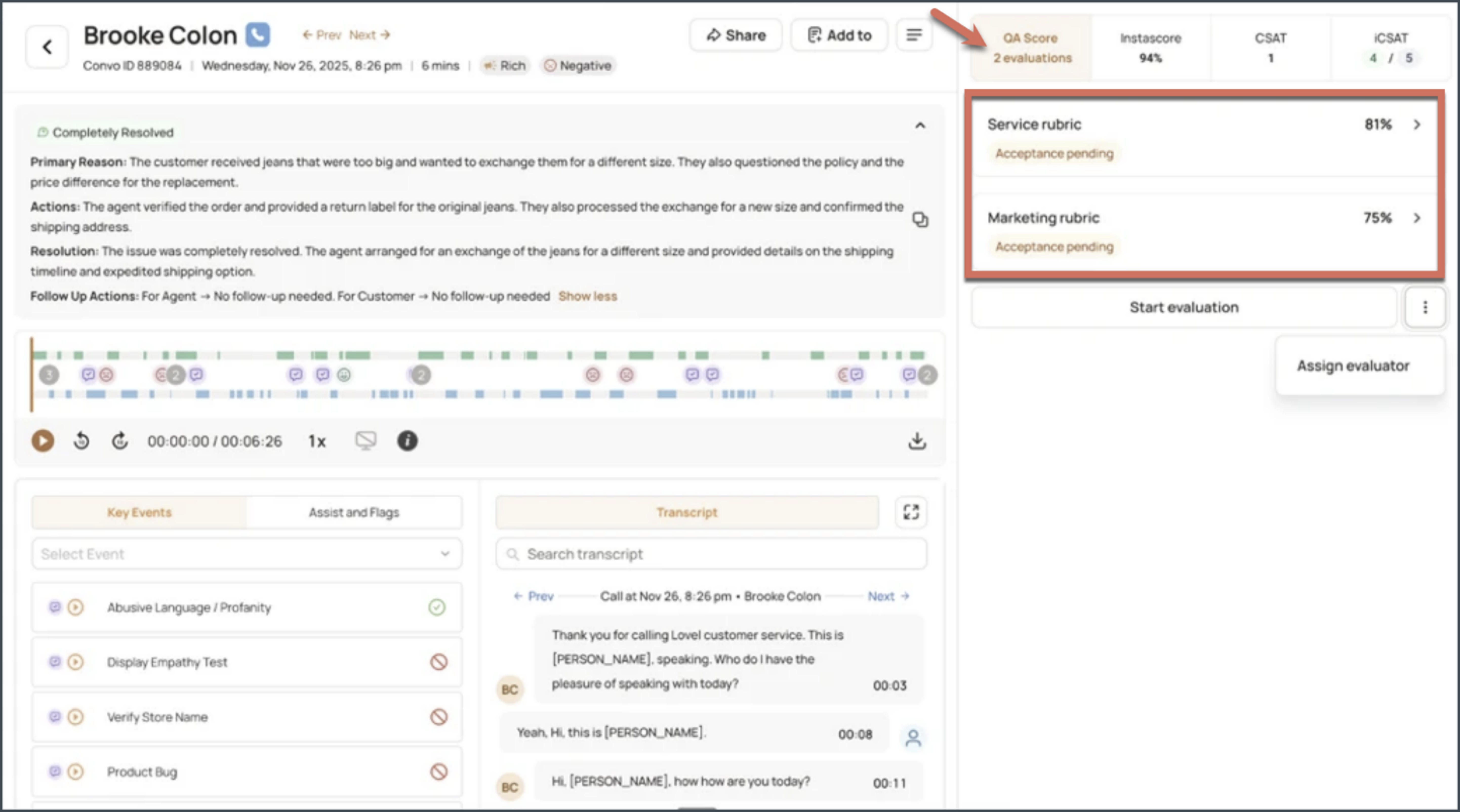
Teams can now complete multiple manual evaluations on the same conversation using different rubrics. For example, Sales, Quality, and Compliance teams can each review the same conversation with their own rubric, while each evaluation keeps its own score, status, and audit log.
This is available for manual rubrics only. All evaluations and scores can be viewed from the conversation details page and Analytics dashboards.
For details, refer to 📄 How do I run multiple evaluations on the same conversation?
New: Knowledge Base tab in Settings
Admins can now manage documents, web links, and connected sources from one central place: Settings > Knowledge Base. Add a source once, tag it to the workflow that should use it, and it becomes available across supported areas such as AutoQA, Virtual Agent, and AI Workers.
For AutoQA, Enterprise and Strategic customers with more than 300 agents can use SOP or policy documents to evaluate rubric questions. Only PDF/docs are supported for AutoQA.
Virtual Agent knowledge sources now also sync with the central Knowledge Base. Sources uploaded from Bot → Build → Knowledge will automatically appear under Settings → Knowledge Base. Connected sources such as web links, SharePoint, and Google Drive auto-update, so the Virtual Agent can reference the latest available content.
For BYOW customers, AI Worker tasks can use knowledge sources added through Knowledge Management System (KMS).
For details, refer to 📄 How do I use the Knowledge Base to manage sources for Auto-QA, Virtual Agent, and AI Workers?
VoC 3.0 — Daily VoC Insights
Your Voice of the Customer (VoC) insights now refresh daily instead of weekly, run on a more accurate classification model, and keep your Miscellaneous bucket clean automatically — all in the VoC screens you already use, with nothing to set up.
Themes refresh every day, so you see yesterday's activity the next morning. Volumes still build day over day, so genuine themes grow while one-off noise stays small.
Each week, conversations placed in Miscellaneous are moved to the right topic automatically, so the bucket shrinks and becomes more trustworthy over time.
A more accurate classification model means topics, subtopics, and themes more closely reflect what your customers are actually saying.
How to Use
Just open VoC as usual — No additional setup required.
Check your themes each morning, and widen the date range (for example, to 30 days) to watch genuine themes growth.
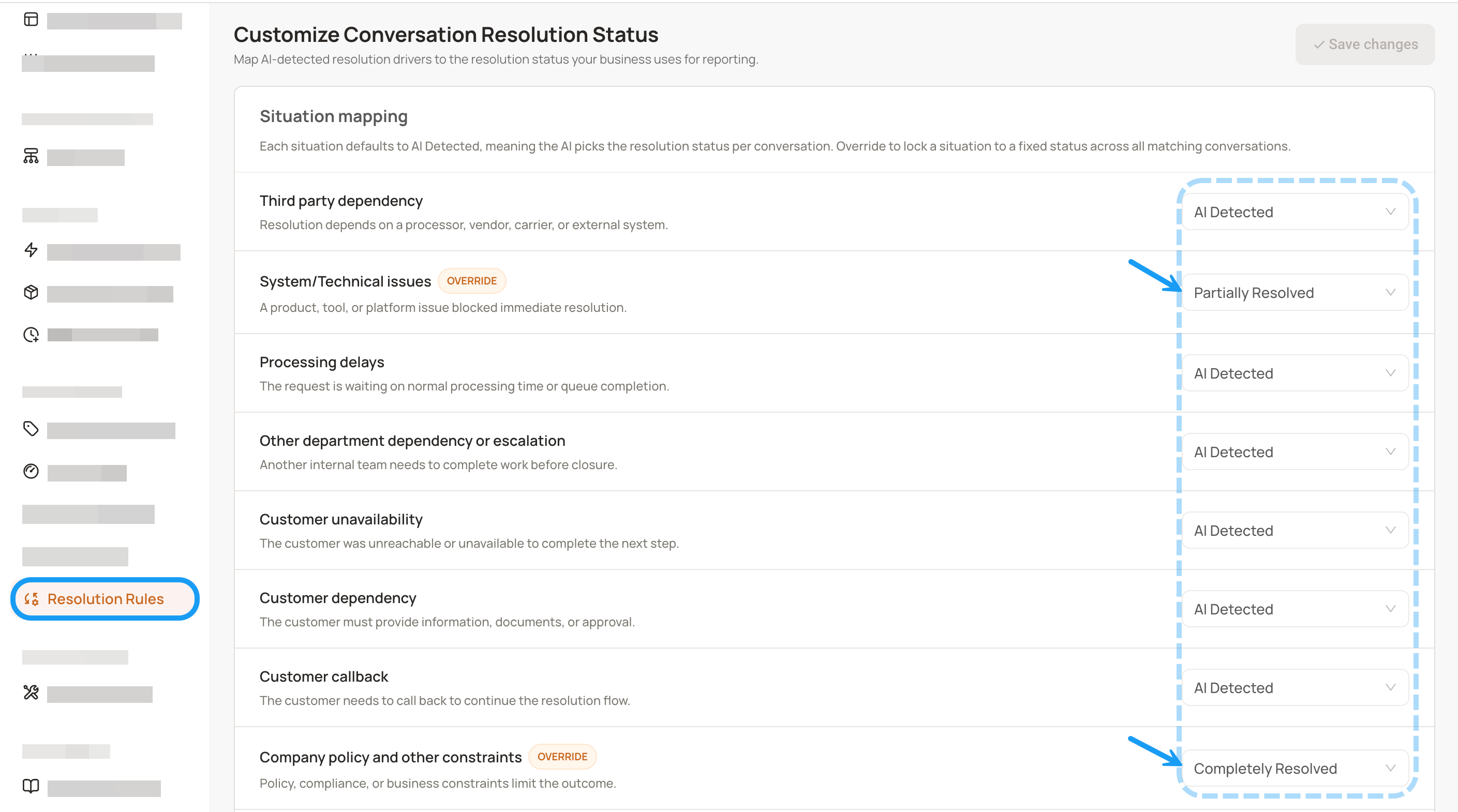
Customizable Conversation Resolution
"Resolved" doesn't mean the same thing for every team. You can now define what resolution means for your business: Level AI detects why each conversation ended, and you decide which outcomes count as resolved.
Map each business situation to a resolution status — Not resolved, Partially resolved, or Completely resolved.
The resulting status appears directly on the conversation details page.
Your custom resolution flows automatically into Performance Evaluation, Voice of the Customer (VoC), AI Workers, and Analytics, so your resolution rate stays consistent everywhere and is filterable by topic, team, time range, and more.
Good to know
When more than one situation applies to a conversation, the more severe status takes precedence: Not resolved outranks Partially resolved, which outranks Completely resolved.
Rules apply to conversations processed after you save them; earlier conversations keep the status they already have.
How to use:
Navigate to Settings > Resolution Rules
Map each business situation to a resolution status, then Save.
🌐 Bug Fixes
We identified rough edges and smoothed them out to make your Level experience better! 💡