Release Notes: July 01, 2026
Last updated: July 1, 2026
DISCLAIMER
If any of these elements or features are currently unavailable in your Level AI product suite, don't worry! All you need to do is wait till our next big release.
🟢 Available to all
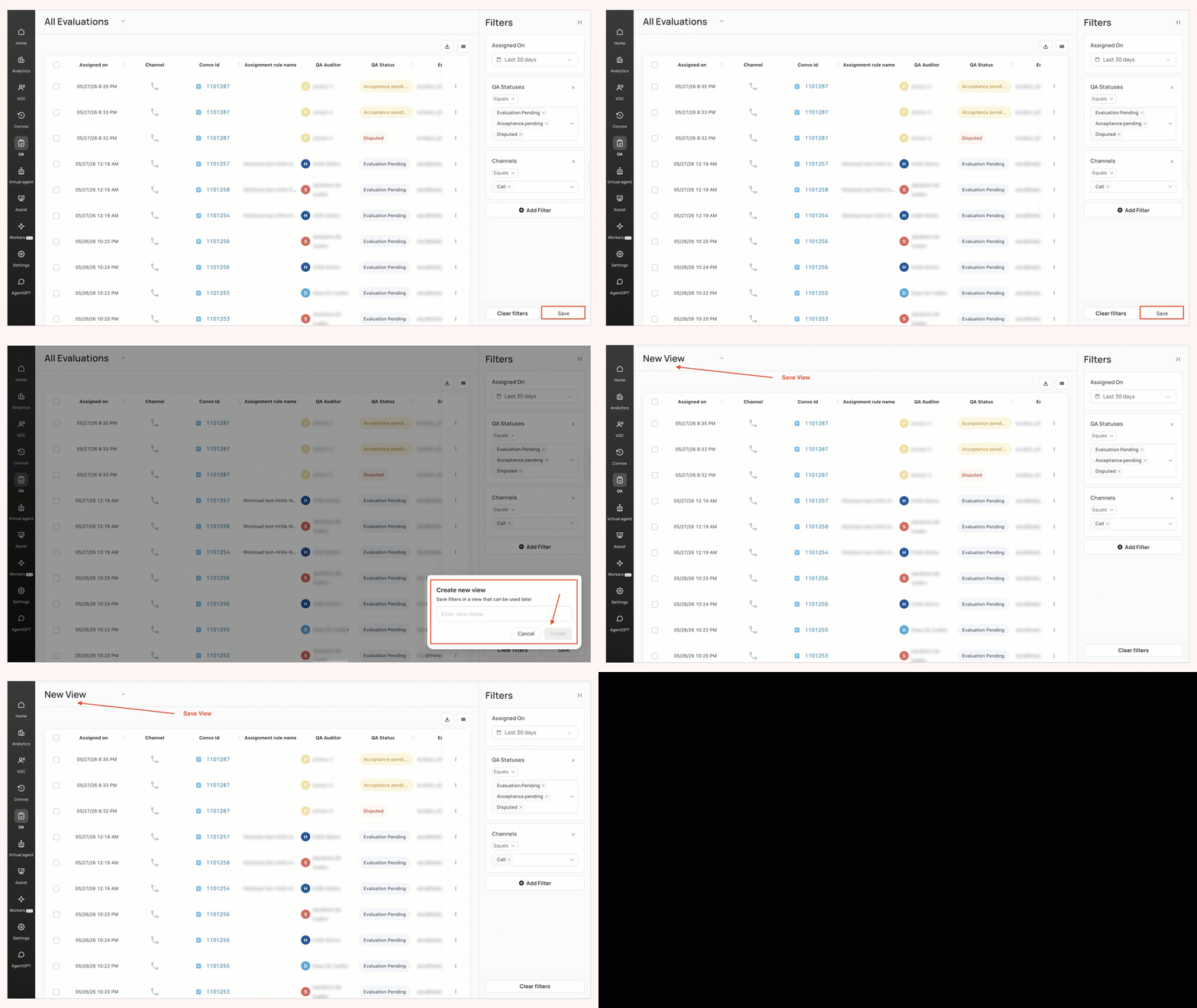
Saved Views on the Evaluations page
You can now save the combinations of filters and columns that you frequently use on the Evaluations page as a "saved view". This helps you quickly retrieve the desired evaluations instead of recreating the same filter setup each time.
How to use:
Go to the Evaluations page → apply your filters → choose the columns you want to see → Save the setup with a suitable name.
Saved views are private to you and stay available across sessions. You can create, edit, or delete them anytime from the Evaluations page.
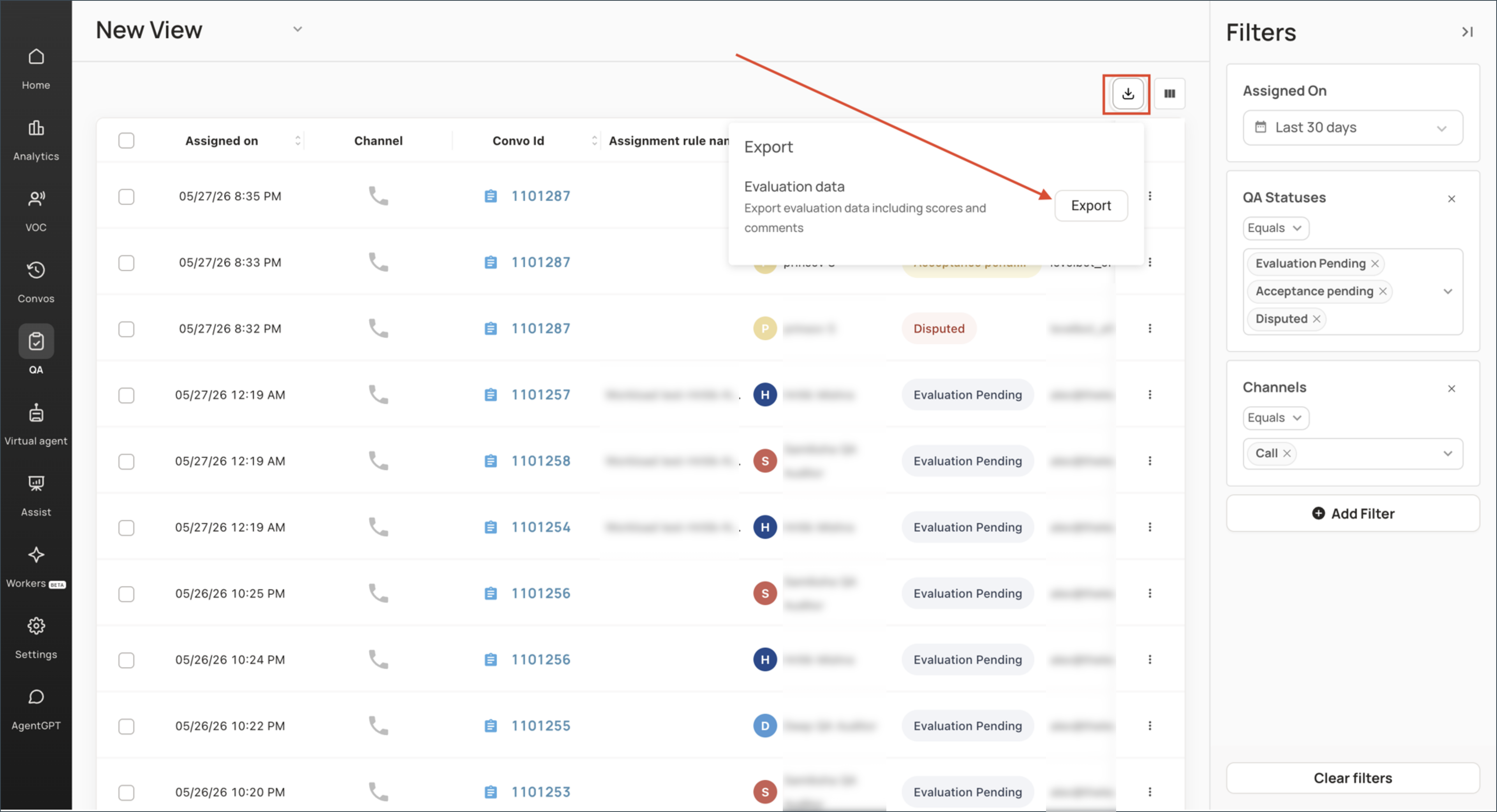
Export evaluation data from the Evaluations page
You can now download evaluation data directly from the Evaluations page as a CSV file for offline analysis. The export includes the rows currently shown in your table, so you can apply filters or a saved view first and then download only the data you need.
How to use:
Go to the Evaluations page → apply filters or select a saved view → click the Export button above the table.
The CSV includes evaluation details available on this page, such as assignment date and due date. You can export the data you already have access to, with no extra permissions needed.
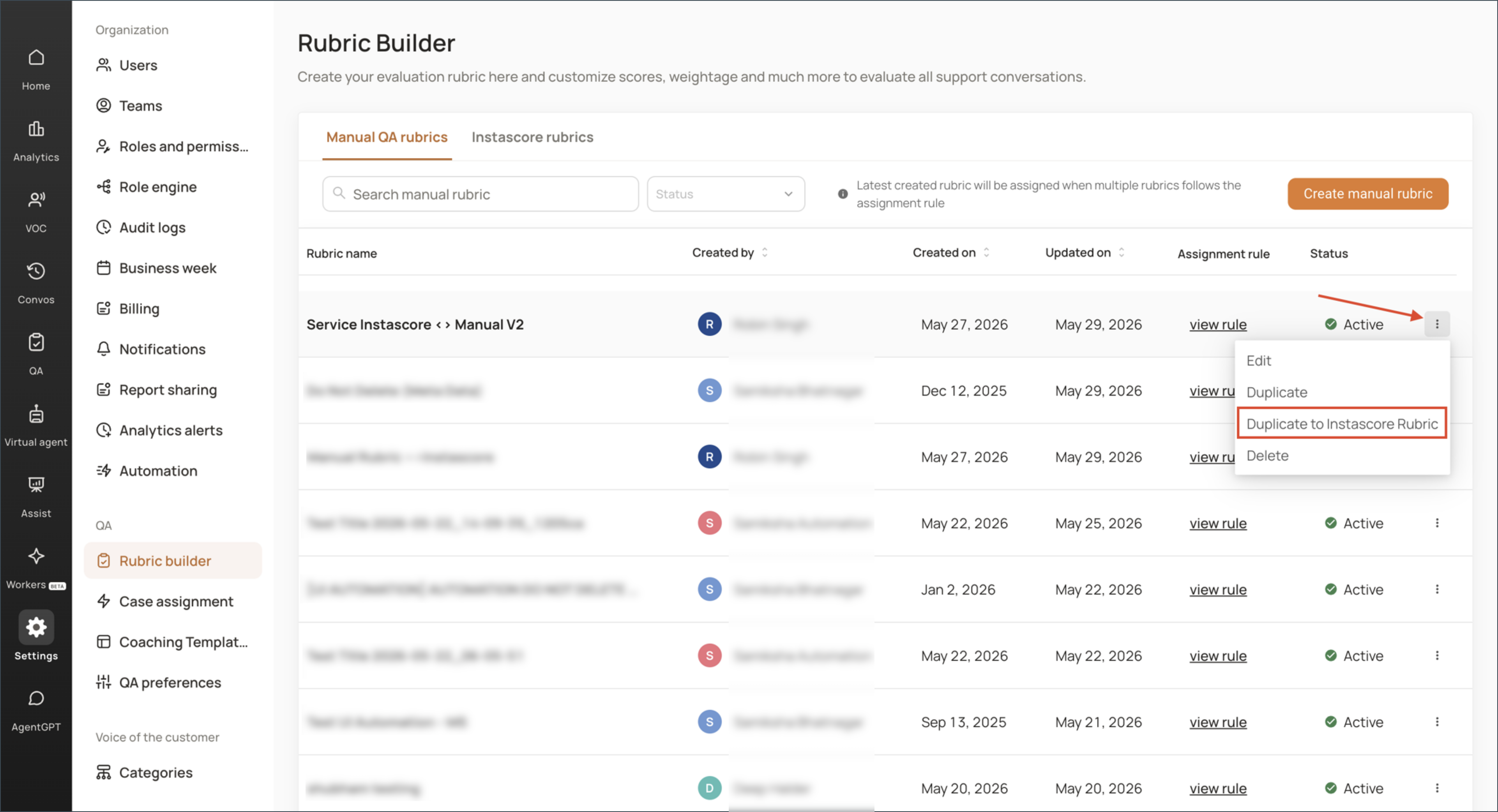
Duplicate rubrics between Manual QA and Instascore
You can now copy a rubric between Manual QA and InstaScore. This is useful when you want to use a similar evaluation form in both workflows, while keeping the same sections, questions, scoring logic, and conditional settings.
How to use:
Open a Manual QA or InstaScore rubric → click the three dots and select Duplicate to Manual QA Rubric or Duplicate to InstaScore Rubric.
The copied rubric opens as a Draft with the original rubric name pre-filled, so you can rename it, make any changes, and publish it when ready.
Conversation Analytics, Team Performance, and VoC Insights AI Workers Now Available for All Roles
Conversation Analytics, Team Performance, and VoC Insights AI Workers are now available to managers, team leads, supervisors, and admins. These workers analyze metrics, trends, and patterns across conversation data, with results automatically limited to the conversations, agents, and teams each user is allowed to access.
This brings the same role-based data access used by AI Workers such as Conversation Research, Coaching Plan, and Executive Research to quantitative AI Workers as well. No new setup is required. Access is based on each user’s existing role under Settings → Roles and Permissions. Admins with org-wide access continue to see org-level analysis.
To use it, open Conversation Analytics, Team Performance, or VoC Insights from the AI Workers grid and ask a question. A manager assigned to a specific team will see analysis for that team, while an admin with org-wide access will see analysis across the organization.
Org-level Redaction and ACW Support
Screen Recording can now be set up differently at an org level, channel level, & integration level. This helps teams apply the right recording rules, instead of using the same setup everywhere.
You can configure the following:
Redaction URLs & Entities
After Call Work (ACW)
Pre-case Work (only available in Activity-based workflow)
Case Expiry Duration (only available in Trigger-based workflow)
Please contact your Technical Account Manager for assistance on this.
🟨 Early Access
Rolling out to select accounts.
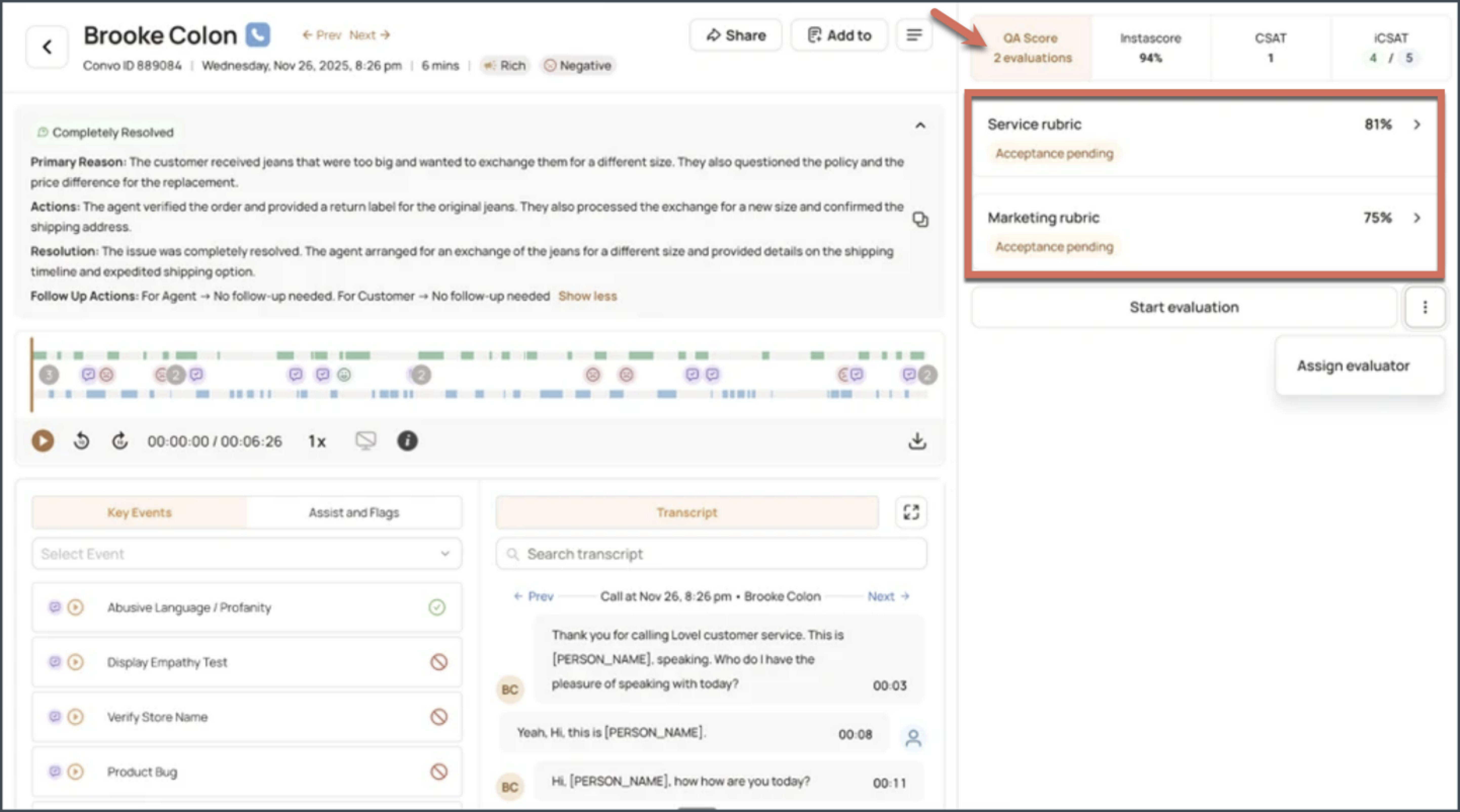
Multi-Perspective QA — Multiple Evaluations per Conversation
Teams can now complete multiple manual evaluations on the same conversation using different rubrics. For example, Sales, Quality, and Compliance teams can each review the same conversation with their own rubric, while each evaluation keeps its own score, status, and audit log.
This is available for manual rubrics only. All evaluations and scores can be viewed from the conversation details page and Analytics dashboards.
For details, refer to 📄 How do I run multiple evaluations on the same conversation?
QA Case Assignment History Log
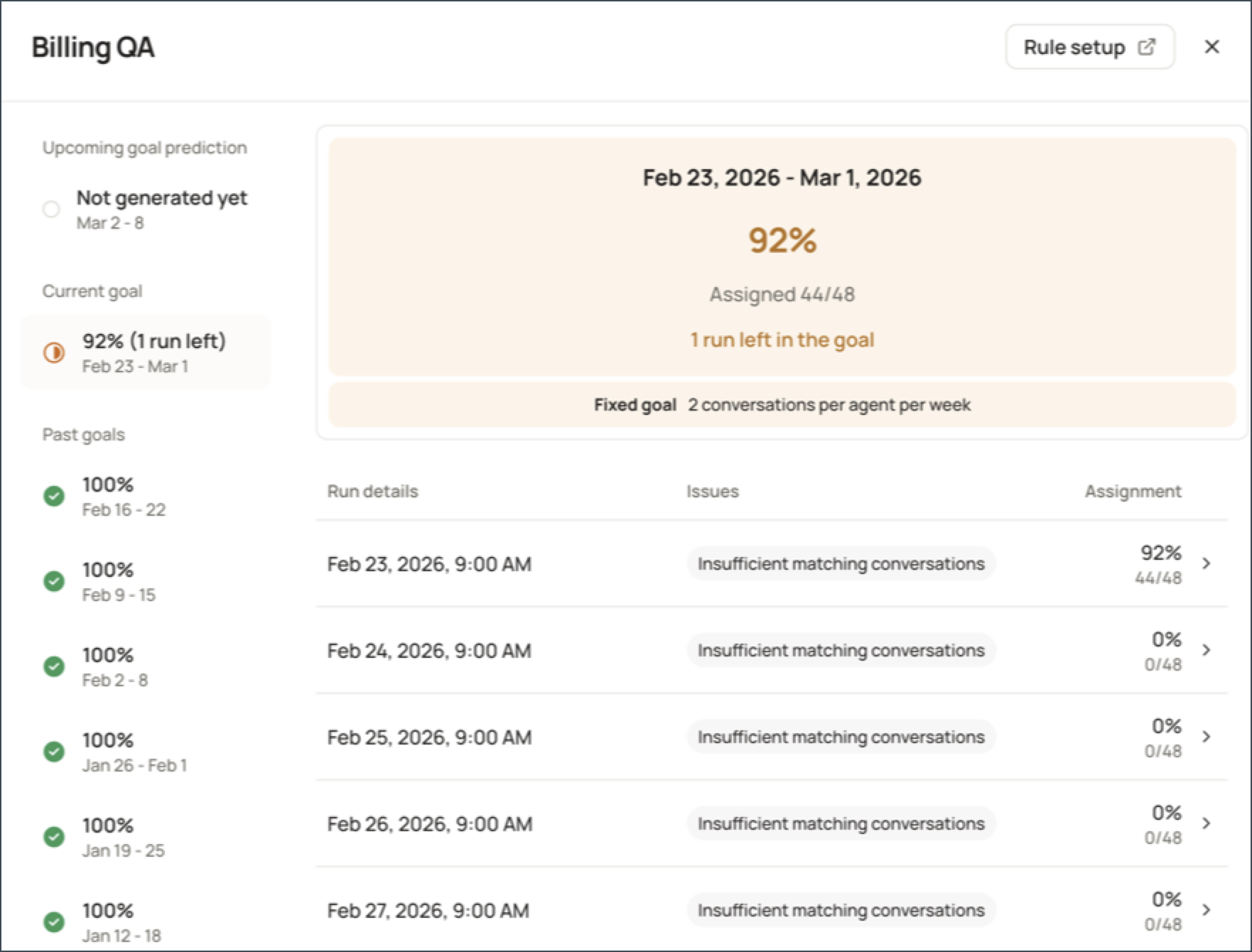
Admins can now see what happened each time a QA Case Assignment rule runs via the History log. This gives teams one place to confirm whether the rule is assigning conversations as expected and whether QA coverage is balanced across agents and evaluators.
To use it, open a QA Case Assignment rule → go to History Log. You can view:
Run statuses: Success, Partial, and Failed
Total conversations assigned per run
Agent-level view of assigned and skipped conversations
Evaluator-level assignment distribution
Skipped reasons such as no samples or quota full
Admins can utilize these details to adjust rule settings, improve coverage, and reduce manual checks across assignments.
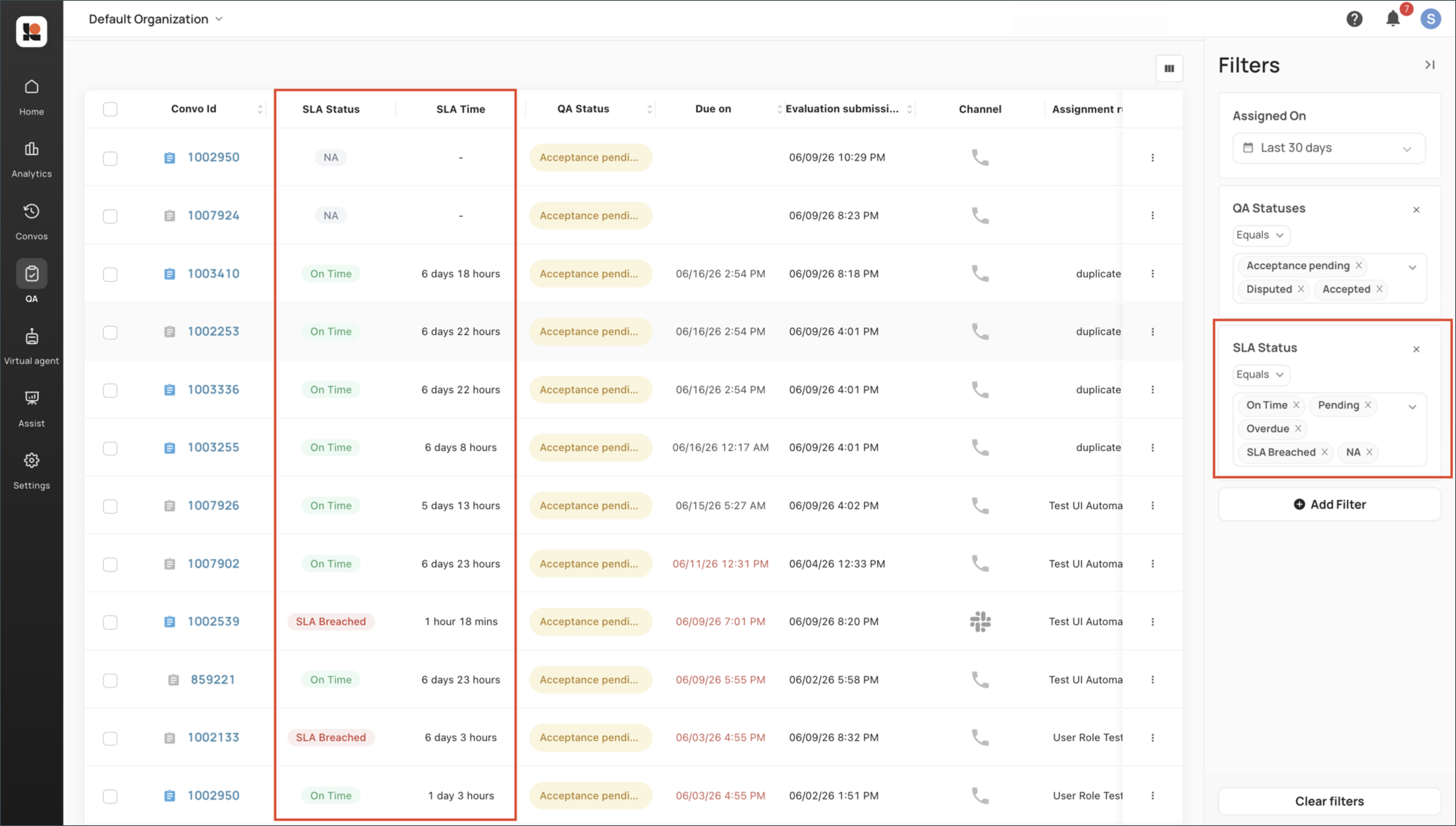
New: Evaluation SLA Breach Indicator
QA teams can now track whether Manual QA evaluations are completed within their SLA timelines available on the Evaluation Page and in Analytics, so teams can identify on-time, breached, and overdue evaluations directly in the Level platform.
Highlights:
View SLA Status values: On Time, SLA Breached, Overdue, –, and NA
The new SLA Time metric shows how many days an evaluation was completed early or late, so teams can review both status and timing together.
In-app notifications for evaluations with upcoming due dates
In Analytics,
you can apply SLA-related measures, filters, and group-bys
SLA Time measure with Average, Maximum, Minimum, and Sum
SLA trends can be reviewed across Evaluators, Agents, Assignment Rules, Due Dates, and Completion Dates, with drill-down access to the related conversations and evaluations.
Dispute Workflow for Evaluator Calibration
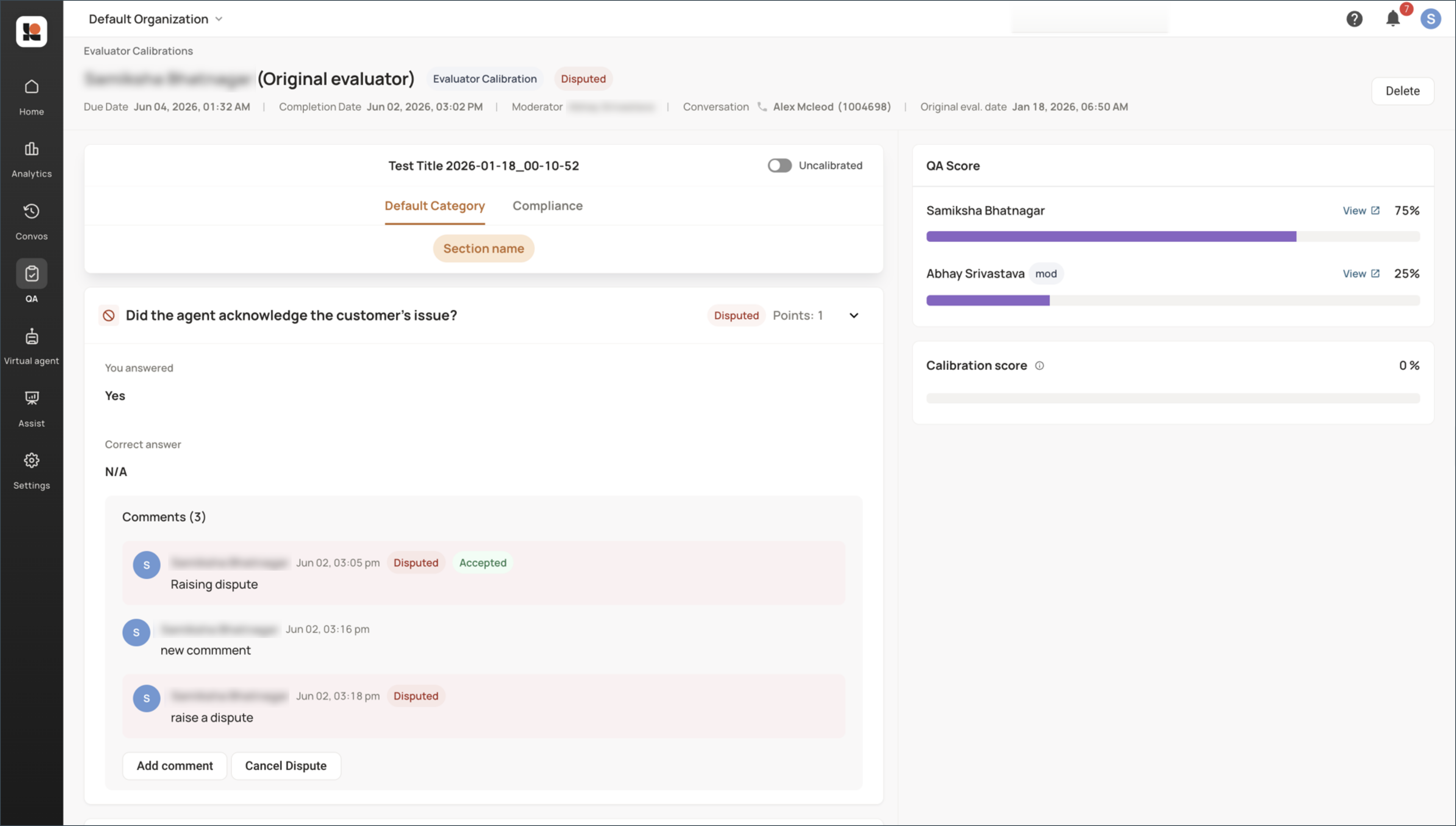
Evaluator Calibration now includes a structured way to review disagreements on calibration results.
How it works: Evaluators can raise a dispute on individual mismatched questions in a completed Calibration Report by adding a required supporting comment, and moderators can review the dispute, add a required resolution comment, and accept or reject it.
Dispute updates appear in calibration reports, calibration lists, in-app notifications, and Analytics.
Teams can use Analytics to filter, group, measure, and drill down into dispute trends using Calibration Status, Calibration Dispute Status, Calibration Scores, and Count of Calibrations.
For details, refer to 📄 How to raise and resolve disputes in Evaluator Calibration
New: Knowledge Base tab in Settings
Admins can now manage documents, web links, and connected sources from one central place: Settings → Knowledge Base. Add a source once, tag it to the workflow that should use it, and it becomes available across supported areas such as AutoQA, Virtual Agent, and AI Workers.
For AutoQA, Enterprise and Strategic customers with more than 300 agents can use SOP or policy documents to evaluate rubric questions. Only PDF/docs are supported for AutoQA.
Virtual Agent knowledge sources now also sync with the central Knowledge Base. Sources uploaded from Bot → Build → Knowledge will automatically appear under Settings → Knowledge Base. Connected sources such as web links, SharePoint, and Google Drive auto-update, so the Virtual Agent can reference the latest available content.
For BYOW customers, AI Worker tasks can use knowledge sources added through KMS.
For details, refer to 📄 How do I use the Knowledge Base to manage sources for Auto-QA, Virtual Agent, and AI Workers?
🌐 Bug Fixes
We identified rough edges and smoothed them out to make your Level experience better! 💡