Okta SCIM Enablement and Role Mapping
Last updated: June 18, 2026
Clients can now setup and manage users access and roles to LevelAI directly from Okta SCIM
NOTE
Before proceeding please make sure you have set up and connected the SCIM application in your Okta. Refer to 📄 Okta SCIM Client Setup guidefor details.
User access to LevelAI
To provide access to users using LevelAI, we would need to create Groups, Assign users to the group and Assign the LevelAI SCIM application to the group.
Create All LevelAI User Group
We would need to create a user group and assign all the users to be given LevelAI access to, to this group
1. Go to Directory → Groups and click Add Group
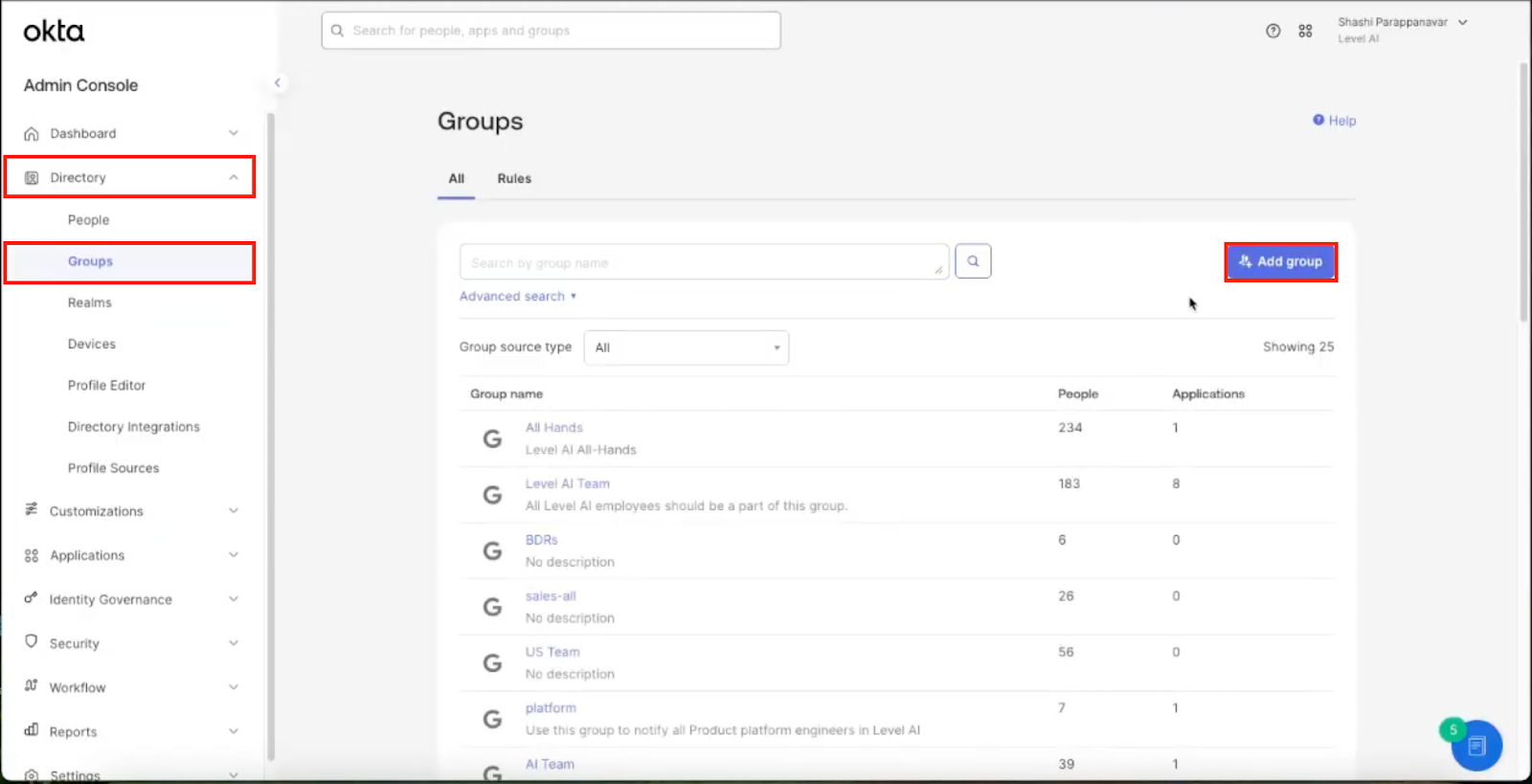
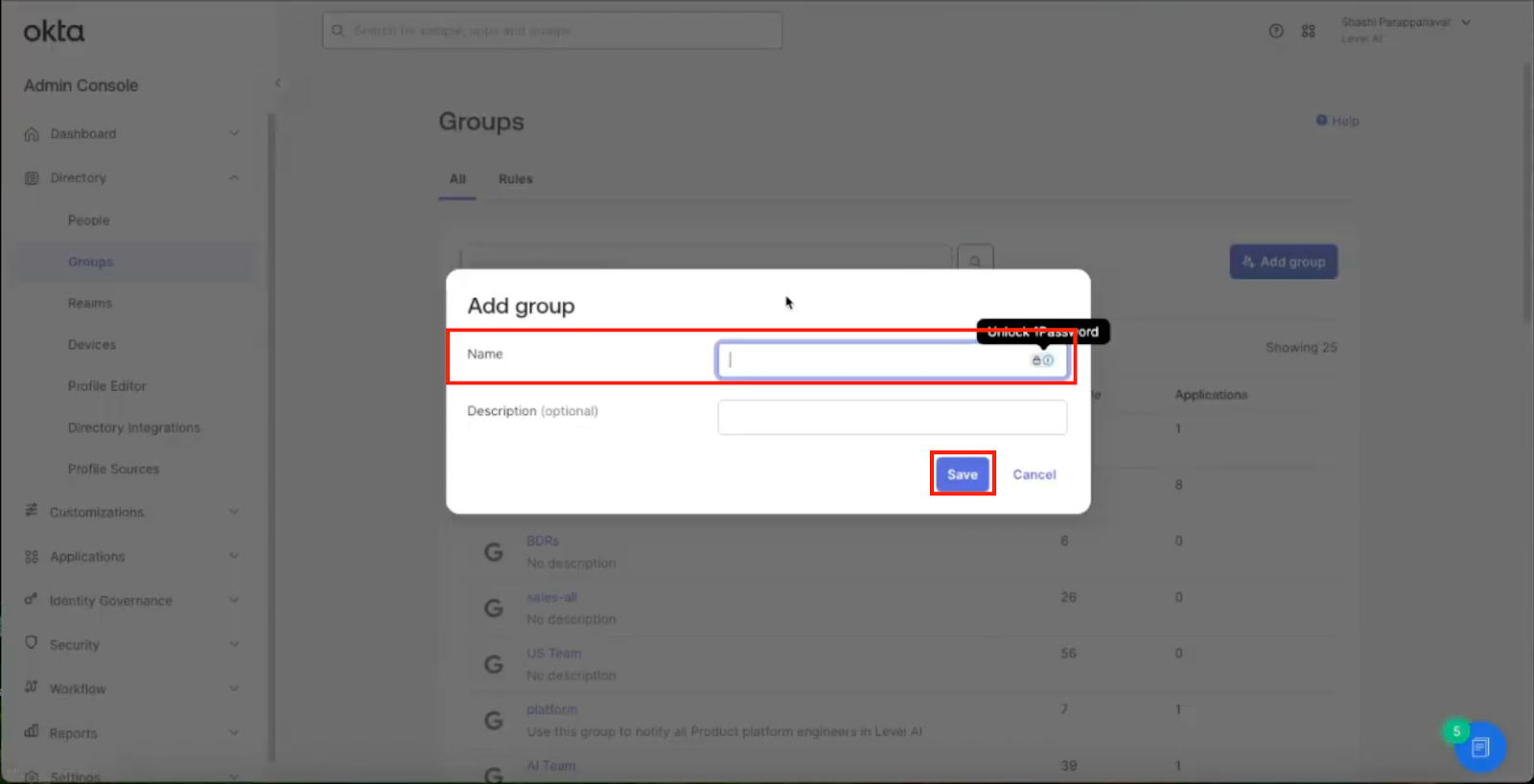
2. Click Add Group → enter the Group Name and click Save.
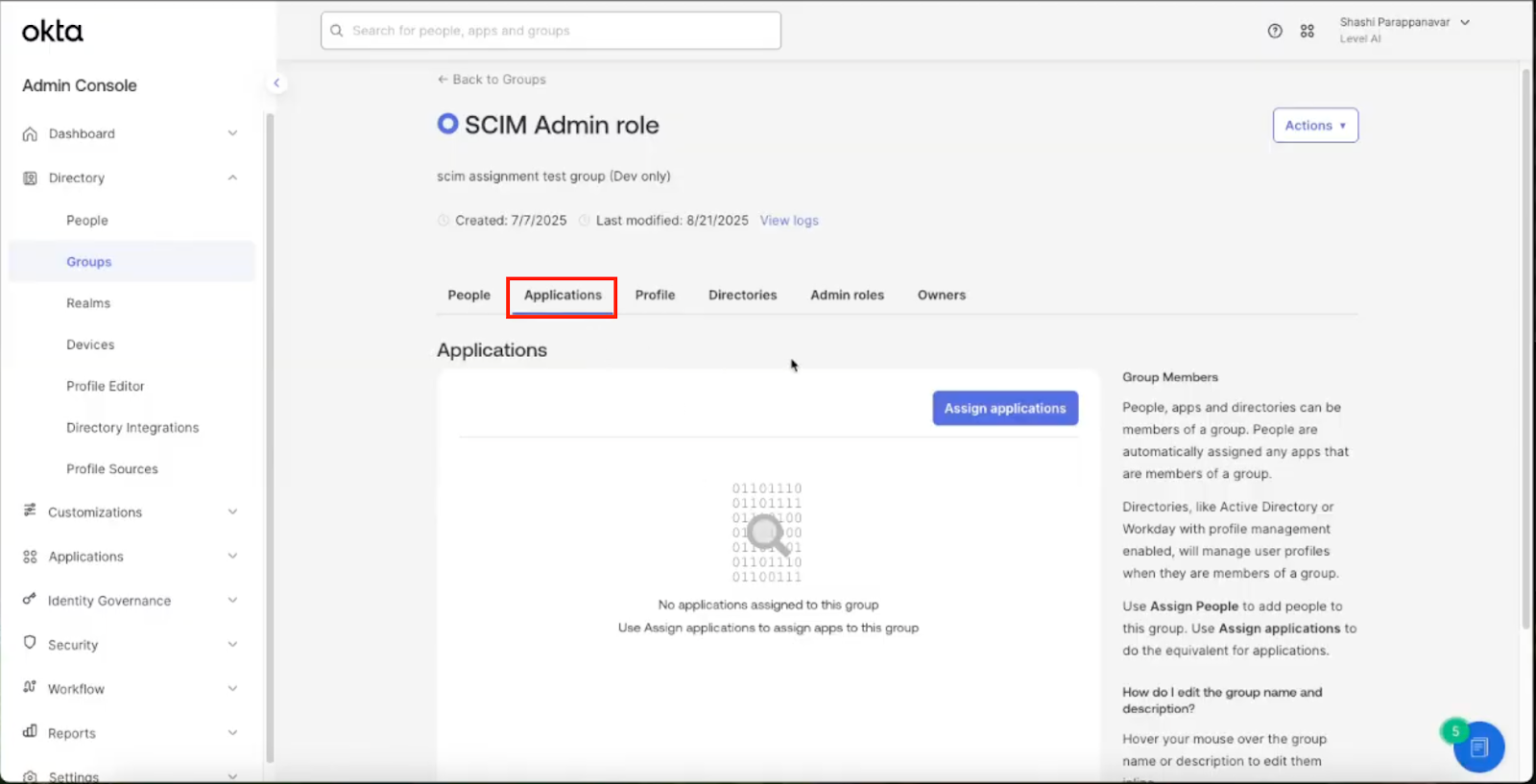
3. Open the Group and click the Applications tab.
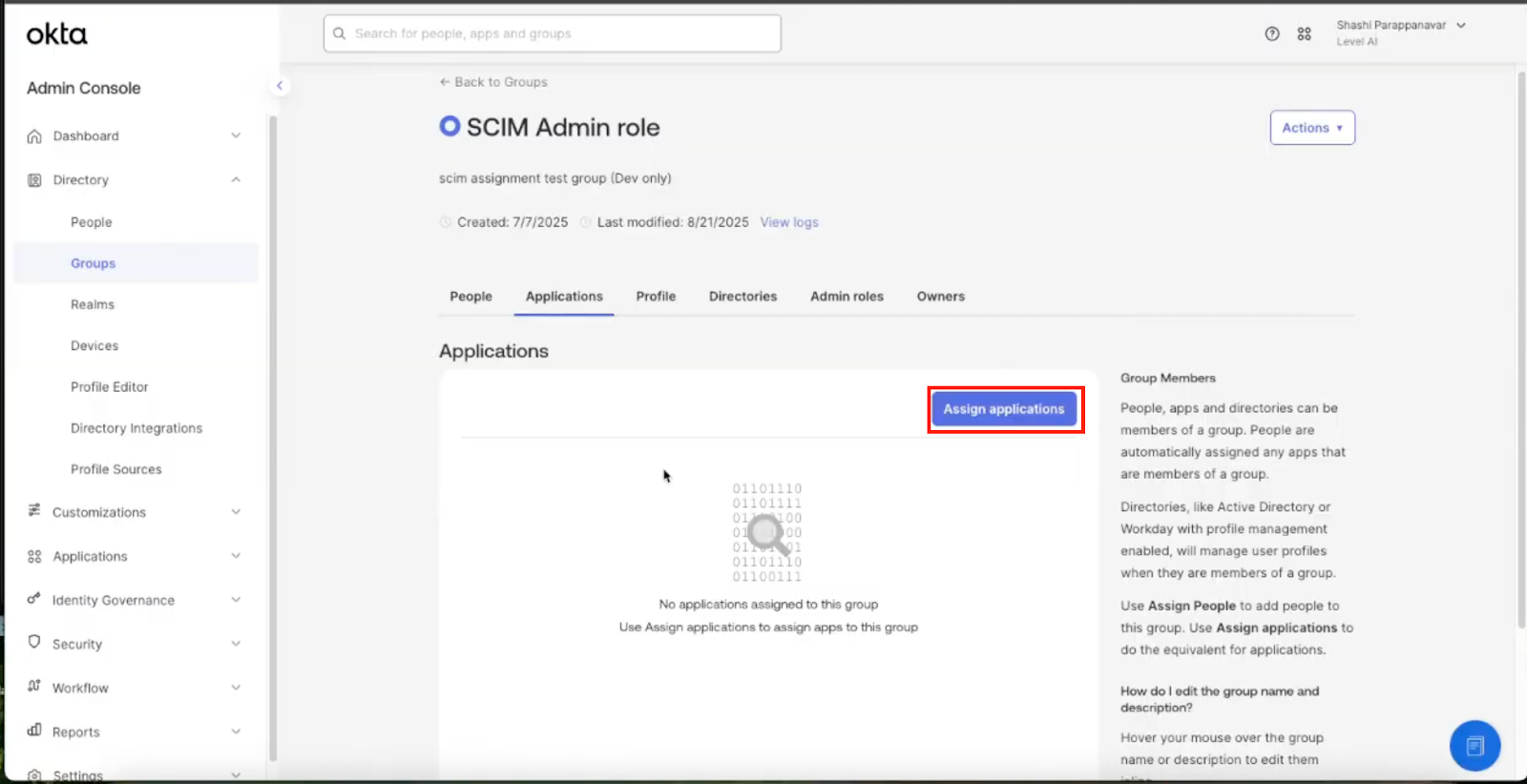
4. Click Assign applications
5. Search for scim and click Assign.
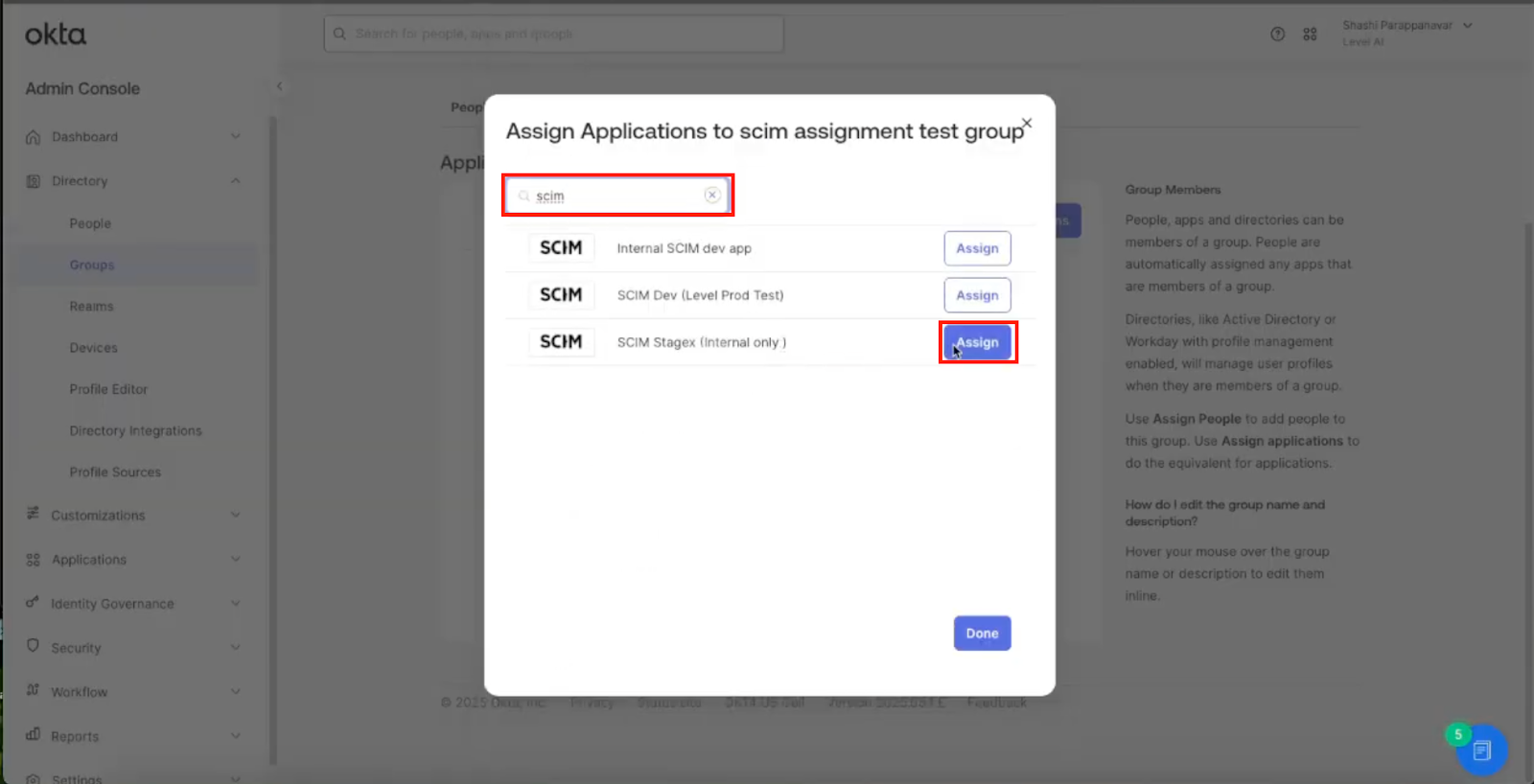
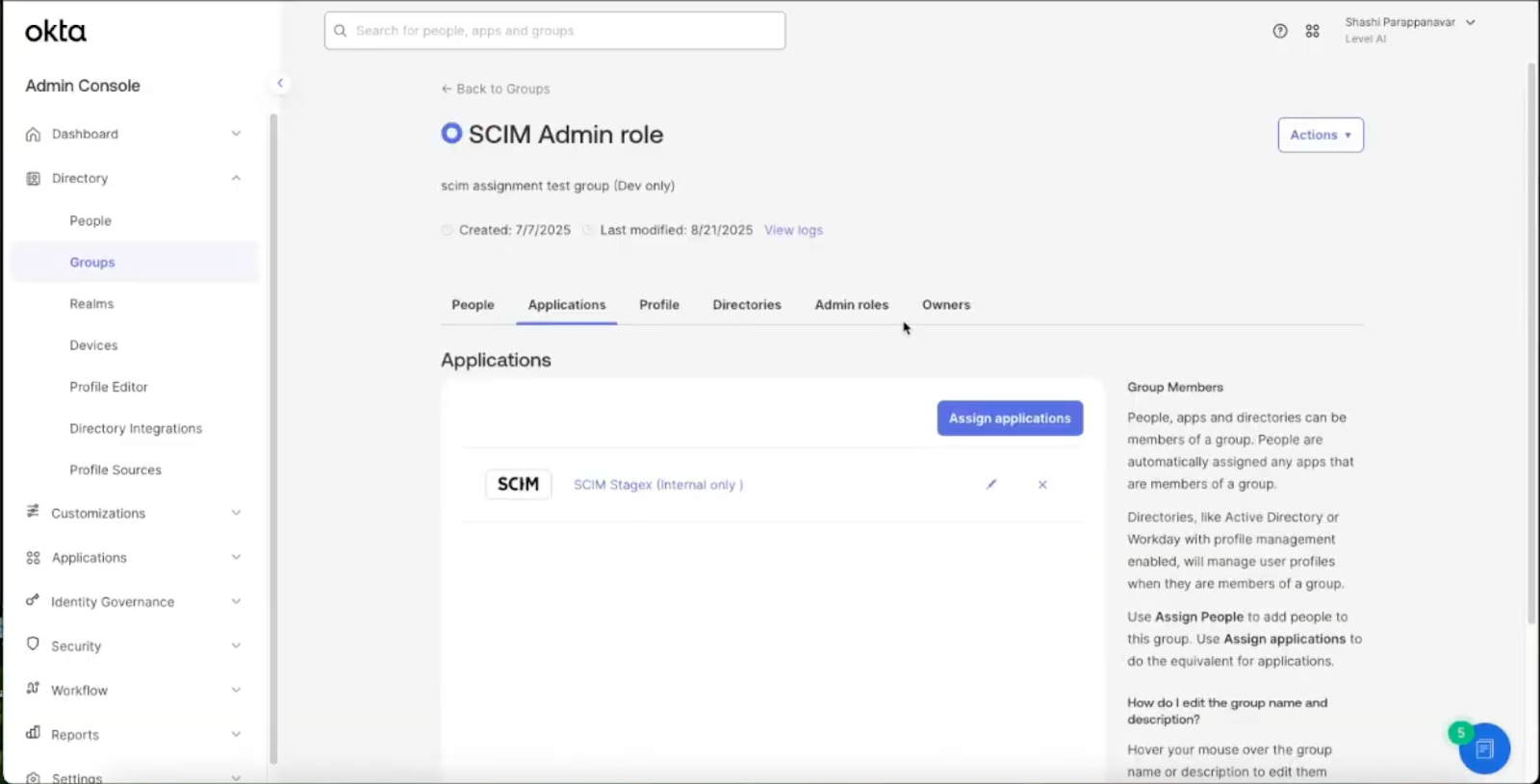
6. Assign All the users you want to give LevelAI Access to, to this group
Assigning Roles to Users
To assign roles to users using Okta SCIM, we would be using push groups for assignment. We would first create groups of users for the particular group and assign users to the groups. Once done we would assign them as push groups. Once push groups are assigned, we would map the push groups to the roles in LevelAI.
1. Go to Directory → Groups and click Add Group
2. Click Add Group → enter the Group Name and click Save.
Note: This group of users would be assigned to a particular role in LevelAI.
3. Assign relevant users to the group
Assigning the group as Push Group
Navigate to Applications → Applications and select the SCIM Application. Select Push groups tab in the application
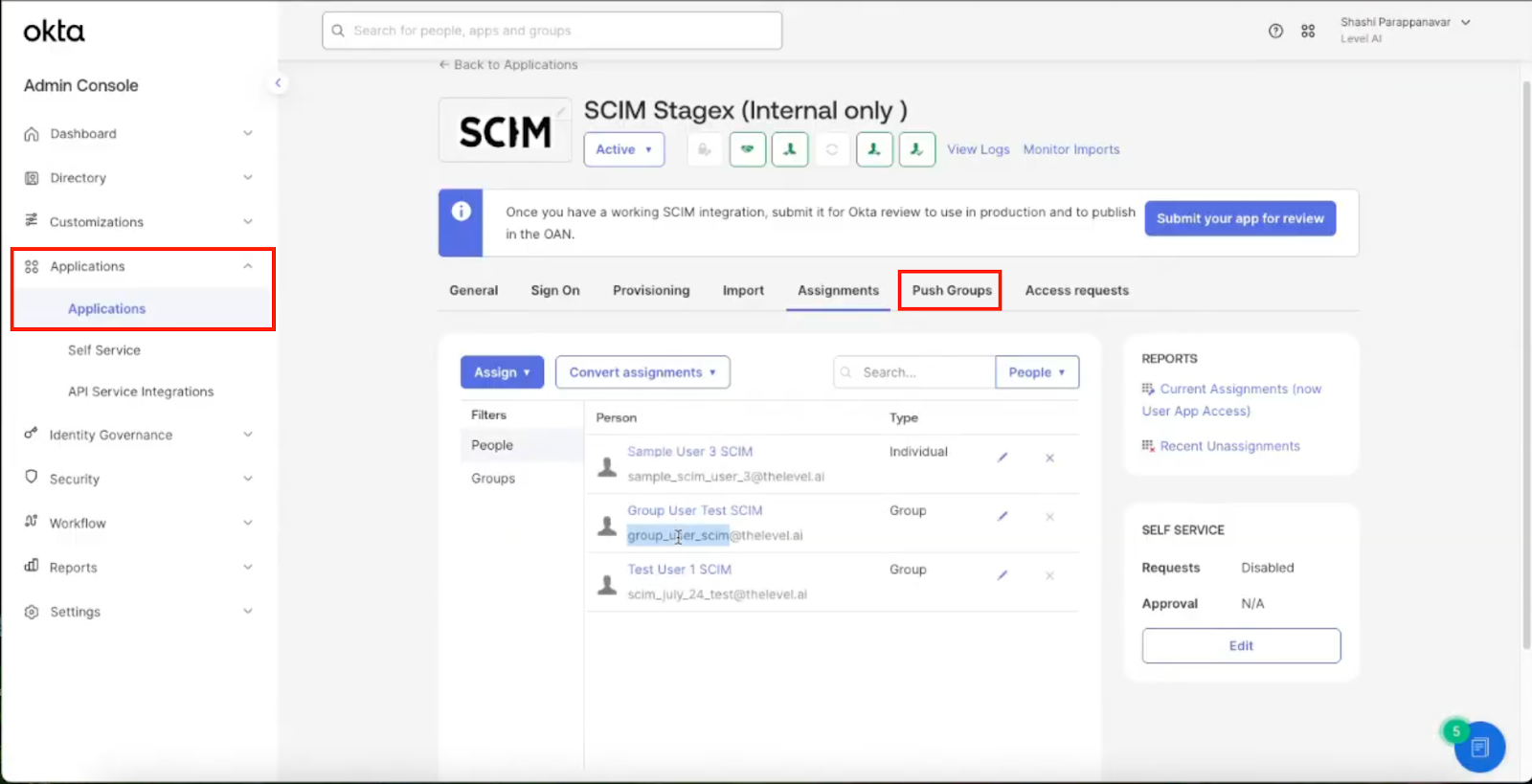
5. Click +Push Groups and Filter by Name
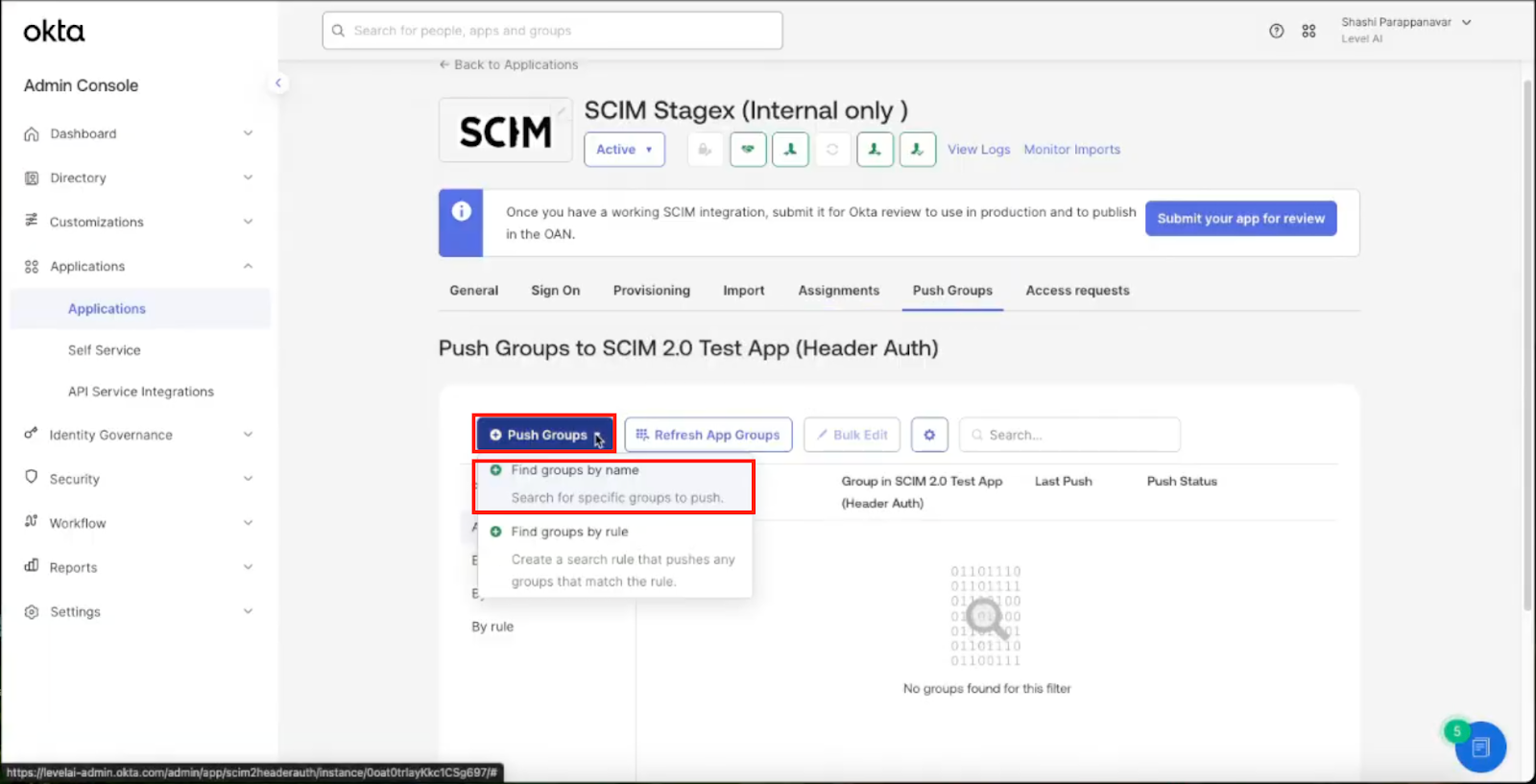
6. Navigate to By name section and search for the role group name created in above step

7. Save the Push group
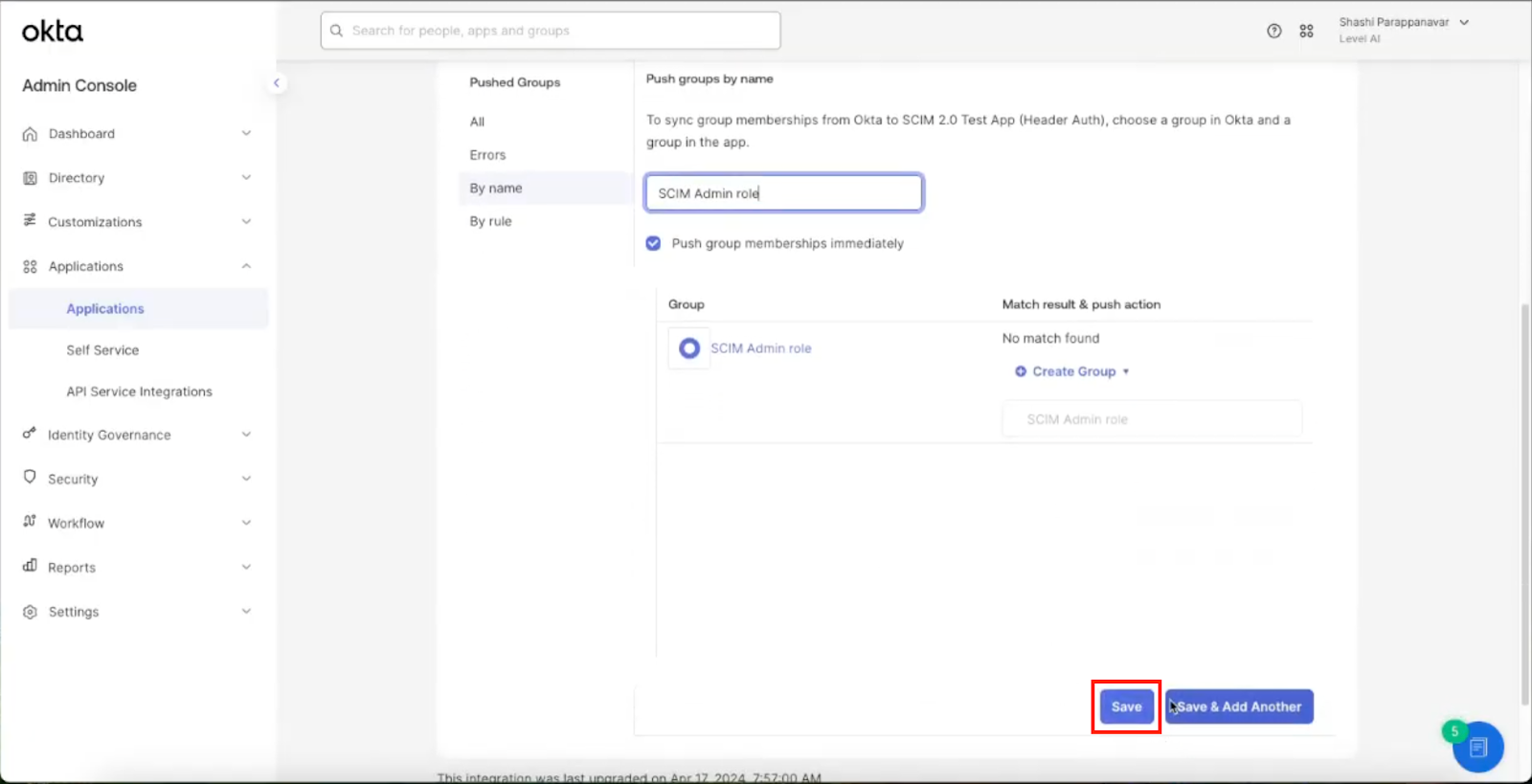
8. Raise a support request for role mapping
Once the users have been assigned to the groups, please raise a support request in the following format to LevelAI to assign these groups of users to the role:
Hi Team,
We would like to assign users to roles using Okta SCIM, Below is the list of push groups and their corresponding roles.
Group Name | Role Name in LevelAI |
Group 1 | Manager |
Group 2 | Agent |
Group 3 | QA Auditor |
Thank you
Once sent, LevelAI would assign these groups to roles.
Frequently Asked Questions
Q. How do I create a new push group and role?
A. To create a new group and assign it as a push group, follow the steps in the "Assigning Roles to Users" section. Afterwards, raise a support request to map the new push group to its intended role.
Q. How do I add or revoke a user's access to LevelAI?
A. You can manage user access by adding or removing them from the main assignment group created in the "User Access to LevelAI" section.
Q. How do I change a user's role in LevelAI via Okta SCIM?
A. You can manage user roles by adding or removing them from the relevant role-specific push groups that were created in the "Assigning Roles to Users" section.