NICE InContact integration with Level AI
Last updated: June 18, 2026
You can import all your customer conversations from NICE InContact into Level AI to gain valuable insights. With the NICE InContact - Level AI integration, conversations will be ingested from your NICE InContact instance into Level AI in a systematic, periodic manner.
Retrieving your access key details from NICE InContact
Before you begin your NICE InContact-Level AI setup, you will need to:
Browse to NICE CXone Mpower Getting Started page
In the Task 2: Submit Your Registration Form section, click on the link to the CXone Application Registration form and complete the form as follows and Submit
1. What is your email address?
Email address of your NICE CXone administrator
2. What is your name?
Name of your NICE CXone administrator
3. What is your business unit?
You can find this by logging in to the DEVone portal and looking in the upper left corner
4. What is the name of your application?
Level AI
5. Describe your application.
Level AI is a conversational analysis platform that comprehensively analyzes and tags key moments within customer-agent interactions across multiple channels. The platform ingests conversations from telephony systems, including NICE CXone, and utilizes a patented intent engine, to understand and categorize conversational data. Its capabilities extend to evaluating agent performance, ensuring compliance, and providing actionable insights from 100% of the analyzed conversations.
6. Provide technical contacts for this application.
Email address(es) of your NICE CXone technical contact(s)
7. Method to receive password for application registration information.
Email
8. What is the tenancy of the application?
Single Tenant
9. Which environment is your tenant located in?
Global Production Environment (cxone.niceincontact.com)
10. Which authentication method will you use?
client_secret_post
11. What CXone ACD API scopes do you require?
2 - AdminApi
4 - AgentApi
6 - AuthenticationApi
8 - ReportingApi
12. What type of application are you registering?
Back-end
Within a few business days, you will receive an email containing a client id and client secret
In the meantime, follow the steps in the Task 3: Prepare a Test User Account section of the NICE CXone Mpower Getting Started page to create a user account for use with the Level AI integration along with the required Access Key ID and Access Key Secret
Note: The user account will need at least the Manager role to have the necessary permissions required for the integration
Once you have received the access key details, please share the client id, client secret, Access Key ID, and Access Key Secret with your Level AI AE/IM/TAM.
Continue with the Setting up your NICE InContact integration steps below.
NOTE
If you have an older version which doesn’t support access key generation, do reach out to us at support@thelevel.ai.
Setting up your NICE InContact integration
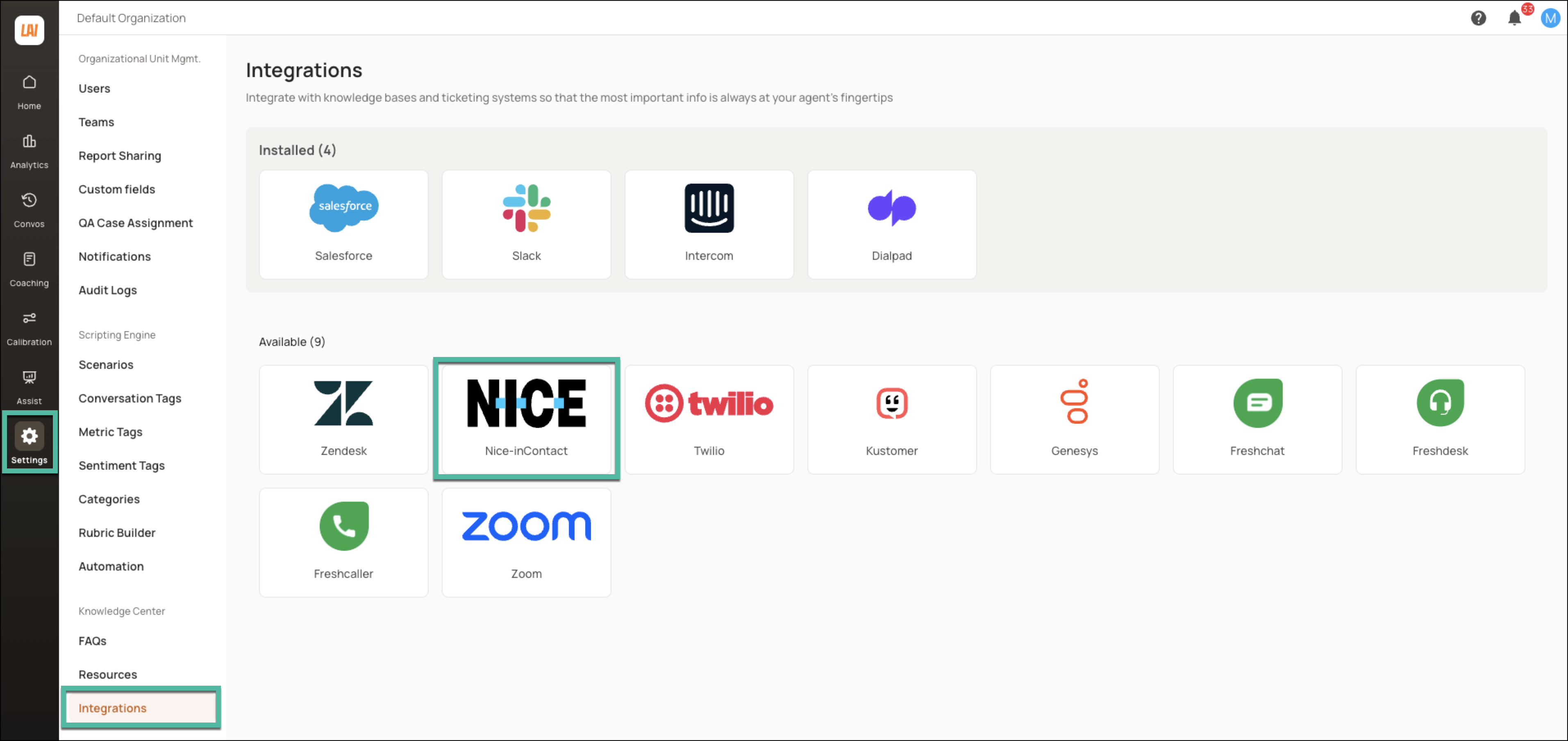
Login to your Level AI tenant as an Admin. In the left sidebar, navigate to Settings > Integrations screen.
Under the Available section, click Nice-inContact.
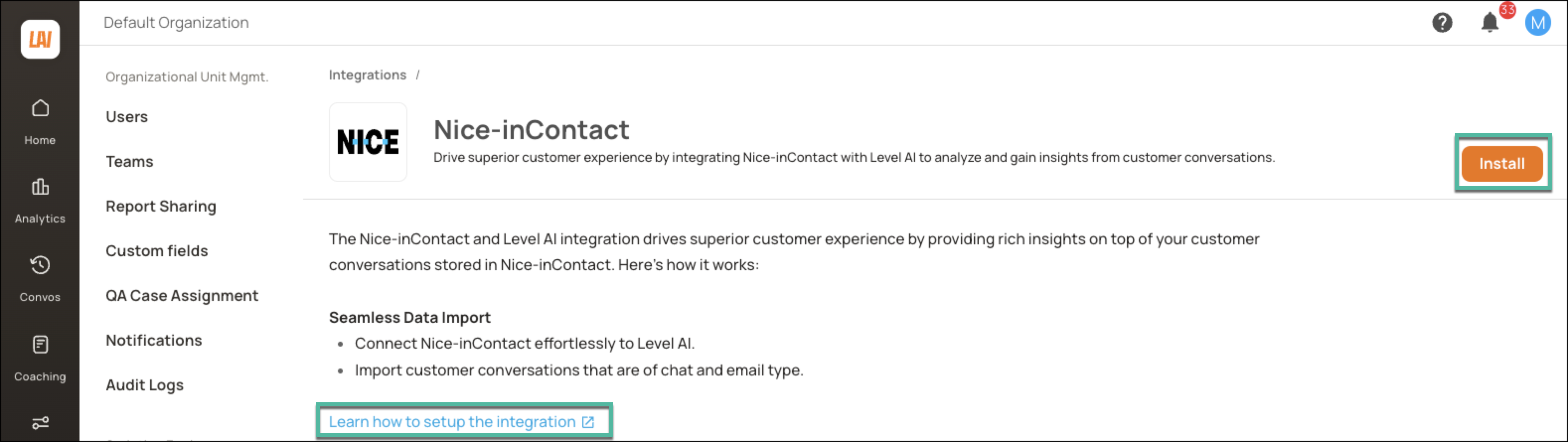
Click Install to initiate the set up process. You can click the hyperlink for step-by-step guidance on setting up the integration.
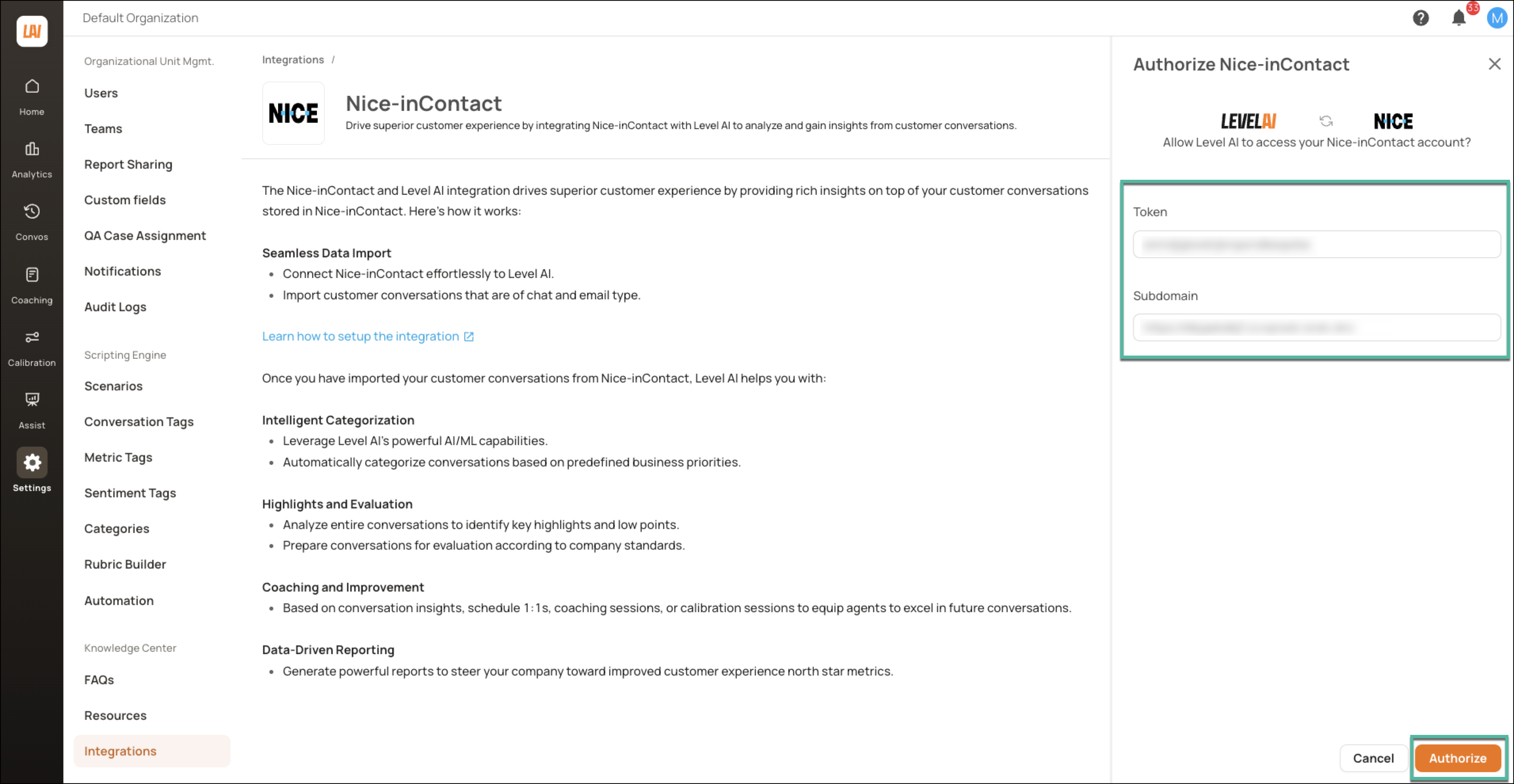
Enter the Access Key Id and Access Key Secret from the steps in the earlier section into the authorization form and click Authorize.
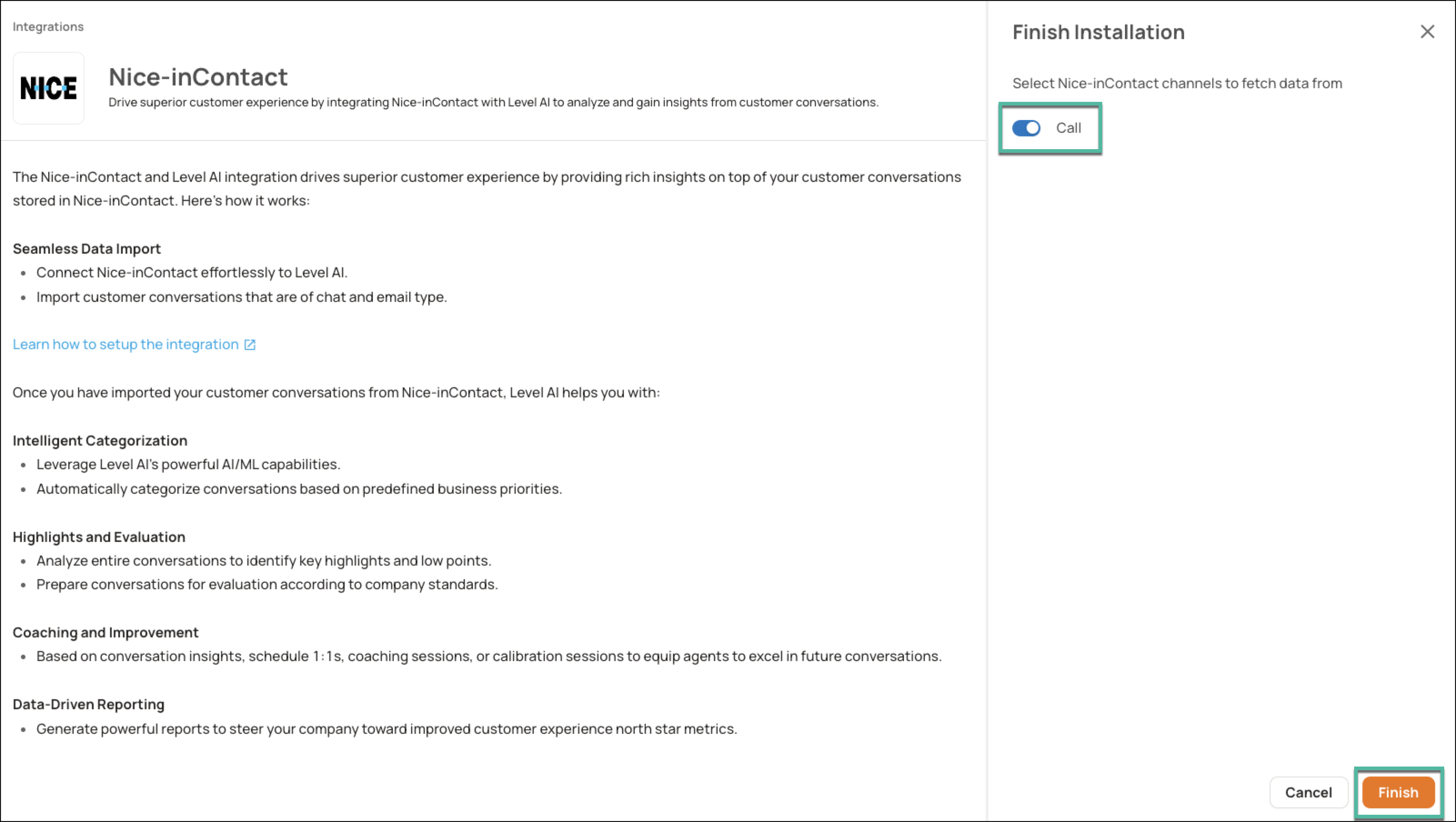
Enable Call and click Finish to complete the setup.
Once the integration has been successfully configured, the app will be displayed in the Installed section of the Integrations screen.
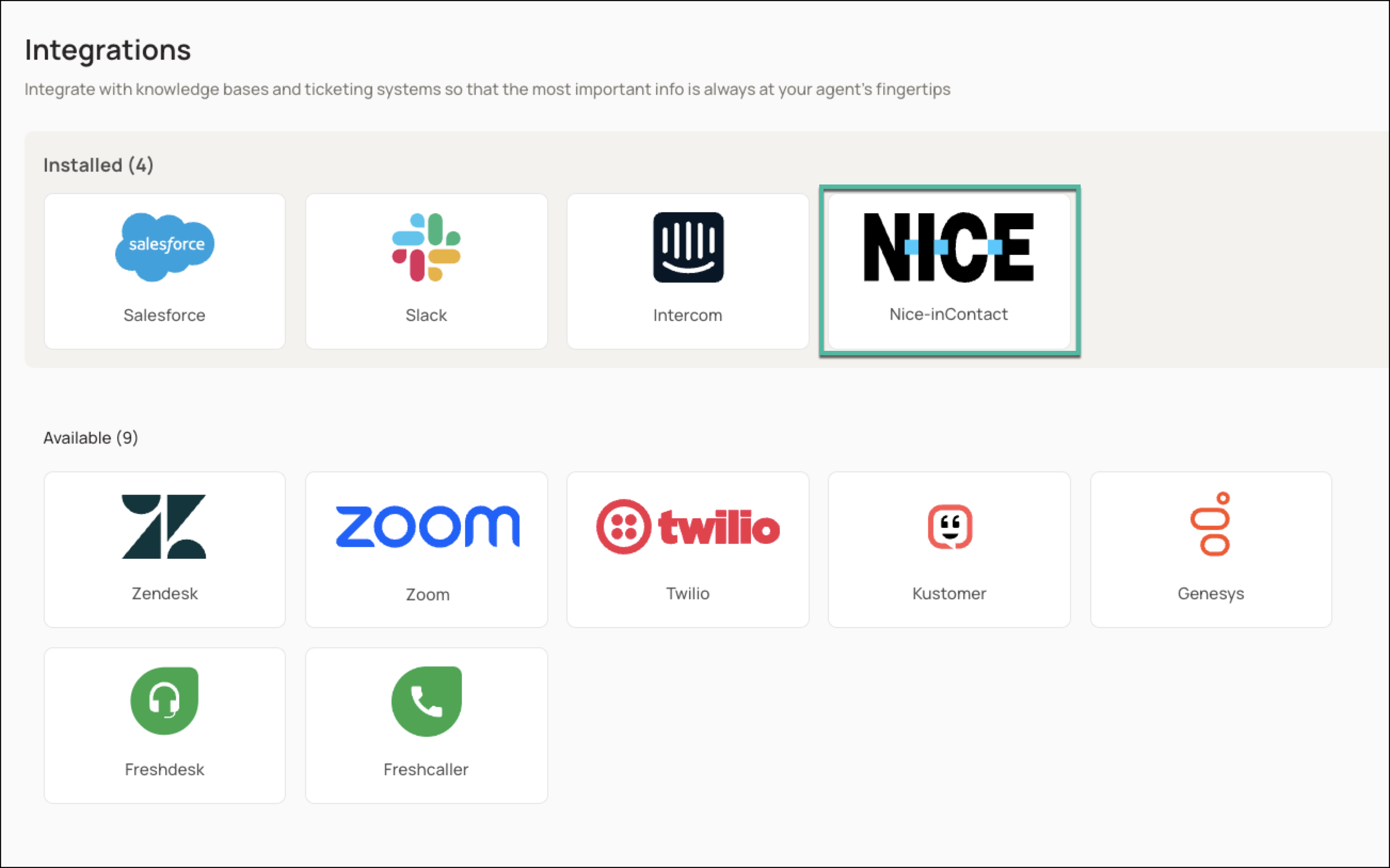
By default, the Level platform will ingest data from the past 30 days. If you want to change this to a duration of your choice, please get in touch with your Level AI AE/IM/TAM.
Once the ingestion is complete, you can choose to run either an hourly or a daily cron job that will synchronize data across this integration.
Pausing data ingestion
If you want to momentarily pause data ingestion,
Navigate to Settings > Integrations. Under the Installed section, click the Nice-inContact icon to open your NICE InContact integration.
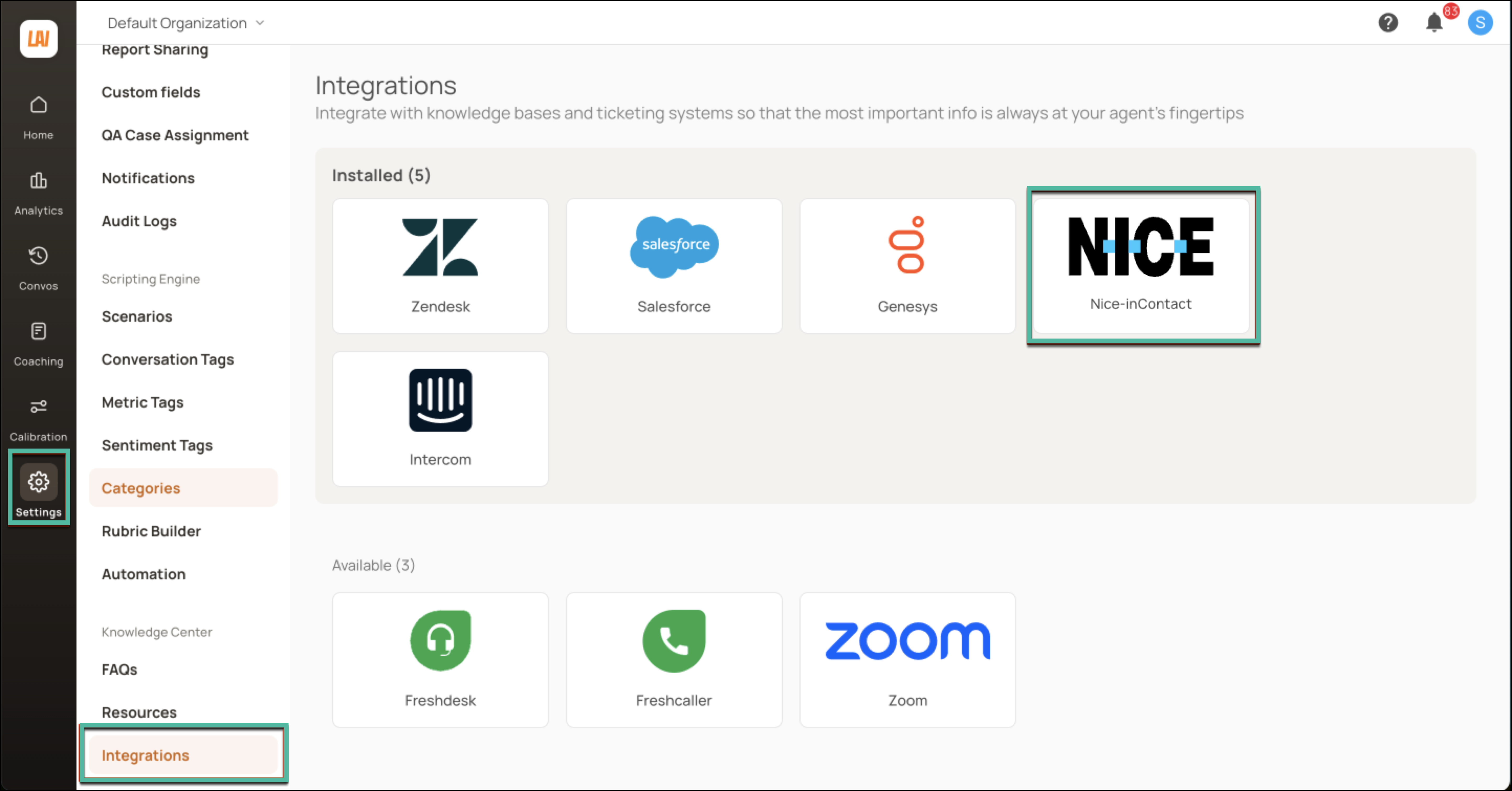
Click Settings.

Using the toggle, deactivate the Call channel and click Update.
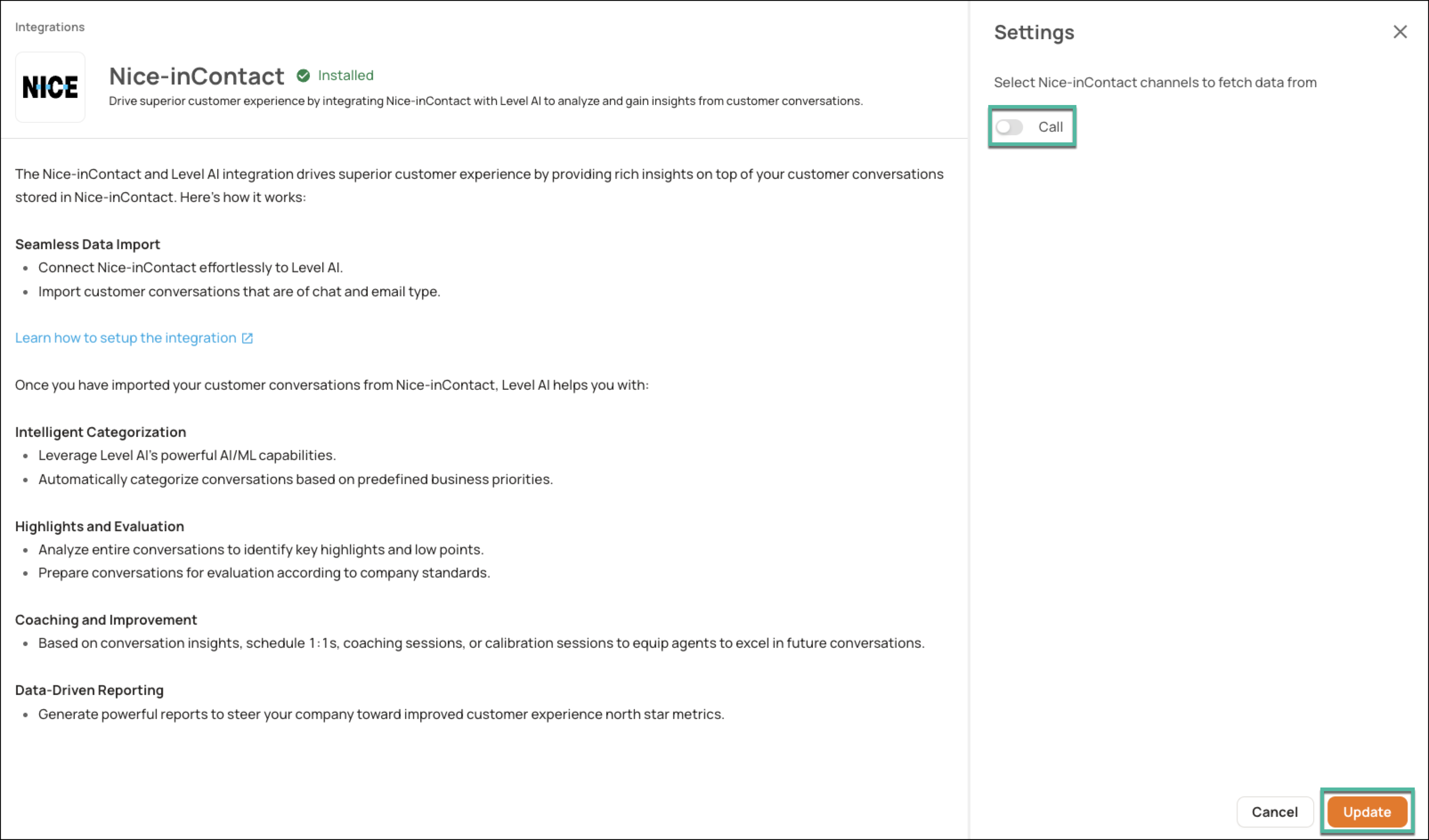
Uninstalling your NICE InContact integration
NOTE
This is an irreversible process. The integration will be uninstalled by removing the authentication between Level AI and NICE InContact. All ongoing and scheduled data ingestions will be terminated until re-installed.
If you want to uninstall your existing NICE InContact integration,
Navigate to Settings > Integrations. Under the Installed section, click the Nice-inContact icon to open your NICE InContact integration.
In the screen that appears, click the More Options icon. In the list that is displayed, click Uninstall.
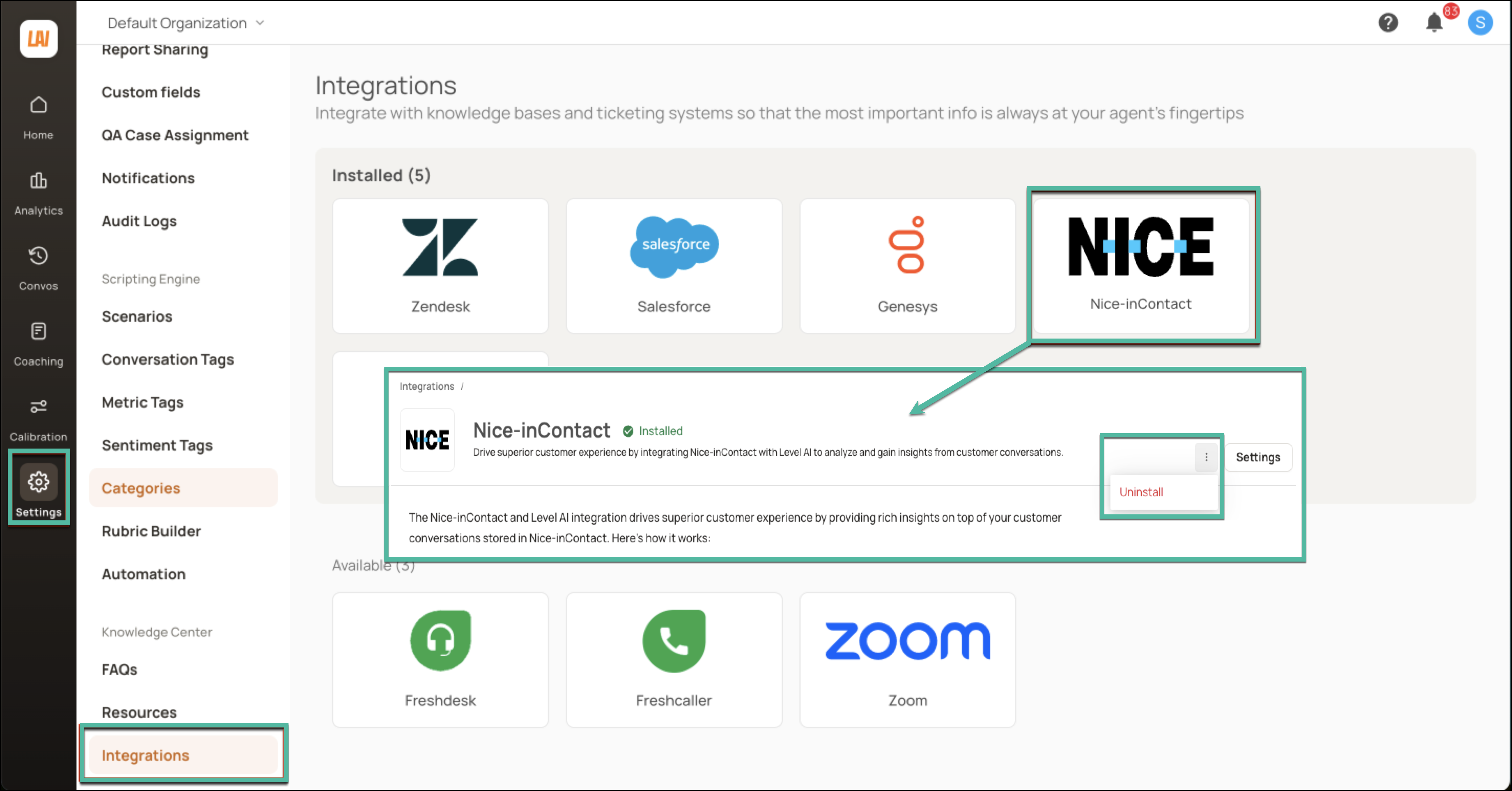
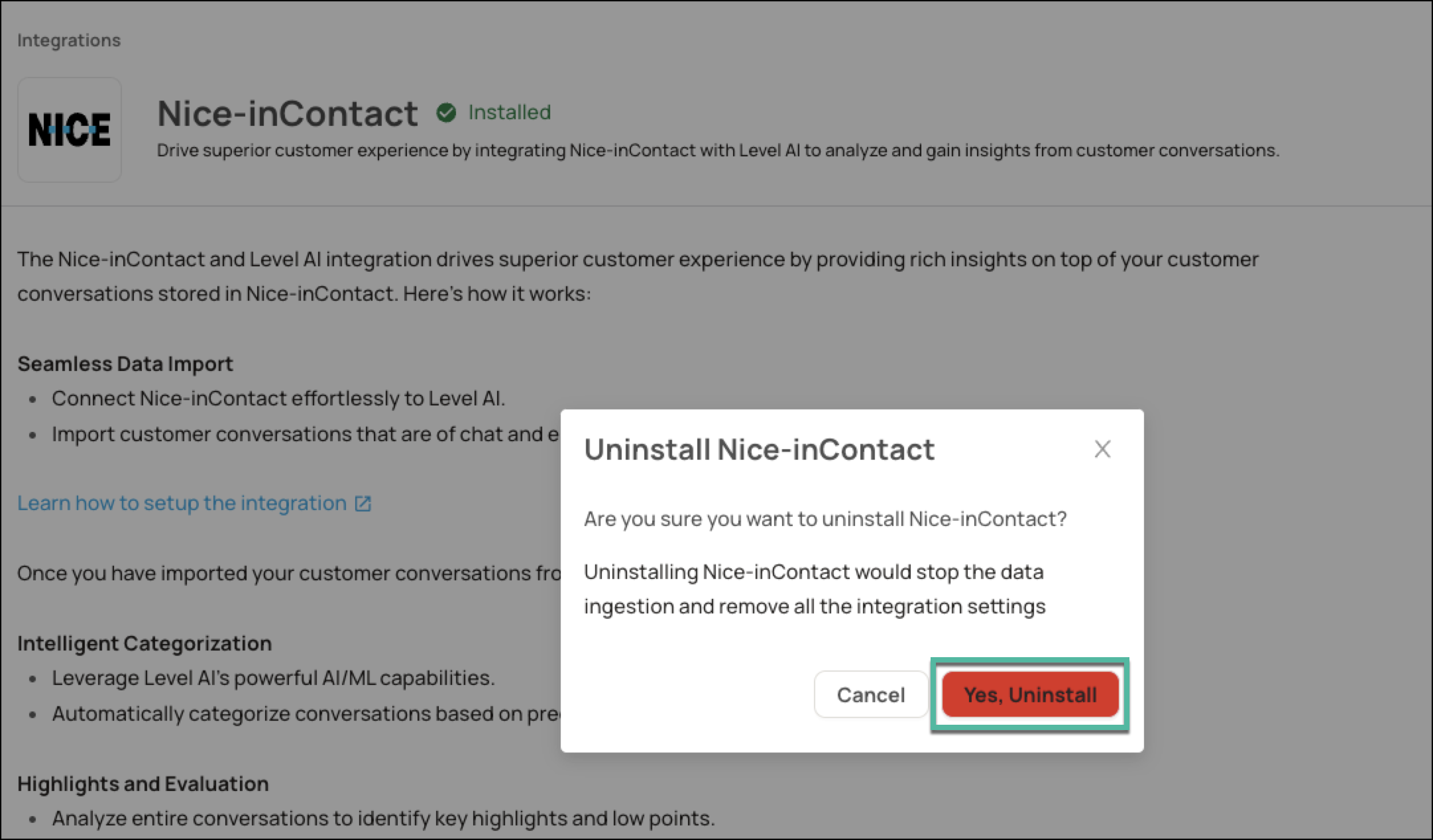
Click Yes, Uninstall to confirm.
HELP & SUPPORT
For any help related to the integration, do reach out to us at support@thelevel.ai.