Genesys Purecloud integration with Level AI
Last updated: June 18, 2026
You can import all your Genesys PureCloud customer conversations into Level AI to gain valuable insights. With the Genesys PureCloud - Level AI integration, conversations will be ingested from your Genesys PureCloud instance into Level AI in a systematic, periodic manner.
INFO
Currently, the Genesys PureCloud integration supports ingesting conversations for the Email, Call, Text Messages and Chat channels only.
Setting up your Genesys Purecloud integration
Part 1: Retrieving credentials from the Genesys Premium App wizard
Log in to the Genesys premium app as an Administrator.
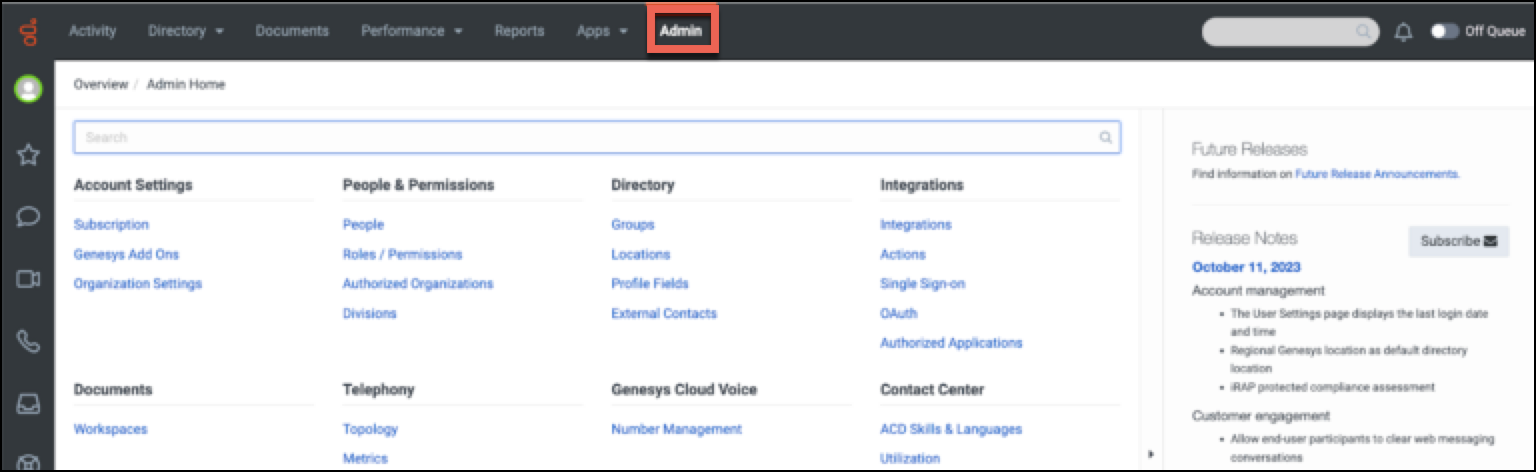
In the menu bar at the top of your screen, click Admin.
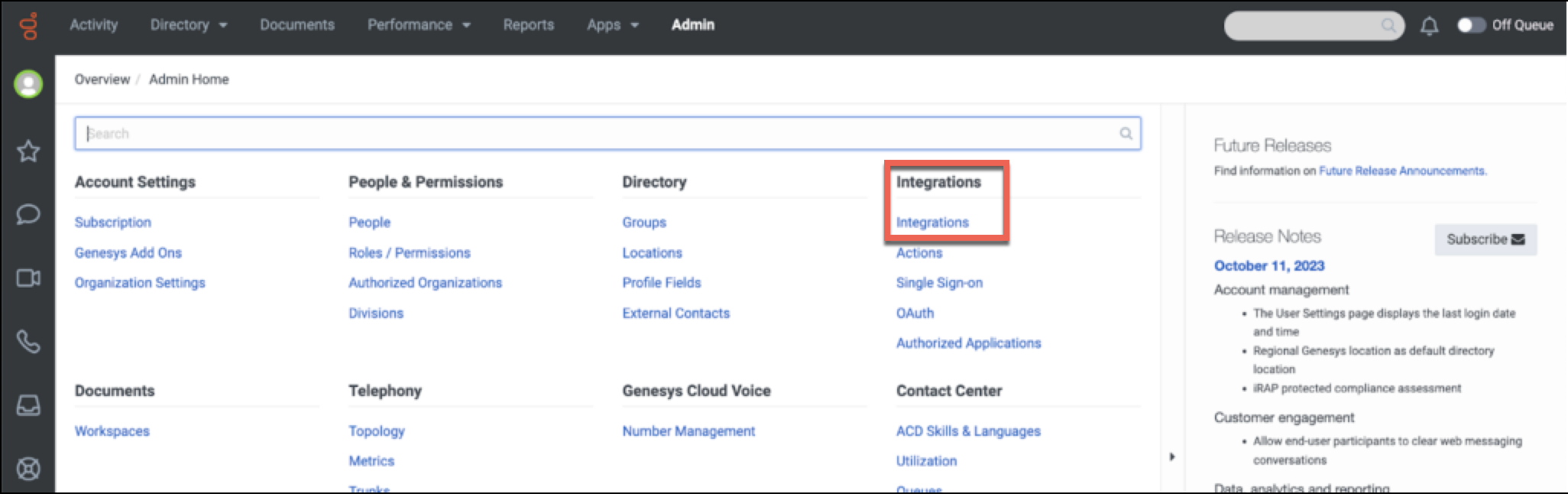
Under the Integrations menu, click Integrations.
In the page that appears, + integration at the top right corner.

In the search box, type Level AI. Alternatively, you can use AppFoundry to look for it.

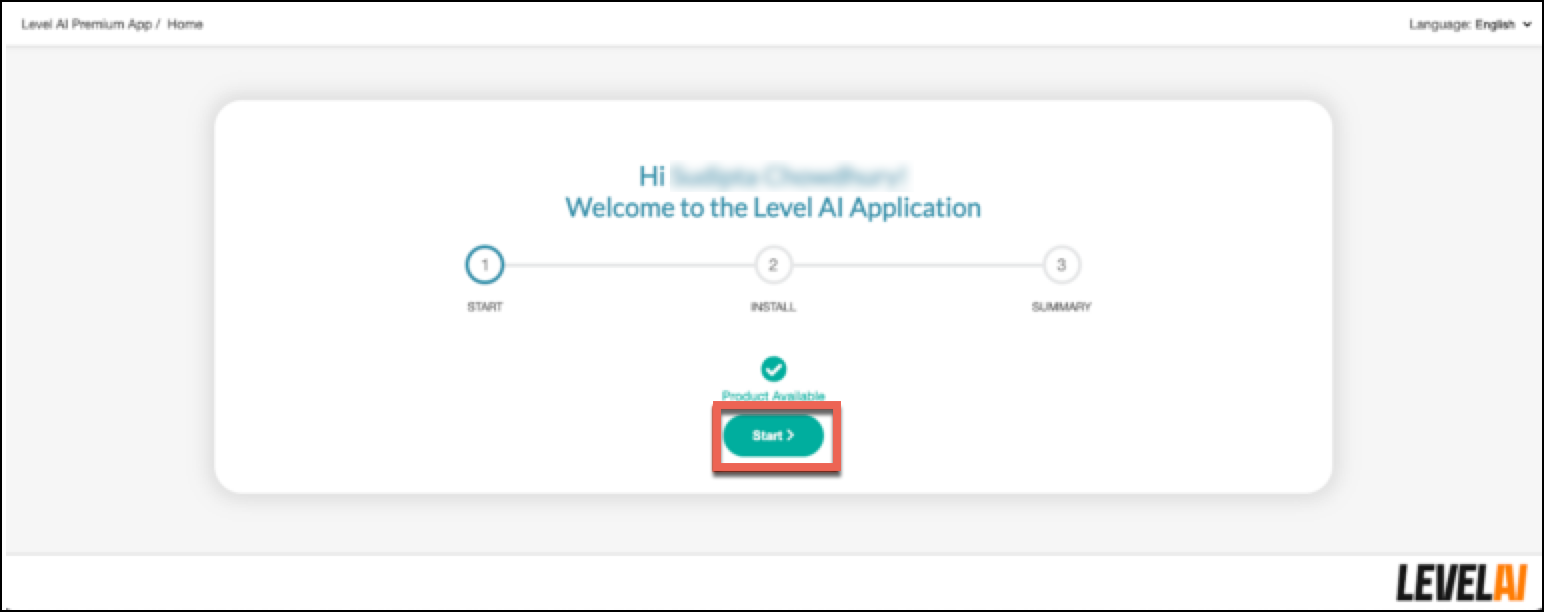
After finding Level AI, click Install to initiate the premium app wizard flow. Click Start.
INFO
AWS EventBridge is setup behind the scenes to establish a real-time Level AI- Genesys Purecloud integration. Once the initial historical run is completed, Level AI will ingest all new conversations and updates to existing conversations as soon as they occur in your Genesys Purecloud instance.Click Install to proceed.
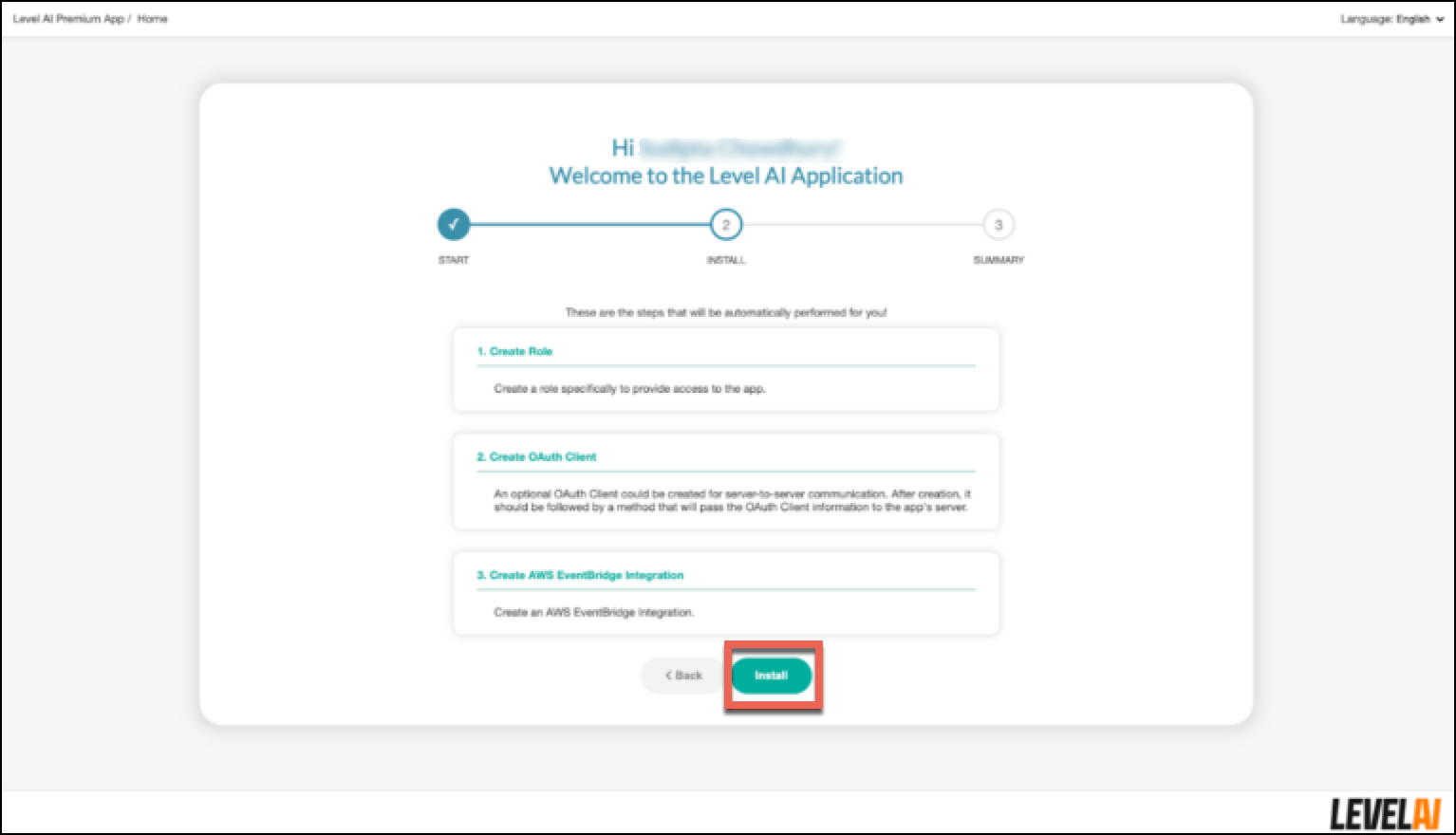
Once the installation is complete, the premium app will generate a Client ID, Client Secret and Domain URL that you will have to use to complete the setup in your Level AI instance.
Click Go To Application to proceed
Part 2: Completing the setup from your Level AI instance
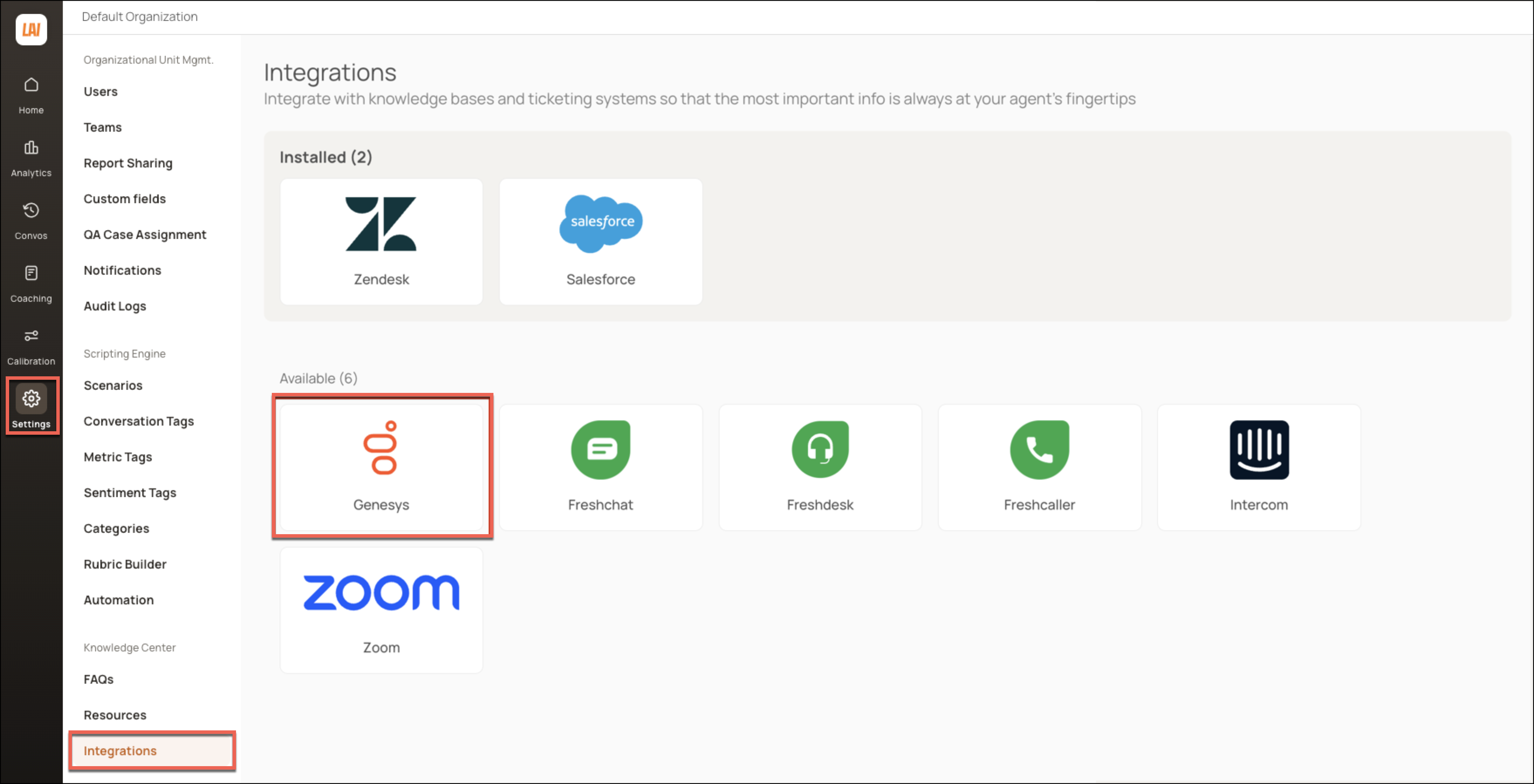
Login to your Level AI tenant as an Admin. In the left sidebar, navigate to Settings > Integrations screen.
Under the Available section, click Genesys.
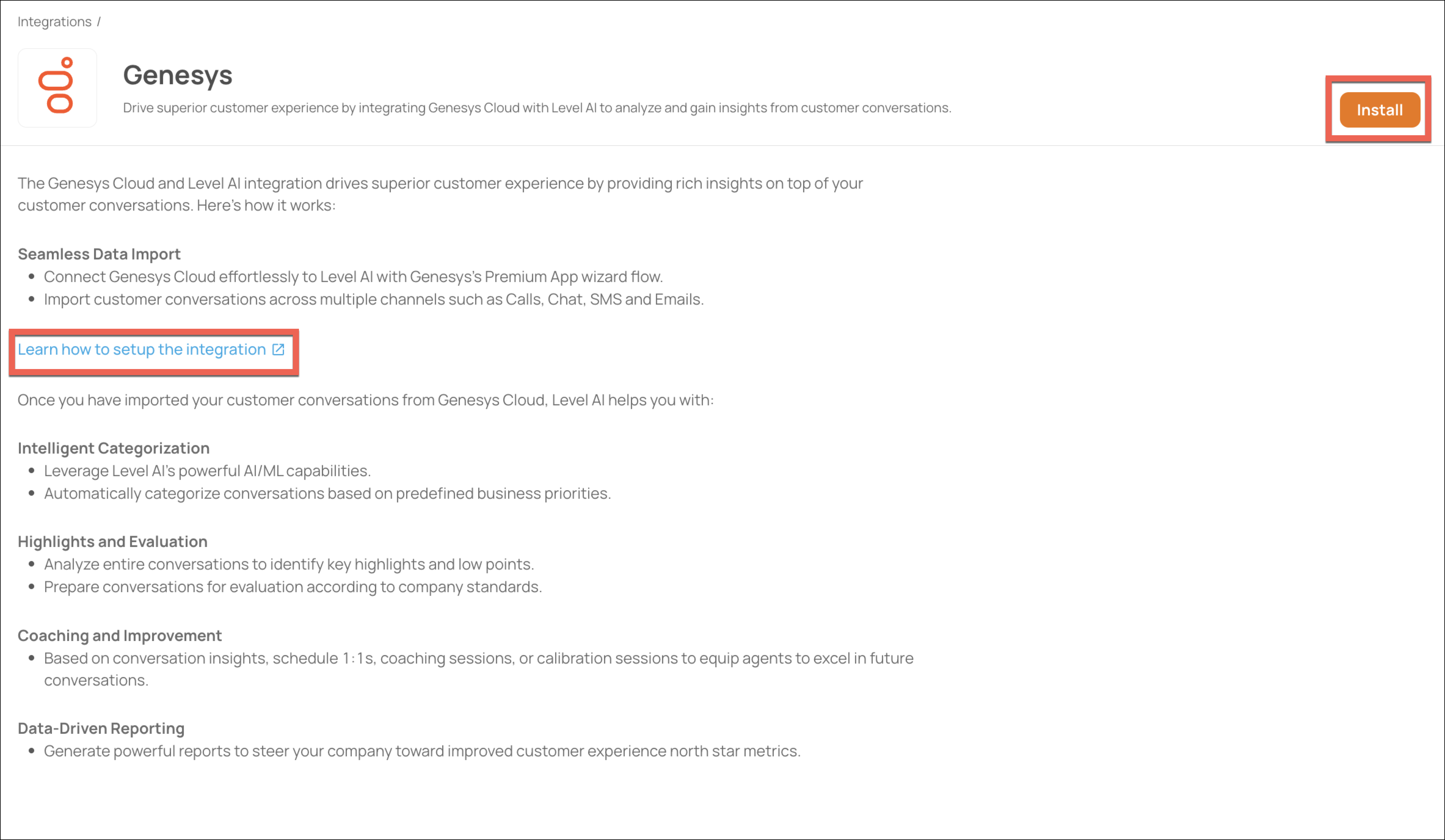
Click Install to initiate the set up process. You can click the hyperlink for step-by-step guidance on setting up the integration.
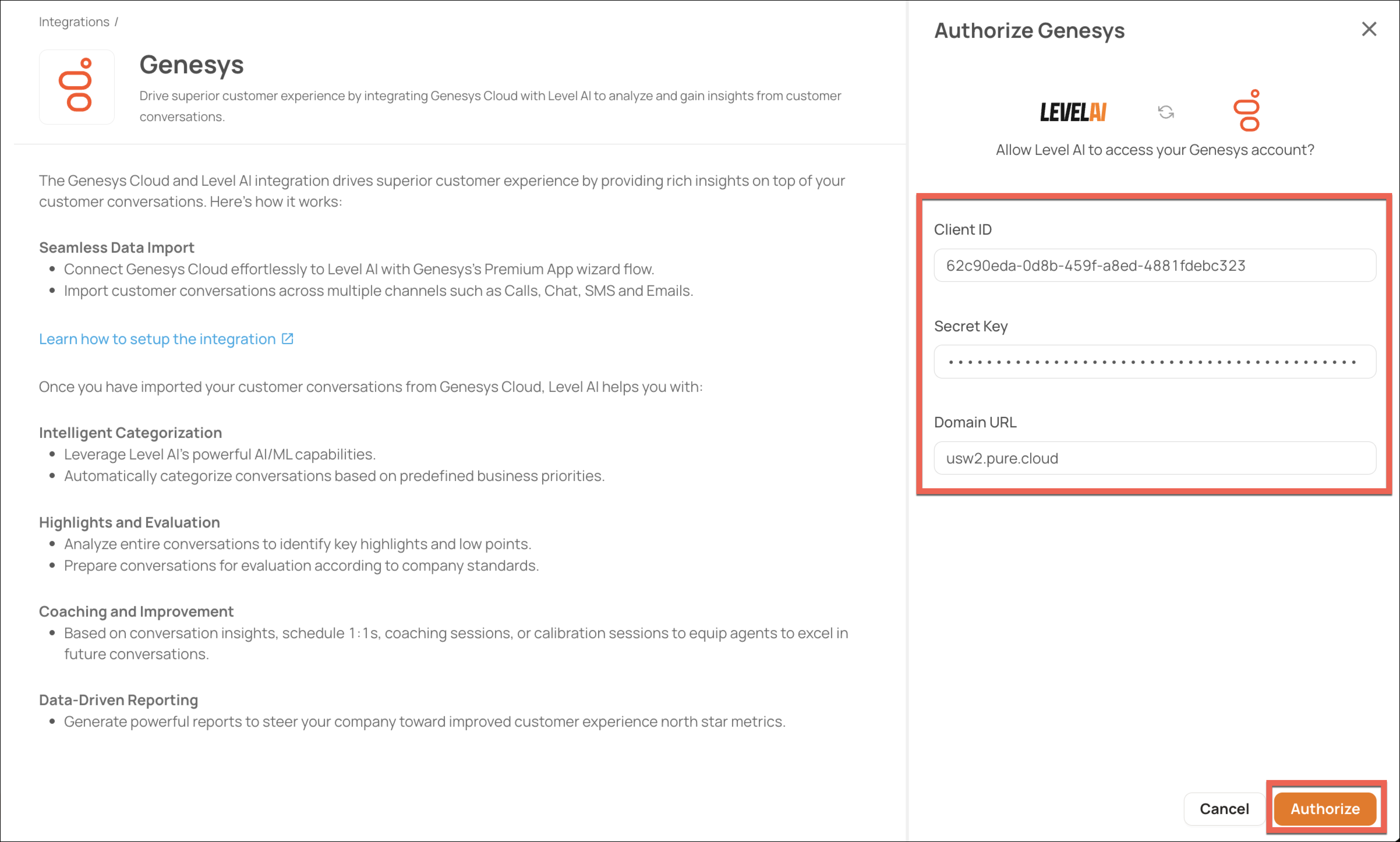
Enter the Client ID, Secret Key and Domain URL that was generated in the Premium App Wizard in Genesys and click Authorize.
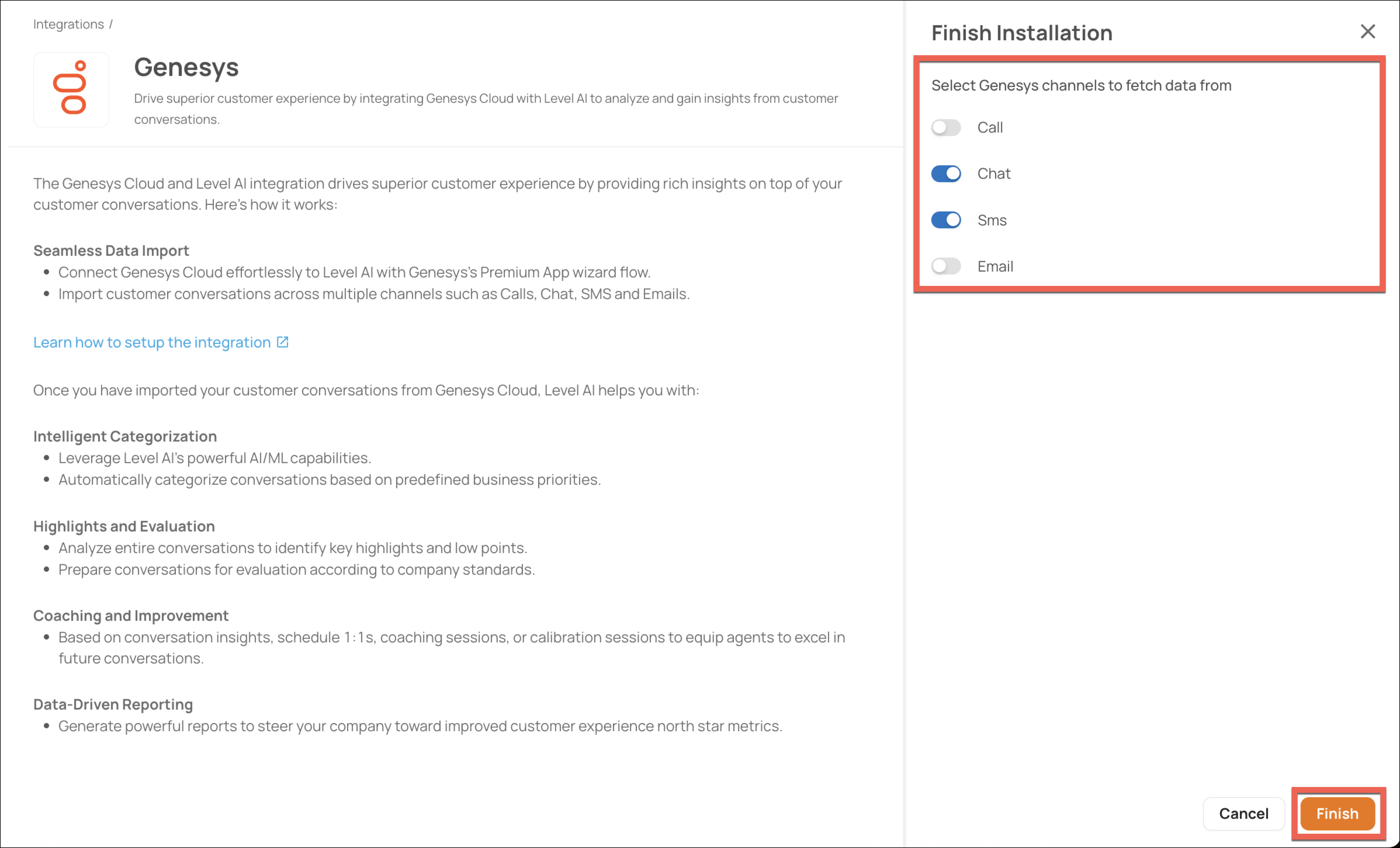
Upon successful authentication, you will be redirected to the Integrations page to continue with the setup process. Select the channels of conversation that you want to import from Genesys Purecloud. Click Finish to complete the set up.
Pausing data ingestion
If you want to momentarily pause data ingestion,
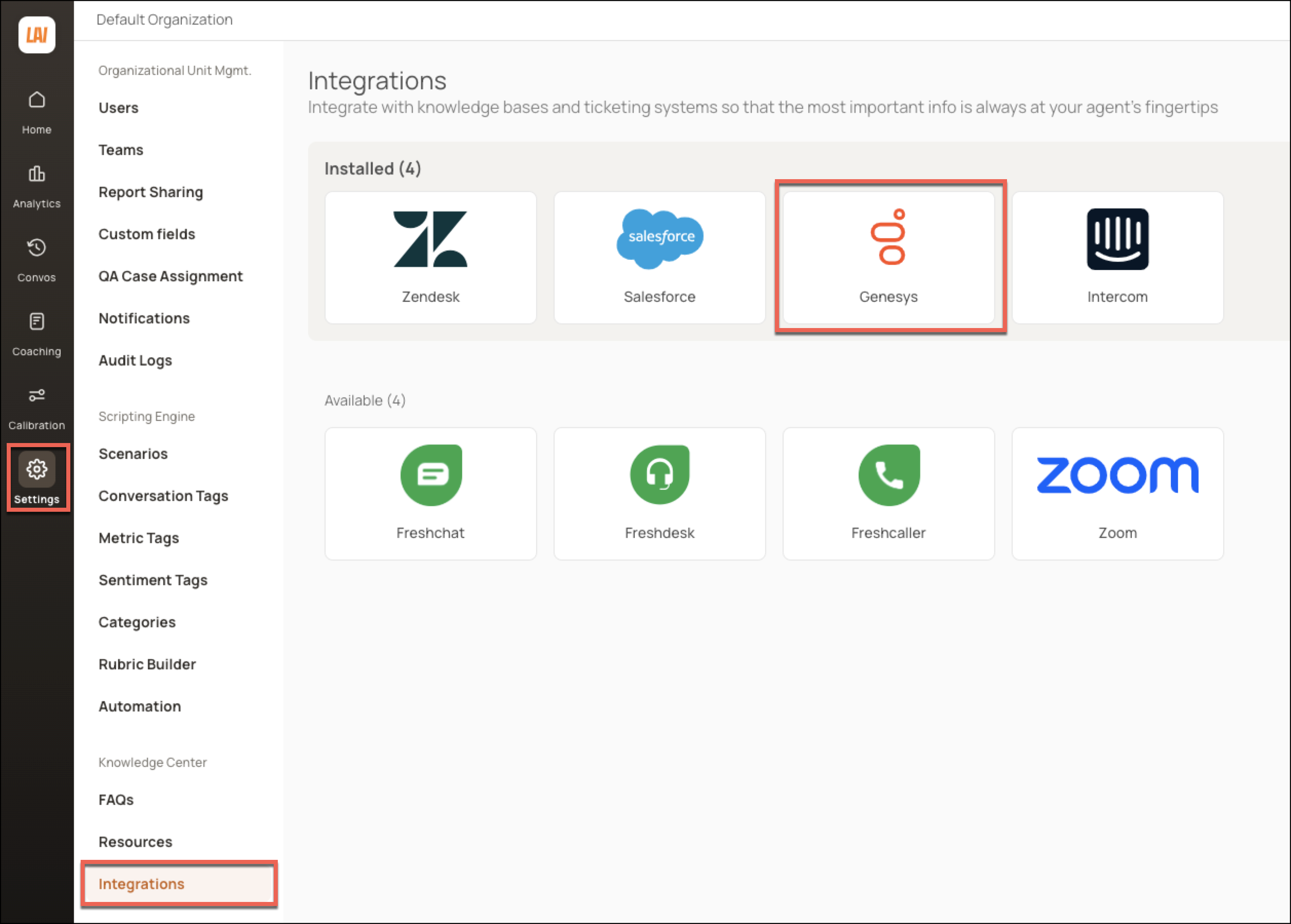
Navigate to Settings > Integrations. Under the Installed section, click the Genesys icon to open your Genesys integration.
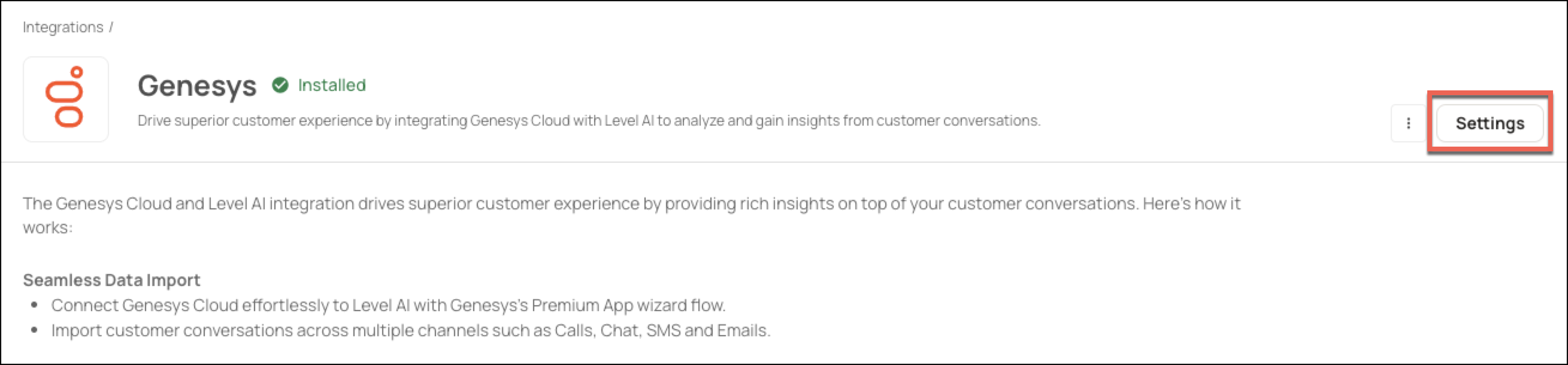
Click Settings.
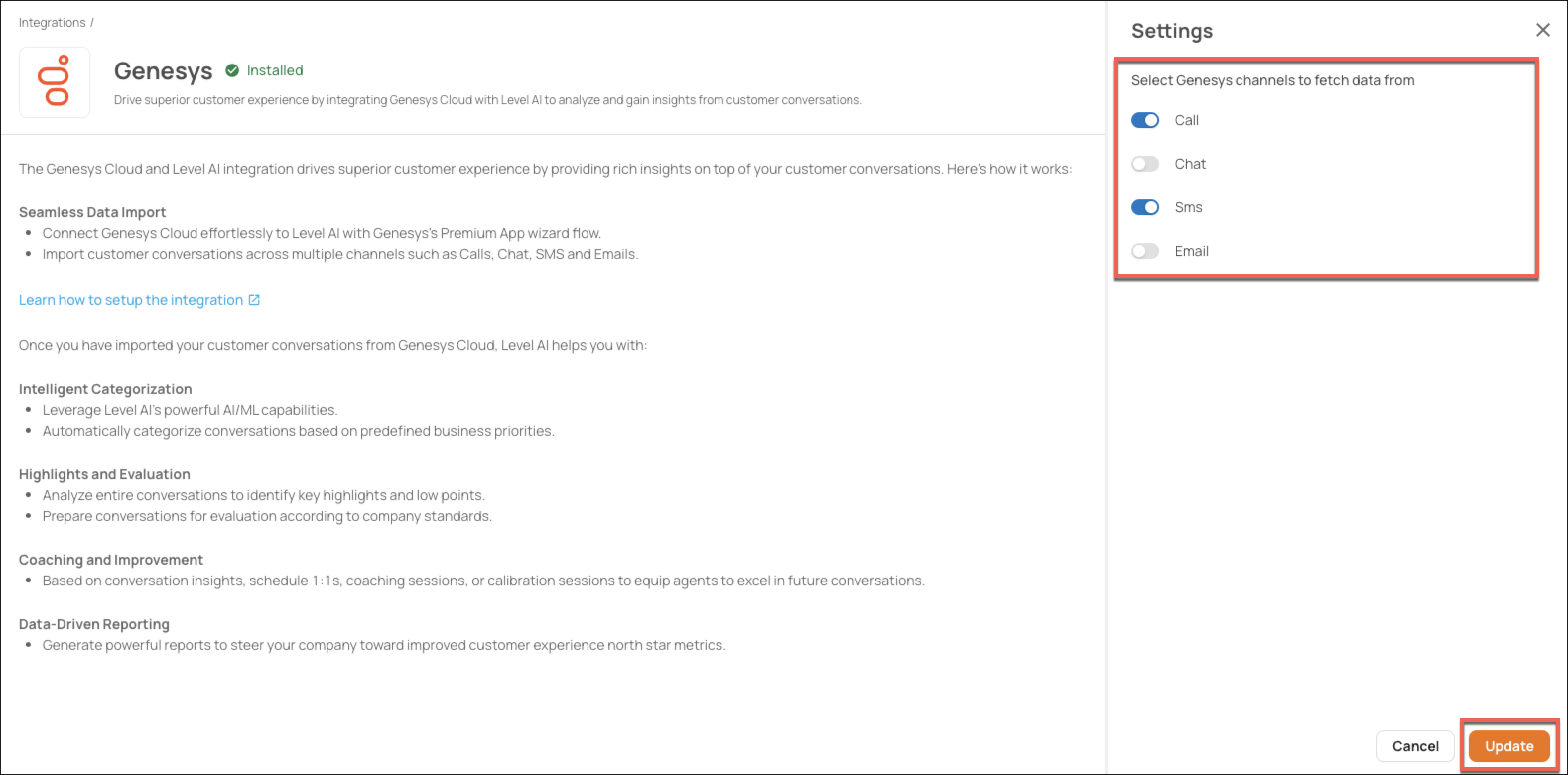
Using the toggle, deactivate the desired channels for which you want to stop ingesting conversations and click Update.
Uninstalling your Genesys Purecloud integration
NOTE
This is an irreversible process. The integration will be uninstalled by removing the authentication between Level AI and Genesys Purecloud. All ongoing and scheduled data ingestions will be terminated until re-installed.
If you want to uninstall your existing Genesys integration,
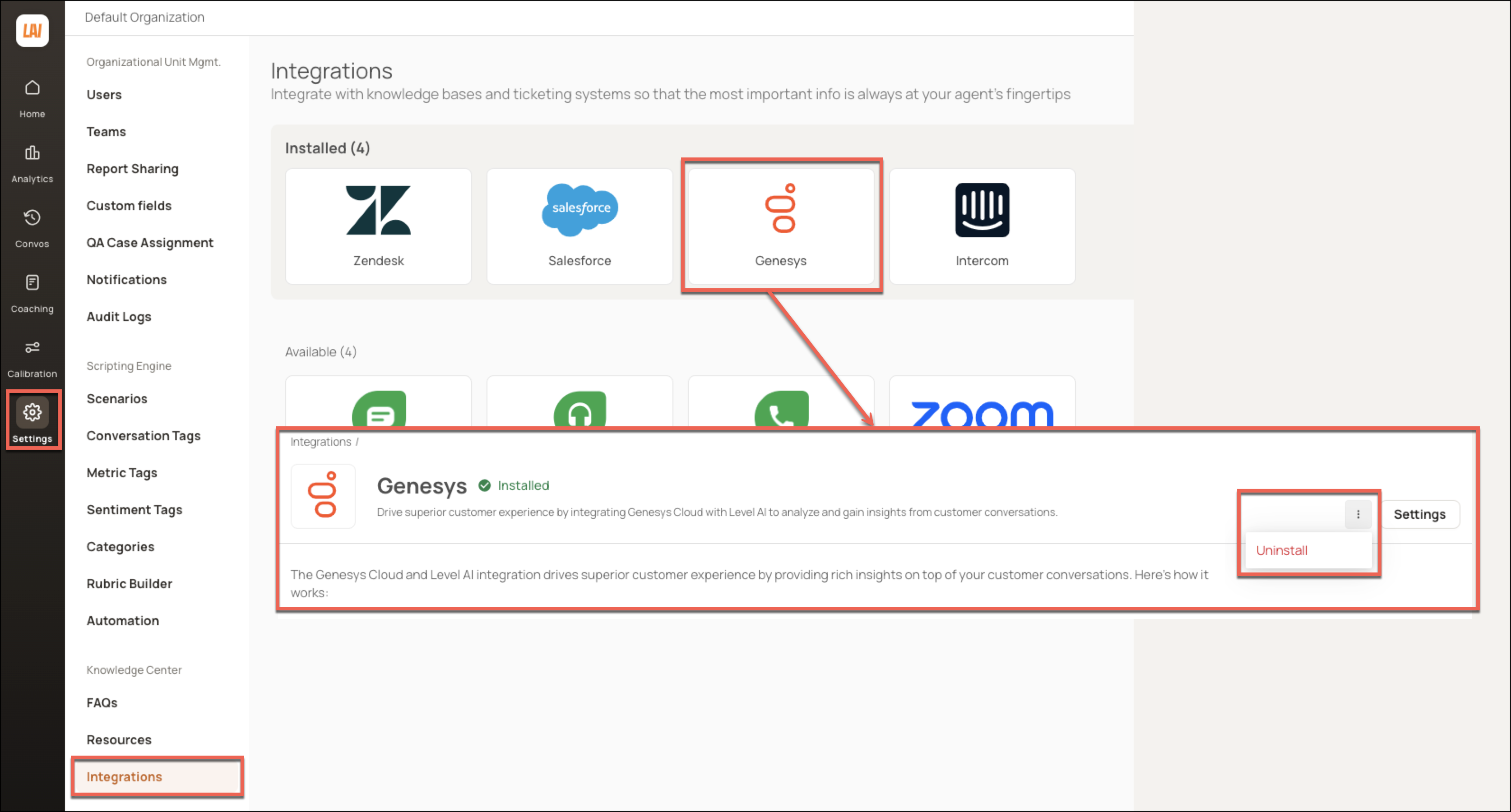
Navigate to Settings > Integrations. Under the Installed section, click the Genesys icon to open your Genesys integration.
In the screen that appears, click the More Options icon. In the list that is displayed, click Uninstall.
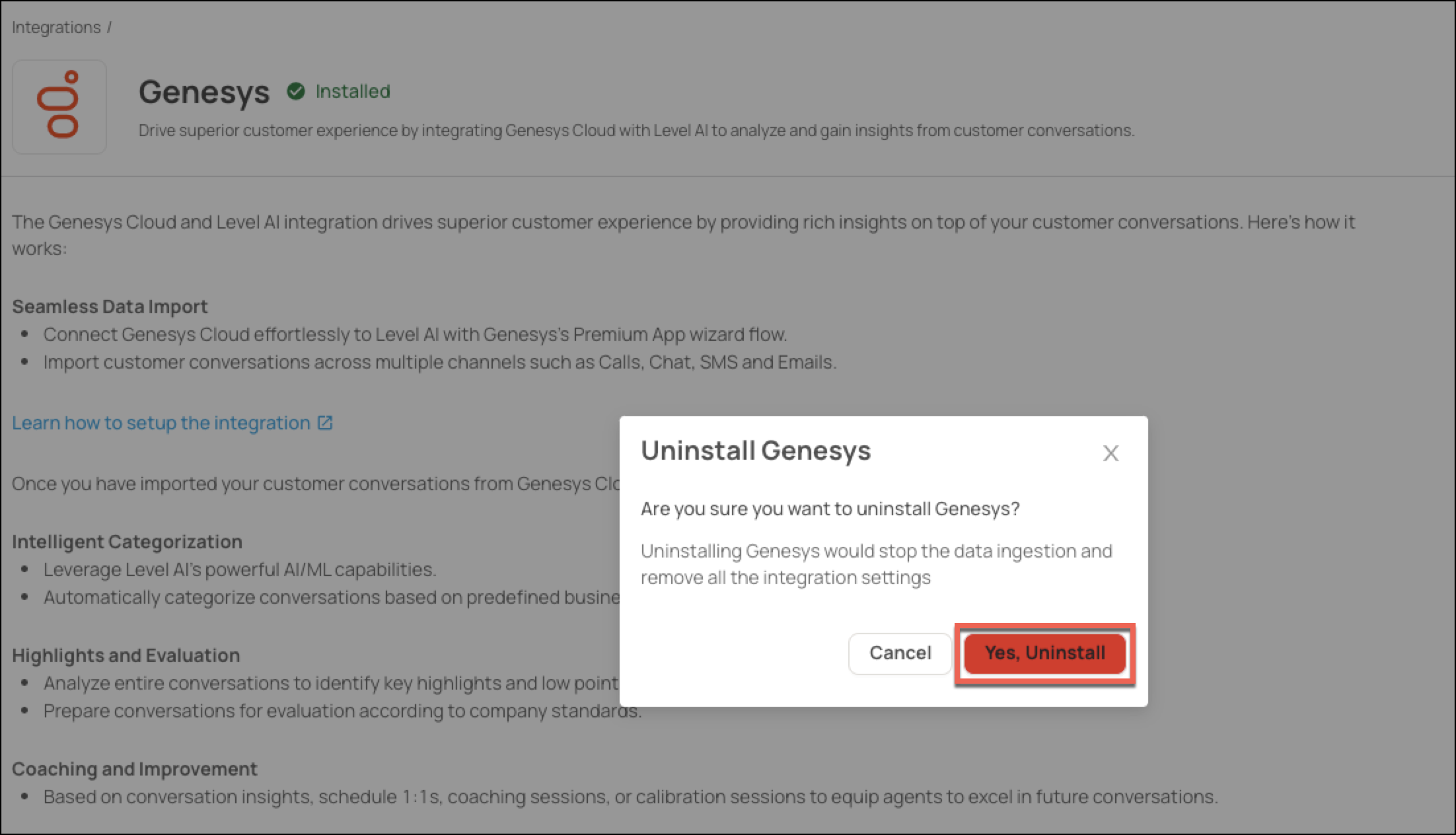
Click Yes, Uninstall to confirm.
HELP & SUPPORT
For any help related to the integration, do reach out to us at support@thelevel.ai.