Dialpad Integration with Level AI
Last updated: June 18, 2026
You can import all your customer conversations from Dialpad into Level AI to gain valuable insights. With the Dialpad-Level AI integration, conversations will be ingested from your Dialpad instance into Level AI in a systematic, periodic manner.
Note: Due to a platform limitation on Dialpad's end, call recordings are made available only at least 4 hours after a call has ended. As a result, conversations ingested may reflect a delay of up to 4 hours from the time the call concludes to when the recording appears and is processed within Level AI.
Prerequisites
Before you begin the Dialpad-Level AI setup, you will need to retrieve your access token from Dialpad:
Log in to your Dialpad instance and navigate to the API settings page.
Follow the steps on that page to generate your API key and access token.
Once you have the access token, complete the remaining steps in the Level AI app as described below.
Step 1: Navigate to Dialpad Integration
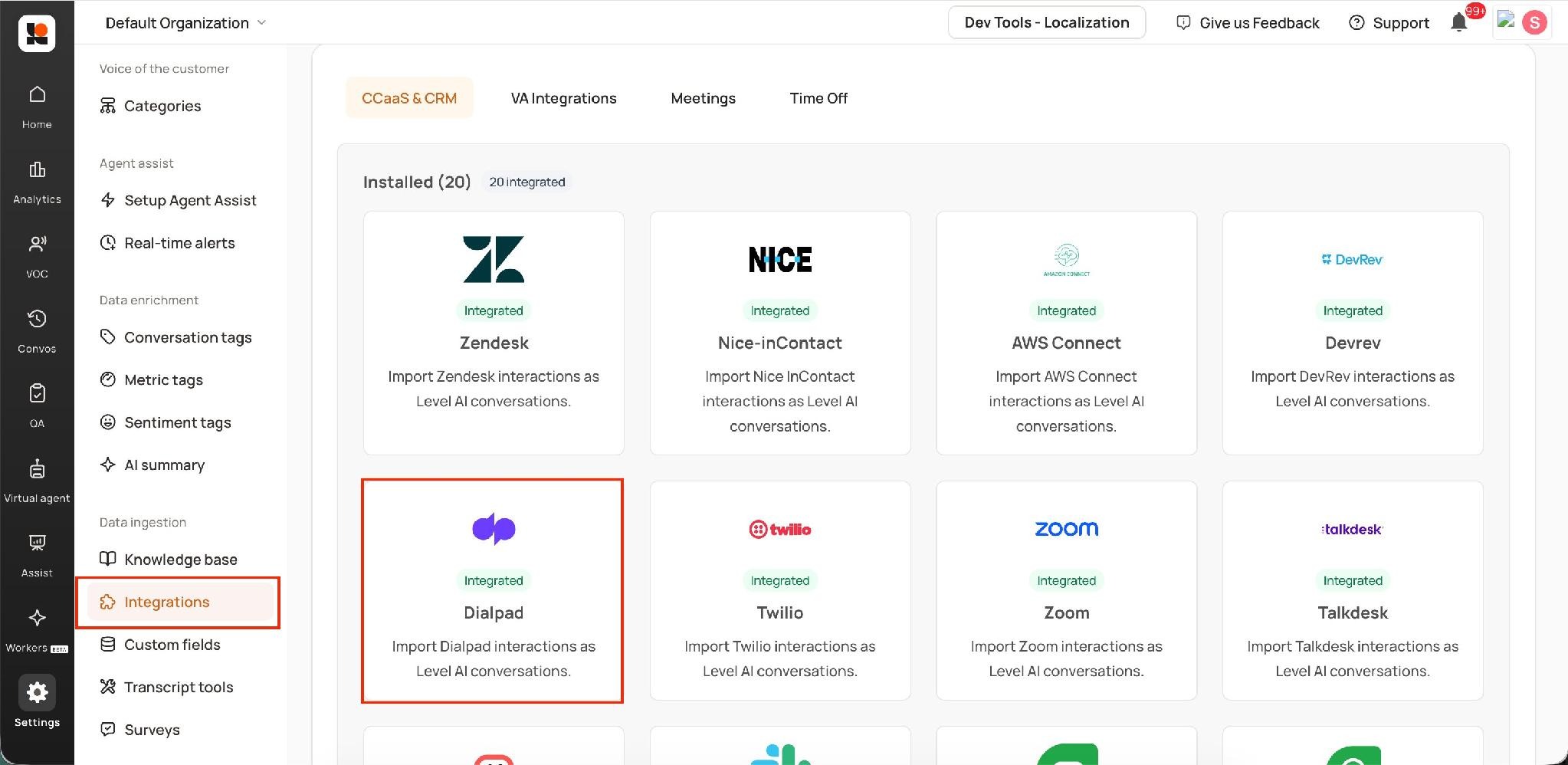
Log in to your Level AI tenant as an Admin. In the left sidebar, go to Settings > Integrations. Under the CCaaS & CRM tab, locate and click on Dialpad.
Step 2: Authenticate Using the Access Token
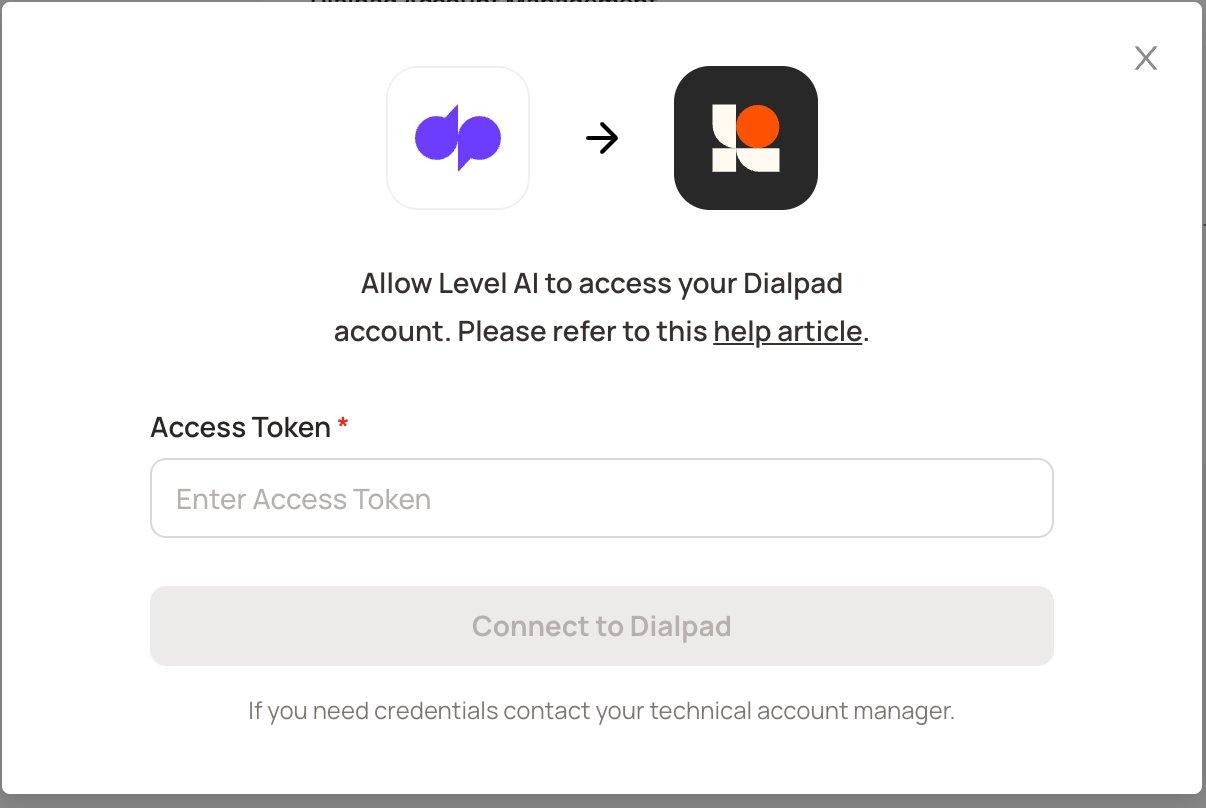
After clicking on Dialpad, an authorization dialog will appear. Enter the Access Token you obtained from Dialpad (as described in the Prerequisites section) and click Connect to Dialpad.
Step 3: Select the Account and Configure
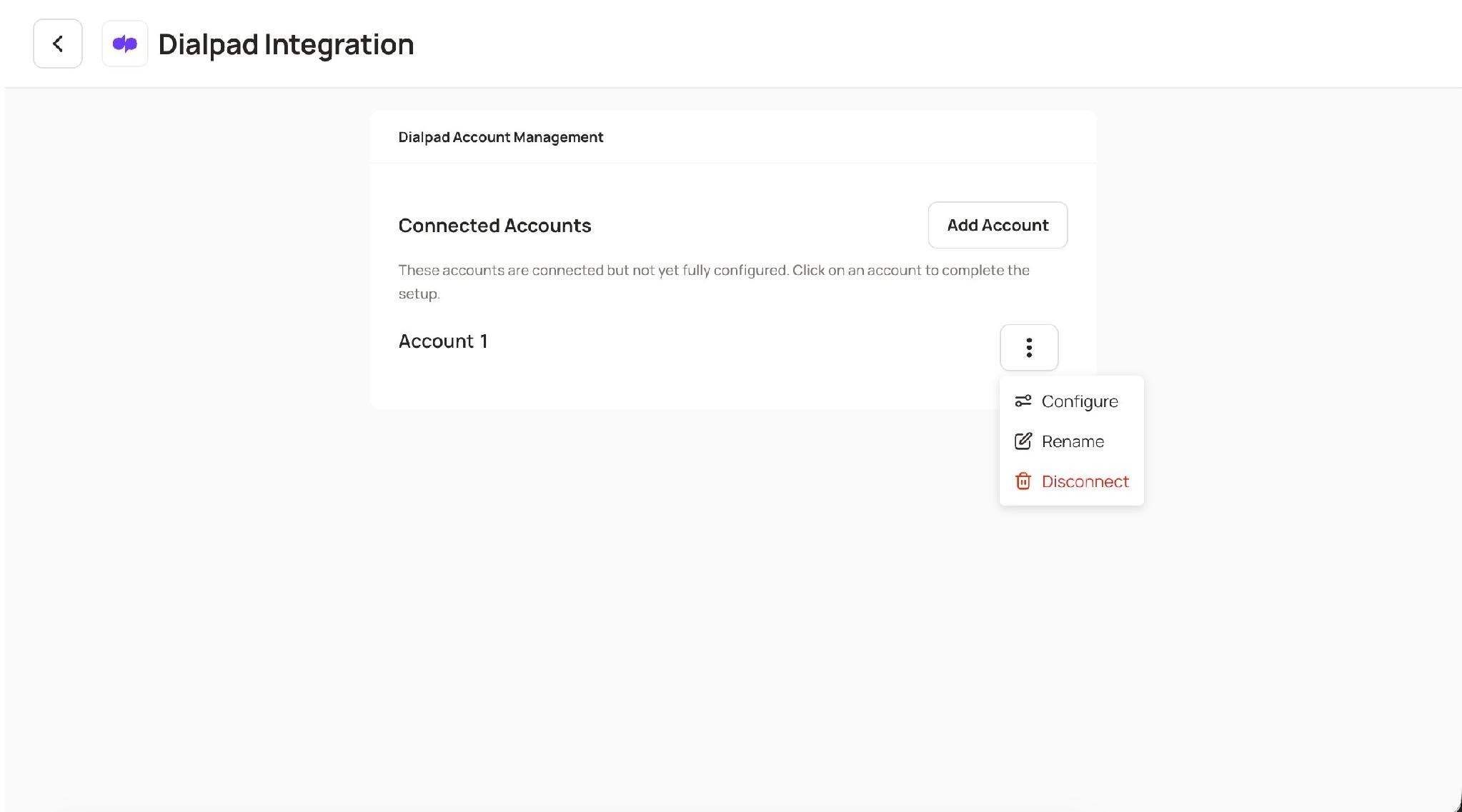
Once authenticated, you will see the Dialpad Account Management screen. Your connected account will appear under Connected Accounts. Click on the account or use the three-dot menu to select Configure and complete the setup.
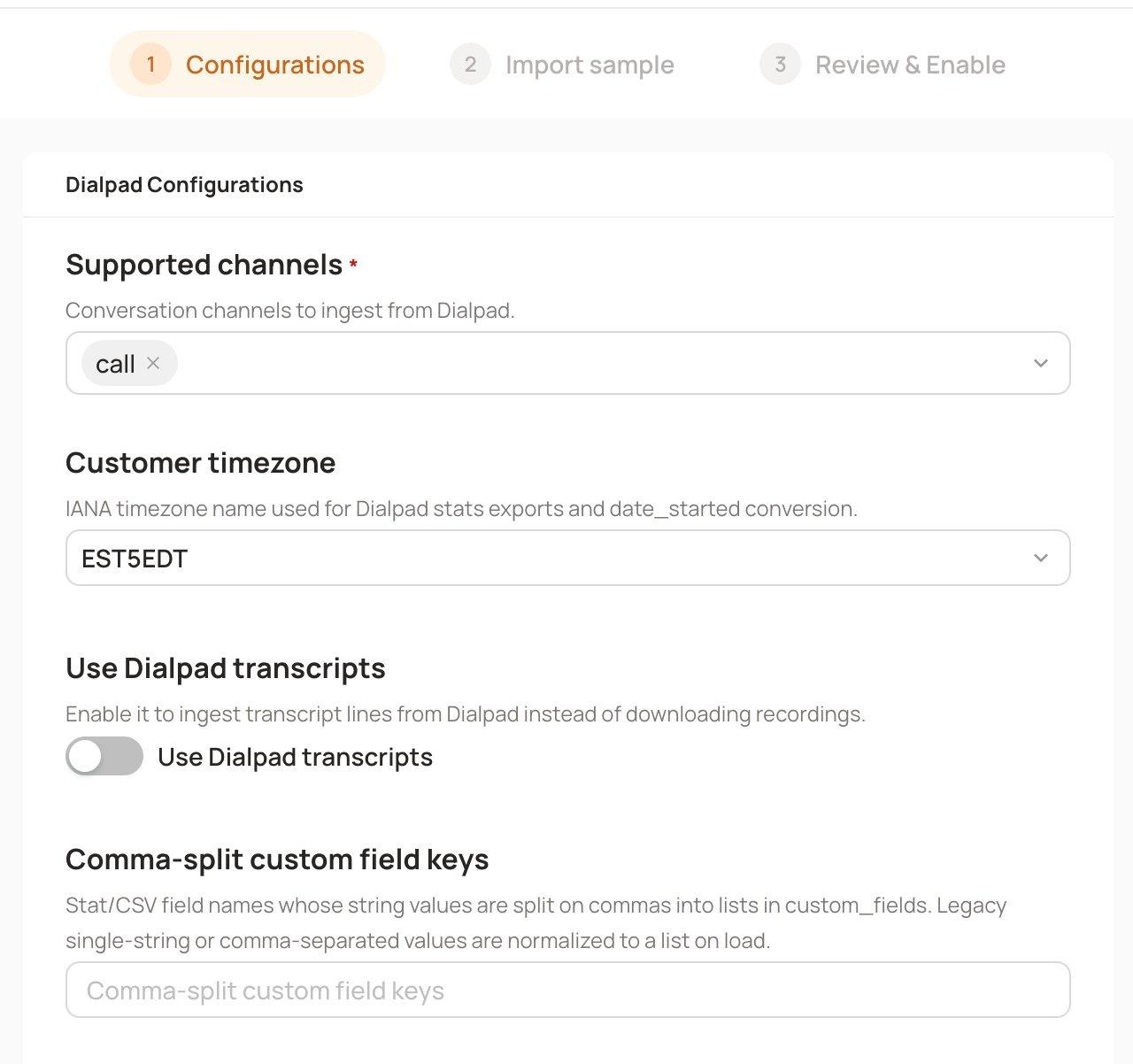
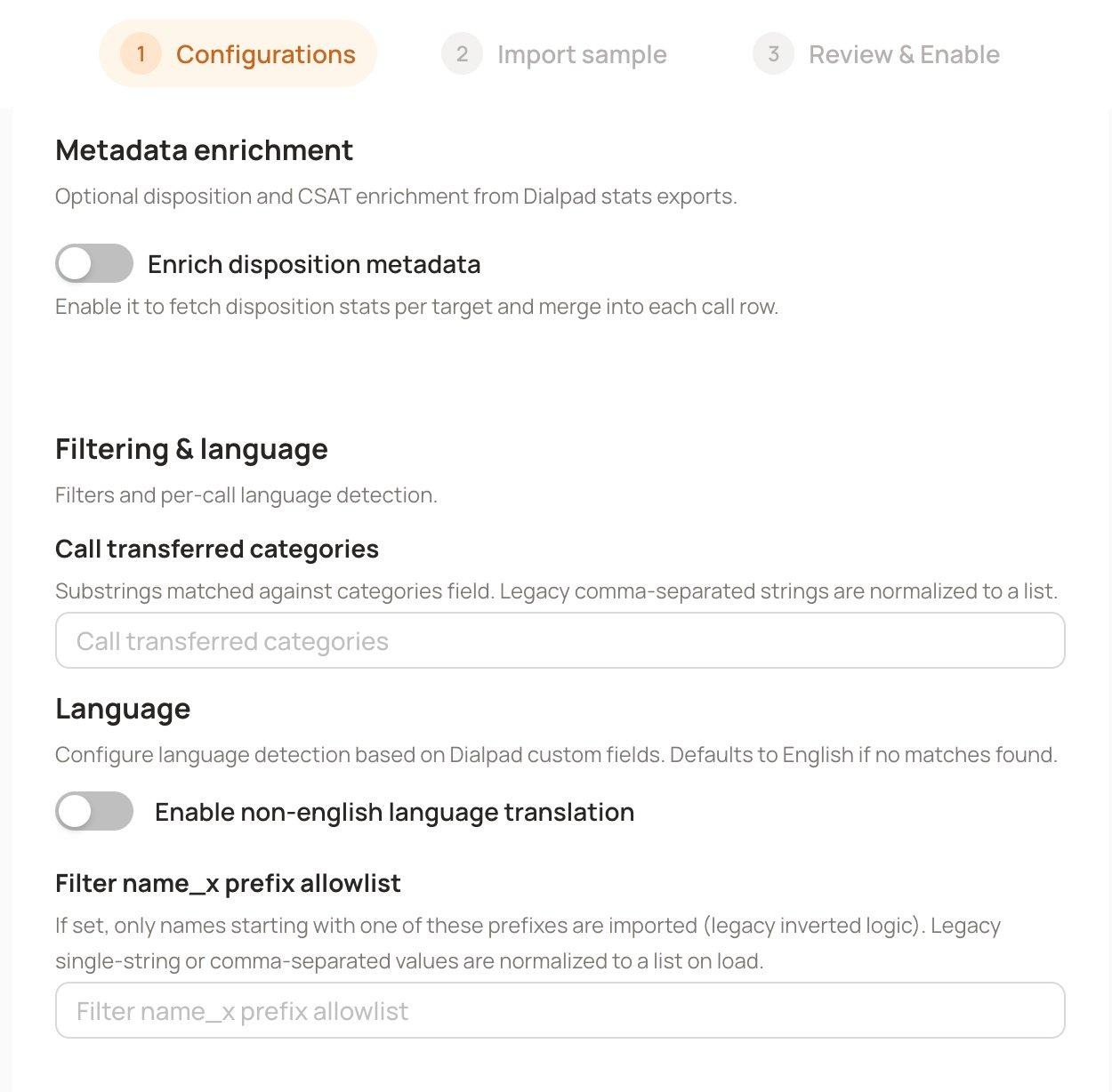
The configuration wizard is a 3-step process (Configurations > Import Sample > Review & Enable). In the Configurations step, you can set the following options:
Configuration Options
Supported Channels
Select which conversation channels to ingest from Dialpad. Currently, the supported channel is "call".
Customer Timezone
Choose the IANA timezone name used for Dialpad stats exports and date_started conversion (e.g., EST5EDT).
Use Dialpad Transcripts
Toggle this on to ingest transcript lines directly from Dialpad instead of downloading recordings.
Comma-Split Custom Field Keys
Specify stat/CSV field names whose string values should be split on commas into lists in custom_fields. Legacy single-string or comma-separated values are normalized to a list on load.
Metadata Enrichment
Enrich Disposition Metadata: Toggle this on to fetch disposition stats per target and merge them into each call row. This provides optional disposition and CSAT enrichment from Dialpad stats exports.
Filtering & Language
Call Transferred Categories: Enter substrings to match against the categories field for filtering transferred calls. Legacy comma-separated strings are normalized to a list.
Language: Toggle on to enable non-English language translation. Language detection is configured based on Dialpad custom fields. Defaults to English if no matches are found.
Filter name_x Prefix Allowlist: If set, only names starting with one of these prefixes are imported (uses legacy inverted logic). Legacy single-string or comma-separated values are normalized to a list on load.
Step 4: Import Sample
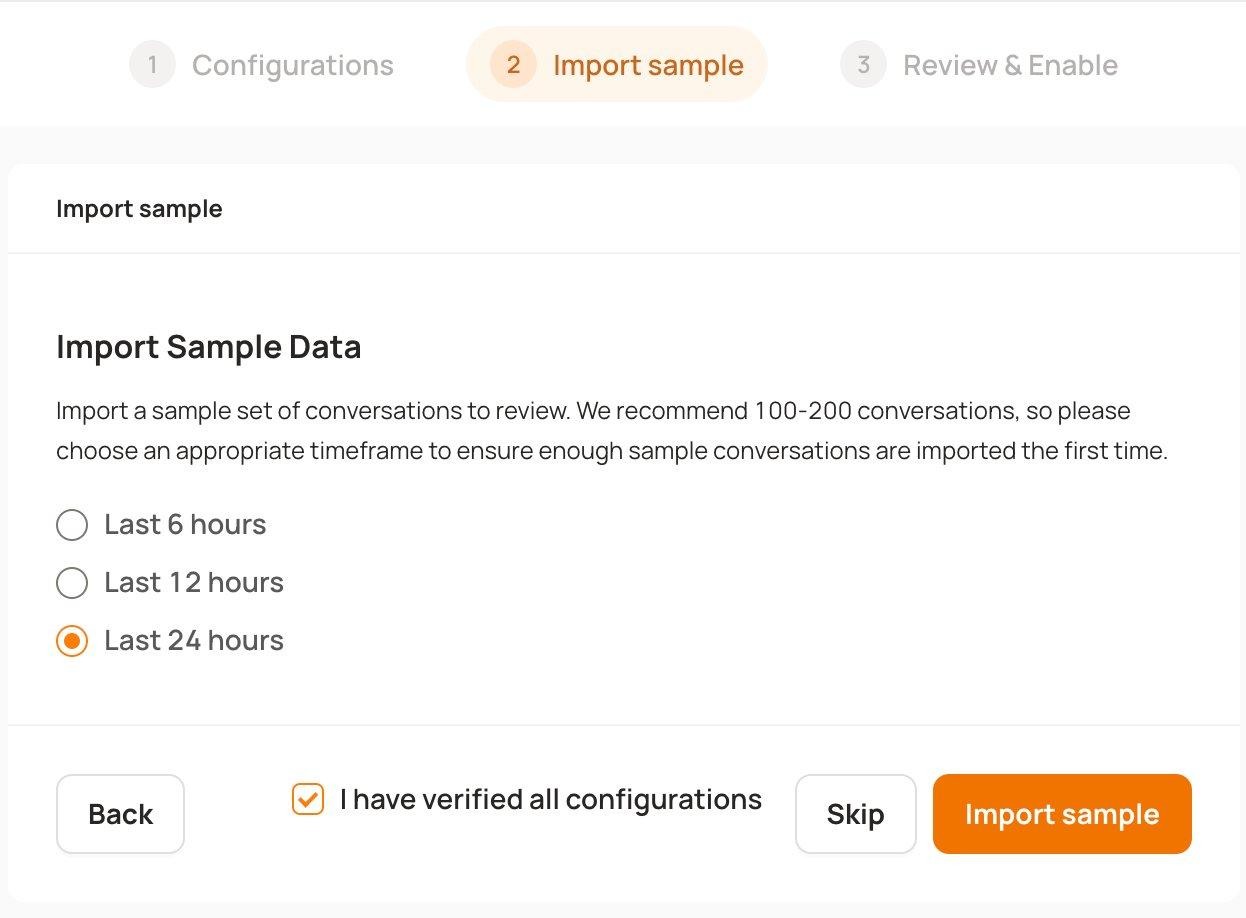
After completing the configuration, proceed to the Import Sample step. Here you can import a sample set of conversations to review before enabling the full pipeline.
We recommend importing 100-200 conversations. Choose an appropriate timeframe to ensure enough sample conversations are imported:
Last 6 hours
Last 12 hours
Last 24 hours
Check the "I have verified all configurations" box, then click Import Sample.
Step 5: Review and Enable
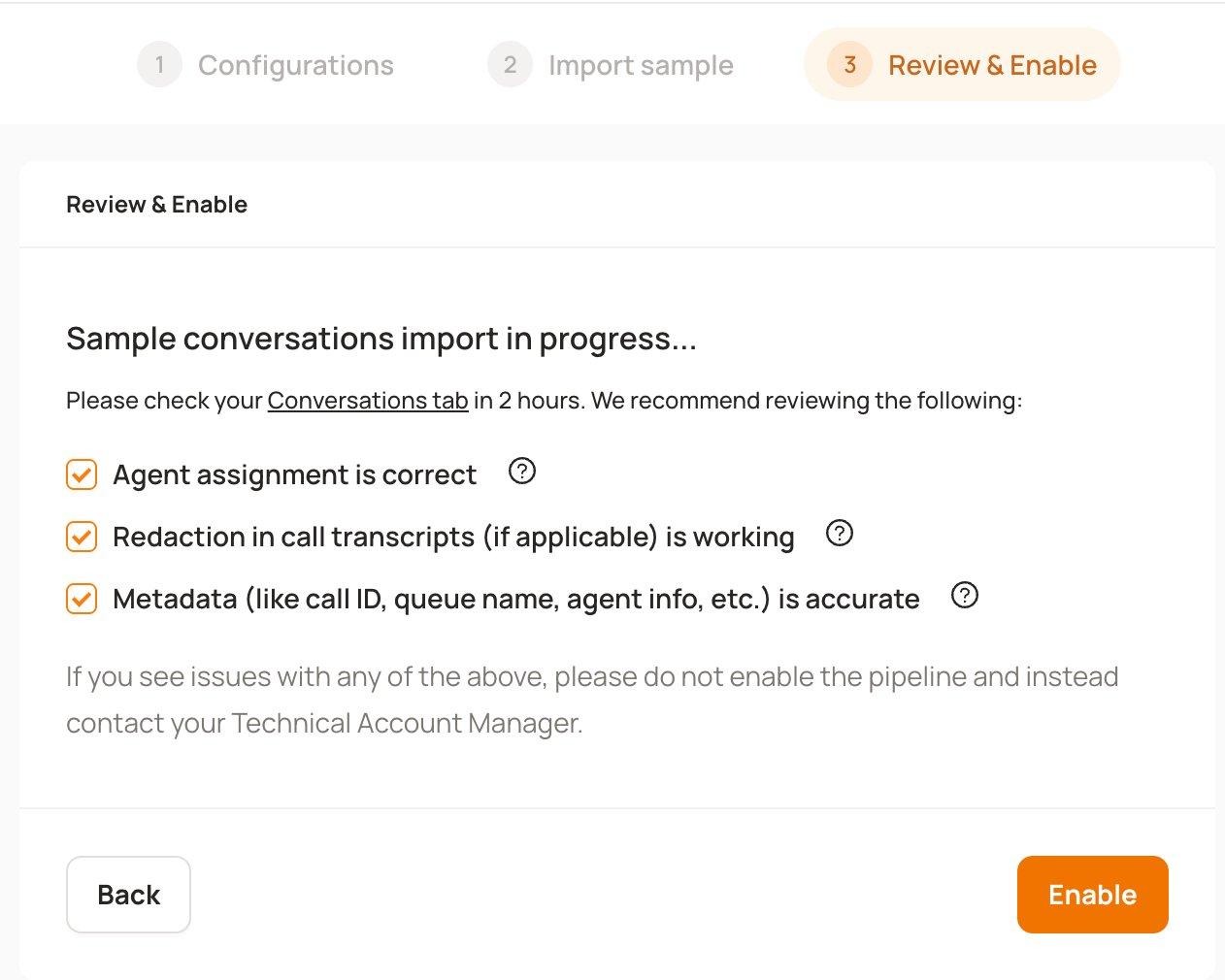
After the sample import begins, please check your Conversations tab in approximately 2 hours. We recommend reviewing the following before enabling the pipeline:
Agent assignment is correct — verify that conversations are assigned to the right agents.
Redaction in call transcripts is working — confirm that sensitive data is being properly redacted (if applicable).
Metadata is accurate — check that call ID, queue name, agent info, and other metadata are correct.
If you see issues with any of the above contact your Technical Account Manager for assistance.
Once everything looks good, click Enable to activate the full data ingestion pipeline.
Step 6: Managing and Disconnecting Your Account
After the integration is set up, you can manage your connected account from the Dialpad Integration page. Click the three-dot menu next to your account to access the following options:
Configure — re-open the configuration wizard to update your settings.
Rename — change the display name of the connected account.
Disconnect — remove the connection between Level AI and your Dialpad account. This will stop all ongoing and scheduled data ingestions until re-connected.
NOTE
Disconnecting is irreversible. The integration will be removed by clearing the authentication between Level AI and Dialpad. All ongoing and scheduled data ingestions will be terminated until re-installed. Conversations ingested would remain as is and will not be deleted.
Help & Support
For any help related to the integration, reach out to us at support@thelevel.ai.