How do I access the Customer Portal and create a support ticket?
Last updated: July 16, 2026
This article is for → Superadmins, Admins, QA Auditors, Managers, Agents
Overview
The Customer Portal lets Admins and Superadmins create support tickets and review tickets submitted for their organization.
Users with other roles can submit a support request through the Support button within Level AI and review it on the Customer Portal.
IMPORTANT
Portal access and ticket visibility may vary depending on the user’s assigned role and permissions.
How do I create a new support ticket?
You can create a new support ticket from inside Level AI. For this:
Sign in to Level AI.
Click Support at the top right of your screen.
In the support panel, click Report an issue.
The ticket form opens on the right side of the screen.
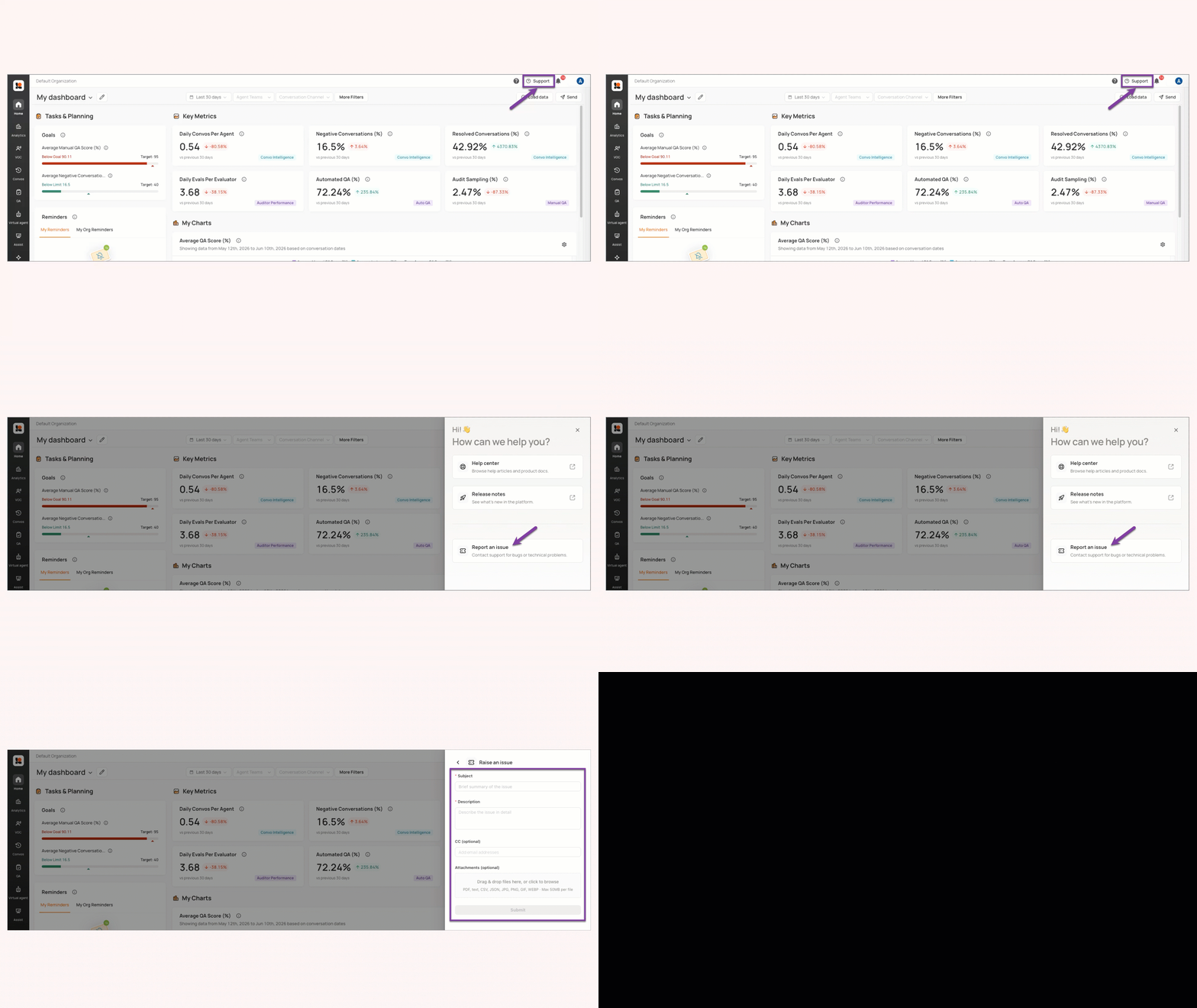
In the form, enter a clear title in the Subject field.
Example: Audio quality degraded on outbound calls
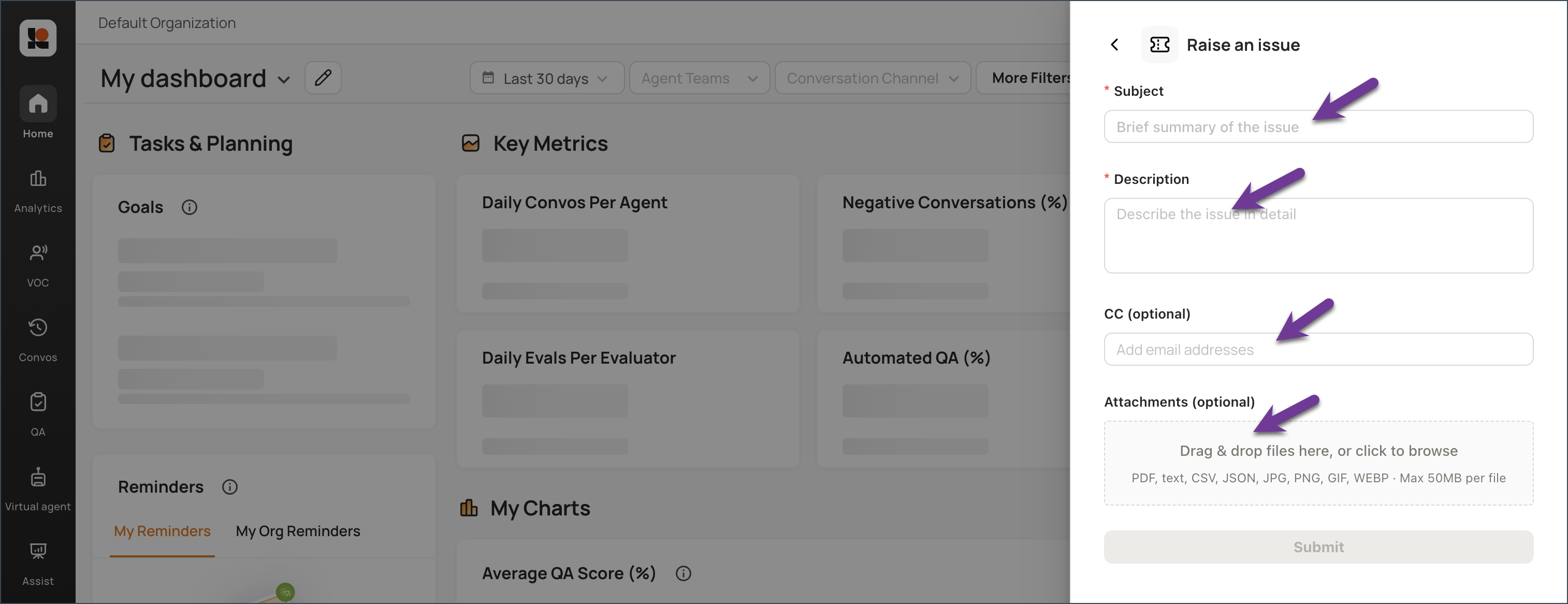
In the Description field, include:
What is happening
Steps to reproduce the issue
What you expected to happen
What actually happened
Optional: Add teammates in CC if they should receive updates.
Optional but recommended: Add files in Attachments, such as screenshots, screen recordings, or log files.
INFO
You can add as many attachments as required, upto a maximum of 100 MB.
The size of an individual attachment must not exceed 50MB.
Click Submit.
On the confirmation screen, note the ticket number.
Click View issue to open the ticket in the Customer Portal and track its status.
Send your question or issue to support@thelevel.ai.
What should I include in the ticket description?
Your ticket description should help the support team understand and investigate the issue. Make sure to include:
What you were trying to do
The steps you followed
What you expected to happen
What actually happened
Any affected examples, such as call IDs, conversation examples, or screenshots, if available
Example: When reviewing outbound calls, the audio becomes distorted after the first 30 seconds. I expected the recording to play clearly. This happened on multiple calls today. I have attached a screen recording and examples.
TIP
The more specific your description is, the easier it is for the support team to investigate the issue.
Support Hours
Monday through Friday, from 8:00 AM Eastern Standard Time (EST) to 8:30 PM Eastern Standard Time (EST).
Tickets submitted outside of our operating hours will be addressed the next business day.
Support Ticket Prioritization
Priority | Description | Business Days Response Target | Non-Business Days/Holidays Response Target | Resolution Target |
P1 Urgent | Critical issue affecting all users; system-wide outage. | Up to 4 hours | 24 hours | Up to 24 hours |
P2 High | A major feature is not working or is significantly underperforming, affecting a large group of active users or conversations. | Up to 8 hours | Up to 48 hours | Up to 1-5 business days |
P3 Normal | A technical issue or platform defect affecting a small group of users without blocking critical workflows. | Up to 16 hours | Up to 48 hours | Up to 30 days |
P4 Low | A technical issue or defect affecting some features, but users continue to work with reduced efficiency. | Up to 32 hours | Up to 48 hours | Next major release |
Note:
The above SLAs apply specifically to questions or defects within the Level AI platform.
Enhancements and new feature requests are outside the scope of these SLAs and are shared with our Product team for evaluation. For updates on these requests, please reach out to your Technical Account Manager (TAM).
Where can I track my submitted ticket?
You can track submitted tickets from the Issues page in the Customer Portal.
FAQs and Troubleshooting
Issue: I cannot find the Support button in Level AI.
Solution: Check the top-right area of the top navigation bar. If you still cannot see it, contact your Level AI administrator.
Issue: I clicked Support, but I do not see the ticket form.
Solution: In the support panel, click Report an issue. The Raise an issue form opens on the right side of the screen.
Issue: I want to see my organization’s existing support tickets.
Solution: Open https://portal.usepylon.com/level-ai and sign in. The Issues page lists tickets for your organization.
Issue: I forgot my ticket number.
Solution: Open the Customer Portal and check the Issues page for your submitted ticket.
Issue: I need teammates to receive updates.
Solution: Add their email addresses in the CC field before submitting the ticket.
Issue: I have multiple examples of the same issue.
Solution: Create one ticket and add all related examples, screenshots, recordings, or logs to that ticket.
Issue: I want faster access to the portal later.
Solution: Bookmark https://portal.usepylon.com/level-ai. Press Ctrl+D on Windows/Linux or Cmd+D on Mac.