User Role Assignment
Last updated: June 17, 2026
This article is for → Superadmins and Organization Admins who manage user roles and SCIM/ Okta configuration for your Level AI instance.
What is the Role Engine?
The Role Engine is a rules-based system that automatically assigns roles to users in Level AI based on their user attributes (for example: department, title, location) sent from external systems such as Okta.
By using the Role Engine, you can:
► Keep roles in sync with your identity provider (like Okta).
► Avoid manually updating roles every time someone changes teams or responsibilities.
► Maintain consistent role logic across your entire organization.
How does the Role Engine work?
The Role Engine uses rules that you define. Each rule is based on one or more user attributes. When a user’s attributes match the rule conditions, Level AI assigns the role specified in that rule.
Logic Example
To automatically assign a QA auditor role:
IF the user’s department attribute equals "QA" → THEN assign the “QA Auditor” role in Level AI
You can create similar rules using other attributes such as:
title(e.g., “Team Manager”)location(e.g., “US Support”)any custom attribute you configure and pass from Okta
NOTE
The Role Engine checks users and applies rules on a scheduled basis (hourly). Role changes are not instant and can take up to 1 hour to appear.
Prerequisites: Okta setup
You must give at least one attribute from Okta that Level AI can use to determine a user’s role.
(A) Identify the attribute(s)
Decide which attribute (or combination of attributes) in Okta should be used to identify the user's role and thereby, drive your organization's role logic.
Example
department(QA, Support, Sales,..)employeeType(Manager, Agent,..)A custom attribute such as
customRoleCode(QA_AUDITOR, SUPERVISOR, etc.)
(B) Configure the attribute in Okta
In Okta:
Check if the attribute already exists on the Okta User Profile.
If yes, it simply needs to be sent to Level AI.
If the attribute does not exist, create a new attribute on the Okta User Profile by following the steps in this Okta SCIM support article.
Populate the attribute values for your users in Okta (for example, set department = QA for all QA users).
Once this is done, Okta will send these attributes to Level AI via SCIM, and they will be available in the Role Engine.
How to set up a Role Engine rule in Level AI
In Level AI, from the left nav bar, click Settings → Role Engine.
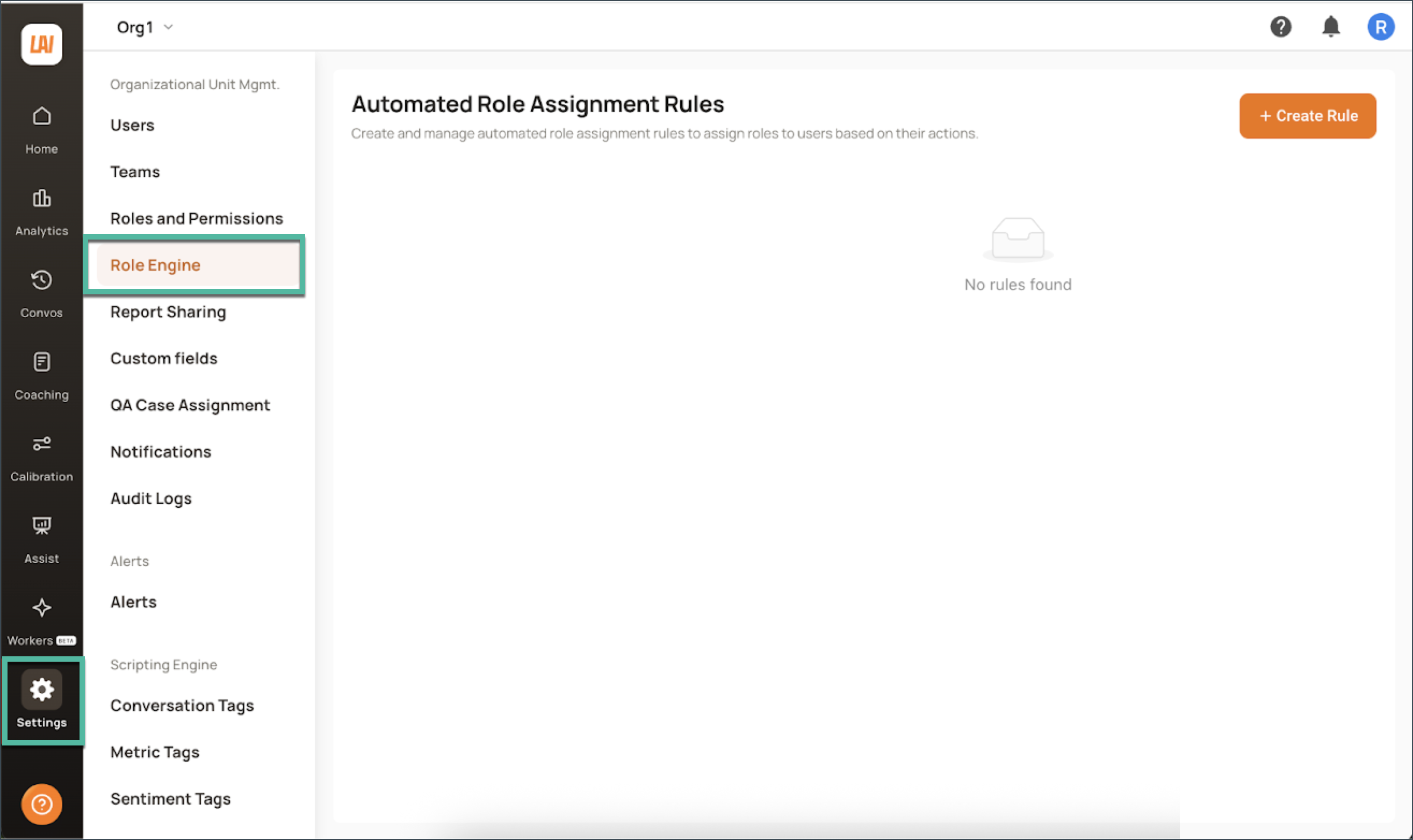
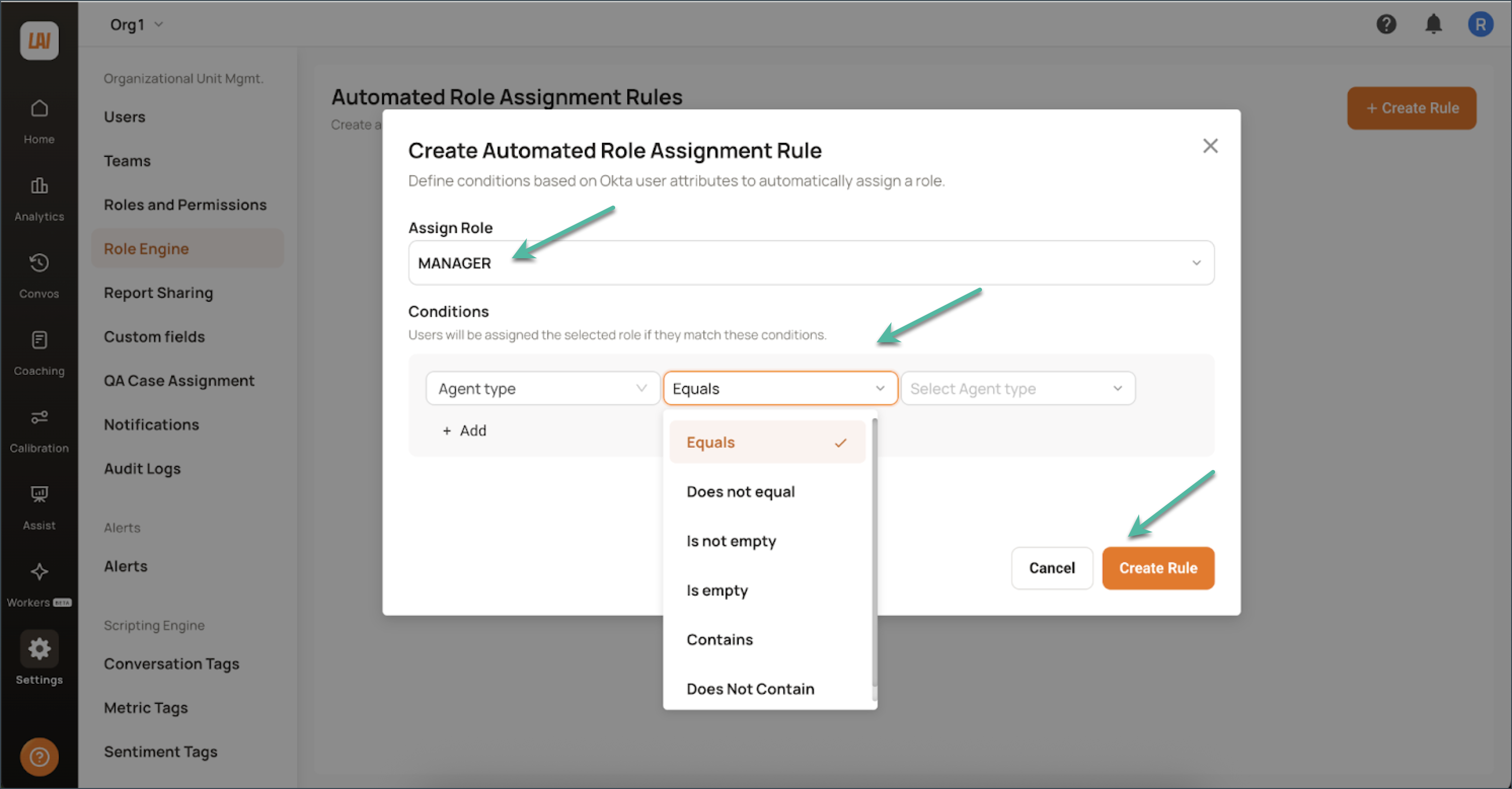
Click Create Rule.
In the Assign Role dropdown, select the Level AI role you want to assign (for example, Manager, QA Auditor, etc.).
Add conditions:
Choose the attribute (for example,
department)Select the operator (for example,
equals)Enter the value (for example,
QA)
Example:
Role = Manager
Condition =departmentequalsSupport
Any user whosedepartmentattribute isSupportwill be assigned the Manager role.
Click Create Rule to save it.
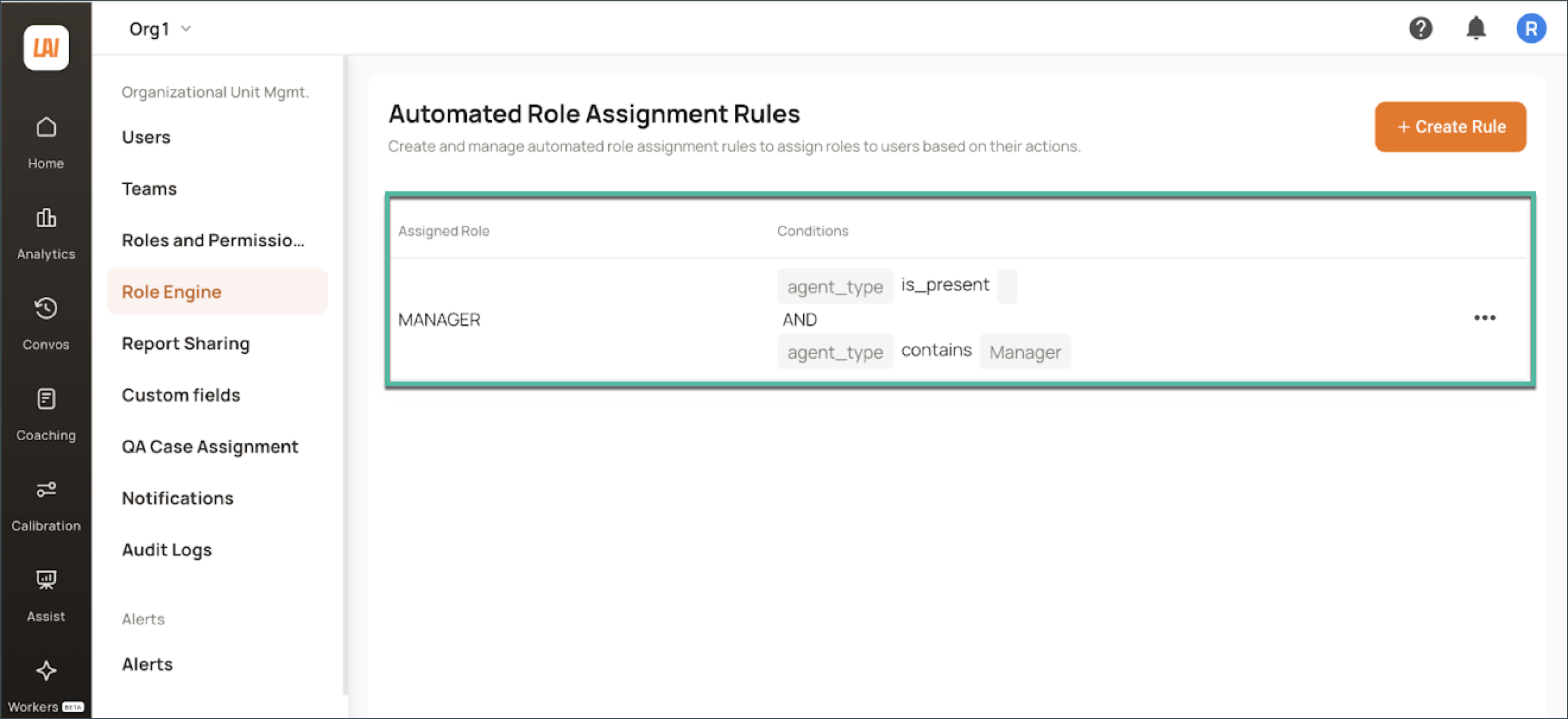
You will now see the rule listed on the Role Engine page.
When are roles updated?
The Role Engine runs on an hourly schedule.
New rules and attribute changes in Okta will be applied during the next run.
Allow up to 1 hour for user roles to update in Level AI after:
Creating or editing a rule, or
Changing user attributes in Okta.
If roles do not update after an hour, verify that:
The attribute and value are correctly set in Okta.
The attribute is being sent to Level AI via SCIM.
The rule conditions in the Role Engine match the attribute and value.